
- Top Pick: NVIDIA Shield Remote; Voice Search, Motion-Activated, Backlit Buttons, Customizable Menu Buttons, and IR Blaster to Control Your TV (930-13700-2500-100)
- Best Value: Nvidia Geforce RTX 2060 Super Founders Edition Graphics Card (Renewed)
- Premium Choice: Nvidia GTX TITAN X 12GB GDDR5 PCI-e x16 3 x DisplayPort | DVI | HDMI Graphics Video Card


Prime
Limited Time
maxsun GEFORCE GT 710 2GB Low Profile Ready Small Form Factor Video Graphics Card GPU Support DirectX12 OpenGL4.5, Low Consumption, VGA, DVI-D, HDMI, HDCP, Fanless Cooling
If you own a GeForce card, nvidia shadowplay is one of the most useful free tools you may not be using to its full potential. Built to record and stream your gameplay with almost no performance cost, it lets you capture epic moments, create content, or save clips without paying for extra software. This guide explains exactly what ShadowPlay is, how to set it up and configure it for the best results, the problems people run into and how to fix them, and whether it is the right recording tool for you.
As an Amazon Associate we earn from qualifying purchases at no extra cost to you.





What Is Nvidia ShadowPlay?
Before setting it up, it helps to understand what ShadowPlay actually is and why it earned such a strong reputation among gamers. Built into Nvidia’s software and powered by dedicated hardware, it takes a smarter approach to recording than many alternatives. Here is what makes it special.
The Free Recording Tool for GeForce Cards
ShadowPlay is Nvidia’s built-in game recording and streaming feature, included free with GeForce graphics cards through the Nvidia app. There is nothing extra to buy, which makes it an easy first choice for anyone with compatible hardware.
It is designed specifically for capturing gameplay, offering a simple way to record your screen, save highlights, and broadcast to streaming platforms. Because it is made by Nvidia for Nvidia cards, it integrates tightly with your system.
For GeForce owners, this means high-quality recording is already available at no cost. Rather than hunting for third-party software, you can capture your best gaming moments with a tool that is built right into the drivers you already have.
This built-in nature is a bigger advantage than it sounds. Because ShadowPlay is maintained alongside your graphics drivers, it stays compatible with new games and Windows updates without extra effort on your part. For most GeForce owners, that means one less piece of software to install, update, and troubleshoot separately.
Instant Replay, Manual Recording, and Broadcasting
ShadowPlay offers several capture modes to suit different needs. Instant Replay continuously records in the background and lets you save the last several minutes on command, which is perfect for catching a great moment you did not know was coming.
Manual recording works like a traditional capture, starting and stopping when you choose, ideal for recording full sessions or planned content. Broadcasting, meanwhile, lets you stream directly to popular platforms without separate software.
These modes cover the vast majority of what gamers want to do. Whether you are saving spontaneous highlights, recording a full match, or going live, ShadowPlay has a mode built for the job.
Instant Replay in particular is the mode most owners come to love. Because it is always recording in the background, it captures the moments you could never have planned for, from a clutch play to a hilarious glitch. Saving one is as simple as pressing a hotkey after it happens, which no manual recorder can match.
Why It Uses Almost No Performance
ShadowPlay’s biggest technical strength is that it records with minimal impact on your frame rates. It achieves this by using NVENC, a dedicated video encoder built into GeForce GPUs, which handles recording separately from the main graphics workload.
Because a dedicated part of the hardware does the encoding, your game keeps running smoothly while you record. This is a major advantage over software-based recorders that can noticeably reduce performance during capture.
This efficiency is the forward-looking heart of ShadowPlay’s appeal. It lets you record demanding games at high quality without sacrificing the smooth gameplay experience, which is exactly what serious gamers and content creators need.
This hardware advantage becomes more valuable the more demanding your games are. On a heavy title where every frame counts, a software recorder that steals performance can ruin the experience you are trying to capture. ShadowPlay sidesteps that problem entirely, letting you play and record at full quality at the same time.
How to Set Up and Use Nvidia ShadowPlay
Getting started with ShadowPlay is straightforward once you know where to look, and a few settings make a big difference to your results. From enabling the feature to dialing in quality, here is how to configure it for the best balance of image quality and file size.
Enabling ShadowPlay in the Nvidia App
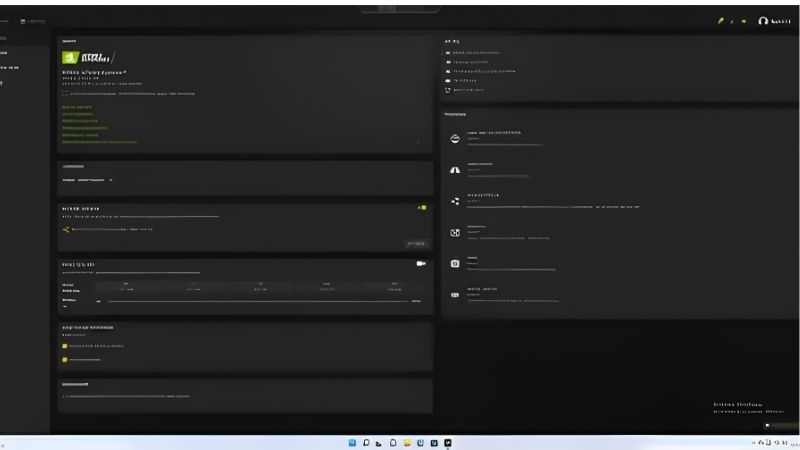
ShadowPlay lives within the Nvidia app, so the first step is to install the app and sign in. From there, you enable the in-game overlay, which is the gateway to all of ShadowPlay’s recording and streaming features.
Once the overlay is on, you can access Instant Replay, manual recording, and broadcasting through a simple menu or keyboard shortcuts. Turning on Instant Replay is a smart default so highlights are always ready to save.
The setup process takes only a few minutes, and after it is done, recording is as simple as pressing a hotkey. For most users, enabling the overlay and Instant Replay is all they need to start capturing gameplay.
It is worth spending a moment learning the default hotkeys, or setting your own, once the overlay is on. Knowing the shortcuts to save a replay, start a recording, or open the menu means you can capture and control everything without leaving your game, which keeps the whole experience smooth and distraction-free.
Best Settings for Quality and File Size
The key settings to adjust are resolution, frame rate, and bitrate. Recording at your game’s resolution and a high frame rate gives smooth, sharp footage, while bitrate controls the balance between quality and file size.
A higher bitrate produces better-looking video but larger files, so match it to your storage and purpose. For sharing online, a moderate bitrate keeps files manageable, while archiving or editing benefits from a higher setting.
It is worth experimenting to find your ideal balance. Recording a short test clip and checking both the quality and the file size lets you dial in settings that suit your storage space and how you plan to use the footage.
Common Problems and Fixes
The most common issue is ShadowPlay not recording, which usually traces back to the in-game overlay being disabled or a permissions setting. Confirming the overlay is enabled resolves many cases immediately.
Other frequent problems include missing audio, which often comes down to audio source settings, and large file sizes, which the bitrate setting controls. Most of these are quick configuration fixes rather than serious faults.
When recording fails entirely, updating your driver through the Nvidia app and restarting the overlay usually clears the problem. As with most Nvidia software, keeping drivers current prevents the majority of these hiccups.
Is Nvidia ShadowPlay Worth Using?
With the setup covered, the honest question is whether ShadowPlay is the right recording tool for you. Weighing its strengths and limits, comparing it to alternatives, and knowing how to get the most from it gives a clear answer. Here is the verdict.
Pros and Cons of ShadowPlay
The pros are compelling. ShadowPlay is free with GeForce cards, records with almost no performance hit thanks to NVENC, offers flexible capture modes, and integrates seamlessly with your system. For GeForce owners, that is an outstanding package.
The cons are modest. It is limited to Nvidia hardware, its editing features are basic compared with dedicated software, and some users want more advanced control than it offers. For simple, high-quality gameplay capture, though, these rarely matter.
Weighed together, ShadowPlay is an excellent tool for the vast majority of gamers who want to record or stream without hassle or cost, and only falls short for those needing advanced production features.
ShadowPlay vs Other Recording Software
Compared with popular third-party recorders, ShadowPlay’s standout advantage is its low performance impact and zero cost for GeForce owners. Many alternatives are more demanding on your system or require setup and payment.
Where dedicated software pulls ahead is in advanced features, such as scene composition, extensive editing, and support for non-Nvidia hardware. Serious streamers often pair ShadowPlay with, or switch to, more powerful tools for complex productions.
For most gamers, though, ShadowPlay covers the essentials beautifully. Unless you need advanced production control, its simplicity, quality, and efficiency make it the easiest and often best choice for capturing gameplay.
A sensible approach for many creators is to start with ShadowPlay and only move to heavier software if they hit its limits. For clips, highlights, and straightforward recordings it is more than enough, and you can always add dedicated tools later if your ambitions grow toward complex, produced content.
Getting the Most From It
To maximize ShadowPlay, keep Instant Replay running so you never miss a great moment, tune your bitrate for the right quality-to-size balance, and keep your drivers current through the Nvidia app for the smoothest experience.
Of course, high-quality recording benefits from a capable GeForce card, since both your gaming and your capture rely on the GPU. A stronger card means smoother gameplay and more headroom for recording at high settings.
If you want to record and stream at their best and are considering a GPU upgrade, comparing current GeForce cards is a smart move. Use the links on this page to find a card that delivers great gaming and effortless capture with ShadowPlay.
See More:
- nvidia meaning
- rx 9070 vs rx 9070 xt
- 9060 xt 16gb vs 5070 ti
- radeon rx 9070 xt vs 5080
- windows graphics driver update
Conclusion
For GeForce owners, nvidia shadowplay is a genuinely excellent free tool that makes recording and streaming gameplay simple, high-quality, and nearly effortless thanks to its dedicated NVENC encoder. With flexible capture modes, easy setup in the Nvidia app, and minimal performance impact, it covers the needs of the vast majority of gamers and content creators without costing a cent. To get the very best results, keep your drivers current and pair it with a capable card. If you are ready to upgrade, compare the latest GeForce cards through the links on this page and record your best moments with ease.
Frequently Asked Questions
What is ShadowPlay and where do I find it now?
ShadowPlay is Nvidia hardware-accelerated game capture that records using the GPU dedicated NVENC encoder instead of the CPU. It previously lived in GeForce Experience and now sits in the Nvidia app overlay, opened by default with Alt plus Z, where recording, instant replay and broadcast options are grouped.
How much performance does recording cost?
Because encoding runs on a dedicated hardware block, the performance impact is typically small, often only a few percent. The cost rises if you record at high resolution and bitrate to a slow drive, or if instant replay keeps a long buffer while the game already saturates VRAM.
What is Instant Replay and how should I configure it?
Instant Replay continuously buffers the last stretch of gameplay in memory and saves it only when you press the hotkey, which is ideal for capturing moments you did not plan for. Keep the buffer between thirty seconds and five minutes, since longer buffers consume more memory and disk throughput.
Which codecs and settings should I use?
H.264 is the most compatible choice, HEVC gives better quality per bitrate, and AV1 encoding is available on Ada and Blackwell cards for the best efficiency at high resolutions. For 1080p60 uploads, a bitrate around 30 to 50 Mbps in H.264 is a solid balance of quality and file size.
Why is ShadowPlay not recording or showing a black screen?
Common causes are missing desktop capture permission, the game running in exclusive fullscreen with an incompatible overlay, HDR capture mismatches, or a third-party overlay conflicting with the Nvidia one. Enable desktop capture in settings, switch the game to borderless windowed, and disable competing overlays to isolate the problem.











Write Your Review
No reviews yet. Be the first to share your experience!