
- Top Pick: NVIDIA Quadro P2200 Video Graphic Cards (VCQP2200-SB)
- Best Value: The NVIDIA Full Stack: From CUDA Kernels to Cloud-Native AI Deployment
- Premium Choice: THE NVIDIA RTX 5090 USER GUIDE: Step-by-Step Installation, Overclocking Tips, Driver Optimization, System Compatibility, and Pro Gamer Techniques for … Ray Tracing, and AI-Accelerated Workloads
CUDA Nvidia driver questions almost always come down to one table and one misunderstanding. The table is which driver version each CUDA release needs. The misunderstanding is what nvidia-smi is telling you — because the number it prints labelled “CUDA Version” is not the CUDA you have installed, and that single confusion generates more wasted hours than every other CUDA problem combined. Both are below, along with the error messages that brought you here. Scan the tables, take what you need, get back to work.
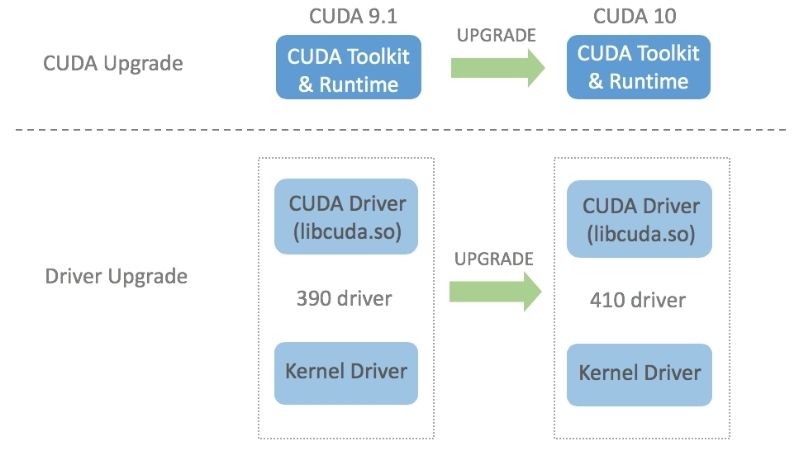
How the CUDA Nvidia Driver Stack Fits Together
Four layers, installed by four different mechanisms, that must agree with each other. Nearly every CUDA error is one of them disagreeing with another — not a hardware fault, not a broken card, just a version mismatch wearing an intimidating error message.
Driver, Toolkit and Runtime Are Three Different Things
The driver talks to the hardware and ships with a CUDA driver API built in. The CUDA Toolkit is a compiler (nvcc), libraries and headers — a development kit, installed separately. The CUDA runtime is what your compiled application links against, and it can be bundled inside your Python wheel rather than installed system-wide.
This is why a machine can have a perfectly healthy driver, nvidia-smi printing beautifully, and still fail to compile a kernel: you have a driver but no toolkit. And it is why PyTorch can work without any system CUDA install at all — the wheel carries its own runtime.
Get this distinction and 80% of CUDA confusion evaporates.
Why nvidia-smi Misleads Everyone
Run nvidia-smi and you see something like “CUDA Version: 12.8” in the top right. People read that as “CUDA 12.8 is installed.” It is not what that field means.
That number is the highest CUDA version your driver supports. It says nothing about what is installed. A machine can print 12.8 there with no toolkit at all, or with CUDA 11.8 installed.
To see what is actually installed, use the other command:
# What the DRIVER supports (a ceiling, not an install)
nvidia-smi

# What the TOOLKIT actually is
nvcc --version

# What your Python stack is really using
python -c "import torch; print(torch.version.cuda, torch.cuda.is_available())"
If nvcc is not found, you have no toolkit — which is fine if you only use pip-installed frameworks, and a problem if you are compiling anything.
Backward Compatibility Is Your Friend
The most useful property of the stack, and the reason “just update the driver” is rarely wrong: drivers are backward compatible. A 570 driver runs CUDA 11.8 workloads without complaint. Newer driver, older CUDA — always fine.
The reverse is not true. Older driver, newer CUDA fails, and it fails with the insufficient-driver error covered further down.
Since CUDA 11, there is also minor version compatibility: an application built against CUDA 11.x runs on any driver supporting 11.x, so you do not need an exact match within a major version. This is why pinning to a specific patch release is usually unnecessary anxiety.
The Compatibility Tables
The reason this page exists. Find your row, note the number, move on.
CUDA Version to Minimum Driver
| CUDA Toolkit | Min driver (Linux) | Min driver (Windows) |
|---|---|---|
| CUDA 11.8 | 450.80.02+ | 452.39+ |
| CUDA 12.0-12.3 | 525.60.13+ | 527.41+ |
| CUDA 12.4-12.6 | 550.54.14+ | 551.61+ |
| CUDA 12.8+ | 570.26+ | 570.x+ |
Note the pattern: the minimum listed for CUDA 11.8 is 450, and any driver above that also runs it. So a machine on a current 610-series driver runs everything in this table. If you are unsure and nothing depends on an old driver, installing the newest one is the safe move.
The exception worth knowing: production servers sometimes pin drivers deliberately for validation reasons. If you are on a shared cluster, do not update the driver — use the compatibility rules to work within what is there.
GPU Architecture to Minimum CUDA
This table runs the other direction and it has one hard line in it.
| Architecture | Example GPUs | Compute cap. | Min CUDA |
|---|---|---|---|
| Pascal | GTX 1060, 1080 | 6.1 | 8.0 |
| Turing | RTX 2060, 2070 | 7.5 | 10.0 |
| Ampere | RTX 3060, 3090, A100 | 8.6 / 8.0 | 11.0 |
| Ada Lovelace | RTX 4060, 4090 | 8.9 | 11.8 |
| Hopper | H100, H200 | 9.0 | 11.8 |
| Blackwell | RTX 5070, 5090 | 12.0 | 12.8 required |
The Blackwell row is not a recommendation, it is a requirement. RTX 50-series cards need CUDA 12.8 or newer, full stop. If you bought a 5070 and your old CUDA 11.8 environment throws “no kernel image is available for execution on the device”, that is what it means — your toolkit does not know sm_120 exists.
The fix is a newer toolkit, not a newer driver. People routinely update drivers repeatedly against this error and get nowhere.
Game Ready, Studio or Data Center?
Three branches, and for CUDA work the difference matters less than people assume.
Game Ready ships fastest, tuned for new game releases. CUDA works fine on it. Studio is the same driver validated against creative and professional applications, on a slower cadence — marginally more stable, functionally identical for CUDA. Data Center drivers are for Tesla and A/H-series cards and support forward compatibility packages that let newer CUDA run on older drivers, which is a datacenter-only capability.
If you have a GeForce card, take Studio if you want fewer updates or Game Ready if you also game. Neither will make your CUDA code faster or slower.
Pros and Cons of Each Install Path
How you get CUDA onto the machine matters more than which version, and most people pick wrong by defaulting to the heaviest option.
Bundled Wheels vs System Toolkit
Since roughly PyTorch 1.13, framework wheels bundle their own CUDA runtime and cuDNN. Install torch with the right index URL and you need no system CUDA at all — just a sufficient driver.
# PyTorch, CUDA 12.8 runtime bundled. No system toolkit needed.
pip install torch --index-url https://download.pytorch.org/whl/cu128
You need the full system toolkit only if you compile CUDA code yourself, build custom extensions, or use a library that requires nvcc at install time. If you are not doing those things, installing the toolkit adds a second CUDA to the machine and creates exactly the conflicts this page is about.
Containers: When to Skip the Host Entirely
The most reliable path if you are on Linux and have more than one project. Install the driver on the host, put everything else in a container, and the version problem stops existing.
# Host needs only: driver + nvidia-container-toolkit
docker run --gpus all -it nvidia/cuda:12.8.0-devel-ubuntu22.04 nvcc --version
The host driver is exposed to the container; the toolkit lives inside. Two projects needing CUDA 11.8 and 12.8 coexist with no conflict at all. This is the answer for anyone maintaining more than one environment, and it is underused because it looks heavier than it is.
Pros and Cons Summary
| Method | Pros | Cons |
|---|---|---|
| pip wheels | One command; no system CUDA; isolated per venv | Duplicated libs; disk-heavy; no nvcc |
| System toolkit | Full nvcc; needed for custom kernels | Highest conflict risk; the usual source of mismatch errors |
| Conda | Reproducible; solves the whole graph | Slow solves; large footprint |
| Containers | Total isolation; multiple CUDAs coexist; matches production | Linux-first; Docker learning curve |
Short version: pip in a venv if you consume frameworks, containers if you juggle projects, system toolkit only if you compile.
Diagnosing the Errors That Brought You Here
Three messages account for most CUDA driver support threads. Match yours and apply the fix.
“CUDA driver version is insufficient for CUDA runtime version”
The clearest error CUDA produces, and it means exactly what it says: your driver is older than your runtime needs. Check both numbers.
nvidia-smi | grep "CUDA Version"     # driver ceiling
python -c "import torch; print(torch.version.cuda)"   # what torch wants
If torch wants 12.8 and nvidia-smi reports 12.1, you have two options: update the driver, or install a torch build for the CUDA you have. On a shared machine where you cannot touch the driver, the second is the answer — reinstall torch with the cu121 index URL instead.
“No CUDA-capable device is detected”
Rarely a real hardware failure. Check in this order.
First, does nvidia-smi list the GPU? If not, the driver is not loaded — on Linux after a kernel update, the module frequently needs a DKMS rebuild. Second, on WSL2, confirm you installed the Windows driver rather than a Linux driver inside WSL, which is the single most common WSL mistake. Third, in Docker, verify you passed --gpus all and that nvidia-container-toolkit is installed on the host.
Fourth, on laptops with hybrid graphics, check that the process is not being routed to the integrated GPU.
Clean Driver Reinstall
The reliable last resort when versions have become a layered mess.
On Windows: uninstall the driver from Settings, reboot into Safe Mode, run Display Driver Uninstaller to strip leftover registry entries, reboot, install the current driver fresh. The DDU step is what actually resolves stubborn cases — a normal uninstall leaves conflicting entries behind.
On Linux: sudo apt purge 'nvidia-*' 'libnvidia-*', reboot, then install from the CUDA keyring repository rather than mixing sources. Mixing distro packages with Nvidia’s .run installer is how machines end up unrecoverable. Pick one channel and stay in it.
See More:
- GTX 1650 vs RTX 3050
- Nvidia DIGITS
- Nvidia cuDNN
- Radeon RX 9070 XT vs RTX 5090
- PNY GeForce RTX 5080 review
Conclusion: Getting the CUDA Nvidia Driver Right
The CUDA Nvidia driver relationship is simpler than the error messages suggest once you hold three facts. nvidia-smi shows a ceiling, not an install — nvcc --version shows the install. Drivers are backward compatible, so a newer driver is almost never the problem and often the fix. And Blackwell needs CUDA 12.8 or newer as a hard requirement, which no driver update will work around.
For most people the right setup is a current driver plus pip-installed framework wheels inside a virtual environment, with no system toolkit at all. Reach for containers when you maintain several projects, and reach for the system toolkit only when you compile your own kernels. Bookmark the two tables above — they are the answer to the question you will have again in three months.
Frequently Asked Questions
Why does nvidia-smi show a different CUDA version than nvcc?
They report different things. The version in the nvidia-smi header is the highest CUDA runtime your installed display driver can support. The nvcc –version output is the toolkit you installed for compiling. It is completely normal and harmless for nvidia-smi to read 12.6 while nvcc reports 12.1.
What is the minimum driver version for each CUDA release?
As a rough guide on Linux, CUDA 11.x needs 450 or newer, CUDA 12.x needs 525 or newer, and each minor 12.x release raises the recommended floor slightly. Windows numbers are a little higher for the same release. Minor version compatibility since CUDA 11 means you rarely need to match exactly.
How does forward compatibility work?
Minor version compatibility lets an application built against any CUDA 12.x toolkit run on a driver that supports any other 12.x release, so you do not need a driver upgrade for every point release. Crossing a major boundary, such as 11 to 12, does still require a driver that meets the new floor.
How do I fix a CUDA driver version is insufficient error?
That message means the runtime your application was compiled against needs a newer driver. Either update the display driver, which is the usual fix, or install an older CUDA toolkit and rebuild. On Linux also check that a leftover distribution packaged driver is not shadowing the one you installed, using dpkg or dnf to list installed nvidia packages.
Should I install the driver bundled with the CUDA toolkit?
Usually no. The bundled driver is typically older than the current release. Select Custom in the Windows installer and untick the display driver, or on Linux install cuda-toolkit rather than the cuda meta package so the driver you already have is left in place.
As an Amazon Associate we earn from qualifying purchases at no extra cost to you.


Ready to decide? Our #1 pick for 2026 is the CUDA 11.8.
Live price & availability on Amazon.










Write Your Review
No reviews yet. Be the first to share your experience!