


Best Nvidia color settings is the single most important step you can take to transform a washed-out monitor into a vibrant, color-accurate gaming or creative powerhouse. Many users plug in a high-end display only to realize that default Windows drivers fail to output the full dynamic range of their graphics cards. By configuring these parameters manually in the Nvidia Control Panel, you can immediately eliminate dull greys, enrich dark shadows, and unlock the true color potential of your GPU.
Check the latest price on Amazon:
As an Amazon Associate we earn from qualifying purchases at no extra cost to you.








Mastering Your Screen: Core Parameters Explained
Before adjusting any sliders on your monitor, you must establish a solid foundation within your graphics card settings. The Nvidia Control Panel acts as the central command center for how your graphics processor packages and sends color signals to your screen. If these settings are misconfigured at the driver level, your monitor will receive a degraded signal, rendering any physical screen adjustments completely ineffective.
In this section, we will explore the essential software adjustments required to deliver a pure, uncompressed visual output to your display. By mastering these configurations, you will ensure your system delivers deeper blacks, brighter highlights, and smoother color transitions.
Adjusting Desktop Color Settings in Nvidia Control Panel
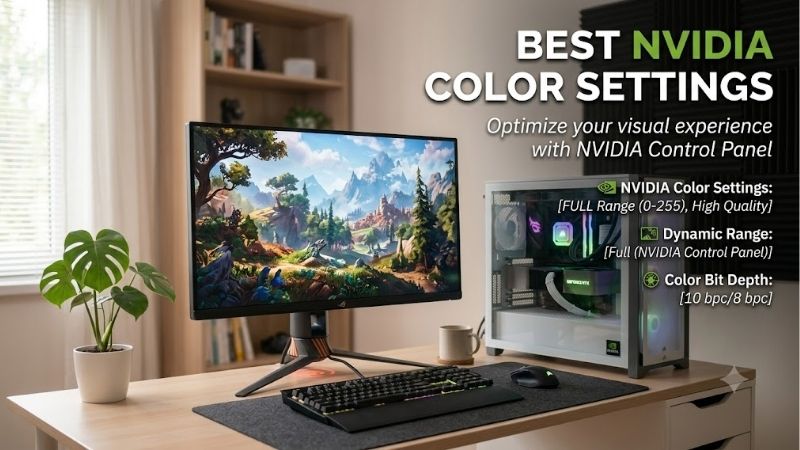
To begin optimizing your visual output, right-click your desktop and open the Nvidia Control Panel, then navigate to the “Adjust desktop color settings” option under the Display menu. By default, Windows allows other applications to manage your color profiles, which often results in inconsistent visual quality across different programs. To take full manual control, check the option labeled “Use Nvidia settings” to bypass automated software overrides.
Once enabled, your first focus should be on the “Digital Vibrance” slider, which acts as a smart saturation control. While default Windows rendering can appear sterile, increasing Digital Vibrance to between 55% and 65% makes colors pop without causing extreme oversaturation or skin tone distortion. Additionally, adjusting the “Gamma” slider slightly down to 0.95 or 1.00 can enhance image depth, particularly on budget panels that suffer from a naturally washed-out appearance.
Output Color Format and Dynamic Range Configurations
The most critical step in configuring your graphics driver lies within the “Change resolution” tab of the Nvidia Control Panel. Scroll down to the bottom of this page to locate the color settings, select “Use Nvidia color settings,” and locate the “Output dynamic range” dropdown. By default, many systems default this setting to “Limited” (16-235), which crops your deepest blacks and brightest whites, leaving your screen looking like it is covered in a grey fog.
Changing this setting to “Full” (0-255) immediately instructs your graphics card to utilize the entire spectrum of light and dark details. Next, ensure your “Output color format” is set to “RGB” for standard computer monitors, or “YCbCr444” if you are outputting to a high-end HDR television. Finally, verify that your “Output color depth” is configured to the maximum supported limit of your hardware, which is typically 8-bit for budget displays and 10-bit or 12-bit for HDR-capable screens.
The Pros and Cons of Optimizing Nvidia Color Parameters
Manually adjusting your GPU color profiles offers tremendous benefits, but there are minor trade-offs to keep in mind depending on your daily workload. Understanding these advantages and disadvantages will help you find the perfect balance between vibrant gaming visuals and accurate professional workspaces.
Pros:
- Instant Visual Upgrade: Eliminates the washed-out “grey fog” effect by unlocking the true dynamic range of your display panel.
- Competitive Edge: Elevates dark visibility and color separation in competitive multiplayer games, making it easier to spot targets in shadows.
- Cost-Efficient Improvement: Significantly boosts the visual punch and clarity of budget monitors without requiring expensive hardware upgrades.
Cons:
- Calibration Drift: Manual driver-level adjustments can conflict with professional photo and video editing software that requires strict sRGB standards.
- Color Banding: Pushing digital vibrance or gamma values too far on cheap 8-bit panels can result in visible color banding across smooth gradients.
- System Resets: Major Windows updates or graphics driver reinstalls can occasionally revert your custom Nvidia configurations to default values.
Top Monitors to Fully Showcase Nvidia Color Settings
To truly appreciate the visual depth offered by optimized driver settings, your computer must be paired with high-quality display hardware. While driver-level tweaks can vastly improve a low-end screen, high-performance monitors feature the native contrast, panel bit-depth, and backlight technology required to display true 10-bit color. Below, we look at the top three displays currently on the market that pair perfectly with Nvidia graphics cards.
The Hook & Quick Recommendation
Whether you are a competitive esports athlete, a digital content creator, or a casual gamer seeking cinematic immersion, your display choice dictates your overall experience. Selecting the right panel ensures that your custom color profiles translate into breathtaking, real-world visual performance.
- Best Overall: ASUS ROG Swift PG27AQDM — Unmatched speed, infinite contrast, and spectacular OLED color depth.
- Best Budget: Gigabyte M27Q — Incredible 1440p value featuring high sRGB coverage and superb everyday clarity.
- Best Premium: Alienware AW3423DWF — The ultimate QD-OLED ultrawide experience for cinematic gaming and immersive creator workloads.
Monitor Performance Comparison
| Monitor Model | Panel Type | Native Resolution | Peak Refresh Rate | Peak HDR Brightness | Color Depth Support |
|---|---|---|---|---|---|
| ASUS ROG Swift PG27AQDM | WOLED | 2560 x 1440 | 240Hz | 1000 nits | True 10-bit (RGB Full) |
| Gigabyte M27Q | Super Speed IPS | 2560 x 1440 | 170Hz | 350 nits | 8-bit + FRC (RGB Full) |
| Alienware AW3423DWF | QD-OLED | 3440 x 1440 | 165Hz | 1000 nits | True 10-bit (RGB Full) |
ASUS ROG Swift PG27AQDM – Best Overall OLED Experience
The ASUS ROG Swift PG27AQDM is an absolute masterpiece for gamers who want to experience the absolute peak of color depth and response times. Utilizing a premium WOLED panel, this display delivers self-lit pixels that can turn off completely, achieving a true infinite contrast ratio. When paired with full dynamic range output settings, dark scenes in horror games or night-time cinematic sequences become incredibly lifelike, devoid of the backlight bleed common to traditional LCD monitors.
With a blistering 240Hz refresh rate and a near-instantaneous 0.03ms response time, this monitor is as fast as it is beautiful. Its anti-glare micro-texture coating handles ambient reflections exceptionally well, preserving rich black levels even in brighter rooms. When you feed this monitor a true 10-bit color signal from your Nvidia GPU, the gradients look perfectly smooth, highlighting subtle details in smoke, fog, and sunbursts.
Check the latest price on Amazon.
Gigabyte M27Q – Best Budget Color Accuracy
For gamers and professionals looking to maximize their visual setup without spending a fortune, the Gigabyte M27Q is an outstanding mid-range contender. This monitor features a 27-inch Super Speed IPS panel that balances fast pixel response times with wide viewing angles and highly accurate color representation. It natively covers 92% of the demanding DCI-P3 color gamut, making it a highly capable screen for casual photo editing and immersive gaming alike.
Because the M27Q utilizes an 8-bit + FRC panel, configuring your graphics card to output a full RGB signal yields a remarkably rich image. The display features a built-in KVM switch, allowing you to control multiple computers with a single mouse and keyboard, adding superb functional value. While its native contrast ratio cannot match OLED alternatives, its high brightness and color vibrancy make it a standout choice for its class.
Check the latest price on Amazon.
Alienware AW3423DWF – Best Premium Ultrawide Performance
The Alienware AW3423DWF is widely considered the holy grail of immersive gaming monitors, featuring an expansive 34-inch curved QD-OLED panel. By combining the infinite contrast of OLED with quantum dot technology, this display produces some of the most vibrant, saturated colors ever seen on a consumer screen. It covers an outstanding 99.3% of the cinematic DCI-P3 color space, allowing you to experience colors that traditional displays simply cannot physically reproduce.
Its subtle 1800R curve wraps around your field of view, pulling you deep into virtual environments while maintaining superb color consistency from edge to edge. The 165Hz refresh rate keeps gameplay exceptionally smooth, while AMD FreeSync Premium Pro and Nvidia G-Sync compatibility ensure tear-free visuals. When configured with a 10-bit color depth and full dynamic range, this monitor delivers breathtaking HDR performance that makes gaming feel entirely new.
Check the latest price on Amazon.
Market Trends and Smart Purchasing Strategies in 2026
The landscape of PC hardware and display technology has shifted dramatically throughout 2026, driven by unprecedented global industrial demand and changing manufacturing priorities. For gamers and PC enthusiasts, understanding these macroeconomic shifts is vital to making informed purchasing decisions. If you are planning to upgrade your display or graphics card, navigating these market realities can help you secure the best value before prices climb higher.
In this section, we analyze how global semiconductor trends and production realities affect the availability and cost of your gaming components. Keeping an eye on these developments will ensure you time your upgrades perfectly to avoid unnecessary markups.
How Nvidia AI Chip Supply Shifts Impact Consumer GPU Availability
The global semiconductor market in 2026 continues to be dominated by the explosive demand for high-performance artificial intelligence chips. Following recent regulatory adjustments, the United States government has permitted Nvidia to sell its highly advanced H200 AI processors—with specific architectural modifications—to Chinese markets. This development has massive ramifications for regular PC gamers and hardware consumers worldwide.
Because enterprise AI products like the H200 yield immense profit margins, Nvidia and its manufacturing partners at TSMC have heavily prioritized silicon wafer allocation toward AI accelerators rather than consumer graphics chips. Consequently, production lines for consumer GPUs, such as the current-generation RTX 50-series, face highly constrained supply windows. This supply squeeze means that high-end consumer graphics cards are likely to remain in tight supply throughout the year, suggesting that buyers should grab available stock at MSRP rather than waiting for deep seasonal discounts that may never materialize.
Navigating Rising PC Component and Display Costs in 2026
Compounding the GPU supply constraints, the wider PC component industry is experiencing a steady upward pricing trend heading into the latter half of 2026. Global inflation, rising raw material costs, and increased logistics expenses have forced manufacturers to adjust their retail pricing across monitors, motherboards, and power supplies. Memory components, such as high-bandwidth GDDR6X for graphics cards and high-density DDR5 for system memory, have seen sequential price hikes due to packaging supply bottlenecks.
This upward pressure is also affecting display manufacturing, where premium panel technologies like OLED and Mini-LED remain expensive to produce at scale. As manufacturing lines operate at near-maximum capacity to serve commercial display clients, consumer monitor inventory is expected to face periodic shortages. For gamers looking to assemble a new gaming setup or upgrade an existing display, the prevailing advice is to secure essential hardware now, before these compounding supply chain pressures translate into higher retail price tags across major online platforms.
A Complete Buying Guide for Color-Accurate Hardware
When shopping for a new monitor to showcase your graphics card’s potential, you must look past simple marketing buzzwords and evaluate core performance metrics. The first specification to analyze is color gamut coverage, which indicates the range of colors a monitor can physically display. Look for screens that offer at least 99% sRGB coverage for general gaming and office work, or 90% or higher DCI-P3 coverage if you plan to view HDR content or perform professional creative work.
Secondly, pay close attention to the panel technology: IPS panels offer excellent color accuracy and wide viewing angles, while OLED panels deliver unmatched contrast ratios and zero backlight bleed. Finally, ensure the monitor features modern connectivity standards, such as DisplayPort 1.4 or HDMI 2.1, which provide the high bandwidth required to run high resolutions and fast refresh rates while outputting a full, uncompressed 10-bit color signal.
Frequently Asked Questions About Nvidia Color Profiles
Configuring your system’s visual output can occasionally lead to unexpected software quirks or compatibility issues. Because Windows interacts with graphics drivers and monitor firmwares in complex ways, users often run into minor setup hurdles. Below, we address some of the most common questions regarding color profiles to help you maintain a flawless visual experience.
Why does my Nvidia color reset after rebooting?
One of the most frustrating issues users face is having their custom color configurations revert to washed-out default values every time they restart their computer. This issue is almost always caused by a software conflict, where a third-party application or Windows itself is overriding the Nvidia Control Panel’s authority. Common culprits include proprietary monitor companion software, custom f.lux profiles, or native Windows features like “Night Light.”
To permanently resolve this issue, open the Nvidia Control Panel, navigate to “Adjust desktop color settings,” and ensure that “Use Nvidia settings” is checked. Next, open the Windows Settings app, go to Display, and disable “Night Light” or any automated HDR switching utilities. If you use color calibration tools like DisplayCAL, make sure their background loader services are set to run after the Nvidia Helper Service has finished initializing during your system’s boot sequence.
Is RGB Full dynamic range better than Limited for gaming?
For the vast majority of PC monitors connected via DisplayPort or HDMI, configuring your output to RGB Full is objectively superior for gaming. The Full setting utilizes the entire digital range of 0 to 255, where 0 represents absolute black and 255 represents absolute white. This configuration ensures that your graphics card transmits every single shade of color and shadow detail directly to your screen, providing the punchiest and most immersive image possible.
The only scenario where you should use the Limited (16-235) setting is if you are connecting your PC to an older television that does not support full-range RGB signals over HDMI. If you force a Full signal onto a TV that only supports Limited, you will experience “black crush,” where dark areas of the screen become completely illegible, and bright highlights lose all their detail. Always match your graphics card’s output range to your display’s native capabilities.
How do I enable 10-bit color depth on my monitor?
Enabling 10-bit color depth allows your computer to display over one billion distinct colors, completely eliminating the visible color banding that can plague skyboxes or dark gradient backgrounds. To enable this feature, you must first ensure that your monitor physically supports a 10-bit panel or an 8-bit + FRC (Frame Rate Control) panel. Additionally, you must connect your monitor using a high-bandwidth cable, preferably DisplayPort 1.4 or HDMI 2.1, as older standards lack the bandwidth required to carry high refresh rate 10-bit signals.
Once your hardware is correctly connected, open the Nvidia Control Panel and navigate to the “Change resolution” menu under the Display section. Scroll down, select “Use Nvidia color settings,” and locate the “Output color depth” dropdown box. If your monitor supports it, select “10 bpc” (bits per channel) from the list, click Apply, and then confirm the changes on your screen to enjoy incredibly smooth color gradients.
Conclusion
Taking the time to configure the best Nvidia color settings is a simple, cost-free optimization that unlocks the full visual power of your graphics card and monitor. By switching your output dynamic range to Full, setting your color format to RGB, and utilizing a high-quality 10-bit color depth, you can instantly elevate your daily gaming, movie-watching, and creative editing experiences. Combine these driver-level tweaks with a high-performance panel, and your display setup will look incredibly vibrant, clear, and immersive for years to come.
Ready to decide? Our #1 pick for 2026 is the Monitor Model.
Live price & availability on Amazon.










Write Your Review
No reviews yet. Be the first to share your experience!