

Prime
Editor's Pick
Generic Full Height Bracket Compatible with Nvidia Tesla P40 P100 M60 V100 GPU PK3RJ 820178-001 with 4 Screws


Nvidia Inspector remains a highly revered, lightweight tool among hardware enthusiasts looking to squeeze every drop of performance from their graphics hardware. First developed as an independent utility to report detailed hardware information, it has grown into an indispensable companion for gamers who want to bypass the simple sliders of standard software. By unlocking deep driver-level profiles, custom frame-rate limits, and specific anti-aliasing overrides, this tool allows users to customize their visual settings with surgical precision.
Deep Dive into the Features and Functionality of the Tool
To understand why this software has maintained its legendary status for over a decade, we have to look past its minimalist interface and explore the sheer depth of control it provides. Unlike modern companion software that prioritizes flashy visuals over direct hardware access, this utility is built entirely around raw performance metrics and hidden registry settings. It serves as both a comprehensive diagnostics panel and a gateway to the complex world of custom application profiles.
We will examine the core interface design, the deep profile editing capabilities, and how you can use this program to safely overclock your graphics card.
Hardware Monitoring and Detailed Diagnostic Reporting
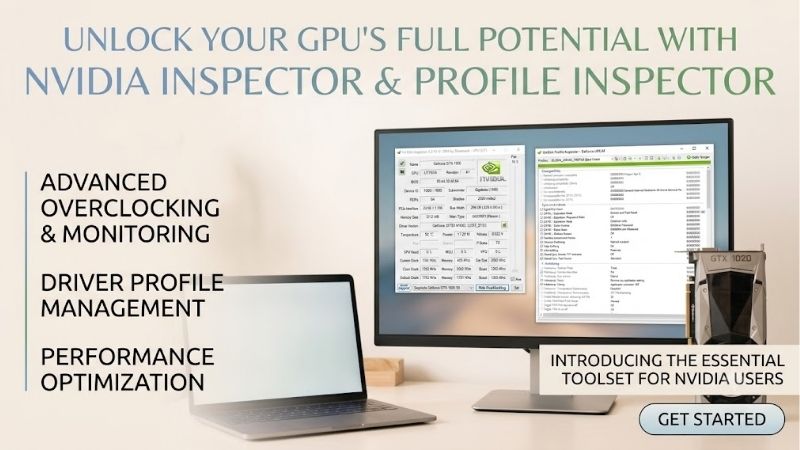
The primary interface of this software acts as an ultra-detailed dashboard, presenting real-time information about your graphics card’s physical health. From the moment you open the application, you are presented with critical statistics such as current clock speeds, operating voltage, fan duty cycles, and real-time temperatures. This diagnostic panel is lightweight, using virtually zero system resources compared to heavy modern overlays that can cause micro-stuttering in fast-paced competitive games.
Furthermore, the hardware monitor module allows you to track these metrics over time, plotting them on clear, simple graphs. This makes it incredibly easy to detect thermal throttling issues or identify sudden voltage drops when testing demanding games. By giving you an unaltered look at your silicon’s behavior, it provides the exact data you need to make informed adjustments to your hardware configurations.
Check the latest price on Amazon:
Advanced Profile Settings and Driver-Level Overrides
The true power of this utility is unlocked when you click the small wrench icon, which launches the famous profile editor. This component allows you to access and modify the hidden driver profiles that NVIDIA establishes for almost every major PC game. Through this menu, you can override default game parameters, force specific ambient occlusion types, or apply custom vertical synchronization modes that are not available in standard in-game options.
This level of control is particularly useful for running older games or emulator environments that do not natively support modern display resolutions or high frame rates. By injecting specific compatibility bits directly into the graphics driver, you can force older software to render with modern visual enhancements. It transforms a standard graphics driver into a highly customizable platform, tailored specifically to your unique gaming library.
- [Check the latest price on Amazon for the best NVIDIA graphics cards]
Clock Speed Adjustment and Custom Power States
For users who want to maximize their gaming performance, the software includes a robust overclocking module. This feature allows you to adjust base core clocks, memory frequencies, and operating voltages, giving you complete control over your GPU’s performance characteristics. You can also establish custom power states, allowing the card to downclock aggressively during lightweight tasks to save energy and run cool.
Because the tool applies these settings at the driver level rather than writing them permanently to the graphics card’s physical BIOS, it is incredibly safe to use. If an aggressive overclock causes your system to crash, the driver simply resets to its default parameters upon rebooting. This makes it an ideal testing ground for finding the absolute physical limits of your graphics hardware before locking in your daily settings.
Navigating the Challenging 2026 GPU Market and Supply Constraints
Using software optimization tools like this is more critical in 2026 than ever before, as buying new hardware has become highly complex. The global technology landscape is experiencing massive structural shifts that directly impact the price, availability, and manufacturing priority of consumer graphics cards. To make smart purchasing decisions, gamers must understand how major enterprise trends are altering the retail market for gaming hardware.
We will analyze how enterprise artificial intelligence shipments are affecting consumer GPU production and why rising inflation makes early purchases a logical choice.
The Impact of H200 AI Chip Shipments on Consumer Silicon
The global graphics card market in 2026 is feeling the heavy ripple effects of geopolitical regulatory shifts. Following the United States government’s approval allowing NVIDIA to ship its advanced H200 AI processors to enterprise clients in China, manufacturing priorities at TSMC have pivoted dramatically. Because these enterprise-grade artificial intelligence processors command massive profit margins, silicon foundries are allocating a huge portion of their wafer production capacity to corporate AI hardware.
This focus on the enterprise AI market has left limited manufacturing space for mainstream consumer graphics chips, leading to tight retail inventory across all major series. For everyday PC gamers, this means that waiting for massive price drops on mid-range and high-end graphics cards is a highly risky strategy. Optimizing your current hardware with advanced software utilities is a smart way to bridge the gap while navigating these artificial supply constraints.
- [Check the latest price on Amazon for the RTX 4070 Super]
Rising Component Inflation and the Urgency of Upgrading
Compounding the supply limitations is a broader macroeconomic trend: the cost of manufacturing and shipping PC components continues to rise steadily. Key materials such as high-grade copper, aluminum heatsinks, and advanced packaging substrates are all experiencing steady price inflation in 2026. This has translated directly into higher retail prices for both standalone graphics cards and prebuilt gaming laptops.
For gamers planning an upgrade, this inflationary environment creates an element of buying urgency that was not present in previous generations. Waiting several months in the hope of securing a better bargain may actually result in paying more as retail channels adjust to rising production costs. If you want to protect your gaming budget, purchasing a reliable modern graphics card today and using advanced software to maximize its lifecycle is a highly logical move.
Nvidia Inspector Pros and Cons in 2026
To help you decide if this utility is right for your gaming setup, we have summarized its primary strengths and weaknesses based on extensive user feedback and testing.
Pros:
- Extremely lightweight application footprint that does not consume valuable CPU or RAM resources during gameplay.
- Unlocks deep, driver-level profile editing that standard software packages actively hide from the end-user.
- Highly safe overclocking interface that resets automatically if a setting causes a system crash.
- Completely free to use with no hidden subscription fees, bloatware, or invasive registration requirements.
Cons:
- The user interface is highly technical and can be intimidating for beginners or casual gamers.
- Lack of automated tutorials means users must research specific compatibility bits to avoid graphical bugs.
Practical Performance Tuning and Hardware Alternatives
While maximizing your current hardware with advanced software is incredibly cost-effective, there comes a point where aging physical silicon simply cannot keep up with modern AAA gaming demands. Understanding how to use optimization software in tandem with modern hardware upgrades is the key to achieving a flawless gaming experience. Fortunately, pairing this utility with a modern, efficient graphics card ensures your system remains future-proof for years to come.
We will explore how to configure custom profiles for maximum stability and look at a powerful hardware alternative if your current GPU is ready for retirement.
Configuring Custom Profiles for Game Stability
To get started with performance tuning, the most effective approach is to target specific games that struggle with frame-rate consistency. By creating a dedicated profile within the editor, you can cap your frame rate at a level your hardware can consistently maintain, such as 60 FPS or 120 FPS. This prevents the severe frame-time fluctuations that cause noticeable stuttering, resulting in a much smoother visual experience even when your hardware is under heavy load.
Additionally, you can use the profile editor to force custom anti-aliasing compatibility bits in older games, eliminating jagged edges without the massive performance penalty of modern rendering techniques. Taking the time to build these customized profiles ensures that your system resources are directed exactly where they are needed most, maximizing your hardware’s efficiency.
- [Check the latest price on Amazon for the RTX 4060 Ti]
Modern Hardware Alternatives: The GeForce RTX 4070 Super
If your older graphics card is struggling to run modern titles even after extensive software optimization, upgrading to a modern mid-range champion is highly recommended. The NVIDIA GeForce RTX 4070 Super has established itself as an outstanding sweet-spot GPU in 2026, offering exceptional rasterization and ray-tracing performance. Equipped with a generous 12GB VRAM buffer, this card easily handles demanding 1440p gaming with high-resolution texture packs.
When paired with advanced software tuning, the RTX 4070 Super becomes an absolute powerhouse, allowing you to fine-tune its power draw and clock speeds for maximum efficiency. Its advanced Ada Lovelace architecture features dedicated DLSS 3 Frame Generation engines, which work hand-in-hand with driver-level tweaks to deliver incredibly high frame rates. Investing in a future-proof card like this protects your system against the rapidly rising system requirements of upcoming game engines.
Final Verdict: Who Should Use This Utility?
Ultimately, this classic software utility remains an incredibly valuable asset for intermediate and advanced PC gamers who want complete authority over their hardware. If you enjoy digging into advanced settings, configuring custom game profiles, and squeezing maximum efficiency out of your GPU, this program is a must-have addition to your software toolkit. It provides a level of granular control that modern, simplified hardware applications simply cannot match.
However, if you prefer a plug-and-play experience without the need to research technical compatibility bits, relying on automated companion software is a safer choice. Whichever path you choose, ensuring your physical hardware is up to the task is critical, making a modern GPU upgrade a highly worthwhile investment in today’s challenging market.
Conclusion
When wrapping up this review of Nvidia Inspector, it is clear that this utility remains one of the most powerful and lightweight optimization tools available for PC enthusiasts. It bridges the gap between basic hardware settings and deep driver-level customization, allowing you to prolong the lifespan of your current setup. While global supply challenges and component inflation continue to pressure the market, mastering this software ensures you get every bit of performance you paid for. If your physical hardware has finally run its course, pairing your software expertise with a modern GPU upgrade is the ultimate way to secure your gaming future. Whichever path you take, taking control of your graphics settings today guarantees a smoother, more enjoyable gaming experience tomorrow.
Frequently Asked Questions
What can Nvidia Inspector do that the Control Panel cannot?
It exposes hidden driver profile flags, including antialiasing compatibility bits, ambient occlusion modes and frame rate limiters that the standard panel does not surface. It is mainly used to force better antialiasing in older games and to apply per-application settings the driver does not expose officially.
Is it safe to use?
The tool only writes to driver profile settings and does not modify firmware, so mistakes are recoverable by restoring driver defaults. The risks are graphical corruption or crashes from incompatible flags in a specific game. Note the values you change so you can reverse them, and change one setting at a time.
Does it still work with current drivers and RTX cards?
Broadly yes for profile editing, though many legacy antialiasing compatibility bits target DirectX 9 and 11 era engines and have no effect in modern DirectX 12 or Vulkan titles, which manage antialiasing internally. Its usefulness has narrowed considerably to older games and specific niche fixes.
Can it overclock my GPU?
Older versions included overclocking controls, but MSI Afterburner is the better tool for clocks, voltage curves and fan control on current hardware. Use Inspector for driver profile work and Afterburner for tuning, rather than trying to make one tool do both jobs.
Will forcing settings trigger anti-cheat?
Driver profile changes are not code injection into the game process, so they are generally ignored by anti-cheat systems. However, forcing settings in competitive titles can cause rendering anomalies that look like visual advantages, so avoid using it to alter visibility in multiplayer games regardless of the technical detection question.










Write Your Review
No reviews yet. Be the first to share your experience!