
- Top Pick: ASUS Dual GeForce RTX 4060 Ti EVO OC Edition 8GB GDDR6 (PCIe 4.0, 8GB GDDR6, DLSS 3, HDMI 2.1a, DisplayPort 1.4a, Axial-tech Fan Design, Auto-Extreme Technology), 3 Year Warranty
- Best Value: Gigabyte GeForce RTX 4060 WINDFORCE OC 8G Graphics Card, 2X WINDFORCE Fans, 8GB 128-bit GDDR6, GV-N4060WF2OC-8GD Video Card
- Premium Choice: MSI GeForce RTX 4060 Ti Ventus 3X 16G OC Graphics Card -NVIDIA RTX 4060 Ti, 16GB GDDR6 Memory, 18Gbps, PCIe 4.0, DLSS3
Can RTX 4060 run 1440p? If you own this budget card or are thinking about buying one, you probably want to know whether it can step up from 1080p to a sharper 1440p screen. The honest answer is yes—with the right settings and DLSS, the RTX 4060 delivers a smooth 1440p experience in most games. This step-by-step guide shows you exactly how to set it up for 60 fps and beyond, which settings matter most, and the mistakes that quietly hurt your frame rate.
As an Amazon Associate we earn from qualifying purchases at no extra cost to you.


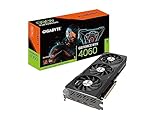


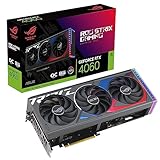
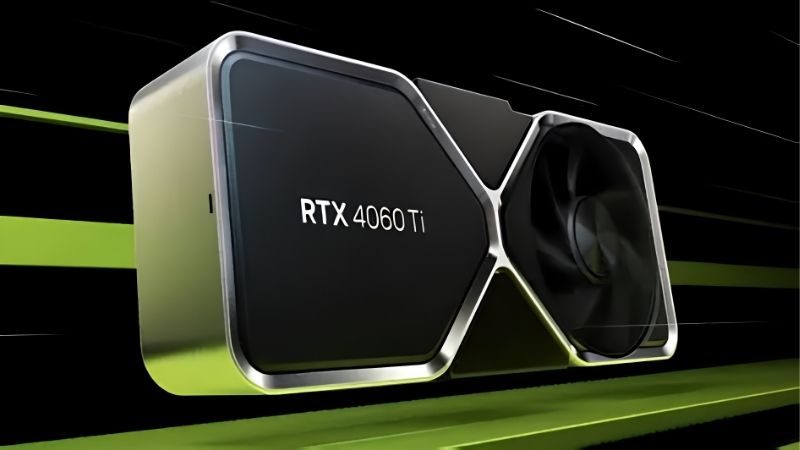
Can RTX 4060 Run 1440p? The Honest Answer
Let us clear up the confusion before touching a single setting. The RTX 4060 is a capable 1440p card for many games, but it is a budget GPU, so a little tuning goes a long way. Here is what to realistically expect and what you need to get the smoothest results at this resolution.
The Short Answer: Yes, With the Right Settings
Yes, a RTX 4060 can run 1440p well in most modern games, especially once you enable DLSS. Expect a comfortable 60 fps or more at high settings in the majority of titles, and much higher frame rates in esports and lighter games.
In the most demanding AAA releases, you will lean on DLSS and a few tuned settings to keep things smooth at 1440p. That is normal for a budget card at this resolution and does not meaningfully hurt the experience.
So the realistic verdict is that the RTX 4060 is a solid budget 1440p card for 60 fps gaming, not a maxed-out, no-compromise 1440p powerhouse. Set your expectations there and you will be pleased with it.
To put rough numbers on it, expect a comfortable 60–90 fps in most modern AAA games at 1440p with DLSS enabled, higher in lighter titles, and playable frame rates even in demanding releases once you tune a couple of settings. That is a genuinely good result for a budget card running a resolution above the one it was designed around.
What You Will Need Before You Start
Getting smooth 1440p from a budget card takes a few supporting pieces alongside the GPU. Gather these first.
Begin with a 1440p monitor; a well-reviewed 1440p display gives you the sharper image that makes this upgrade worthwhile, and a 1440p 144Hz panel leaves room to grow as you tune settings. You will also want a DisplayPort 1.4 cable, since a cheap or old cable can silently cap your refresh rate—a reliable certified DisplayPort cable is a small purchase that prevents a frustrating problem.
It also helps to have a reasonably modern CPU so the RTX 4060 is not held back at higher frame rates. If your processor is quite old, a modern budget or mid-range CPU keeps your system balanced and lets the card perform as intended at 1440p.
Understanding 1440p, Frame Rates, and Your 8GB VRAM
1440p pushes noticeably more pixels than 1080p, so it asks more of a budget card than the resolution it was originally aimed at. The RTX 4060 has the core performance to cope, but this is where smart settings matter most.
The card’s 8GB of VRAM is the main thing to manage at 1440p. It is enough for most games at high settings, but a few modern titles with ultra texture packs can brush against that limit, causing stutter or texture pop-in if you push everything to maximum.
The fix is painless: keeping textures at high rather than ultra in the heaviest games stays comfortably within 8GB with almost no visible difference. Understanding this one point is the key to a smooth 1440p experience on the RTX 4060.
It also helps to see why 1440p is a reasonable stretch rather than a mismatch. The RTX 4060’s Ada architecture was built around DLSS and efficient rendering, so instead of brute-forcing every pixel it renders smart and reconstructs the rest. That design is exactly what lets a budget card punch above its weight at a resolution it was not originally targeted at.
Step-by-Step: Getting Smooth 1440p Out of Your RTX 4060
This is the core of the guide. Follow these steps in order and you will move from stuttering to smooth without guesswork. Each step is quick, and the numbered format makes it easy to repeat for every new game you install. Do it once and 1440p becomes a set-and-forget experience.
Step 1 and 2: Update Drivers and Set Your Resolution
- Update your graphics drivers. Install the latest Nvidia Game Ready driver, which frequently adds game-specific optimizations that hand you free frames, so never skip this step.
- Set your display to native 1440p. In Windows display settings, select 2560 x 1440 and your monitor’s highest refresh rate, since running below native looks soft and leaving the refresh rate low wastes performance.
These two steps sound basic, but many 1440p performance problems trace back to an outdated driver or a monitor accidentally left at the wrong resolution or refresh rate.
Step 3 and 4: Turn On DLSS and Frame Generation
- Enable DLSS. In each game’s graphics menu, switch DLSS on and choose Quality mode at 1440p, which renders internally a little lower and uses AI to rebuild a crisp image while boosting frame rates significantly—often the single biggest gain on a budget card.
- Turn on Frame Generation where available. This Ada-generation feature generates extra frames to smooth motion, giving the RTX 4060 a meaningful lift in supported games that helps it hold higher frame rates at 1440p.
Together these two features are what make 1440p comfortable on a budget card. If a game supports them, they should almost always be on at this resolution.
Step 5 and 6: Tune Textures and Heavy Settings
- Set textures to High if VRAM is tight. If you see stutter or pop-in, drop textures from Ultra to High to stay within your 8GB buffer—this is the most important setting to manage on the RTX 4060 at 1440p.
- Lower the biggest FPS killers. Drop shadows, volumetric effects, and ambient occlusion from Ultra to High, which costs little visible quality but frees up real performance for a steadier frame rate.
After these tweaks, use the in-game benchmark or an on-screen overlay to confirm you are holding your target frame rate, then leave the settings alone and play.
Pro Tips, Common Mistakes, and Whether It’s Worth It
You now have a smooth 1440p setup, but a few extra habits keep it that way and help you avoid the traps that catch first-time 1440p gamers on a budget card. This section covers the honest trade-offs, the pro tips that squeeze out more, and a final word on who should make the jump.
Pros and Cons of Gaming at 1440p on a RTX 4060
Before you commit, weigh the realistic upsides and downsides of this pairing.
- Pros: Sharp 1440p image, smooth 60+ fps in most games with DLSS, excellent efficiency and low power draw, and strong value for a budget 1440p setup.
- Cons: The 8GB VRAM needs managing at ultra textures, the heaviest AAA titles require DLSS and tuned settings, and it is not built for maxed-out 1440p at high refresh in demanding games.
For 1440p at 60 fps with sensible settings, the RTX 4060 is a genuinely good budget choice. For maxed-out, high-refresh 1440p in the toughest games, you would want to step up to a stronger card.
Pro Tips and Mistakes to Avoid
A few small habits make a big difference. Use each game’s built-in benchmark to test changes rather than guessing, watch your VRAM usage in the settings menu, and keep DLSS on Quality at 1440p for the best clarity.
The common mistakes are avoidable. Do not push textures to Ultra if you see stutter, do not leave your monitor at a non-native resolution, and never skip driver updates that can add free performance.
Finally, do not ignore a game’s VRAM warning—if it flags that you are over 8GB, trust it and drop textures a notch before you hit stutter mid-game. A single texture step down is invisible in motion but eliminates the hitches that spoil an otherwise smooth session.
One more habit pays off over time: revisit your settings after big game updates or new driver releases, since both can shift performance and occasionally free up a little extra headroom. A quick check that you are still holding your target frame rate keeps your 1440p experience consistent as your games evolve.
See More:
Final Verdict: Who Should Run a RTX 4060 at 1440p
The RTX 4060 is ideal for budget gamers who want to move up to a sharper 1440p screen and are happy to spend a minute tuning settings per game. If that is you, this card and a good 1440p monitor are a smart, affordable pairing.
It is a weaker fit if you demand maxed-out settings with no upscaling or chase very high refresh rates in the most demanding titles, where a stronger card is the better choice.
For everyone in between, the value is hard to beat. If you are ready to build the setup, you can find the 1440p monitor, cable, and other parts mentioned above through the links on this page.
So, can RTX 4060 run 1440p? Yes—it delivers a smooth, sharp 60+ fps 1440p experience in the vast majority of games once you enable DLSS, manage your 8GB VRAM with sensible textures, and trim a couple of heavy settings. Treat it as a capable budget 1440p card rather than a maxed-out powerhouse, follow the steps above, and pair it with a good monitor to enjoy the upgrade. Dial in your settings once, and 1440p gaming on the RTX 4060 becomes an easy, everyday pleasure.
Top-Rated Picks


| Product | Brand | Rating | Reviews | Price |
|---|---|---|---|---|
| ARCTIC MX-4 (4 g) – Premium Performance Thermal Paste… | ARCTIC | ★ 4.8 | 104k | $4.99 |
| ARCTIC MX-4 (incl. Spatula, 4 g) – Premium Performanc… | ARCTIC | ★ 4.8 | 71.9k | $5.49 |
| Crucial 8GB DDR4 RAM 3200MHz (PC4-25600), Downclockab… | Crucial | ★ 4.8 | 62.8k | $74.99 |
| AMD Ryzen 5 5600X 6-core, 12-thread unlocked desktop … | — | ★ 4.8 | 30.2k | $177.60 |
| NVIDIA Shield Remote; Voice Search, Motion-Activated,… | — | ★ 4.7 | 10.6k | $25.99 |
Frequently Asked Questions
What frame rates does an RTX 4060 achieve at 1440p?
In most current titles it lands around 50 to 70fps at high settings natively, rising to roughly 70 to 100fps with DLSS Quality enabled. Esports games run far above that. Heavy ray tracing at 1440p is beyond it without aggressive upscaling and reduced ray tracing quality settings.
Is the 8GB frame buffer a problem at 1440p?
It is the card main weakness at this resolution. Several recent releases exceed 8GB at 1440p with ultra textures, producing stutter rather than lower average frame rates. Setting textures to high instead of ultra almost always resolves it and costs very little visual quality in motion.
Should I enable DLSS and frame generation?
DLSS Quality is close to essential at 1440p on this card and generally looks excellent. Frame generation works well provided your base frame rate is already at least 50 to 60fps, since generating frames from a low base amplifies latency and produces noticeable artifacts around fast-moving objects.
Do the 128-bit bus and PCIe x8 link hold it back?
The narrow memory bus is partly offset by a large on-die cache, though it does limit performance at higher resolutions. The PCIe 4.0 x8 link is fine on a modern board, but in a PCIe 3.0 system the halved bandwidth costs a few percent, occasionally more when VRAM is full.
Should I step up to a faster card for 1440p?
If 1440p is your permanent resolution and you play modern AAA titles, a 12GB or 16GB card is the better buy because it removes the frame buffer ceiling. The 4060 is a solid 1080p card that manages 1440p with compromises rather than a native 1440p solution.





Write Your Review
No reviews yet. Be the first to share your experience!