
- Top Pick: XFX Mercury AMD Radeon RX 9070XT OC Gaming Edition with RGB 16GB GDDR6, HDMI 3xDP, AMD RDNA 4 RX-97TRGBBBA
- Best Value: XFX Quicksilver AMD Radeon RX 9070 OC White Gaming Edition with 16GB GDDR6 HDMI 3xDP, AMD RDNA 4 RX-97QICKBW9
- Premium Choice: PowerColor Red Devil AMD Radeon RX 6950 XT Graphics Card with 16GB GDDR6 Memory
How to increase GPU performance is the search that means you want more frames without buying a new card, and the good news is that most systems have untapped headroom sitting behind a few settings changes. From driver updates and in-game tweaks to undervolting, overclocking, and cooling fixes, a methodical checklist can squeeze real, measurable FPS out of hardware you already own. The key is working in order so you capture the free gains first and only spend money where it actually moves the needle. This guide gives you that checklist step by step, explains why each change helps, and shows you what to expect so you can hit your performance target without guesswork.
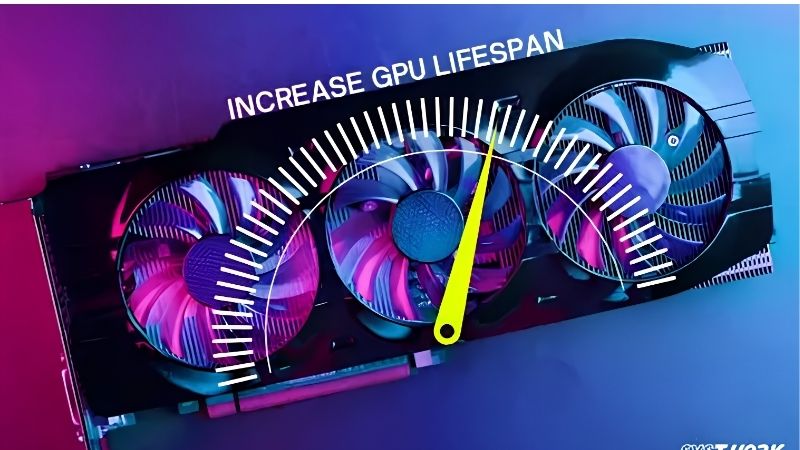
What You Will Need to Increase GPU Performance
Most of the highest-impact changes are free software tweaks, so gather your tools before you start. A monitoring utility, an up-to-date driver, and a benchmarking baseline are all you need for the first half of the checklist. Hardware items like paste and fans only enter the picture later if the free steps are not enough.
As an Amazon Associate we earn from qualifying purchases at no extra cost to you.





Monitoring and Benchmarking Tools
Download MSI Afterburner and HWiNFO or GPU-Z. Afterburner provides an in-game overlay showing FPS, GPU usage, temperature, and clocks in real time, while HWiNFO logs the data for comparison. Run a demanding game or benchmark and note your baseline FPS, temperature, and GPU utilization before changing anything.
This baseline is the single most important step, because without it you cannot tell which change actually helped. A before-and-after number turns every tweak from a guess into a measured result.
It also pays to note GPU utilization. If the GPU sits below 95-99% while gaming, something else, usually the CPU, is the bottleneck, and GPU-focused tweaks will not help much. Knowing this up front directs your effort to the right place: if the GPU is maxed, optimize it; if the CPU is the limit, focus there instead.
Drivers and Software Updates
Update your Nvidia driver to the latest Game Ready release through GeForce Experience or Nvidia’s website. Driver updates include per-game optimizations that can lift performance by several percent in new titles, and skipping them is leaving free FPS on the table.
Update your games too. Patches often fix performance bugs and add support for features like DLSS and Reflex that can transform frame rates. A fully patched game on a current driver is the cleanest starting point.
Cooling Supplies for Later Steps
If the free steps reveal that your card is thermally limited, a can of compressed air for cleaning, quality thermal paste for a repaste, and case fans for better airflow are the items worth having. Hold off buying anything until your monitoring confirms that heat is the bottleneck, since spending on cooling when the limit is elsewhere wastes money.
A good thermal paste and a reliable set of case fans are inexpensive and cover the most common thermal fixes. Pair them only when the data says they will help.
One often-missed item: check that Resizable BAR is enabled in BIOS and that hardware accelerated GPU scheduling is on in Windows. Both are free, one-time toggles that reduce overhead and can improve frame rates without any hardware change. They belong at the very start of the checklist.
Step-by-Step Checklist to Boost GPU Performance
Work through these steps in order, re-testing after each one. The sequence moves from free and low-effort to paid and involved, so you capture the easy wins first and stop the moment you hit your target. Every step is numbered for easy reference.
Step 1 to 3: Free Software Gains
Step 1: Update drivers and enable Resizable BAR. Install the latest Nvidia driver and confirm Resizable BAR is on in BIOS. This combination delivers free FPS in supported games with no trade-off.
Step 2: Enable DLSS or Frame Generation. In any supported game, turn on DLSS at Quality or Balanced for a significant FPS boost with minimal image loss. On RTX 40-series, add Frame Generation and Reflex for an even larger jump.
Step 3: Optimize in-game settings. Lower settings that cost heavy GPU time but add little visual quality, such as ultra-level shadows, volumetric fog, and excessive ambient occlusion. Keeping textures high and dropping effects to medium-high often recovers significant FPS without a noticeable visual hit.
These three steps are entirely free and often deliver the largest combined gain. Re-test and compare against your baseline before moving on.
These free steps routinely deliver the largest combined gain because they remove the most overhead for zero cost. Many owners find their target FPS is met after this stage alone, which means the remaining hardware steps are not needed. Always test before spending.
Step 4 to 6: Undervolt and Tune
Step 4: Undervolt in MSI Afterburner. Open the voltage-frequency curve editor, choose a lower voltage point that holds your normal clocks, flatten the curve above it, and apply. This cuts heat and power draw, often letting the card sustain higher boost clocks in long sessions without losing performance.
Step 5: Set an aggressive fan curve. In Afterburner’s fan tab, raise the fan speed at each temperature so the card ramps earlier. More cooling means more thermal headroom, which the boost algorithm converts into higher sustained clocks.
Step 6: Enable hardware accelerated GPU scheduling. Flip the toggle in Windows Graphics settings and restart. The gain is subtle but real, reducing scheduling overhead and smoothing frame delivery.
Undervolting is the most underrated step on this list. It is free, reversible, and on most Nvidia cards it simultaneously lowers temperature and raises sustained performance.
The reason undervolting works so well is Nvidia’s boost algorithm. The card constantly adjusts clocks based on temperature and power, so a cooler card at the same voltage headroom holds higher clocks automatically. By removing heat at its source, you let the boost algorithm do the work of giving you extra frames.
Step 7 to 9: Cooling and Overclocking
Step 7: Clean dust and improve airflow. Blow out the card and case, add intake fans if needed, and tidy cables. A cooler card holds higher boost clocks automatically.
Step 8: Repaste if the card is older. On a card three or more years old, fresh thermal paste can drop core temperatures by several degrees, recovering boost headroom that dried compound had taken away.
Step 9: Overclock core and memory. In Afterburner, raise the core clock by small increments, stress-test each step, and stop when instability appears. Then do the same for memory. A stable overclock adds a few percent of raw performance on top of everything else.
Pro Tips, Mistakes, and Realistic Expectations
A performance checklist is only as good as the habits around it. This section covers the tips that maximize each step, the mistakes that waste time, and an honest look at how much you can realistically gain so you set the right target before you start.
Pro Tips for the Biggest Gains
Always re-test after each change, not just at the end. Knowing which step delivered which improvement lets you keep the winners and revert anything that did not help or introduced instability.
Combine DLSS with undervolting for the best overall result. DLSS drops the rendering workload, undervolting drops the heat, and together the card runs cooler, quieter, and faster than either alone.
Common Mistakes to Avoid
Do not skip the baseline. Without a starting number you cannot measure progress, and you risk spending effort on changes that make no difference while missing the one that would.
Do not max out the core overclock before fixing cooling. A hot card throttles regardless of the offset you set, so thermal headroom must come first. Overclocking is the final step, not the first one.
Pros and Cons of Each Approach
Software tweaks like DLSS, driver updates, and undervolting are free, safe, and often deliver the largest gains. Their only downside is that they require game or driver support and a few minutes of setup.
Hardware changes like cleaning, repasting, and overclocking add cost and effort but can unlock performance that software cannot reach on a thermally limited card. The trade-off is risk and time, so they belong at the end of the checklist rather than the beginning.
The honest expectation: a full run through this list can recover 10–30 percent more effective performance depending on how much headroom your system had. That is not a new card, but it is a significant improvement from hardware you already own.
Set realistic expectations for each step. DLSS and in-game settings deliver the biggest jumps, undervolting and fan tuning deliver the most valuable sustained-clock improvements, and overclocking adds the final few percent. Stacking them all is the point: each step builds on the last, and the total exceeds what any single change could achieve alone.
Every step on this checklist is designed to pull more from the card you have today. Work from free to paid, re-test as you go, and stop when you hit your target.
See More:
Conclusion
Knowing how to increase GPU performance is about working a checklist in the right order: update drivers, enable DLSS and Resizable BAR, tune in-game settings, undervolt, set a fan curve, clean and repaste if needed, and overclock last. Each step builds on the one before, and most owners find significant gains before reaching the paid steps. Re-test after every change, aim for a realistic target, and stop when you get there. Use the recommended tools and supplies through the links above to keep your card performing at its best.
As a habit, revisit this checklist whenever a new demanding game launches or a major driver update drops. Both events can shift your performance baseline, and a quick re-test after each ensures you are always getting the most from your hardware without leaving gains behind.
Top-Rated Picks


| Product | Brand | Rating | Reviews | Price |
|---|---|---|---|---|
| ARCTIC MX-4 (4 g) – Premium Performance Thermal Paste… | ARCTIC | ★ 4.8 | 104k | $4.99 |
| ARCTIC MX-4 (incl. Spatula, 4 g) – Premium Performanc… | ARCTIC | ★ 4.8 | 71.9k | $5.49 |
| Crucial 8GB DDR4 RAM 3200MHz (PC4-25600), Downclockab… | Crucial | ★ 4.8 | 62.8k | $74.99 |
| AMD Ryzen 5 5600X 6-core, 12-thread unlocked desktop … | — | ★ 4.8 | 30.2k | $177.60 |
| NVIDIA Shield Remote; Voice Search, Motion-Activated,… | — | ★ 4.7 | 10.6k | $25.99 |
Frequently Asked Questions
What gives the biggest gain with the least risk?
Clean driver updates, enabling Resizable BAR, turning on upscaling like DLSS or FSR, and improving case airflow so the card holds boost clocks. These cost nothing and often deliver more than an overclock, since a thermally throttled card loses several hundred megahertz of sustained boost.
Is my slow performance actually a CPU bottleneck?
Check GPU utilization while gaming. If it sits at ninety-five percent or higher you are GPU limited and settings or an upgrade will help. If it hovers around sixty to eighty percent while frame rate is low, the CPU, memory speed, or a background process is the limiter instead.
Does more VRAM improve frame rates?
Only when you are running out. Below the limit extra capacity does nothing, but once textures and ray tracing buffers exceed it you get severe stutter and texture pop-in rather than a gentle decline. Eight gigabytes is the pressure point at 1440p and 4K with high texture settings.
Will overclocking or undervolting help more?
Undervolting usually wins on modern cards. Trimming the voltage curve drops temperatures and power draw, which lets the card sustain higher boost clocks for longer, often netting equal or better real performance than a raw overclock while running quieter and cooler.
How does my power supply affect performance?
An undersized or aging supply causes transient shutdowns and driver crashes under load rather than gradual slowdown. Modern cards spike well above their rated draw for microseconds, so give a 300W card a quality 750W unit and use separate PCIe cables instead of daisy-chaining a single cable.











Write Your Review
No reviews yet. Be the first to share your experience!