
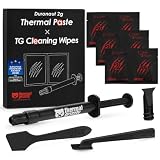
- Top Pick: Thermal Grizzly Kryonaut – 1 Gram – Extremely High Performance Thermal Paste + 12 Cleaning Wipes 6 Wet & 6 Dry – for Demanding Applications and Overclocking CPU/GPU/PS4/PS5/Xbox
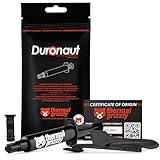
- Best Value: Thermal Grizzly Kryonaut – 1 Gram Thermal Paste Extremely High Performance
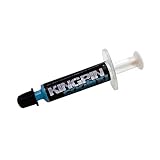
- Premium Choice: Thermal Grizzly Liquid Metal Thermal Paste Conductonaut 1 Gram
GPU overclocking sounds intimidating, but at its core it is simply asking your graphics card to run a little faster than it does out of the box, in exchange for a few extra frames per second at no cost. Done carefully, it is safe, reversible, and surprisingly approachable for beginners. This guide explains exactly what it is, whether it can harm your card, and a cautious, step-by-step method to do it with free software.
As an Amazon Associate we earn from qualifying purchases at no extra cost to you.



Understanding GPU Overclocking and How It Works
Every graphics card ships with conservative default clock speeds chosen to guarantee stability across millions of units in all kinds of conditions. That conservatism usually leaves a little untapped headroom on the table, and overclocking is the process of carefully claiming that headroom for yourself. The gains are real but modest, and understanding why helps you set sensible expectations.
What GPU Overclocking Actually Is
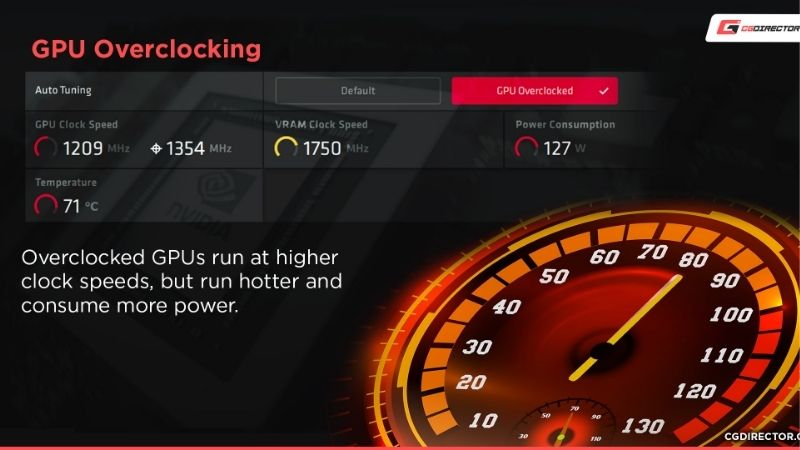
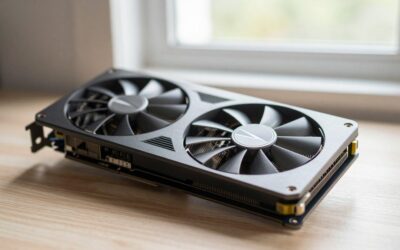
GPU overclocking means increasing the speeds at which your card’s graphics processor and memory operate, measured in megahertz. A higher core clock lets the chip do more work each second, while a higher memory clock moves data faster, and both can translate into extra frames in games.
You do this through software, not by opening anything up, using a free tool that adjusts the card’s clock and power settings on the fly. Nothing is permanent: the values reset every time you restart, and you only keep them if you choose to apply a saved profile.
Because it is entirely software-driven and fully reversible, overclocking is far less risky than its reputation suggests, as long as you raise values gradually and test as you go. The same caution that makes overclocking safe also makes it easy, because every step is small enough to undo the instant something looks wrong.
How Clock Speeds and Power Affect Performance
Modern Nvidia cards already boost their clocks automatically based on temperature and power headroom, so manual overclocking is really about extending that behaviour. Raising the power limit lets the card sustain higher boost clocks for longer, while a core clock offset nudges those boost speeds upward across the board.
The realistic payoff is usually in the region of a few to around ten percent more performance, not a doubling. A card that averages 100 frames per second might reach roughly 105 to 110 after a solid overclock, which can be the difference between a slightly choppy and a smooth experience in a demanding game.
Memory overclocking often adds a little more on top, especially in games limited by memory bandwidth, but it follows the same rule: small, steady increases tested one step at a time. Treating the core and memory clocks as two separate experiments, rather than raising both at once, also makes it far easier to pinpoint which change caused any instability.
Is Overclocking Safe for Your GPU?
For the kind of moderate overclocking most people do, the honest answer is that it is very safe. Graphics cards have built-in protections that throttle or shut down before anything dangerous happens, and you are not touching voltage in a basic overclock, which is the main factor in long-term wear.
The two things to respect are heat and stability. Higher clocks produce more heat, so good case airflow matters, and an unstable overclock will cause crashes or visual glitches that tell you to dial it back. Neither of these damages the card; they are simply signals to reduce your settings. Think of crashes and artefacts as your card politely telling you it has reached its comfortable limit, not as a warning that harm is occurring.
How to Overclock Your GPU Step by Step
The safe method is slow and methodical: small increases, a stability test after each one, and a careful eye on temperatures. This approach finds your card’s limit without ever putting it at risk, and it only takes an evening to dial in a stable profile you can keep forever.
What You Will Need Before You Start
Overclocking itself is free, but a few tools and conditions make it safe and effective.
You will want a free overclocking utility such as MSI Afterburner, which lets you adjust clocks, power limit, and fan speed and shows live temperatures. You also need a stress-testing or benchmarking tool to push the card hard while you watch for crashes, and a monitoring overlay so you can see clock speed and temperature in real time.
On the hardware side, adequate cooling is what determines how far you can go, so a case with good airflow or a couple of quality case fans pays off directly in higher stable clocks; if your card already runs hot at stock, improving airflow first is the smartest investment. A capable power supply with some headroom is also worth having, since raising the power limit asks a little more from it. A quality unit with some wattage to spare gives you a comfortable margin and removes power delivery as a variable while you tune.
Step-by-Step Overclocking Process
Follow this cautious sequence to overclock safely:
- Raise the power limit and temperature limit sliders to their maximum in Afterburner first, then apply. This alone lets the card hold its boost clocks longer and is completely safe.
- Increase the core clock offset by a small step, for example +25 MHz, then apply. Small steps are the key to finding the edge without overshooting it.
- Run a stress test for several minutes and watch for crashes, flickering, or artefacts. If it stays clean, add another small step and test again.
- Back off when you see instability by reducing the offset to the last stable value, then repeat the same gradual process for the memory clock.
Once both core and memory are stable, run a longer test or a few real games to confirm everyday reliability, then save the profile so it loads automatically. If anything ever misbehaves later, simply lower the offsets a touch.
How to Test Stability and Temperatures
Stability testing is the heart of overclocking, because a clock speed that works for thirty seconds may still crash after an hour. Run a demanding stress test or benchmark loop for a sustained period and treat any crash, driver reset, or on-screen artefact as a sign to reduce your last increase.
Keep an eye on temperatures throughout, since heat is the natural ceiling on how far you can push. Most Nvidia GPUs are comfortable in the seventies and low eighties Celsius under load, and if you are creeping higher, improving airflow or raising the fan curve will let you sustain a better overclock more safely than chasing extra megahertz.
Pros, Cons, and Expert Tips for GPU Overclocking
Overclocking is a genuinely useful skill, but it pays to know its limits and the handful of mistakes that catch newcomers, so you can decide how far is worth going for your particular card.
The Pros and Cons of GPU Overclocking
On the plus side, overclocking gives you free extra performance, is fully reversible, requires no hardware spend, and teaches you a lot about how your card behaves. For someone holding onto their GPU rather than upgrading, it is a satisfying way to squeeze more out of what they already own.
The downsides are real but manageable. The gains are modest, higher clocks add heat and a little fan noise, and an unstable overclock can cause crashes until you tune it back. There is also a small efficiency cost, since the card draws a bit more power for that extra performance.
For most people the verdict is that a moderate, well-tested overclock is worthwhile, while chasing the absolute maximum brings diminishing returns for rising heat and noise. For day-to-day gaming, a relaxed overclock that runs cool and silent is usually a better companion than a razor-thin one that occasionally stutters.
Pro Tips and Mistakes to Avoid
The biggest beginner mistake is jumping straight to a large clock offset instead of climbing in small steps. Big jumps make it impossible to know where stability actually broke, so you end up guessing rather than dialing in a reliable result.
Another mistake is ignoring temperatures while celebrating a high clock number. A blazing-hot card will throttle itself and quietly erase your gains, so managing heat through airflow and a sensible fan curve often matters more than the megahertz on the slider.
A pro tip is to save a stable profile and stop there rather than endlessly chasing the last few megahertz. The final tiny increases usually add almost nothing measurable while greatly increasing the chance of random crashes weeks later.
See More:
Realistic Gains: Is It Worth It?
If you enjoy tinkering and want every bit of free performance from your current card, overclocking is absolutely worth the evening it takes, especially while you are keeping your GPU for the long haul. The smooth, stable few percent it adds is genuinely useful in borderline games.
If you are hoping to transform a struggling card into a powerhouse, though, overclocking is not the answer, since the gains are incremental rather than dramatic. When you need a real leap in performance, a GPU upgrade is the only path that delivers it, so it is worth comparing current graphics cards if your card is falling short even after a solid overclock.
To wrap up, GPU overclocking is a safe, free, and reversible way to claim the extra performance your card was holding in reserve, as long as you climb in small steps, test for stability, and respect temperatures. Start with the power limit, raise clocks gradually, and save a profile you trust. And if you decide you want a bigger jump than tuning can provide, check the recommended graphics cards and cooling upgrades linked below.
Top-Rated Picks


| Product | Brand | Rating | Reviews | Price |
|---|---|---|---|---|
| ARCTIC MX-4 (4 g) – Premium Performance Thermal Paste… | ARCTIC | ★ 4.8 | 104k | $4.99 |
| ARCTIC MX-4 (incl. Spatula, 4 g) – Premium Performanc… | ARCTIC | ★ 4.8 | 71.9k | under $10 |
| Crucial 8GB DDR4 RAM 3200MHz (PC4-25600), Downclockab… | Crucial | ★ 4.8 | 62.8k | under $80 |
| AMD Ryzen 5 5600X 6-core, 12-thread unlocked desktop … | — | ★ 4.8 | 30.2k | under $200 |
| NVIDIA Shield Remote; Voice Search, Motion-Activated,… | — | ★ 4.7 | 10.6k | under $30 |
Frequently Asked Questions
How much extra performance can I realistically expect?
Five to ten percent is a typical result on modern cards, since boost algorithms already push close to the silicon limit out of the box. That is a noticeable but modest gain, which is why many enthusiasts now prefer undervolting for its better performance per watt and lower noise.
Is overclocking safe?
Software overclocking within the vendor’s exposed limits is safe because the card enforces its own voltage, power and thermal protections. The genuine risks come from BIOS flashing, shunt mods and inadequate cooling. Reduced component lifespan from sustained higher voltage and heat is real but usually gradual.
What is the correct order to test?
Raise the power and temperature limits first, then increase core clock in fifteen to twenty-five megahertz steps, testing each with a load until you see artifacts or a driver crash, then back off a step. Tune memory separately afterwards, since core and memory failures look different.
How do I know when memory is unstable?
GDDR6X uses error correction that silently retries failed transfers, so instability often shows as falling performance rather than artifacts. If your benchmark score drops as you raise the memory clock, you have already passed the useful point even though the system appears perfectly stable.
Do I need a better power supply to overclock?
Raising the power limit increases both average draw and transient spikes, so headroom matters. If you were already close to your supply’s rating, expect black screens and shutdowns under load. Add at least 150 watts of margin and use separate native PCIe cables rather than daisy-chained ones.
Ready to decide? Our #1 pick for 2026 is the ARCTIC MX-4 (4 g) – Premium Performance Thermal Paste….
Live price & availability on Amazon.




Write Your Review
No reviews yet. Be the first to share your experience!