
- Top Pick: ARGB GPU Support Bracket with CPU & GPU Temp Display, Universal Graphics Card Support, Multi Angle Adjustable GPU Sag Bracket for Video Cards, GPU Stand Built-in 5V3PIN Addressable RGB Strip
- Best Value: TGDGAMER GPU Support Bracket with ARGB, Temp Display & Height Adjustable | Adjustable graphics card holder, universal 5v 3pin GPU stand, ambient case temp monitor, fits most GPUs, black
- Premium Choice: Height Adjustable RGB GPU Stand with Temperature Display, 5V 3PIN Video Card Support Holder, Anti Sag Bracket & Magnetic Base for PC Graphics Cards
MSI Afterburner only showing GPU temp is a frustrating but very common problem: you set up the overlay expecting frame rate, usage, and temperatures, but all that appears in-game is a single GPU temperature reading. The good news is that this is almost always a simple settings issue, not a broken installation. This guide explains why it happens, walks through exactly how to enable the rest of your monitoring data in the on-screen display, and covers related fixes, so you can get a full, informative overlay showing everything you want to see.
Why MSI Afterburner Only Shows GPU Temp
Before fixing it, it helps to understand why the overlay behaves this way, because the cause explains the solution. The problem almost always comes down to which monitoring items are set to appear in the on-screen display, rather than a fault with Afterburner or your hardware. Knowing this makes the fix quick and reassuring.
How Afterburner and RivaTuner Work Together
MSI Afterburner monitors your hardware, but the actual on-screen display in games is handled by a companion program, RivaTuner Statistics Server, which installs alongside Afterburner. The two work as a team: Afterburner gathers the data, and RivaTuner draws it on your screen while you play.
Understanding this partnership is key, because if RivaTuner is not running or configured correctly, your overlay will not show everything Afterburner is capable of monitoring. Many overlay problems, including only seeing GPU temperature, trace back to how these two programs are set up together rather than to a single misbehaving setting.
When only the GPU temperature appears, it usually means that item happens to be enabled for the on-screen display while the others are not. The data for frame rate, usage, and more is being collected, but it is simply not being told to appear on screen, which is exactly what the fix addresses.
The Missing On-Screen Display Settings
Within Afterburner’s monitoring settings, each piece of data, such as GPU usage, temperature, memory usage, and frame rate, has its own option to show in the on-screen display. If only GPU temperature is checked to appear, then only GPU temperature will show in-game, even though Afterburner is tracking far more.
This is the single most common cause of the problem, and it is easy to overlook because the setting must be enabled individually for each metric you want on the overlay. Once you know this, the solution becomes obvious: you simply need to enable the on-screen display option for every item you want to see, which the steps below explain in detail.
It is easy to see why this catches people out, since after installing Afterburner many users glance at the monitoring list and assume everything they see there will automatically appear in-game. In reality, the tracking and the on-screen display are two separate settings, and only the items you explicitly flag for the overlay will show. Recognizing that distinction is really the whole secret to fixing the problem.
Why Framerate Needs RivaTuner
Frame rate in particular relies on RivaTuner Statistics Server to be captured and displayed, since it comes from the rendering process rather than a simple hardware sensor. If RivaTuner is not installed or not running, frame rate will not appear no matter what you check in Afterburner.
This is why confirming RivaTuner is active is an essential part of the fix, especially if you want to see your frames per second alongside the other stats. Ensuring the companion program is running is often the missing piece for people who have enabled the settings but still cannot see their frame rate.
This is also why frame rate can be present in some games and absent in others depending on how they render, and why an overlay conflict can quietly break it. Keeping RivaTuner running in the background and free of conflicts with other overlays is the reliable way to ensure your frame-rate counter shows up consistently alongside the hardware stats Afterburner provides.
How to Fix Afterburner Showing Only GPU Temp
With the cause understood, the fix is quick and reliable. The steps below enable the rest of your monitoring data in the on-screen display and confirm the supporting program is running, so your overlay shows everything you want.
Enabling Items in the On-Screen Display
Follow these steps to add the missing metrics to your overlay.
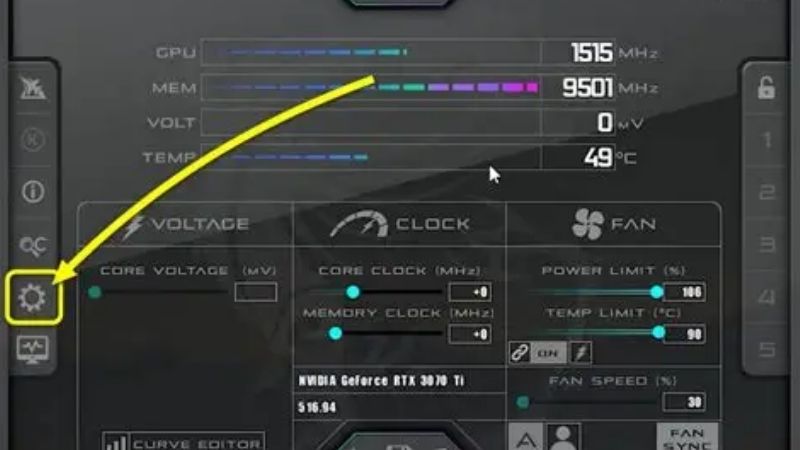
1. Open MSI Afterburner and click the settings icon to open its properties.
2. Go to the Monitoring tab, where you will see a list of hardware items Afterburner can track.
3. Click on each item you want on your overlay, such as GPU usage, framerate, memory, and CPU stats.
4. With an item selected, tick the box labeled Show in On-Screen Display so it appears in-game.
5. Repeat for every metric you want to see, then click Apply and OK to save your changes.
Once you have enabled the on-screen display option for each desired item, your overlay will show the full set of data rather than just GPU temperature, resolving the problem for the vast majority of users.
Making Sure RivaTuner Is Running
Because RivaTuner Statistics Server draws the overlay and handles frame rate, confirm it is installed and running. It usually appears in your system tray when active, and it launches automatically with Afterburner if installed together, so check that it has not been closed or disabled.
If RivaTuner is not running, starting it and ensuring the on-screen display is enabled within it restores the overlay and your frame-rate counter. Keeping both Afterburner and RivaTuner updated also prevents compatibility issues that can cause the overlay to misbehave, so make sure both programs are current.
If you ever installed Afterburner and unchecked RivaTuner during setup, that alone can explain a missing or broken overlay, since the two are designed to work as a pair. Reinstalling Afterburner and allowing RivaTuner to install alongside it is a clean way to restore the intended setup, after which enabling your chosen metrics for the on-screen display gives you the full overlay you expected.
Pros and Cons of a Full Overlay
Weighing the trade-offs helps you set up the overlay to suit you. On the plus side, a full overlay showing frame rate, usage, temperatures, and more gives you complete insight into how your system is performing, which is invaluable for diagnosing issues and confirming that settings changes actually help.
On the downside, displaying many metrics at once can clutter the screen and, on rare occasions, feel distracting during gameplay, and monitoring uses a tiny amount of resources. For most users these downsides are negligible compared with the benefit of seeing their data, but you can always choose to show only the metrics that matter most to you for a cleaner look.
Getting the Most from Afterburner Monitoring
Beyond fixing the immediate issue, a little customization and knowing other common fixes ensures your monitoring stays useful and reliable. These final tips help you get the full value from Afterburner and RivaTuner.
Customizing Your Overlay Layout
Once your metrics are showing, you can customize how the overlay looks and where it sits on screen through RivaTuner’s settings, adjusting size, color, and position so it is readable without obscuring your game. Arranging the data logically makes it easy to glance at while playing.
You can also choose to group related items or show only the stats you care about most, keeping the overlay clean and focused. Taking a few minutes to arrange it to your liking turns a functional overlay into one that is genuinely pleasant and easy to read during long gaming sessions.
Small touches make a real difference here, such as increasing the text size for readability at a glance or tucking the overlay into a corner where it never covers important on-screen information. Once you have it arranged the way you like, the overlay becomes a natural part of your gaming setup, giving you constant insight into performance without ever feeling intrusive or cluttered.
Other Common Afterburner Problems
If the overlay still will not appear after enabling everything, the usual culprits are RivaTuner not running, a conflict with another overlay program, or the game running in a display mode that blocks overlays. Closing conflicting overlays and confirming RivaTuner is active resolves most of these.
Keeping both programs updated, running them with appropriate permissions, and toggling between fullscreen and borderless mode in problematic games often clears remaining issues. These same steps address most Afterburner display problems, not just the GPU-temperature-only symptom, keeping your monitoring reliable across your games.
Frequently Asked Questions
These quick answers resolve the questions that most often come up about this issue.
Why does only GPU temp show? Because only that item has Show in On-Screen Display enabled. Enabling it for your other metrics fixes it.
Do I need RivaTuner for frame rate? Yes. RivaTuner Statistics Server captures and displays frame rate, so it must be installed and running to see your FPS.
See More:
- NVIDIA
- NVIDIA DeepStream
- NVIDIA GPU driver update
- NVIDIA GeForce NOW download
- NVIDIA RTX A2000 12GB driver
Final Thoughts on MSI Afterburner Only Showing GPU Temp
If MSI Afterburner is only showing GPU temp, the fix is almost always simple: enable the Show in On-Screen Display option for each metric you want in Afterburner’s Monitoring tab, and make sure RivaTuner Statistics Server is running to handle the overlay and your frame rate. Once these are set correctly, your overlay will display the full picture of your system’s performance rather than a single temperature reading. Remember that the tracking list and the on-screen display are separate settings, and that RivaTuner must be running for the overlay and frame rate to work. With everything configured, you can monitor your hardware properly, diagnose issues, and confirm your tweaks are working, getting the complete, informative overlay MSI Afterburner is designed to provide instead of a lone temperature reading.
As an Amazon Associate we earn from qualifying purchases at no extra cost to you.













Write Your Review
No reviews yet. Be the first to share your experience!