
- Top Pick: 5-in-1 Win Repair & Reinstall Bootable USB Flash Drive – Fix, Recover, or Reinstall Windows 11 (amd64 + arm64) / 10/7 – Includes PE Tools, Driver Pack, Antivirus, Data Recovery & Password Reset | Legacy toolkit for Windows 11/10/7 repair, reinstall, WinPE tools, drivers, antivirus and password reset
- Best Value: 64GB – Bootable USB Drive 3.2 for Windows 11/10 / 8.1/7, Install/Recovery, No TPM Required, Included Network Drives (WiFi & LAN),Supported UEFI and Legacy, Data Recovery, Repair Tool
- Premium Choice: Recovery and Repair USB Drive for Windows 11, 64-bit, Install-Restore-Recover Boot Media – Instructions Included
Nvidia app reinstall is often the quickest cure when Nvidia’s software starts misbehaving, whether it refuses to open, crashes, or fails to detect your GPU. A clean reinstall clears out corrupted files and settings that cause these headaches, usually without touching your graphics drivers at all. This guide walks you through exactly when a reinstall is the right move, how to do it cleanly step by step, and how to troubleshoot the stubborn cases where the app still will not cooperate afterward.
When You Need an Nvidia App Reinstall
A reinstall is a powerful fix, but it is not always the right first step, so it helps to recognize the signs that point to it. The Nvidia app can misbehave for several reasons, and matching the symptom to the cause saves you from doing more than necessary while making sure you actually solve the underlying problem rather than masking it.
Signs the Nvidia App Needs Reinstalling
The clearest signs are an app that will not launch at all, one that opens to a blank or frozen window, or one that repeatedly crashes when you try to use it. These point to corrupted app files.
Other symptoms include the app failing to detect your graphics card, refusing to download drivers, or showing persistent errors that survive a restart. When basic functions break like this, a fresh install often fixes them.
If you have already tried simply restarting your PC and the problems continue, that is a strong indication the app’s own files are damaged and a reinstall is warranted.
It is worth distinguishing these app-level failures from driver problems, which show up differently, as graphical glitches, crashes inside games, or poor performance rather than the management software refusing to open. When the app itself is the thing misbehaving, a reinstall of the app is the correct tool, and recognizing that distinction stops you from unnecessarily reinstalling your drivers when only the app is at fault.
What the Nvidia App Actually Does
The Nvidia app is the modern hub for managing your GPU, handling driver updates, per-game optimization, an in-game overlay, and recording features in one place. It replaced the older GeForce Experience.
Because it centralizes so many functions, a broken app can leave you unable to update drivers easily or access features you rely on, which is why fixing it promptly matters. It is more than a convenience for many users.
Importantly, the app is separate from the graphics driver itself, so reinstalling the app does not remove your drivers, a distinction that makes a reinstall far less risky than people often fear.
This separation is genuinely reassuring. Many people hesitate to reinstall the app because they worry it will break their carefully configured system or wipe their drivers, but neither happens. Your display keeps working throughout, your games stay installed, and your driver remains exactly as it was, so a reinstall is closer to reinstalling any ordinary program than to a risky system operation.
Reinstall vs Repair vs Update
Before a full reinstall, it is worth knowing your lighter options. An update simply installs the newest version of the app and can fix bugs present in an older build, so it is worth trying first if the app still opens.
A repair, where available, attempts to fix damaged files without a full removal, offering a middle ground. It can resolve issues without the extra steps of a complete reinstall.
A full reinstall, removing and reinstalling the app, is the most thorough fix and the right choice when the app is badly broken or lighter methods have failed. It clears out everything and starts fresh.
How to Reinstall the Nvidia App
When lighter fixes are not enough, a clean reinstall is straightforward and safe for your drivers. The steps below take you through removing the old app, installing a fresh copy from Nvidia’s official source, and confirming your drivers stayed intact, so you end up with working software and no lost functionality.
Uninstalling the Old App Cleanly
First, open your Windows Settings, go to the Apps section, and find the Nvidia app in the list of installed programs. This is where you remove the broken version.
Second, select the Nvidia app and choose to uninstall it, following any prompts to confirm. This removes the app while leaving your graphics driver in place, so your display keeps working normally throughout.
Once the uninstall finishes, it is good practice to restart your PC before installing the fresh copy, which ensures any locked files are cleared and the new install starts from a clean slate.
Skipping this restart is one of the most common reasons a reinstall does not fully fix the problem. Windows can hold onto pieces of the old app in memory or lock files that the fresh installer then trips over, so the small step of rebooting between uninstalling and reinstalling genuinely improves your odds of a clean, successful result the first time.
Downloading and Installing Fresh
Next, download the latest Nvidia app installer directly from Nvidia’s official website, which is essential to avoid fake or bundled software from untrustworthy sources. Only the official source is safe.
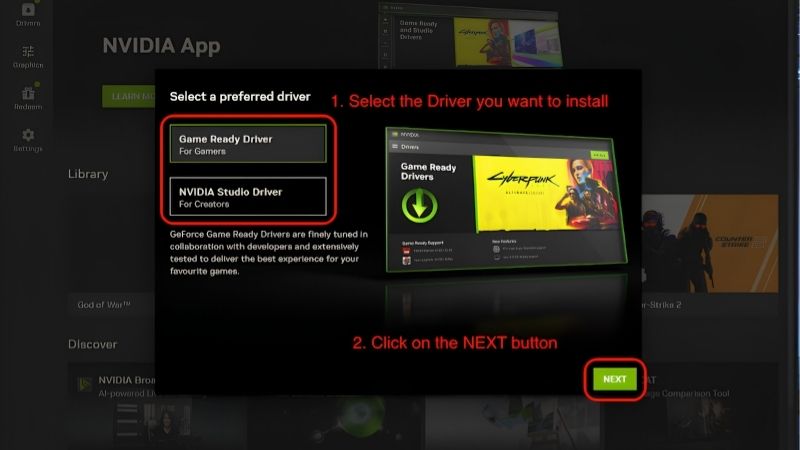
Run the installer and follow the prompts, allowing it to set up the app and connect to your existing graphics driver. The process is quick and mirrors a normal software installation.
When it finishes, open the app and confirm it detects your GPU and functions correctly. In most cases, the fresh install resolves the crashes and errors that prompted the reinstall in the first place.
If you want to be thorough, take a moment after the install to sign in and check that the app pulls in your system information and lists your installed games or drivers correctly. A quick confirmation that the core functions work now saves you from discovering later, mid-game, that something did not set up properly, and it gives you confidence the reinstall genuinely fixed the underlying problem.
Keeping Your Drivers Intact During Reinstall
A common worry is that reinstalling the app will wipe your graphics drivers, but this is not the case. The Nvidia app and the driver are separate components, so removing the app leaves your driver untouched.
This means you can reinstall the app freely to fix software issues without risking your display or needing to reinstall drivers afterward. Your games and graphics settings remain intact.
If you do want to refresh drivers as well, you can do that separately through the reinstalled app once it is working again, keeping the two tasks cleanly distinct.
This modular approach is one of the quiet strengths of the current setup. Because the app and driver are independent, you can troubleshoot each in isolation, fixing a flaky app without disturbing a perfectly good driver, or refreshing a driver without reinstalling the app. Treating them as separate layers makes your troubleshooting faster and far less nerve-wracking, and it is a mindset worth carrying into any PC problem, isolate one component at a time rather than changing everything at once.
Troubleshooting a Stubborn Nvidia App
Most reinstalls succeed on the first try, but occasionally the app resists even a clean reinstall. This section covers the deeper fixes for those stubborn cases, weighs the app’s overall value, and helps you recognize when the real problem lies not with the app but with your drivers or hardware.
Fixes When the Reinstall Won’t Work
If a fresh install still misbehaves, leftover files from the old version may be interfering, so using a thorough uninstall that clears residual folders can help. Removing every trace before reinstalling gives the cleanest result.
Running the installer as an administrator, temporarily pausing security software that might block it, and ensuring Windows itself is up to date can all resolve installation problems. These address common environmental blockers.
If the app still fails, the issue may extend to the graphics driver, in which case a full clean driver reinstall alongside the app often clears things up. Fixing both together can solve what neither alone could.
Pros and Cons of the Nvidia App
Pros: a single modern hub for drivers, game optimization, overlay, and recording, generally reliable, and separate from your drivers so reinstalling it is low risk.
Cons: it can occasionally break and require a reinstall, some users prefer a lighter setup, and its features depend on it running correctly in the first place.
On balance, the app is a genuinely useful tool that centralizes GPU management, and the occasional need to reinstall it is a minor inconvenience against the convenience it provides day to day.
See More:
When the Problem Is Your Drivers or Hardware
If reinstalling the app does not fix your underlying issue, especially poor performance or graphical glitches in games, the cause may be your drivers or the GPU itself rather than the app. The app is only the management layer.
A clean driver reinstall is the next step for driver-related problems, and it addresses issues the app reinstall cannot touch. Separating app problems from driver problems clarifies your troubleshooting.
If, after refreshing both the app and your drivers, your card still cannot deliver the performance you want, the limitation is likely the hardware. Use the links on this page to compare modern GPUs and see what an upgrade could offer your setup.
An Nvidia app reinstall is a safe, effective fix for most software glitches, clearing out corrupted files without disturbing your graphics drivers and usually restoring full functionality in minutes.
Keep the process simple: try an update or repair first, do a clean Nvidia app reinstall from the official site when needed, and remember that persistent performance issues point to your drivers or hardware rather than the app itself.
Frequently Asked Questions
How do I reinstall the Nvidia App properly?
Uninstall it through Windows Settings, apps and installed apps, then reboot. Delete any leftover folders under Program Files and ProgramData for Nvidia Corporation relating to the App specifically, not the display driver. Download a fresh installer from Nvidia’s official site and run it as administrator. Reboot again once installation completes.
Will reinstalling the app remove my graphics driver?
No. The Nvidia App and the display driver are separate components, so removing the App leaves your driver and your display output intact. If you also want a fresh driver, run the driver installer separately and tick the clean installation option, which is a different and more disruptive operation.
Where are my recorded clips and screenshots stored?
By default in your Videos folder under a subfolder named after each game. Reinstalling the App does not delete these files, but it does reset the configured capture path, quality settings and instant replay buffer length, so check those preferences afterwards if you had customised them.
Why does the installer fail partway through?
Common causes are a running Nvidia overlay or container process holding files open, antivirus intercepting the installer, or leftovers from an incomplete GeForce Experience migration. End Nvidia processes in Task Manager, temporarily disable third-party antivirus, and make sure no game or launcher with an overlay is running before retrying as administrator.
What if the App installs but shows no games or settings?
Check that the Nvidia Display Container service is running in services.msc and set to automatic. Verify the App has permission to scan your drives and manually add game folders through its settings. If the driver itself is damaged, a clean driver installation followed by an App reinstall usually restores full functionality.
As an Amazon Associate we earn from qualifying purchases at no extra cost to you.













Write Your Review
No reviews yet. Be the first to share your experience!