
- Top Pick: Elgato 4K X Capture Card, HDMI 2.1, 4K144 Ultra-Low Latency | VRR passthrough, HDR10, Up to 1080p240 capture, USB 3.2 Gen 2, Works with OBS and more, For PS5, Xbox, Switch, PC, Mac
- Best Value: ASUS TUF Gaming Video Capture Card (CU4K30) 4K/2K/1080P 120 FPS & HDR Passthrough, Near-Zero Latency, Certified for OBS, USB 3.2, Plug & Play, Record & Stream with PC, PS5, Xbox, Switch
- Premium Choice: CronusZen for Nintendo, PlayStation, Xbox, Switch (Electronic Games)
nvidia overlay fps n/a is the kind of problem you want solved in the next sixty seconds, not explained in a twelve-minute video with an intro. So: the checklist is below, ordered by what actually fixes it most often rather than by what sounds impressive. Nine times out of ten it is one of the first three items. This review covers each cause, why it happens, and the one explanation involving display mode that most guides never mention despite it being extremely common. Work down the list and stop when the counter comes back.
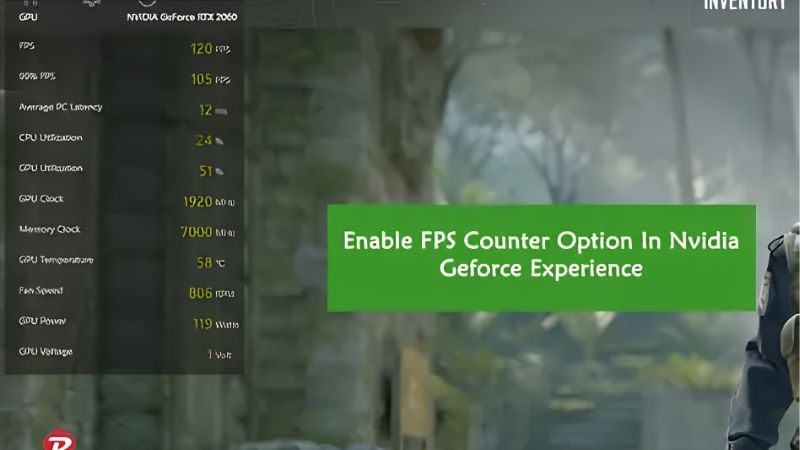
The Fix Checklist, Ranked by What Works
Before you start: the Nvidia overlay reads frame data by hooking into the game’s rendering pipeline. When it shows N/A rather than a number, it means the overlay is running but cannot see the game’s frames – the hook failed. That distinction matters, because it tells you the problem is almost always about access and display mode, not about a broken driver. Most people reinstall the driver first. It is the least likely fix and the most time-consuming.
The Top Three Fixes That Solve Most Cases
Run these in order and check after each one.
1. Restart the game after enabling the overlay. Sounds insulting, but the hook is injected when the game launches. If you turned the overlay on while the game was already running, it never attached – and the counter will read N/A until you restart the game. Not the overlay. The game.
2. Run the Nvidia app as administrator. If your game runs elevated – many anti-cheat titles do – and the overlay does not, the overlay physically cannot hook into it. Windows blocks a non-elevated process from injecting into an elevated one, by design. Right-click the Nvidia app, run as administrator, restart the game. This is the single most common fix that people skip.
3. Switch the game to borderless windowed or fullscreen, then back. Display mode changes rebuild the rendering surface and frequently re-establish a broken hook. Alt-tabbing during a mode transition is a common way to break it in the first place.
If the counter returns after any of those, you are done. Close the tab and go play.
The Display Mode Cause Nobody Mentions
This is the one worth reading if the top three did not work, because it explains a large share of the remaining cases and almost nobody covers it.
The overlay hooks differently depending on how the game presents its frames. In exclusive fullscreen, the game owns the display output directly and the hook is straightforward. In borderless windowed, the Desktop Window Manager composites the frame – and if another overlay is already hooked in, the Nvidia overlay can end up reading nothing and reporting N/A.
The usual culprits are other overlays fighting for the same hook: Steam, Discord, RivaTuner, MSI Afterburner’s on-screen display, Xbox Game Bar, or a streaming utility. Two overlays hooking the same pipeline sometimes coexist fine and sometimes do not, and which one loses is close to arbitrary.
The test takes two minutes. Disable every other overlay – Steam, Discord, Xbox Game Bar, RTSS – restart the game, and check. If the counter returns, re-enable them one at a time until it breaks again. That identifies the conflict precisely, and it is faster than any amount of driver reinstalling.
Worth knowing: if you already run RivaTuner or Afterburner’s OSD, you do not need the Nvidia overlay at all. RTSS is more accurate, more configurable, and shows frame times as well as frame rate – which is the more useful number anyway. The simplest fix is sometimes to stop trying to run two things that do the same job.
The Full Diagnostic Table
Everything, ranked. Work top to bottom.
| # | Cause | Fix | How often it works |
|---|---|---|---|
| 1 | Overlay enabled after game launched | Restart the game, not the overlay | Very common |
| 2 | Game runs elevated, overlay does not | Run Nvidia app as administrator | Very common |
| 3 | Hook broken by a display mode change | Toggle fullscreen / borderless, restart | Common |
| 4 | Another overlay won the hook | Disable Steam, Discord, RTSS, Game Bar | Common |
| 5 | In-game overlay toggle switched off | Nvidia app – Settings – enable overlay | Common |
| 6 | Anti-cheat blocking injection | No fix – use the game’s own counter | Occasional |
| 7 | Antivirus blocking injection | Whitelist the Nvidia app | Occasional |
| 8 | Unsupported API (older OpenGL / Vulkan) | No fix – use RTSS instead | Occasional |
| 9 | Corrupt overlay install after update | Repair or reinstall the Nvidia app | Rare |
| 10 | Driver problem | Clean install with DDU | Rare – do this last |
Note the last two rows. Reinstalling the driver is what most guides lead with and it is close to the least likely cause. It costs you thirty minutes and a reboot. Do it last, and only after items 1-8 have failed – and if you get there, use DDU in safe mode rather than installing over the top, because a half-removed driver creates a new problem rather than solving the old one.
When the Overlay Is Not the Real Problem
Here is the part worth pausing on. Most people who search for this are not curious about a counter – they are trying to diagnose stutter or low frames, and the counter breaking is just the thing blocking the diagnosis. If that is you, the overlay is a detour and there is a better tool.
Use Afterburner Instead – It Tells You More
The Nvidia overlay reports frame rate. That is one number, and it is the least useful one for diagnosing anything.
Install MSI Afterburner with RivaTuner, enable the on-screen display, and turn on five readouts: GPU usage, GPU temperature, VRAM usage, CPU usage, and frame time. Those five tell you what is wrong in about ten minutes, and it works on any brand’s card regardless of who made it.
Read them like this. GPU usage at 95-99% with low frames means the GPU is the limit – lower settings or enable DLSS. GPU usage at 60-80% with low frames means the CPU is the limit, and no graphics setting helps. VRAM near your card’s capacity with stutter means you have hit a memory wall – drop textures one notch and the hitching stops. Temperature above 80C means the card is throttling and giving back clocks you paid for.
Frame time is the one nobody watches and the one that matters most. A steady 90 fps feels better than a rate swinging between 80 and 130, because your eyes track consistency rather than peaks. A jagged frame time graph with a healthy average is exactly what a VRAM wall looks like – and the Nvidia overlay, showing only an average, would have told you everything was fine.
The Fan Curve Fix Worth Ninety Seconds
If your diagnostic shows temperatures in the high seventies or above, this is free and it is the highest-return ninety seconds available to you.
Stock fan profiles do almost nothing until 55-60C, then ramp hard – leaving the card sitting in the high seventies all session. Nvidia’s GPU Boost drops roughly one clock bin for every few degrees past the mid-fifties, so a card at 78C is often 60-90 MHz slower than the same card at 65C. That is real performance you already own and are not receiving.
In Afterburner, enable user-defined fan control and set: 30C at 0%, 50C at 30%, 60C at 45%, 70C at 60%, 80C at 85%. Set hysteresis to 3-5C so the fan does not hunt up and down. Tick apply at startup or it evaporates on reboot. Expect 8-12C off the core on a well-ventilated card.
Pros and Cons of the Nvidia Overlay
| What it does well | Where it falls short |
|---|---|
| Built in, no extra install, works immediately on most DX12 titles | Shows frame rate only – no frame time, which is the number that explains stutter |
| Clean, unobtrusive, and configurable position | Hooks break constantly on display mode changes and alt-tabs |
| Includes latency metrics on Reflex-supported titles, which RTSS does not | Loses hook conflicts against Steam, Discord and RTSS unpredictably |
| Integrated recording and highlights if you use them | Blocked outright by some anti-cheat, with no workaround |
| Free and already on your machine | Requires admin rights to hook elevated games – the cause of most N/A reports |
The honest summary: it is a convenience layer, not a diagnostic tool. If you want to know your frame rate, it is fine when it works. If you want to know why your frame rate is bad, it was never going to tell you – and the hour you spend fixing it would be better spent installing something that answers the actual question.
Why Diagnosing Beats Upgrading Right Now
There is a reason troubleshooting content has become more popular than upgrade content, and it is not that fixing things got more fun. It is that replacing a graphics card has become genuinely painful, which makes getting full value from the one you own a financial decision rather than a hobby.
GPU Prices Have Flattened but Have Not Fallen
The memory-driven surge through late 2025 lifted component and laptop pricing broadly, and graphics cards were not exempt. The genuinely positive development is narrow but real: the steep climb seen at the end of 2025 has stopped, and manufacturers including Framework have reported a stretch of relative stability – while still warning openly that further volatility remains possible.
Parse it precisely. Flat is not falling. The card you would upgrade to is not going to be meaningfully cheaper in three months. The panic-buy urgency has eased; the reward for patience never arrived.
Which makes the arithmetic on this page fairly stark. A correct fan curve costs ninety seconds and recovers 60-90 MHz of sustained clock. A ten-minute Afterburner diagnostic tells you whether your problem is VRAM, CPU, or heat – and two of those three are free to fix. The card that would give you 25% more costs several hundred dollars that is not getting cheaper. Diagnose first is not consolation advice in this market; it is the rational order of operations.
New Memory Capacity Arrives in 2027 or 2028
Genuine relief is under construction. OEMs can now source DDR5 from Chinese suppliers such as CXMT, and Micron is building two fabrication plants in Idaho – funded, structural additions to global supply rather than speculation.
The obstacle is the calendar. Those Idaho plants do not come online until 2027-2028. Fabrication capacity takes years to stand up, and the entire 2026 cycle passes before any of that reaches a shelf.
The practical conclusion: the card in your machine is an asset whose replacement cost has risen and is not coming back down for years. Clean the heatsink, fix the airflow, run a proper fan curve, and stop it sitting at 80C. That is the highest-return afternoon available to you right now, and it costs less than the game you were trying to measure.
The One Upgrade Worth Buying for Stutter
If your Afterburner diagnostic showed the card holding above 78C even at a 70% fan duty cycle, software has told you everything it can. The bottleneck is the air your case supplies, and no overlay, setting, or curve fixes that.
Roughly speaking, every 1C you take out of case air temperature returns about 1C at the GPU core. Two 120mm or 140mm static-pressure intake fans turn a sealed box into a wind tunnel and cost less than the game you are trying to fix – and they improve every component in the machine simultaneously, not just the GPU.
See More:
- A fan curve msi afterburner
- amd radeon rx 9070 vs rtx 5070
- 5060 ti vs 5070 benchmark
- rx 6600 vs rtx 3050
- 2060 vs 3060
Final Verdict
The nvidia overlay fps n/a problem is almost never a driver issue, which is unfortunate because that is what most guides tell you to fix first.
Work the list in order: restart the game after enabling the overlay, run the Nvidia app as administrator, toggle display mode, then disable every other overlay one at a time. Those four solve the large majority of cases and take about five minutes combined. Reinstalling the driver is last, not first – it costs thirty minutes and rarely helps.
And if the reason you wanted the counter was to diagnose stutter, skip the overlay entirely. Install Afterburner, watch GPU usage, VRAM, temperature and frame time for one session, and you will know exactly what is wrong. The overlay would only ever have shown you an average – which is the number that hides VRAM stutter rather than revealing it.
With replacement cards priced the way they are in 2026 and no relief arriving before 2027, ten minutes of proper diagnosis and a ninety-second fan curve are the most rational money in this entire fix. Both are free.
Frequently Asked Questions
Why does the NVIDIA overlay show FPS as N/A?
The overlay reports N/A when it cannot hook into the game render pipeline. The most common causes are the game running in exclusive fullscreen with a conflicting overlay already attached, insufficient permissions, an unsupported or unrecognised executable, or the in-game overlay feature being disabled after a driver or NVIDIA app update reset your settings.
What is the fastest fix that usually works?
Switch the game to borderless windowed mode, then fully close and reopen the NVIDIA app and toggle the in-game overlay off and back on. That single sequence resolves the majority of cases because it forces the overlay to re-inject its hook into a window mode it can reliably attach to. Restarting the game afterwards completes the process.
Do I need to run anything as administrator?
Often yes. If the game launches with elevated privileges, for example an anti-cheat service or a launcher started as administrator, a non-elevated overlay cannot hook into it. Running the NVIDIA app as administrator, or launching the game without elevation, resolves the mismatch. Keeping both at the same privilege level is the underlying principle.
Can other overlays cause the conflict?
Frequently. Steam, Discord, Xbox Game Bar, RivaTuner Statistics Server, MSI Afterburner and various vendor utilities all inject overlays, and two competing hooks often result in one silently failing. Disable the others one at a time to identify the culprit. RivaTuner in particular commonly takes exclusive control of the frame rate counter.
What are good alternatives if the overlay still will not work?
RivaTuner Statistics Server paired with MSI Afterburner gives a highly configurable on-screen display with detailed GPU, CPU and frame time metrics. CapFrameX and PresentMon provide more rigorous frame time analysis for benchmarking. Many games also include a built-in performance counter in their video settings, and Steam has its own lightweight frame rate overlay option.
As an Amazon Associate we earn from qualifying purchases at no extra cost to you.













Write Your Review
No reviews yet. Be the first to share your experience!