
- Top Pick: PNY NVIDIA RTX A2000 12GB
- Best Value: PNY RTX A2000 NVIDIA 12GB GDDR6 Graphics Card
- Premium Choice: Nvidia RTX 2000 ADA 16GB Graphics Card
NVIDIA RTX A2000 12GB driver setup is a little different from installing drivers for a typical gaming card, because the RTX A2000 is a professional workstation GPU designed for reliability in demanding creative and technical work. Getting the correct driver matters even more here, since the right one ensures stability in the applications professionals depend on. This guide explains what the RTX A2000 12GB is, why workstation cards use different drivers, how to download and install the proper driver correctly, and how to troubleshoot any issues, so your professional card runs exactly as intended.
About the RTX A2000 12GB and Its Drivers
Before installing anything, it helps to understand what the RTX A2000 12GB is and why its driver situation differs from consumer cards. This is a professional-grade GPU, and that distinction shapes which drivers you should use. Knowing this prevents the common mistake of treating it like an ordinary gaming card.
What the RTX A2000 12GB Is
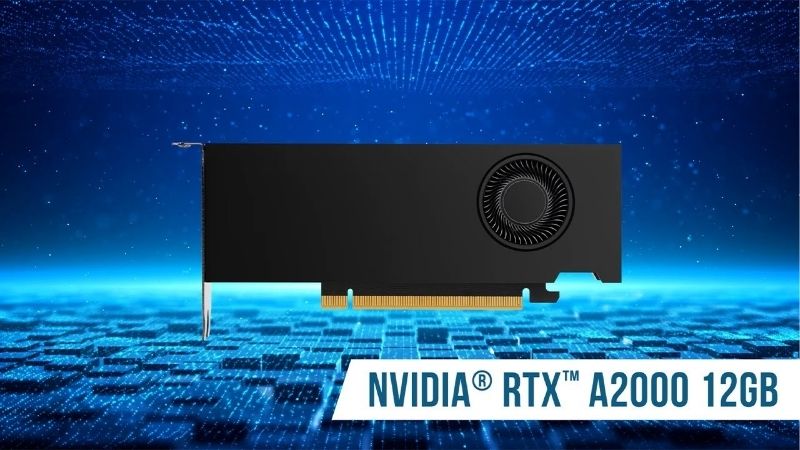
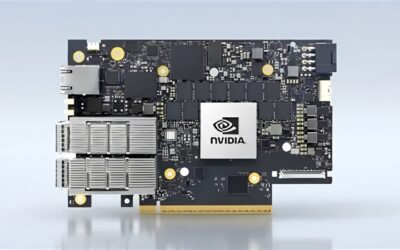
The RTX A2000 12GB is a professional workstation graphics card designed for creators, engineers, and technical users rather than primarily for gaming. Its compact, efficient design and generous memory make it well suited to professional applications like 3D design, content creation, and technical computing.
Unlike a mainstream gaming card, the RTX A2000 is built and certified for stability and reliability in professional workflows, where consistent, dependable performance matters more than chasing the highest gaming frame rates. This professional focus is exactly why its driver situation is a little different from that of consumer GeForce cards.
The 12GB of memory in particular makes this card capable of handling larger, more demanding professional projects, which is a key reason it appeals to users working with complex scenes, models, or datasets. Understanding its professional nature is the foundation for choosing the correct driver.
Why Workstation Cards Use Different Drivers
Professional cards like the RTX A2000 typically use specialized drivers designed and tested for stability in professional applications, rather than the frequently updated drivers aimed at the latest games. These professional drivers prioritize reliability and certification with professional software over cutting-edge gaming optimizations.
This distinction matters because professionals value stability above all, since a crash during critical work is far more costly than missing a small performance gain in a new game. Using the appropriate professional driver ensures your RTX A2000 behaves predictably and is properly supported in the applications it was made for.
There is another practical benefit to this approach: many professional software vendors certify their applications against specific tested drivers, meaning that using the recommended professional driver can be part of qualifying for proper support if something goes wrong. For businesses and serious professionals, that certification and support relationship is a real advantage that consumer gaming drivers simply are not designed to provide.
Enterprise vs Studio Drivers
For the RTX A2000, you generally have professional-oriented driver options that emphasize stability and application certification, and it is important to choose the one intended for your card and workflow. These differ from the standard gaming drivers most consumers use.
Selecting the driver designated for professional and workstation use ensures you get the stability and certification benefits the card is designed to provide. Matching the driver to your professional applications, rather than grabbing a general gaming driver, is the key to getting reliable, supported performance from the RTX A2000 12GB.
If you are unsure which driver is appropriate, checking the recommendations for your specific professional applications is a sensible step, since some software vendors specify tested driver versions. Aligning your driver choice with both the card’s professional branch and your key applications gives you the best combination of stability and support, which is exactly what a workstation setup is meant to deliver.
How to Download and Install the Driver
With the right type of driver identified, downloading and installing it is straightforward as long as you use official sources and follow the correct steps. Doing so ensures your professional card gets the stable, certified driver it needs.
Getting the Right Driver
Always download drivers for the RTX A2000 from NVIDIA’s official website to ensure they are genuine and correct. Follow these steps for a reliable download.
1. Go to NVIDIA’s official driver download page.
2. Select the RTX A2000 as your product, making sure to choose the professional or workstation product category rather than a gaming line.
3. Choose your operating system and the appropriate professional driver.
4. Download the driver and note the version for future reference.
5. Close professional applications before installing to allow a clean, trouble-free setup.
Choosing the correct professional product and driver at this stage is the most important step, since it ensures you get the stable, certified driver your RTX A2000 is designed to use rather than a mismatched consumer version.
Clean Installation
For the most reliable results, especially when switching driver versions or troubleshooting, a clean installation is recommended. During installation, choosing the custom option and selecting a clean install removes old driver files before installing the new ones, preventing conflicts.
A clean install briefly disrupts your display as the driver reloads, which is normal, and it helps ensure your professional card starts from a fresh, stable state. For a workstation card where reliability is paramount, taking the time to do a clean install when appropriate is well worth the small extra effort.
Before performing a clean install, it is wise to close and save any professional work, since the display will briefly reset during the process. Taking that simple precaution avoids any risk of losing unsaved progress and ensures the installation completes without interruption, leaving your RTX A2000 with a clean, stable driver foundation ready for demanding professional tasks.
Pros and Cons of Enterprise Drivers
Weighing the trade-offs clarifies why professional drivers suit this card. On the plus side, they offer stability, reliability, and certification with professional applications, along with less frequent but well-tested updates, which is exactly what workstation users need for dependable, uninterrupted work.
On the downside, professional drivers update less often than gaming drivers and are not focused on optimizing the latest games, so if you intended to use the card primarily for gaming, this branch is not aimed at that. For its intended professional use, however, the stability advantages clearly outweigh the slower update cadence, making these drivers the right choice for the RTX A2000.
Troubleshooting RTX A2000 12GB Driver Issues
Most installations go smoothly, but occasionally an issue arises, and knowing how to respond keeps your professional workflow running. A few standard fixes resolve the vast majority of driver problems on this card.
Common Problems and Fixes
If a driver installation fails or causes issues, a clean installation that fully removes the old driver before installing fresh is the most reliable fix. Restarting your workstation before and after installing also clears many temporary problems, and confirming you selected the correct professional driver prevents mismatches.
Brief display flickering or a black screen during installation is normal as the driver reloads. If problems persist, downloading the correct professional driver directly from NVIDIA and performing a clean install typically resolves what a failed update could not, restoring your RTX A2000 to proper working order for your professional applications.
It is also worth confirming that any issue is genuinely driver-related before repeatedly reinstalling, since problems in professional software can sometimes stem from the application itself or from a specific project file. Ruling out those possibilities first can save time, ensuring you address the real cause rather than assuming the driver is at fault when the card and its driver are actually working correctly.
Rolling Back a Driver
If a new driver causes problems in your professional software, you can roll back to a previous version that worked reliably. Windows offers a rollback option in Device Manager, and you can also cleanly install a known-good earlier professional driver from NVIDIA’s archive.
For workstation users, this ability to return to a stable, tested version is especially valuable, since consistency in professional work is so important. Keeping note of which driver version worked well for your critical applications makes rolling back simple, giving you a dependable version to return to whenever needed.
Many professionals adopt a cautious update habit for exactly this reason, testing a new driver on non-critical work before relying on it for important projects. This measured approach, combined with knowing your last reliable version, means a problematic update never has to disrupt your workflow for long, which is precisely the kind of stability a workstation card like the RTX A2000 is chosen to provide.
Frequently Asked Questions About the RTX A2000 12GB Driver
These quick answers resolve the questions that most often come up about the RTX A2000 12GB driver.
Can I use gaming drivers on the RTX A2000? It is designed for professional drivers that prioritize stability and certification, which are the right choice for the professional applications the card is built for.
Why do professional drivers update less often? They emphasize stability and thorough testing for professional software over frequent gaming optimizations, which suits workstation reliability needs.
See More:
Final Thoughts on the NVIDIA RTX A2000 12GB Driver
Getting the right NVIDIA RTX A2000 12GB driver is about matching this professional workstation card with the stable, certified drivers it was designed to use, rather than treating it like a gaming card. Download the correct professional driver from NVIDIA’s official site, perform a clean install when appropriate, and lean on a rollback if a new version causes trouble in your critical applications. Match the driver to your professional applications, update cautiously, and keep a known-good version in reserve. Do that, and your RTX A2000 12GB will deliver the dependable, consistent performance that professional work demands, with the stability and certification support that make workstation cards worth their premium over consumer alternatives.
As an Amazon Associate we earn from qualifying purchases at no extra cost to you.






Write Your Review
No reviews yet. Be the first to share your experience!