
How to check your Nvidia driver version is one of those small tasks that suddenly matters when a game crashes, a new title lists a driver requirement, or support tells you to confirm what you are running. The good news is that it takes under a minute and needs no downloads or technical skill. This guide walks you through three simple methods, shows you exactly where the version number lives, and helps you decide whether you actually need to update once you have found it.
What You Will Need to Check Your Nvidia Driver Version
Checking your driver version requires almost nothing, which is the whole point: the tools are either already on your PC or free from Nvidia. Before jumping into the steps, it helps to know your options so you can pick the method that suits you, whether you prefer a polished app or a built-in Windows tool. None of them takes more than a minute, and none requires any technical skill, so the only real decision is which tool you already have installed and are most comfortable opening.
The Nvidia App (Free and Recommended)
The Nvidia app is the modern, official hub for your graphics card, and it shows your driver version front and centre. If you game or update drivers regularly, it is the tool worth having installed.
It is free to download from Nvidia and replaces the older GeForce Experience. Beyond showing the version, it manages updates, so it doubles as the easiest way to both check and act in one place. That two-in-one convenience is why it is the method most regular gamers settle on: the moment you see your version is behind, the update button is right there on the same screen, so there is no separate hunt for the latest download and no risk of grabbing the wrong file.
Built-In Windows Tools
If you would rather not install anything, Windows already has what you need. Device Manager and the System Information panel both report the driver version, and they work on any Windows PC with an Nvidia card.
These built-in routes are ideal for a one-off check or for machines where you cannot install software. They show the same underlying version number, just presented in a slightly more technical format. The only trade-off is readability: Windows reports a long internal string rather than Nvidia’s clean version number, so you may need to glance at the last few digits to translate it, but the information underneath is identical to what the app displays.
A Supported Nvidia GPU Worth Keeping Updated
Checking a version only matters if your card still receives active driver support, and that is worth a moment of honesty. If your GPU is several generations old and on Nvidia’s legacy list, you may be looking at a frozen final version with no updates coming.
If that is your situation and modern games are struggling, the version number is telling you something: it may be time for a current card. A modern mid-range GPU brings active support and new features, and you can compare suitable options through the links on this page if an upgrade is on your mind. There is no rush if your card is still supported and running your games well, since this is simply a checkpoint. But if the version you find is one Nvidia has already frozen, that is genuinely useful information, turning a routine check into a small, timely nudge to start planning your next card.
How to Check Your Nvidia Driver Version Step by Step
Here are three reliable methods, from the easiest to the most built-in. Pick whichever matches the tools you have, follow the numbered steps, and you will have your version number in seconds. Each method lands you at the same information, so there is no wrong choice.
Method 1: Using the Nvidia App
This is the fastest route if you have the app installed, and it is the one most gamers will use day to day.
- Open the Nvidia app from your Start menu or system tray. This launches the official control hub for your card.
- Click the Drivers tab in the left-hand menu. This is where the current version and any available update are listed.
- Read the version number shown at the top of the panel, for example a number like 566.36. That is your installed driver version.
If an update is offered on the same screen, you can install it right there, which is why this method is the most convenient overall. Because the check and the fix live on the same screen, it is also the route least likely to leave you confused about what to do next, which makes it the natural default for anyone who games regularly and updates often.
Method 2: Using Windows Device Manager
This method needs no extra software and works on every Windows PC.
- Right-click the Start button and select Device Manager from the menu.
- Expand Display adapters and double-click your Nvidia GPU to open its properties.
- Open the Driver tab and read the Driver Version field. Windows shows a longer internal number here; the last five digits map to the version Nvidia uses.
This is the go-to method when you cannot or do not want to install anything, though the number format takes a moment to translate. If you ever need to give the number to a support agent, this longer Windows string is often exactly what they ask for, so it is worth knowing where to find it even when the app is your usual choice.
Method 3: Using the NVIDIA Control Panel
The Control Panel is another built-in option that many systems already have.
- Right-click your desktop and choose NVIDIA Control Panel, or open it from the system tray.
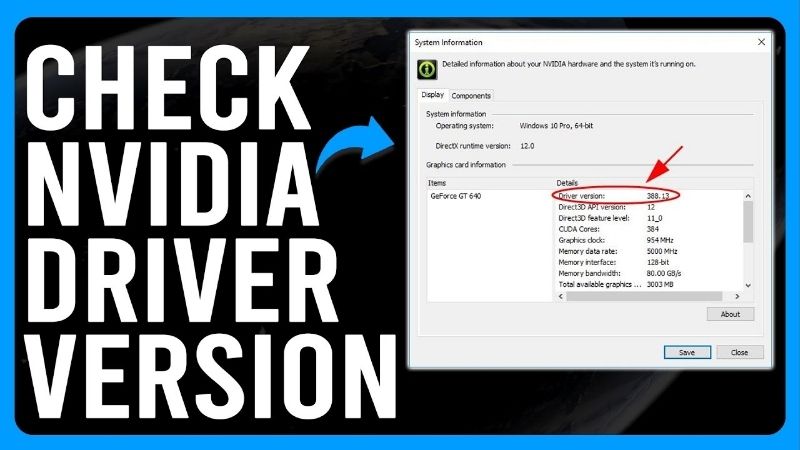
- Click System Information in the bottom-left corner of the window.
- Find the Driver version listed in the Details tab. It appears in Nvidia’s clean, short format, identical to what the app shows.
This route is handy if you have the Control Panel but not the newer app, and it presents the version in the friendliest format of the built-in tools. It doubles as a reassuring cross-check as well: if two different methods report the same version, you can be confident you are reading it correctly, which matters when a game lists a strict minimum driver requirement you need to meet.
Pro Tips, Mistakes to Avoid and When to Update
Finding the number is only half the job; knowing what to do with it is the other half. A few practical tips help you read the version correctly and decide whether an update is worth doing, while avoiding the common missteps that turn a simple check into a problem. None of this is complicated, but a couple of small habits make the difference between a version number that just sits there and one that actually guides a good decision about updating.
Pro Tips for Reading the Version Number
Write down or screenshot your current version before any update, so you can roll back quickly if a new driver misbehaves. This single habit saves the most trouble. It costs only a few seconds and repeatedly rescues people from a bad release, which is exactly why experienced users treat it as an automatic step rather than an optional one.
Also note the difference between Game Ready and Studio drivers: gamers should track the Game Ready branch, while creators benefit from the Studio branch, and the version numbers run on separate tracks. Mixing the two up is a common source of confusion, so decide which branch fits your use, gaming or creative work, and track that one consistently rather than jumping between them and wondering why the numbers do not line up.
Pros and Cons of Always Updating
Updating is usually good, but not blindly. Here is the honest trade-off to weigh once you know your version.
| Pros of updating | Reasons to hold |
|---|---|
| New game optimizations and features | A brand-new driver can carry regressions |
| Security and stability fixes | A stable current setup may not need it |
| Support for the latest titles | Mid-project creators may prefer to wait |
The sensible rule is to update for a new game or a known fix, and to wait a short while on major releases so any early bugs surface first.
See More:
When an Old Version Means a New GPU
If your check reveals a version that Nvidia no longer updates, and your games are struggling regardless, the version number has done its real job: it has told you the hardware, not the software, is the limit.
At that point no amount of checking or updating will help, and a modern card is the genuine fix. Once you have confirmed your power supply and case can handle it, you can compare current GPUs that fit your budget through the links here and move to hardware that stays supported. Treat the version check as an early-warning system rather than a chore: the day it shows a frozen driver on a card that can no longer keep up, you already have your answer, and an upgrade becomes the sensible move instead of another round of troubleshooting that leads nowhere.
That is all there is to it. Now that you know how to check Nvidia driver version details using the Nvidia app, Device Manager or the Control Panel, you can confirm your setup in seconds whenever a game or support request calls for it. Note your version, update when it makes sense, and if the number reveals a card that has aged out of support, treat that as your cue to consider a modern GPU that will keep receiving the updates your games depend on.
Frequently Asked Questions
What is the quickest method on Windows?
Press the Windows key, type cmd, and run nvidia-smi. The header displays the driver version immediately in the familiar three digit format. If you prefer a graphical route, open the NVIDIA App or right click the desktop and open the NVIDIA Control Panel, then click System Information at the bottom left corner.
How do I check on Linux?
Run nvidia-smi in a terminal, which reports the driver version alongside GPU temperature, memory use and running processes. You can also read /proc/driver/nvidia/version directly, or query your package manager with dpkg -l or rpm -qa filtered for nvidia to see which driver package the distribution installed.
Why does Device Manager report a longer number?
Windows shows an internal versioning scheme such as 32.0.15.7270. The final five digits map to the public release number, so 15.7270 means driver 572.70. Nothing is broken; it is simply a different convention. Use nvidia-smi or the NVIDIA App whenever you need the version number that documentation and support forums reference.
How do I check the driver version on a laptop with hybrid graphics?
The same methods work, but confirm you are reading the discrete GPU rather than the integrated one. nvidia-smi only reports the NVIDIA hardware, which makes it the cleanest option. In Device Manager expand Display adapters and select the GeForce entry specifically, since the Intel or AMD integrated adapter carries an entirely separate driver version.
What should I do if my driver is older than the latest release?
Check first whether your GPU generation is still on an active branch, since legacy architectures are pinned to a final version by design. If a newer driver is available and you are troubleshooting a problem, update. If your system is stable and you are not playing brand new releases, there is little urgency.
As an Amazon Associate we earn from qualifying purchases at no extra cost to you.


Ready to decide? Our #1 pick for 2026 is the Pros of updating.
Live price & availability on Amazon.











Write Your Review
No reviews yet. Be the first to share your experience!