
- Top Pick: ASRock Intel Arc B580 Challenger 12GB OC Graphics Card, 2740 MHz GPU Clock, 12GB GDDR6, DisplayPort 2.1, HDMI 2.1a, Dual Fan Cooling, 0dB Silent Operation
- Best Value: ASRock Intel Arc A580 Challenger 8GB OC Graphics Card, Intel Xe HPG Architecture, 8GB GDDR6, PCIe 4.0, Dual Fans, 0dB Silent Cooling, DisplayPort 2.0
- Premium Choice: ASRock Intel Arc B570 Challenger 10GB OC GDDR6 Graphics Card, 2600 MHz GPU, 19 Gbps Memory, Dual Fan, Metal Backplate, HDMI 2.1a, DisplayPort 2.1, 0dB Cooling
Intel graphics driver download is usually the first thing people search after a black screen, a stuttering video, or a game that refuses to launch on integrated graphics. The good news is that the right driver is free and takes minutes to install; the harder question is which download you actually need, how to avoid the fake driver sites that flood search results, and when an update simply will not fix a hardware limit you have outgrown. This review-style guide walks through the safe sources, the real user experiences, and the point where a dedicated GPU becomes the smarter money.
Getting the Right Intel Graphics Driver Download Safely
The single most important thing to get right is the source, because the wrong download is at best useless and at worst malware bundled to look like a driver. Intel’s own graphics software and Windows Update are the two trustworthy routes, and everything else should be treated with suspicion. Knowing which of the two to use, and how to identify your exact hardware first, saves most of the frustration people run into.
Where to Download and Which Source to Trust
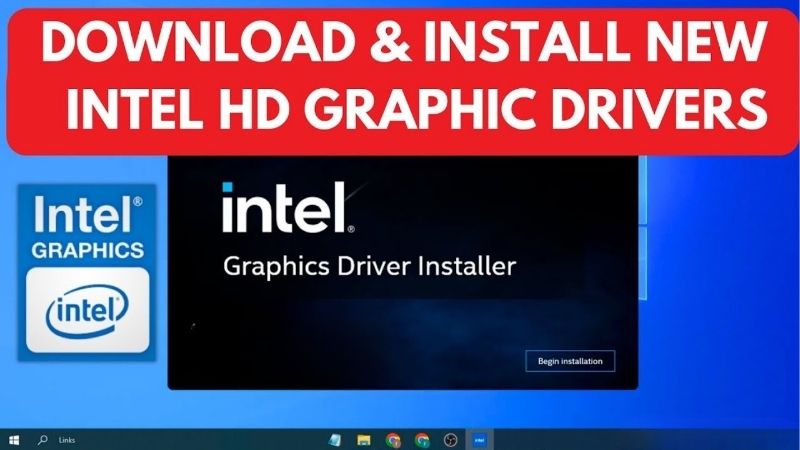
There are two safe options. The first is Intel’s official graphics driver application, which detects your hardware and installs the current driver automatically, then keeps it updated. The second is Windows Update, which ships a validated but often older driver that prioritizes stability over the latest features.
Avoid third-party “driver updater” tools and any site that asks you to pay for a driver. Reviews of these tools are full of complaints about bundled adware, wrong versions and drivers that break more than they fix. The genuine files cost nothing, so paying is a red flag on its own. A good habit is to check the address bar before you click download and confirm you are on Intel’s own domain, because search results are routinely padded with look-alike pages that mimic the official layout well enough to fool a hurried user who just wants the crash to stop.
For gamers and anyone using an Intel Arc card, the dedicated graphics software is the better route because it delivers game-ready updates far faster than Windows Update does.
Identifying Your Exact Intel Graphics Hardware
Installing a driver for the wrong chip is the most common self-inflicted problem. Before downloading, open Device Manager and expand Display adapters to read the exact name, or use the auto-detect option in Intel’s software so you never have to guess.
This matters because Intel spans a wide range, from older integrated UHD graphics to modern Arc integrated and dedicated GPUs, and the drivers are not always interchangeable. Matching the download to the silicon is what turns a five-minute fix into a reliable one. On laptops there is an extra wrinkle worth knowing: the machine’s manufacturer sometimes ships a customized driver, and in a few cases the generic Intel package and the laptop-specific one can behave differently, so if the standard download misbehaves, checking your laptop maker’s support page is a sensible fallback rather than a first move.
Clean Install Versus Simple Update
A standard update installs over the existing driver and is fine for routine maintenance. A clean install wipes the previous driver first and is the right call when you are chasing crashes, corruption or leftover files from a bad install.
Long-term users consistently report that a clean install resolves stubborn issues that a plain update leaves behind. If you have already updated once and the problem persists, escalate to a clean install rather than repeating the same step. Intel’s installer includes a clean-install checkbox that removes existing settings and profiles before applying the new driver, and reaching for that option early saves the frustrating cycle of reinstalling the same broken configuration and expecting a different result.
Fixing Common Intel Graphics Problems After Updating
Most driver searches begin with a specific symptom rather than a wish to update for its own sake, so it helps to map the frequent complaints to their actual fixes. The pattern across user reviews is clear: a large share of black screens, flicker and video stutter trace back to either the wrong driver version or a messy install, both of which are fixable without new hardware.
Black Screens, Flicker and Crashes
These are the most reported symptoms, and they usually stem from a corrupted or mismatched driver. A clean install of the correct current driver clears the majority of them, and rolling back to a slightly older stable release fixes most of the rest when a brand-new driver introduces a regression.
Keep the previous installer or note the version number before you update, so you can revert quickly if a new release misbehaves. This simple habit is the difference between a two-minute rollback and an afternoon of troubleshooting. Windows also keeps a built-in roll-back option in Device Manager under the driver’s properties, which reverts to the previously installed version in a couple of clicks, so even if you forgot to save the old installer you are usually not stuck with a bad update.
Choppy Video Playback and Streaming
Stuttering during video often comes down to hardware acceleration being disabled or an outdated driver failing to decode a modern codec efficiently. Updating the driver and confirming that hardware acceleration is enabled in your browser resolves a large portion of these cases.
Integrated graphics have real limits here, though. Very high-resolution or high-bitrate content can simply exceed what older integrated chips can decode smoothly, and no driver will change a hardware ceiling. Recognizing that boundary early stops you from chasing a fix that does not exist. A quick way to tell the two apart is to watch the same clip at a lower resolution: if 1080p plays smoothly but 4K stutters, you are hitting a decode limit rather than a driver bug, and that single test tells you whether the answer is a download or a hardware upgrade.
Pros and Cons of Relying on Integrated Intel Graphics
Before deciding whether an update is enough, it helps to weigh what integrated graphics can and cannot do for your actual use.
| Pros of integrated graphics | Cons and hard limits |
|---|---|
| Free, built in, no extra power draw | Weak for modern gaming at good settings |
| Fine for browsing, office and video | Struggles with heavy 4K and pro creative work |
| Driver fixes solve most everyday issues | No driver can add real 3D horsepower |
| Low heat and quiet operation | Shared system memory limits performance |
If your needs sit on the left column, a correct driver download is the whole solution. If they sit on the right, the driver is only buying time until a hardware upgrade.
When a Driver Download Is Not Enough: Upgrading Your GPU
There is a clear line where updating the Intel graphics driver stops being the answer, and being honest about it saves you from an endless loop of reinstalls. Once your workload consistently outruns integrated graphics, the real fix is a dedicated GPU, and the practical questions become compatibility and budget rather than which driver to fetch.
Signs You Have Outgrown Integrated Graphics
The tell-tale signs are consistent: games that only run at the lowest settings, creative apps that lag on preview, and video editing timelines that crawl. If a fully updated, cleanly installed driver still leaves you stuttering, the bottleneck is the hardware, not the software.
This is a common and normal upgrade path. Integrated graphics are designed for general use, and needing more is simply a sign your demands have grown past what a shared, entry-level solution was built to handle. There is no amount of driver tuning that changes the underlying math, since integrated graphics borrow system memory and share power and thermal budget with the processor, so once you consistently hit that wall, further downloads only confirm the limit rather than lift it.
Checking Compatibility Before You Buy a Dedicated Card
A dedicated GPU is only a fix if it fits your system. Check three things first: the physical space inside your case, the wattage and connectors on your power supply, and whether your processor is strong enough to avoid bottlenecking the new card.
For most people coming from integrated graphics, a modern entry to mid-range dedicated card is a transformational jump and does not require a top-tier power supply. Confirming these details up front means the card drops in and works the first time.
See More:
Choosing an Affordable Upgrade Path
You do not need to spend flagship money to leave integrated graphics behind. A current-generation budget or mid-range dedicated GPU delivers a huge leap in gaming and creative performance and adds modern features that integrated chips lack entirely, from dedicated video memory to hardware encoders and AI-accelerated tools that simply do not exist on shared integrated graphics. For someone moving up from a UHD or basic integrated chip, even an entry dedicated card is not an incremental step but a category change in what the machine can do.
Once you have confirmed your case, power supply and processor are ready, you can compare the entry and mid-range cards we recommend through the links on this page and pick one that matches your budget, then keep the Intel driver handy purely as a fallback while your new card handles the heavy lifting.
To sum up, an Intel graphics driver download is the correct, free first step for the great majority of display problems, and downloading it from Intel’s own software or Windows Update will resolve most black screens, flicker and playback issues in minutes. Just be honest about the boundary: when a clean, current driver still cannot keep up with your games or creative work, the true fix is a dedicated GPU rather than another reinstall, and moving to an affordable modern card is the upgrade that finally puts those integrated-graphics limits behind you.
Frequently Asked Questions
Which Intel driver package do I need?
Modern Intel graphics, covering Arc discrete cards and Iris Xe integrated parts from recent processor generations, share a single unified driver package. Older HD and UHD integrated graphics use separate legacy packages. The Intel Driver and Support Assistant detects your hardware and offers the correct download, which removes most of the guesswork.
Should I use the Intel driver or my OEM’s version?
Intel’s generic package is now installable on most systems and typically carries newer fixes and game optimisations. OEM versions sometimes include panel specific tuning, brightness controls and hybrid switching behaviour, so if display features misbehave after switching, roll back. Keep a copy of the OEM installer before you replace it.
How do I perform a clean driver installation?
The Intel installer offers a clean installation option that removes previous settings and files rather than upgrading in place. For stubborn problems, use Display Driver Uninstaller in safe mode first, then install fresh. A clean install resolves most cases where a graphics control panel goes missing or a game refuses to detect the GPU.
Why is my integrated graphics no longer getting updates?
Intel moved older integrated generations into legacy support, meaning security and critical fixes only rather than ongoing feature and game optimisation work. That is normal lifecycle management. The final driver remains fully functional for desktop, video playback and light 3D use, but newly released games may not run at all.
Will a driver update improve gaming performance on Arc?
On Arc hardware, yes, substantially. Intel has delivered large performance improvements over time, particularly for older DirectX 9 and 11 titles that initially ran poorly through translation layers. Keeping Arc drivers current is far more consequential than it is on mature NVIDIA or AMD platforms, so update regularly.
As an Amazon Associate we earn from qualifying purchases at no extra cost to you.
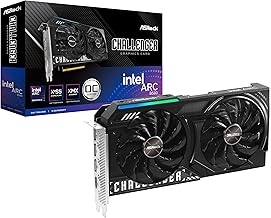


Ready to decide? Our #1 pick for 2026 is the Pros of integrated graphics.
Live price & availability on Amazon.











Write Your Review
No reviews yet. Be the first to share your experience!