
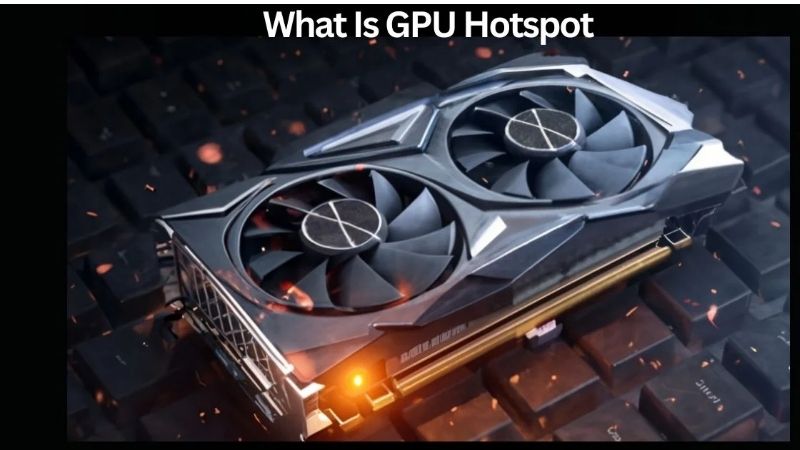
What is the GPU hotspot is a question that worries many owners the first time they spot a second, higher temperature reading on their graphics card. In simple terms, the GPU hotspot, also called the junction temperature, is the hottest single point detected anywhere on the chip, as opposed to the average edge temperature most monitoring tools show by default. It naturally runs warmer than the edge reading, and understanding the gap between the two tells you a lot about your card’s cooling health. This guide explains what the hotspot is, what counts as safe, why a large gap can be a warning sign, and how to keep it under control.
Understanding What the GPU Hotspot Is
Before worrying about any number, it helps to understand what the hotspot actually measures and why it exists. Modern graphics cards report more than one temperature, and the hotspot is simply the highest of many sensor readings spread across the chip, which is why it behaves differently from the familiar edge temperature.
How the Hotspot Differs From Edge Temperature
The standard GPU temperature most people see is the edge or average reading, taken from sensors across the chip and presented as a general figure. The hotspot, by contrast, is the single hottest point those sensors detect at any given moment.
Because it captures the warmest spot rather than an average, the hotspot is always higher than the edge temperature. This is completely normal and is exactly how the measurement is designed to work.
Modern cards include many sensors precisely so they can find and report this peak, giving you a more complete picture of what is happening across the silicon than a single average ever could.
Why the Hotspot Runs Hotter
Heat is never perfectly even across a chip. Some areas, such as the busiest processing clusters, generate more heat than others, creating localized hotspots that climb above the surrounding silicon.
The hotspot reading tracks whichever of these areas is currently hottest, so it reflects the most thermally stressed point rather than the whole chip. This is why it reacts more sharply to heavy loads than the edge temperature.
A well-mounted cooler keeps even these peak areas in check, which is why the relationship between the hotspot and the edge temperature is such a useful indicator of cooling quality.
What Counts as a Safe Hotspot Temperature
Modern graphics cards are designed to tolerate high hotspot temperatures, often allowing readings up to around 110 degrees Celsius before taking protective action. Seeing a hotspot well into the nineties under heavy load is usually within normal limits.
The card itself manages these temperatures automatically, reducing performance if the hotspot approaches its safety threshold. So a high but stable hotspot is not necessarily a problem on its own.
What matters more than the raw number is whether the card is throttling and how large the gap is between the hotspot and the edge temperature, which together reveal whether cooling is healthy. A card sitting in the high nineties but holding its full clocks is doing exactly what it was designed to do, whereas one that drops its clocks to stay safe is telling you its cooling is being pushed to the limit.
Why the GPU Hotspot Matters
The hotspot is more than a curiosity; it directly influences performance and signals the health of your card’s cooling. Understanding what it tells you helps you spot problems early and keep your GPU running at its best, and it can explain frustrating performance dips that the standard temperature reading would never reveal on its own.
The Hotspot and Thermal Throttling
When the hotspot approaches the card’s safety limit, the GPU automatically reduces its clock speed to protect itself. This thermal throttling lowers performance, so a hotspot that regularly hits the ceiling can cost you frames.
Because the hotspot is the hottest point, it often triggers throttling before the edge temperature looks alarming. This is why watching the hotspot can explain performance dips that the average temperature does not account for.
Keeping the hotspot comfortably below the throttling threshold ensures the card maintains its full boost clocks, delivering the steady performance you paid for during long gaming sessions. This is exactly why cooling matters so much for sustained performance: a card that starts a session fast but heats up and throttles will feel slower the longer you play, even though its specifications never changed.
The Pros and Cons of Monitoring the Hotspot
Paying attention to the hotspot has clear benefits, but it can also cause needless worry if misunderstood, so here is the balanced view.
Pros:
- Reveals the true thermal stress on your card beyond the average reading.
- Helps diagnose throttling and cooling problems early.
- The edge-to-hotspot gap signals the quality of the cooler’s contact.
Cons:
- High hotspot numbers can cause alarm even when they are within safe limits.
- Not all cards or tools report it, making comparisons inconsistent.
- Obsessing over it can lead to unnecessary tinkering on a healthy card.
A Large Edge-to-Hotspot Gap as a Warning Sign
The most useful insight the hotspot offers is the size of the gap between it and the edge temperature. A modest gap of around 10 to 15 degrees is typical and healthy on most cards.
A much larger gap, however, can indicate a problem with how the cooler contacts the chip, such as uneven mounting pressure, dried thermal paste, or poor pad contact. This unevenness lets one area run far hotter than the rest.
So rather than fearing a high hotspot alone, watch the gap. A growing or unusually wide gap over time is the real signal that your cooling may need attention. A brand-new card with a wide gap might simply have an imperfect factory paste application, while a card whose gap has crept up over a couple of years is more likely showing the effects of dried-out paste that has lost its ability to transfer heat evenly.
How to Keep Your GPU Hotspot in Check
If your hotspot runs high or the gap looks wide, several practical steps can bring it back into a healthy range. Most are simple and low-cost, and they address the common causes of poor cooling contact. Here is how to approach it, starting with the safest, easiest fixes before moving on to anything that involves opening the card.
Improving Airflow and Cooling
The first and easiest step is to improve case airflow. Ensuring clear intake and exhaust paths, removing dust, and tidying cables all help the cooler shed heat more effectively, lowering both edge and hotspot temperatures.
Make sure the graphics card has room to breathe and is not starved of fresh air by a cramped case or blocked vents. Adding a fan or repositioning existing ones can make a measurable difference.
These airflow improvements are the safest place to start, since they require no disassembly and benefit every component in your system, not just the graphics card.
Repasting and Thermal Pads
If a wide hotspot gap persists despite good airflow, the thermal interface may be the culprit. Over time, the paste between the chip and cooler can dry out, worsening heat transfer at the hottest points.
Replacing the thermal paste, and sometimes the thermal pads, can restore even contact and shrink the edge-to-hotspot gap. This is a more advanced step that involves opening the card, so it should be done carefully and may affect warranty.
For many owners with an older card showing a growing gap, a careful repaste is one of the most effective ways to bring temperatures back under control. High-quality modern paste can noticeably lower both the hotspot and the gap, restoring the card close to how it performed when new. If you are not comfortable opening the card yourself, a reputable repair shop can do it, which is a sensible option for an expensive GPU still in regular use.
Monitoring Tools and When to Act
Free monitoring software lets you watch both the edge and hotspot temperatures in real time, so you can see how your card behaves under load. Tracking these over a few sessions tells you what is normal for your system.
Act only when the data warrants it, such as a hotspot that consistently triggers throttling or a gap that grows noticeably over time. If your card stays cool and stable, there is no need to intervene. To find a cooler-running card or better case cooling, compare current options and their verified prices through the links on this page.
It also helps to record a baseline when your card is new or freshly cleaned, noting the typical hotspot temperature and the gap to the edge reading under a demanding game. With that reference, you can tell at a glance months later whether anything has drifted. A stable picture means there is nothing to fix, while a clear upward trend in the gap is your cue to clean, improve airflow, or eventually repaste.
See More:
Final Thoughts on the GPU Hotspot
To wrap up, the GPU hotspot is the junction temperature, the single hottest point on your graphics chip, and it naturally runs warmer than the average edge reading. Understanding what is the GPU hotspot shows why a high but stable number is usually fine, why thermal throttling is the real concern, and why the gap between the hotspot and edge temperature is the most telling sign of cooling health. Watch that gap, improve airflow first, and repaste only when needed, and you will keep your GPU hotspot in a safe range and your performance consistent for the long haul, season after season of the most demanding new games you throw at it.
Top-Rated Picks


| Product | Brand | Rating | Reviews | Price |
|---|---|---|---|---|
| ARCTIC MX-4 (4 g) – Premium Performance Thermal Paste… | ARCTIC | ★ 4.8 | 104k | $4.99 |
| ARCTIC MX-4 (incl. Spatula, 4 g) – Premium Performanc… | ARCTIC | ★ 4.8 | 71.9k | $5.49 |
| Crucial 8GB DDR4 RAM 3200MHz (PC4-25600), Downclockab… | Crucial | ★ 4.8 | 62.8k | $74.99 |
| AMD Ryzen 5 5600X 6-core, 12-thread unlocked desktop … | — | ★ 4.8 | 30.2k | $177.60 |
| NVIDIA Shield Remote; Voice Search, Motion-Activated,… | — | ★ 4.7 | 10.6k | $25.99 |
Frequently Asked Questions
How is hotspot different from the normal GPU temperature?
The edge or core temperature is an average taken across the die, while hotspot, also called junction temperature, is the single hottest sensor reading anywhere on the silicon. Modern GPUs contain dozens of distributed thermal sensors, and the driver reports the maximum. Hotspot is always higher because it captures localised peaks under load.
What hotspot temperature is safe?
Most modern Nvidia and AMD GPUs throttle at around 105 to 110 degrees Celsius junction. Anything sustained below roughly 95 degrees is normal for a well-cooled card under heavy load. The number to watch is not the absolute value but whether the card is hitting its throttle point and dropping clocks.
What does a large delta between core and hotspot mean?
A gap of ten to fifteen degrees is typical and healthy. A delta above twenty to twenty-five degrees usually points to poor contact between the die and the cooler, caused by pump-out of dried thermal paste, uneven mounting pressure, a warped cold plate or a cracked pad on the heatsink stack.
How do I lower a high hotspot temperature?
Start with case airflow and dust removal, then check the card is not starved by a closed side panel or a hot CPU radiator dumping air into it. If the delta is extreme, repasting with a quality compound or PTM7950 phase change pad and re-torquing the cooler evenly usually fixes it.
Does undervolting help hotspot temperatures?
Yes, and it is the safest first step. Reducing core voltage while keeping clocks similar cuts power draw and therefore heat, often lowering junction temperature by ten degrees or more with no measurable frame rate loss. Use MSI Afterburner on Nvidia cards or the tuning tab in AMD Software for Radeon.






Write Your Review
No reviews yet. Be the first to share your experience!