
- Top Pick: ASUS Prime GeForce RTX 5060 Ti 16GB GDDR7 Gaming Graphics Card
- Best Value: ASUS Dual GeForce RTX 5060 Ti 16GB GDDR7 OC Edition Gaming Graphics Card
- Premium Choice: ZOTAC Gaming GeForce RTX 5060 Ti 16GB Twin Edge OC White Edition DLSS 4 16GB GDDR7 128-bit 28 Gbps PCIE 5.0 Gaming Graphics Card, IceStorm 2.0 Cooling, SFF-Ready, ZT-B50620Q-10M
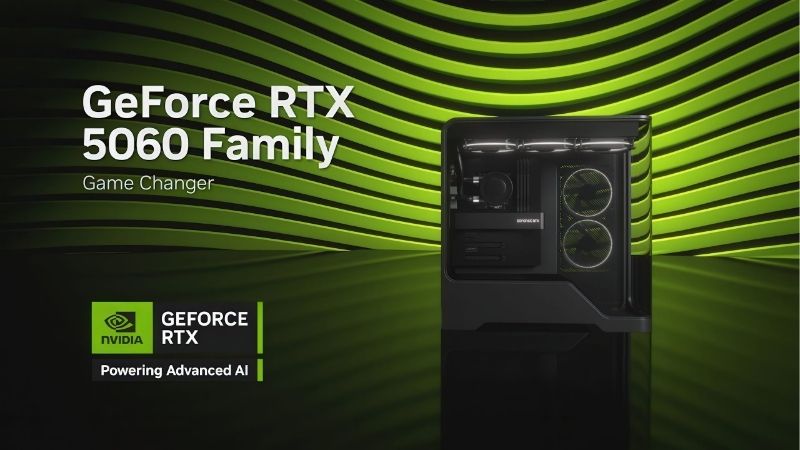
RTX 5060 Ti 16GB drivers are the software layer that unlocks everything this Blackwell card can do, from DLSS 4 to its full 16GB of GDDR7 memory. Get them right and the card is smooth and fast; get them wrong and you leave performance and features on the table. This guide covers exactly which driver the 5060 Ti 16GB needs, how to install and keep it updated, and how to fix the issues that occasionally crop up.


Which Drivers the RTX 5060 Ti 16GB Needs
Because the 5060 Ti 16GB is a current-generation Blackwell card, its driver requirements are specific, and knowing them saves you from the frustration of a fresh card that will not behave. Here is what to install and why.
As an Amazon Associate we earn from qualifying purchases at no extra cost to you.




The Launch Driver Requirement
This is a common stumbling block for people reusing an old Windows installation on a new card. If the machine previously ran an older GPU, its existing driver simply has no knowledge of the 5060 Ti 16GB, so the very first task after installing the card is to fetch a current driver rather than assuming what is already there will do.
The RTX 5060 Ti launched in 2025 and requires a modern Game Ready driver from the R570 series or newer to function fully. Installing anything older than its launch driver will leave the card unrecognized or running in a limited state.
This matters most on a fresh build or a clean Windows install, where an outdated driver package simply will not support such a new GPU. Always start from a current driver rather than whatever an old installer disc or cached download offers.
By 2026 the latest Game Ready releases sit well beyond that launch requirement, so the practical advice is simply to install the newest stable driver, which guarantees full support for the card and its features.
Game Ready vs Studio for This Card
The 16GB buffer is what makes the branch choice interesting on this particular card. Because that extra memory appeals as much to creators as to gamers, more owners than usual will weigh the Studio branch, and it is worth trying both to see which feels more stable for your specific mix of games and applications.
The 5060 Ti 16GB supports both of Nvidia’s driver branches. Game Ready drivers are tuned for the latest games and released alongside major launches, making them the default for anyone using the card primarily to play.
Studio drivers emphasize validated stability across creative applications, which suits the 16GB card’s appeal to editors and 3D artists who value its larger memory buffer for content work over day-one gaming speed.
You can switch branches freely in the NVIDIA App depending on how the machine is used that month. Gamers should stay on Game Ready; creators leaning on the 16GB buffer for professional work may prefer Studio.
The NVIDIA App as Your Hub
If you are coming from the old GeForce Experience, the transition is automatic, and there is no reason to reinstall the legacy software. A routine driver update migrates you to the NVIDIA App, which is faster, lighter, and no longer forces you to sign in before you can perform basic maintenance on the card.
In 2026 the NVIDIA App has replaced the old GeForce Experience and is the central place to manage your 5060 Ti 16GB drivers. It detects the card automatically and shows the correct driver with a single download button.
A welcome change is that the app no longer requires an account login for core tasks like installing drivers, so setting up a new card is faster and less annoying than it used to be.
Beyond updates, the app exposes the card’s modern features, from DLSS controls to G-SYNC configuration, making it the one tool worth installing immediately after the card goes into your system.
Installing and Updating the Drivers
Getting the driver onto your system correctly is quick, and keeping it current takes almost no effort once set up. Here are the reliable methods for a smooth, stable install.
Fresh Install and Clean Install
The switch-from-AMD scenario deserves extra care, because Radeon and GeForce drivers can leave conflicting components behind. Taking the few extra minutes to run a clean removal first spares you the intermittent glitches that otherwise get wrongly blamed on the new card rather than the old software it replaced.
For a new card, the simplest route is the NVIDIA App: open the Drivers tab, download the latest Game Ready driver, and choose Express for a hands-off install. A restart afterward ensures everything loads cleanly.
If you are swapping the 5060 Ti 16GB in to replace a different GPU, especially an AMD card, a clean install matters more. Use Display Driver Uninstaller in Safe Mode first to remove old driver remnants that could conflict.
Choosing the Custom install option and ticking a clean installation clears previous settings, which is the surest way to avoid the odd glitch that leftover files from a prior card can cause.
Keeping the Driver Updated
A sensible rhythm for this card is to let a new driver sit for a few days, watch for any widespread reports of trouble, and then install it cleanly. That approach captures the DLSS and game-optimization gains the 5060 Ti 16GB benefits from while sidestepping the occasional rushed release that needs a follow-up fix.
Nvidia ships frequent updates, and staying reasonably current keeps your 5060 Ti 16GB performing its best in new releases. Set the NVIDIA App to check automatically and notify you when a new driver is available.
You do not need to install every release the instant it appears. Updating within a few days of a new driver, once it has proven stable for others, captures the benefits while avoiding the rare problem build.
Because the app tracks your installed and available versions, you always know at a glance whether you are current, which removes the guesswork from keeping the card up to date.
Using Auto-Detect
Because the 5060 Ti 16GB is recent and widely supported, auto-detect essentially never fails to identify it, which makes it the stress-free default for anyone who does not want to memorize model numbers. On the rare occasion the browser tool stalls, opening the NVIDIA App instead reads the hardware directly and resolves it immediately.
If you are ever unsure which driver your card needs, the NVIDIA App detects the 5060 Ti 16GB automatically and serves the exact match. Nvidia’s website also offers a browser-based auto-detect tool as a fallback.
Auto-detect is especially handy right after a clean Windows install, when you need the correct driver before anything else is configured. It gets you from a bare system to a fully accelerated one in minutes.
Because the card is current and well supported, detection is reliable, so you rarely need to look up model numbers or hunt through driver menus manually.
Driver Features and Troubleshooting
The right driver does more than make the card work; it unlocks the features that define the 5060 Ti 16GB. Knowing what to enable, and how to fix the occasional hiccup, gets the most from your purchase.
DLSS 4 and DLSS Override
For a 16GB card aimed at 1440p and content work, these features are a large part of the value proposition. DLSS 4 stretches the card’s frame rates in the newest games, while the override option quietly modernizes older titles, and both depend entirely on keeping the driver current rather than installing once and forgetting.
As a Blackwell card, the 5060 Ti 16GB supports DLSS 4 with Multi Frame Generation, which can dramatically raise frame rates in supported games while Reflex keeps latency in check. Keeping drivers current ensures access to the latest DLSS improvements.
The NVIDIA App also offers DLSS Override, which can force the newest DLSS model onto games that shipped with an older version, modernizing upscaling across your library without waiting for developers to patch each title.
Features like RTX HDR and AV1 recording round out the package, and all of them depend on a current driver, which is another reason to keep the card updated rather than installing once and forgetting.
Common Issues and Fixes
The reassuring reality is that genuine hardware faults on a card this new are rare, so almost every problem you meet in the first months is software and therefore fixable in minutes. Working through a clean reinstall and a driver rollback before suspecting the card itself saves both time and unnecessary worry.
Most driver problems on a new card trace back to leftover files from a previous GPU or a botched install. A clean reinstall with DDU followed by a fresh driver resolves the large majority of these.
If you see stutter right after an update, enabling the NVIDIA App’s Auto Shader Compilation can smooth out the shader-recompile hitching that sometimes follows a fresh driver install.
Should a specific new driver cause trouble in a game you play, rolling back to the previous version from Nvidia’s archive is a quick fix, so treat updates as reversible rather than permanent.
Pros and Cons of Updating Often
Staying current has clear upsides and a few minor risks, so the table below lays out the pros and cons to help you decide how aggressively to update this card.
| Pros of updating promptly | Cons of updating promptly |
|---|---|
| Latest DLSS 4 improvements and overrides | Rare regression in a specific game |
| Day-one optimizations for new releases | A few minutes to install and test |
| Security and stability fixes | Occasional post-install shader stutter |
| Full use of the card’s modern features | May need an easy rollback if a build misbehaves |
For most owners the balance favors updating within a few days of release, capturing nearly all the benefit while sidestepping the rare launch-day issue.
See More:
- TechPowerUp GPU
- Nvidia H200 GPU price
- RTX 5050 Mobile
- Nvidia competitors
- Nvidia Reflex low latency on or off
The Bottom Line on RTX 5060 Ti 16GB Drivers
Keeping your RTX 5060 Ti 16GB drivers current through the NVIDIA App, with an occasional clean install, is all it takes to unlock DLSS 4, the full 16GB buffer, and the card’s other modern features while avoiding most common problems. If you are still shopping for the card itself and want to set it up right from day one, tap the link on our site to check today’s best RTX 5060 Ti 16GB deals before you buy.
Frequently Asked Questions
Do I need a specific minimum driver version for the RTX 5060 Ti 16GB?
Yes. Blackwell consumer cards require a driver from the release branch that introduced support for them, and anything older will boot to a basic Microsoft display adapter with no acceleration. If you are upgrading from an older card in an existing Windows install, download the current driver first, then swap the hardware, so you are never left without a working display.
How do I install the driver when upgrading from an AMD card?
Uninstall the AMD software, then run Display Driver Uninstaller in Safe Mode to remove leftover components, shut down and fit the RTX 5060 Ti, boot with the basic display, and install the NVIDIA package. Skipping the cleanup step is the most common cause of stuttering, black screens and a control panel that refuses to open after a cross-vendor upgrade.
What power supply does the RTX 5060 Ti need?
The card is rated at 180W and partner designs generally use a single 8-pin PCIe connector, with NVIDIA recommending a 600W supply for a typical build. A few premium models use the 16-pin connector instead. Use a native cable from the power supply rather than a daisy chain, and check physical length since some triple-fan variants exceed 300mm.
Does DLSS 4 multi frame generation work on this card?
Yes, multi frame generation is a Blackwell feature available across the RTX 50 series, including the 5060 Ti, in supported titles. It is most useful when the base frame rate is already reasonable, since generating frames from a low starting point increases latency and produces visible artefacts. Pair it with Reflex, which the feature enables automatically, to keep input response acceptable.
Is the PCIe 5.0 x8 connection a limitation?
Not on PCIe 4.0 or 5.0 motherboards, where the eight lanes still provide ample bandwidth. On a PCIe 3.0 board the effective throughput halves, which can cost a few percent in demanding titles. The 16GB frame buffer largely mitigates this by reducing how often the card needs to stream assets across the bus, unlike the 8GB variant.
Ready to decide? Our #1 pick for 2026 is the Latest DLSS 4 improvements and overrides.
Live price & availability on Amazon.


Write Your Review
No reviews yet. Be the first to share your experience!