
- Top Pick: VSDINSIDE Macro Keypad, Stream Controller Deck Gaming Streaming Shortcut Keyboard, 18 Programmable Keys Customizable Visual AI Pad USB Soundboard for OBS, YouTube, Desk Office Setup, Laptop, PC, Mac
- Best Value: FIFINE AmpliGame Gaming Controller with 15 Shortcuts for OBS Streaming Studio with Macro Keys, Trigger Actions, PC Media RGB Controller for Content Creation/Office Work-D6 White
- Premium Choice: Mini Stream Controller Deck, Gaming Streaming Macro Pad Keypad, Shortcut Keyboard with 6 Programmable LCD Keys, Customizable Icons & RGB Light, USB Soundboard for Video Editing, OBS, PC, Mac
NVIDIA overlay shortcut — the answer is Alt+Z, and you should not have to watch a ten-minute video to learn that. But there is a reason you searched, and it is probably not the headline shortcut. Either Alt+Z stopped working, or it fires when you do not want it to, or you want the performance stats without opening the whole panel. This page covers all of it: the full hotkey list, how to remap or kill the shortcut, the one combo almost nobody knows, and why the guide you read last year points at a menu that no longer exists.
The NVIDIA Overlay Shortcut and Every Hotkey It Controls
Alt+Z is the door. What is worth knowing is that most of what people open the overlay for has its own hotkey — meaning you never need the panel once you have memorised three combinations.
Alt+Z Is the Answer — Here Is What Opens
Press Alt+Z in a game or on the desktop and the NVIDIA Overlay appears. The button at the top right of the NVIDIA app window does the same thing.
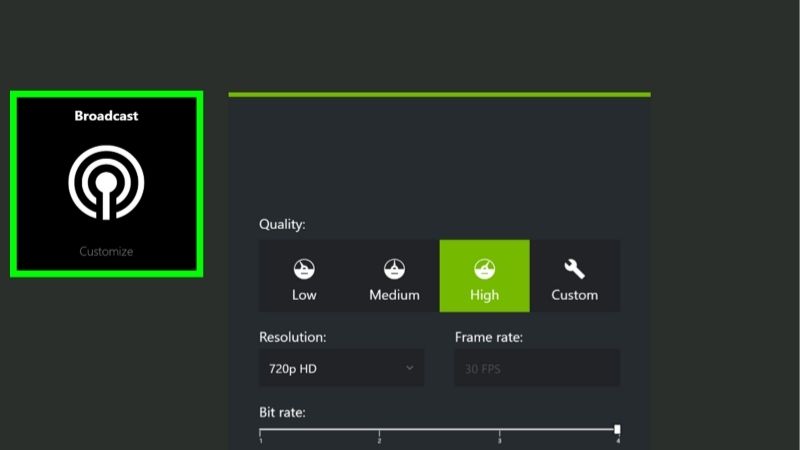
The panel holds video capture, screenshots, game filters, the Gallery, Instant Replay, broadcast, and the Statistics screen. That last one is where the performance metrics live — FPS, latency, GPU stats — and it is what most people are actually after.
The Settings cog at the top of that panel configures everything: hotkeys, notifications, audio sources, recording quality, disk limits, save locations. Remember that cog. Every instruction below starts there.
The Full Hotkey List Worth Memorising
You do not need the panel for most tasks. These fire directly:
| Shortcut | What it does |
|---|---|
| Alt+Z | Open the NVIDIA Overlay |
| Alt+F1 | Take a screenshot, saved to Gallery |
| Alt+F9 | Start or stop manual recording |
| Alt+F10 | Save the Instant Replay buffer |
| Alt+F8 | Start or stop broadcasting |
| Alt+F3 | Open game filters |
| Alt+R | Toggle the performance overlay |
| Alt+Shift+R | Cycle through metric views |
Three are worth memorising. Alt+F1 for a clean screenshot. Alt+F10 because Instant Replay is the best feature in the suite — it records the last several minutes continuously, so you press it after something remarkable happens rather than predicting it. And Alt+R for stats without the panel.
Alt+Shift+R: The One Most People Miss
This is the useful bit that almost nobody knows exists.
Alt+Shift+R cycles through different metric views on the performance overlay. Rather than opening the panel and reconfiguring, you tap it to move between a minimal FPS readout, a fuller set with 1% lows and latency, and GPU and CPU clocks.
This matters because overlay clutter is a real cost. A full stats panel eats screen space and attention mid-match. Cycling to a bare FPS number for competitive play and back for benchmarking takes one keystroke.
To change any of these: Alt+Z → Settings cog → Shortcuts. Everything is remappable there.
How to Change or Disable the NVIDIA Overlay Shortcut
Roughly half the people searching for this shortcut want rid of it. Alt+Z is a common combination, and when it collides with something you need, it stops being a feature.
Remapping Alt+Z in the NVIDIA App
Press Alt+Z → Settings cog → Shortcuts. Find the overlay entry and click it.
Here is the part that trips people up and it is not in the interface: keep your mouse cursor on the box after clicking it, then press your new combination. Move the cursor away and the binding will not register. This has generated more forum threads than the feature deserves.
The combination must include a modifier — Alt, Ctrl, or Shift — so the overlay cannot be bound to a bare letter you would trigger while typing.
Turning the Overlay Off Completely
If you want it gone rather than moved, do not remap it — disable it.
In the NVIDIA app, open Settings and find the in-game overlay toggle. Switch it off. Alt+Z stops responding entirely and the “Press Alt+Z” notification disappears when you launch a game.
If your machine still runs the older GeForce Experience, the route is Settings → General → IN-GAME OVERLAY → toggle off.
Disabling costs you screenshots, Instant Replay, game filters, and the stats overlay. That is a real trade, and the next section covers whether it is worth making.
The Alt+F4 Trap and Other Remapping Disasters
Learn from someone else’s evening. A user decided Alt+Z was inconvenient, went to remap it, reasoned that F4 was “generally unused,” and bound the overlay to Alt+F4.
Alt+F4 closes the active program. Which meant every attempt to open the overlay closed whatever they were doing — including the attempt to open the overlay and fix the binding.
Two rules follow. Do not bind to combinations the OS already owns — Alt+F4, Alt+Tab, Ctrl+Alt+Delete, Win+anything. And test the new binding immediately, on the desktop.
There is a subtler conflict worth knowing about. On some keyboard layouts, Alt+Z is a real character — on a Polish layout it produces ż. If your keyboard layout uses Alt as a compose modifier, the default binding will fight you constantly and remapping is not optional.
Pros and Cons of Leaving the Overlay Enabled
The overlay is genuinely useful and genuinely costs something. Most advice treats this as obvious in one direction. It is not — it depends on whether you capture anything and how tight your frame budget is.
What the Overlay Genuinely Gives You
Instant Replay is the strongest argument. A rolling buffer of the last several minutes means you never miss the moment you did not see coming. No other feature justifies the suite on its own.
The Statistics screen is second. Real FPS, 1% lows, and latency while you play tells you whether that stutter is real — and it is where you verify which DLSS model is running, via Alt+Z → Statistics → Statistics View → DLSS.
Screenshots without third-party software is the quiet third: Alt+F1, clean, no watermark, sorted per game.
The FPS Cost and the Conflicts
The overhead is small but not zero. The overlay is a hooked process rendering on top of your game, and on a system at its limit, a few frames is a few frames. Fighting for every one at 1080p on older hardware? Disabling it is a legitimate free win.
Conflicts are the more common complaint. Discord, Steam, MSI Afterburner, OBS, and the NVIDIA overlay all hook the same rendering path. Stack enough and you get stutter, flicker, or a game that will not launch — and finding the culprit means disabling them one at a time.
Anti-cheat is third. Overlay injection occasionally trips protection in competitive titles. Rarer than forum panic suggests, but not zero.
When Alt+Z Stops Working
If nothing happens when you press it, work through this in order.
Check the overlay is enabled at all — the toggle above is the most common answer. Check your game is running in borderless windowed or fullscreen, since exclusive fullscreen on some titles blocks the hook. Check that another application has not claimed Alt+Z; Discord in particular will happily take it.
If the overlay is enabled and nothing appears, restart the NVIDIA app rather than reinstalling the driver. The overlay process hangs occasionally and a restart fixes it in seconds — which is a better use of your evening than DDU.
What Changed in 2026: The App That Replaced Everything
This is why the guide you followed last year did not work, and it is the most useful thing on this page for anyone who has been away from their settings for a while. Two things moved, and every older article and video is now describing software that is not on your PC.
GeForce Experience Is Gone — This Is the NVIDIA App
The NVIDIA app replaced GeForce Experience as the companion software. Alt+Z survived the transition, which is why the shortcut still works and everything around it looks unfamiliar.
The overlay was redesigned. The layout, the Settings cog contents, and the Statistics screen all differ from the GeForce Experience version that most tutorials still show. The functions are broadly the same; the paths through the menus are not.
If your PC still shows GeForce Experience rather than the NVIDIA app, your card or your driver is old. That is not a fault — it just means the older instructions apply to you and the newer ones do not.
The Control Panel Was Dropped in May 2026
This one caught almost everyone. The NVIDIA Control Panel was dropped from the driver in the 610.47 release in May 2026.
Everything that lived there moved into the NVIDIA app: power management mode, image scaling, per-game profiles, DLSS overrides, display settings. If you have updated recently, right-clicking your desktop no longer offers it.
There is a workaround worth knowing before you conclude it is gone forever: the original Control Panel is available from the Microsoft Store. If you have a workflow built around it, you can still get it — you just cannot get it from the driver any more.
Why Old Guides Send You to Menus That No Longer Exist
Put the two together and you have the reason this page exists. Any tutorial saying “open GeForce Experience” or “right-click the desktop and choose NVIDIA Control Panel” predates 2026, and its instructions dead-end.
So if a guide describes a menu you cannot find, check its date before assuming your PC is broken. A 2023 video showing the GeForce Experience overlay is not wrong — it describes software that has since been replaced, and it cannot tell you that.
Everything now starts at Alt+Z and the Settings cog. That is the whole map.
See More:
- NVIDIA
- NVIDIA DeepStream
- NVIDIA GPU driver update
- NVIDIA GeForce NOW download
- NVIDIA RTX A2000 12GB driver
Conclusion
The NVIDIA overlay shortcut is Alt+Z, and the three combinations actually worth memorising are Alt+F1 for screenshots, Alt+F10 to save Instant Replay, and Alt+Shift+R to cycle metric views without opening anything.
To remap it: Alt+Z → Settings cog → Shortcuts, and keep your cursor on the box while you press the new combination or it will not register. To disable it entirely: the in-game overlay toggle in the NVIDIA app. And do not bind it to Alt+F4, however unused F4 looks.
If your menus do not match what you read elsewhere, that is not your PC. GeForce Experience was replaced by the NVIDIA app, and the Control Panel left the driver in May 2026 — still available from the Microsoft Store if you need it, but no longer where a decade of tutorials says it is.
Frequently Asked Questions
What are the default overlay shortcuts?
Alt plus Z opens the overlay, Alt plus R toggles the performance monitor, Alt plus F1 takes a screenshot, Alt plus F9 starts and stops manual recording, Alt plus F10 saves the Instant Replay buffer, and Alt plus F2 opens photo mode in supported games. All are remappable in settings.
Why do my shortcuts conflict with in-game binds?
Many games use Alt combinations for their own functions, and the overlay intercepts the key before the game sees it. Reassign the overlay bindings to combinations the game does not use, such as Ctrl plus Shift pairs, in the NVIDIA App under Settings and Keyboard Shortcuts.
The overlay does not appear in my game, what now?
Confirm in-game overlay is enabled, switch the title from exclusive fullscreen to borderless windowed, and check whether the game’s anti-cheat blocks overlay injection. Running the NVIDIA App as administrator resolves cases where the game itself runs elevated, since a non-elevated overlay cannot hook an elevated process.
Does the overlay cost performance?
The overlay itself is nearly free when idle. Recording costs one to four percent because encoding runs on the dedicated NVENC block, and the statistics overlay adds a small amount of draw call overhead. If you are chasing benchmark numbers, close it; for everyday play the cost is not perceptible.
Can I still use these shortcuts after GeForce Experience was retired?
Yes. The NVIDIA App absorbed the overlay, recording, filters and driver management features, keeping the same default key combinations. GeForce Experience is no longer maintained, so migrating is the right move, and the App also removes the mandatory account login that the old software required.
As an Amazon Associate we earn from qualifying purchases at no extra cost to you.


Ready to decide? Our #1 pick for 2026 is the Alt+Z.
Live price & availability on Amazon.











Write Your Review
No reviews yet. Be the first to share your experience!