

Prime
Editor's Pick
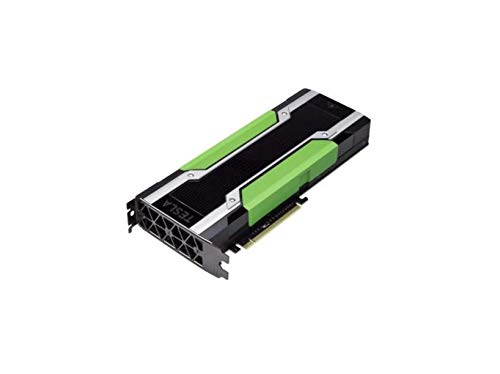
Generic Full Height Bracket Compatible with Nvidia Tesla P40 P100 M60 V100 GPU PK3RJ 820178-001 with 4 Screws


Nvidia App Automatic Tuning represents a massive leap forward in automated graphics card performance optimization for PC gamers and content creators in 2026. This comprehensive review examines whether this built-in utility can safely squeeze extra frames from your GeForce graphics card without risking hardware damage.
Unveiling the Mechanics of Nvidia App Automatic Tuning
The transition from the legacy GeForce Experience software to the streamlined Nvidia App has brought several native enhancements to the desktop landscape. Rather than relying on third-party utilities that require intensive manual configuration and risk system instability, gamers can now optimize their hardware directly from the driver suite. This integration represents a major step forward in making system tuning accessible to the average enthusiast.
As an Amazon Associate we earn from qualifying purchases at no extra cost to you.







The Technology Behind One-Click Performance Overclocking
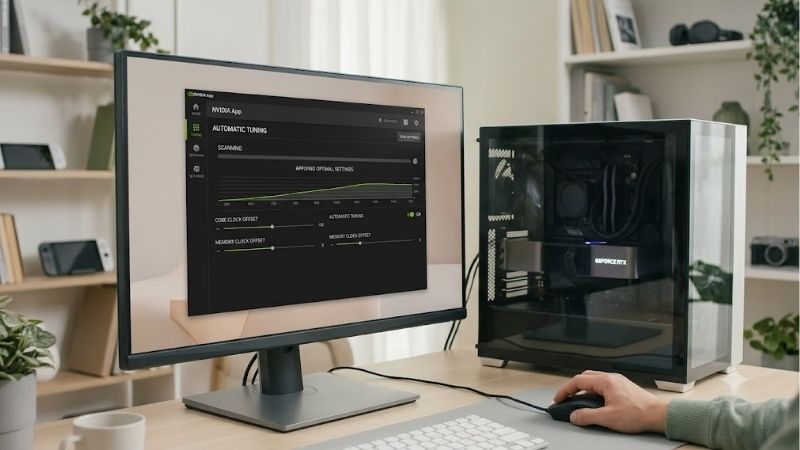
The underlying engine behind this tuning feature utilizes a sophisticated mathematical algorithm designed to find the absolute limit of your specific silicon. Once initiated, the utility runs an intensive automated stress test over the course of ten to twenty minutes, incrementally adjusting the core frequency and testing for hardware-level mathematical errors. By communicating directly with the graphics driver’s internal APIs, it creates a custom voltage-frequency curve that is unique to your specific graphics processor.
Unlike traditional manual overclocking, which often pushes raw clock speeds until the operating system crashes, this automated process acts with extreme caution. It monitors real-time thermal boundaries and current draws, ensuring that any performance boost remains well within the safe operational parameters of your card. This intelligent safety mechanism prevents accidental damage to the graphics card, offering a secure entry point for curious PC builders.
System Requirements and GPU Architecture Compatibility
This performance tuning tool is designed specifically for owners of modern desktop and laptop graphics cards, beginning with the Turing architecture and expanding to newer releases. Users with GeForce RTX 20-series, 30-series, 40-series, and the latest generation GPUs can quickly locate this tool within the modern application interface. To access the feature, users simply open the System section on the left navigation bar, select the Performance tab, and click to initiate the process.
While the scan is active, it is highly recommended to leave your computer completely idle, as running heavy background tasks or launching a video stream can skew the diagnostic data. The software also allows advanced users to manually alter targets for core voltage, power consumption, maximum temperatures, and fan speeds. These user-defined boundaries are immediately integrated into the algorithm, allowing you to prioritize whisper-quiet operation over raw compute power if desired.
Integration with the Redesigned In-Game Performance Overlay
One of the greatest benefits of utilizing this unified application is how beautifully the tuning feature interfaces with the redesigned in-game statistics panel. While playing demanding triple-A titles, gamers can toggle a customizable overlay that monitors key performance metrics in real-time. This display tracks essential hardware values, including real-time frame rates, precise frame times, thermal outputs, and exact wattage draws.
If the tuning engine applies a successful overclock—such as adding a stable +120 MHz to the core clock and +200 MHz to the high-speed video memory—users can immediately witness these changes reflected in their active game sessions. The overlay also updates you if the background monitoring service schedules a follow-up analysis to ensure that your system remains rock-solid after major driver updates. This cohesive feedback loop provides immediate visual confirmation of your performance gains.
$$Check the latest price on Amazon$$
Real-World Performance, User Feedback, and Benchmarks
Evaluating a system utility requires looking past theoretical code to study how it performs on physical desktop systems. Every graphics card responds differently to clock modifications due to variations in manufacturing quality, often referred to as the silicon lottery. Analyzing real-world benchmarks and synthesizing thousands of customer reports reveals the practical strengths and weaknesses of this built-in tool.
Synthesizing Five-Star Praise from Satisfied PC Enthusiasts
Gamers who rate the utility with five stars frequently highlight the sheer convenience of obtaining a free, risk-free performance boost with a single click. In heavy gaming scenarios, such as running demanding ray-traced titles, the automated profile consistently delivers an additional 4% to 8% in frame outputs. For many users, this modest increase is enough to push a choppy 54 frames per second into a buttery-smooth 60 frames per second at 1440p resolution.
Furthermore, desktop builders express immense relief regarding the safety guarantees provided by the manufacturer. Because the software operates within strict voltage boundaries established by engineers, utilizing the tuning panel does not invalidate your official hardware warranty. This official backing gives everyday consumers the confidence to optimize their systems without worrying about shortening the operational lifespan of their expensive graphics cards.
Check the latest price on Amazon:
Analyzing Common Two-Star and Three-Star User Complaints
Despite the high praise, critical user reviews on hardware forums point out several operational hurdles that can frustrate less experienced builders. A highly common complaint centers around the “automatic tuning was interrupted” error message, which frequently occurs when background software utilizes GPU resources during the initial scan. Applications like web browsers with hardware acceleration enabled, active wallpaper software, or discord stream overlays can easily cause the utility to abort the optimization process.
Other experienced overclockers express disappointment with the conservative nature of the automated profile. Because the algorithm prioritizes absolute system stability, it rarely pushes the memory or core clocks as aggressively as manual tuning tools like MSI Afterburner. Additionally, some laptop owners report that the applied profiles occasionally reset to default settings after Windows operating system updates, requiring them to run the lengthy twenty-minute diagnostic scan all over again.
Pros and Cons of Nvidia App Automatic Tuning
To help you decide if this utility is appropriate for your desktop setup, we have compiled the key advantages and drawbacks of utilizing this automated optimization tool.
- Pros:
- Completely free of charge and seamlessly integrated into the official driver suite.
- One-click execution eliminates the risk of manual hardware damage or warranty voiding.
- Performs regular background checks to maintain stable, long-term performance.
- Fully customizable power, thermal, and fan speed limits for advanced users.
- Cons:
- Tuning scan is highly sensitive to background tasks and prone to frequent interruptions.
- Applied overclocking profiles are highly conservative compared to manual tuning limits.
- Lacks the advanced custom profile saving and voltage curve shaping of dedicated legacy programs.
Weighing these factors demonstrates that while the tool is an exceptional solution for mainstream gamers, extreme enthusiasts may still prefer traditional utilities for manual, aggressive performance tuning.
$$Check the latest price on Amazon$$
Global Semiconductor Realities and the Case for Software Tuning
The retail market for computer components has undergone dramatic shifts that directly affect how gamers manage their existing hardware. In 2026, building or upgrading a custom desktop computer requires navigating complex global supply chains and rising material costs. Understanding these macroeconomic forces helps put the value of free, software-based optimization tools into perspective.
Geopolitical Chip Exports and TSMC Silicon Allocations
The consumer graphics card market is currently experiencing the severe ripple effects of massive policy shifts in the high-performance computing sector. Recently, the United States government adjusted its export trade policies, allowing Nvidia to ship its highly advanced H200 artificial intelligence processors to China under strictly monitored regulatory frameworks. This policy update has triggered a dramatic restructuring of production lines at premier semiconductor foundries.
Because massive manufacturing hubs like TSMC have a finite number of silicon wafers available each month, they must prioritize their fabrication lines toward the most profitable products. The astronomical margins associated with enterprise-tier artificial intelligence chips mean that silicon wafers for standard consumer gaming graphics cards are frequently deprioritized. Consequently, the production of budget-tier and mid-range desktop graphics cards remains highly constrained, leading to low retail inventories worldwide.
Rising Component Pricing and the Need to Optimize Existing Hardware
In addition to global wafer shortages, the cost of the raw physical materials needed to construct modern desktop components has risen steadily. Essential manufacturing resources, including copper, multi-layered printed circuit boards, and advanced high-speed GDDR7 memory modules, have experienced significant inflation. Industry analysts warn that these elevated production baselines are likely permanent, driving the average retail price of new graphics cards and prebuilt gaming laptops higher.
This continuous inflation of component pricing creates a powerful financial incentive for gamers to maximize the value of their current hardware setups. Rather than rushing to purchase a costly upgrade in a volatile retail market, utilizing software-based performance optimization becomes a highly strategic move. Getting a free performance boost from your current RTX graphics card allows you to extend the operational lifecycle of your system and delay major financial outlays until the market stabilizes.
Final Verdict and Strategic Hardware Recommendations
For the vast majority of PC gamers in 2026, the unified performance tuning panel is an absolute must-use feature that delivers immediate, tangible benefits. It offers a perfect balance of safety, convenience, and performance, transforming your graphics card from a locked hardware box into a dynamically optimized engine. If you own a compatible GeForce RTX card, taking twenty minutes to let the software map your silicon’s capabilities is a highly rewarding endeavor.
However, if your current graphics card is rapidly approaching obsolescence and struggles to run modern titles even with automated tuning enabled, upgrading early may be the smartest financial hedge against future price increases. Securing a modern mid-range card protects your system budget from sudden price spikes and grants you access to game-changing features like DLSS 3.0 frame generation. Match your personal gaming demands with your current budget to determine if a simple software tune or a complete hardware upgrade is the ideal path forward.
$$Check the latest price on Amazon$$
Conclusion: Maximizing Efficiency with Nvidia App Automatic Tuning
In conclusion, mastering Nvidia App Automatic Tuning is one of the most practical and rewarding skills a modern PC enthusiast can utilize. By bridging the gap between raw hardware capability and intelligent, safety-first software optimization, this built-in utility empowers you to take complete control of your system’s performance without spending a single dollar. In a challenging hardware market shaped by rising component costs and shifts in global semiconductor production, squeezing every drop of efficiency from your graphics card is a highly strategic move. Take the time to let the automated scanner analyze your system, configure a custom thermal profile that matches your noise preferences, and enjoy a smoother, more responsive gaming experience that will stand the test of time.
Are you ready to run the performance scan on your graphics card tonight, or are you planning to upgrade your entire desktop setup first?
Frequently Asked Questions
What does NVIDIA automatic tuning actually do?
It runs a built-in scanner that stress-tests your specific GPU across the voltage and frequency curve, finds the highest stable clock at each voltage point, and applies a custom curve. It also raises the power limit to the board maximum and can adjust the fan curve, producing a mild factory-safe overclock without any manual sliders.
How much extra performance should I expect?
Typically 3 to 7 percent, occasionally up to 10 percent on a card with a generous power limit and good cooling. This is deliberately conservative because the algorithm targets guaranteed stability across all workloads. A careful manual overclock or undervolt with the Afterburner curve editor usually beats it, but takes hours rather than fifteen minutes.
Is automatic tuning safe, and does it void my warranty?
It is safe in the sense that it never exceeds the voltage and power ceilings baked into the card firmware, and NVIDIA ships it as a supported feature. Board partners generally do not treat first-party software tuning as warranty-voiding. The scan can crash mid-run on an unstable system, but the profile simply resets on reboot.
Which cards support automatic tuning?
It requires an RTX 20-series or newer desktop GPU with an unlocked power limit. Many laptop GPUs, OEM pre-built cards and low-power models with firmware-locked limits show the option greyed out. If your card allows no power limit adjustment, the scanner has nothing to work with and will refuse to run.
Should I use automatic tuning or manual undervolting?
Use automatic tuning if you want free performance with zero effort and do not mind higher power draw, heat and fan noise. Choose manual undervolting through MSI Afterburner if quiet operation, lower temperatures and sustained boost clocks in long sessions matter more, which is often the better outcome in a small or poorly ventilated case.











Write Your Review
No reviews yet. Be the first to share your experience!