
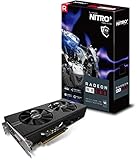
- Top Pick: Sapphire 11265-01-20G Radeon Nitro+ Rx 580 8GB GDDR5 Dual HDMI/DVI-D/Dual DP with Backplate (UEFI) PCI-E Graphics Card
- Best Value: EVGA GeForce RTX 2070 XC Gaming, 8GB GDDR6, Dual HDB Fans & RGB LED Graphics Card 08G-P4-2172-KR, Real Boost Clock: 1710 MHz
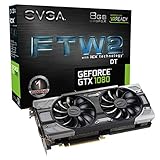
- Premium Choice: EVGA GeForce GTX 1080 FTW2 GAMING, 8GB GDDR5X, iCX Technology – 9 Thermal Sensors & RGB LED G/P/M, Aysnch Fan, Optimized Airflow Design Graphics Card 08G-P4-6686-KR
Is 8GB VRAM enough for 1440p gaming? It is one of the most argued-about questions in PC gaming right now, and the honest answer is: yes for most games today, but with real caveats you need to understand. Whether 8GB is enough depends heavily on the games you play and the settings you use. This step-by-step guide shows you how to check your own VRAM usage, tune your settings to fit, and decide with confidence whether 8GB works for your 1440p setup.
As an Amazon Associate we earn from qualifying purchases at no extra cost to you.


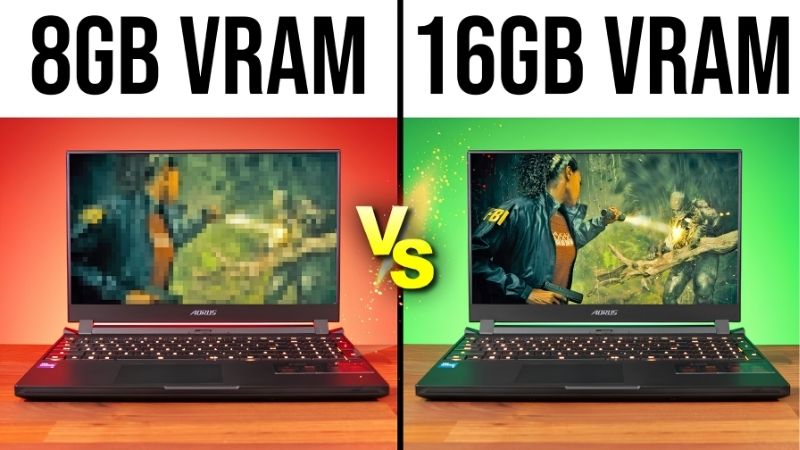
Is 8GB VRAM Enough for 1440p? The Honest Answer
Let us cut through the online arguments before diving into specifics. VRAM is not a simple pass-or-fail number—it depends on the game, the textures, and the features you enable. Here is the realistic picture for 8GB at 1440p and what you need to test it yourself.
The Short Answer: Yes for Most Games, With Caveats
For the majority of games at 1440p, 8GB of VRAM is still enough at high settings. Most titles run smoothly without ever approaching the limit, especially older and esports games.
The caveats come from a growing number of recent AAA titles. Some 2024 and 2025 releases with ultra texture packs and heavy ray tracing can push past 8GB at 1440p, causing stutter or texture pop-in when you max everything out.
So the honest verdict is that 8GB is enough for most 1440p gaming today, provided you are willing to keep textures at high rather than ultra in the most demanding titles. It is workable now, but it is closer to the edge than it used to be.
It is worth putting the debate in perspective. A few years ago 8GB was generous even at 1440p; today it is merely adequate, and the trend is only moving in one direction as games grow more detailed. That does not make 8GB unusable—far from it—but it does mean the answer depends more on your specific games than it did in the past.
What You Will Need to Check Your VRAM
To answer this for your own system, you need a couple of simple tools. Gather these first.
Start with a VRAM monitoring tool. Free overlay software like MSI Afterburner with RivaTuner shows your real-time VRAM usage while gaming, which is the only reliable way to see whether your games actually exceed 8GB. You will also want the games you play most, since your personal library determines whether 8GB is enough far more than any general benchmark.
If you are shopping for a new card rather than testing an existing one, it is worth considering a GPU with 12GB or more of VRAM for extra 1440p headroom; a modern 12GB or 16GB graphics card removes the caveats entirely and future-proofs your setup for years.
You do not need any paid tools for this, which is worth emphasizing. The monitoring software is free, and the only real requirement is a little time spent watching the numbers in your own games. That small effort gives you a far more accurate answer than any generic recommendation, because it reflects exactly how you play.
How VRAM Actually Gets Used at 1440p
Understanding what fills your VRAM helps you manage it. The biggest consumer is texture quality, which is why dropping textures one notch is the single most effective way to reduce VRAM use with almost no visible difference.
Resolution and ray tracing add to the load as well. Moving from 1080p to 1440p increases VRAM demand, and enabling ray tracing pushes it higher still, so the same 8GB card can be comfortable in one game and stretched in another depending on these settings.
The key insight is that VRAM usage is something you control, not a fixed wall. By adjusting textures and features, you can keep the vast majority of 1440p games comfortably within 8GB, which is exactly what the steps below help you do.
It also helps to know that DLSS can ease VRAM pressure. Because it renders the game internally at a lower resolution before reconstructing the image, enabling DLSS often reduces memory use compared to native 1440p, which is one more tool for keeping an 8GB card comfortable in demanding titles.
Step-by-Step: How to Tell If 8GB Is Enough for You
This is the core of the guide. Follow these steps in order to find out whether 8GB works for your specific games and settings, with no guesswork. The numbered format makes it easy to repeat for any game, so you always know where you stand.
Step 1 and 2: Monitor Your Real VRAM Usage
- Install a monitoring overlay. Set up free software like MSI Afterburner with RivaTuner and enable the VRAM usage display, so you can see actual memory use while you play rather than guessing.
- Play your most demanding games. Load up the heaviest titles in your library at 1440p and watch the VRAM figure during busy scenes, since that is when usage peaks and any shortfall appears.
This simple check replaces online arguments with real data from your own system, which is the only measurement that truly matters for your decision.
Step 3 and 4: Test Your Games and Settings
- Note where usage approaches 8GB. If a game sits comfortably below the limit, you are fine; if it repeatedly pushes right up against 8GB, that is where stutter and pop-in can appear.
- Check for actual symptoms. Watch for texture pop-in, sudden stutters, or frame drops in busy areas, since these are the real-world signs that a game wants more VRAM than you have.
Testing this way tells you which specific games, if any, are a problem, rather than assuming every title will struggle. Most of your library will likely be perfectly fine.
Step 5 and 6: Adjust Textures and Features to Fit
- Drop textures from Ultra to High. In any game that exceeds 8GB, step textures down one level, which dramatically reduces VRAM use while looking nearly identical in motion.
- Ease off ray tracing if needed. If a game still stutters, lowering or disabling ray tracing frees up further VRAM and usually restores smooth performance at 1440p.
After these adjustments, recheck your overlay to confirm you are back within budget, and the stutter should be gone. In practice, these two tweaks resolve nearly every 8GB VRAM issue at 1440p.
Pro Tips, Mistakes, and the Verdict
You can now measure and manage your own VRAM, but a few extra habits keep your 1440p gaming smooth and help you avoid common misunderstandings. This section covers the honest trade-offs of 8GB at 1440p, the pro tips that help, and a final verdict.
Pros and Cons of 8GB VRAM at 1440p
Before deciding, weigh the realistic upsides and downsides of running 8GB at this resolution.
- Pros: Enough for the vast majority of 1440p games at high settings, widely available on affordable cards, and easily managed with a simple texture adjustment.
- Cons: Can fall short in the newest AAA titles at ultra textures, limits maxed-out ray tracing, and offers less future headroom than 12GB or 16GB cards.
The balance is that 8GB remains workable at 1440p today for most players, but buyers who want maximum settings and long-term headroom should look at higher-VRAM options.
Pro Tips and Mistakes to Avoid
A few habits make managing 8GB easy. Treat texture quality as your main VRAM dial, keep an overlay running when you try a demanding new game, and trust in-game VRAM warnings rather than ignoring them.
The common mistakes are simple to avoid. Do not assume every game will exceed 8GB, since most will not, and do not max textures out of habit if you see stutter—one notch down usually fixes it invisibly.
Finally, do not confuse VRAM that is allocated with VRAM that is required. Games often reserve more memory than they strictly need, so smooth gameplay matters more than a high number on your overlay.
It is also smart to test a demanding game before assuming the worst. Online discussion tends to fixate on the handful of titles that stress 8GB, but your actual library may never hit the limit. Checking your own games first saves you from overspending on VRAM you may not need for the way you play.
See More:
Final Verdict: Is 8GB Enough for Your 1440p Setup?
For most gamers at 1440p, 8GB is still enough today, especially if you are comfortable keeping textures at high in the most demanding titles. If your library is mainly esports and mid-weight games, you will rarely think about VRAM at all.
If you play the newest AAA blockbusters at ultra textures with ray tracing, or you want a card to last several more years, 12GB or more is the safer choice and worth prioritizing in a new purchase.
If you are choosing a new card with future-proofing in mind, you can compare higher-VRAM options and 1440p monitors through the links on this page.
Either way, base the decision on your own testing rather than the loudest online opinions. Measure your real usage, tune where needed, and you will know with certainty whether 8GB suits your 1440p gaming today—which is far more useful than any blanket verdict from a forum.
So, is 8GB VRAM enough for 1440p? For most games today, yes—provided you manage textures sensibly in the heaviest titles, 8GB handles 1440p high settings smoothly. The caveat is a growing list of demanding AAA games that push past it at ultra, where a small texture step down keeps things stutter-free. Use the monitoring steps above to check your own library, and you will know exactly where you stand—and if you are buying new with the long term in mind, a 12GB or larger card removes the question entirely.
Top-Rated Picks


| Product | Brand | Rating | Reviews | Price |
|---|---|---|---|---|
| ARCTIC MX-4 (4 g) – Premium Performance Thermal Paste… | ARCTIC | ★ 4.8 | 104k | $4.99 |
| ARCTIC MX-4 (incl. Spatula, 4 g) – Premium Performanc… | ARCTIC | ★ 4.8 | 71.9k | $5.49 |
| Crucial 8GB DDR4 RAM 3200MHz (PC4-25600), Downclockab… | Crucial | ★ 4.8 | 62.8k | $74.99 |
| AMD Ryzen 5 5600X 6-core, 12-thread unlocked desktop … | — | ★ 4.8 | 30.2k | $177.60 |
| NVIDIA Shield Remote; Voice Search, Motion-Activated,… | — | ★ 4.7 | 10.6k | $25.99 |
Frequently Asked Questions
Which recent games break 8GB at 1440p?
A growing list of AAA releases exceed it once you combine ultra textures with ray tracing at 1440p. Typically the game remains playable at high rather than ultra textures, so the frame buffer forces a settings compromise rather than making the title unplayable outright on an 8GB card.
How do I tell a VRAM limit from a GPU limit?
A GPU limit produces a steady, evenly reduced frame rate. A VRAM limit produces normal average frame rates punctuated by hard stutters, texture pop-in and collapsed 1 percent lows. Lowering the texture setting alone, which barely affects GPU load, will fix the second problem but not the first.
Does simply lowering textures solve it?
Usually yes, and it is the single most effective fix because texture resolution dominates memory consumption while costing almost no shader performance. Dropping from ultra to high typically saves one to two gigabytes and is often visually indistinguishable at 1440p during actual gameplay rather than in a paused screenshot comparison.
Is 8GB fine for esports and older games?
Completely. Competitive shooters, MOBAs, older AAA titles and emulation rarely approach 8GB even at 1440p high refresh, since they use modest texture budgets by design. If that describes most of your library, frame buffer capacity should not influence your purchase at all.
Should I buy a new 8GB card in 2026?
Only for 1080p, esports or a strictly budget build. For 1440p as a primary resolution, stretching to a 12GB or 16GB card is the better long-term decision, because you will otherwise spend the card lifetime managing texture settings rather than simply enabling the quality you paid for.






Write Your Review
No reviews yet. Be the first to share your experience!