

Prime
Editor's Pick
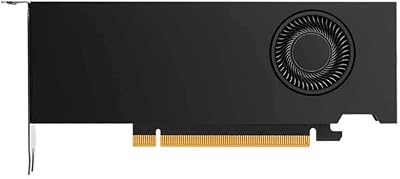
PNY VCNRTXPRO5000B-PB NVIDIA RTX PRO 5000 Blackwell 48GB GDDR7 384B Graphic Card – Black


Nvidia RTX drivers come in more flavours than the download page suggests, and picking the wrong branch is why a perfectly good card stutters in the one game you actually play. There are two release channels, occasional hotfixes, a control panel being retired underneath you, and a Windows 10 support deadline arriving in October 2026. This guide covers which branch belongs on your machine, how to install it without inheriting three years of leftovers, and how to get back to a working state when an update breaks something.
The Nvidia RTX Driver Channels Explained
Every driver Nvidia publishes for RTX hardware comes from one of two branches plus an occasional out-of-band release. They are built from largely the same code; what separates them is what was validated before shipping and what the release was optimised for. Choosing correctly is less about performance than about which failure mode you can least afford.
As an Amazon Associate we earn from qualifying purchases at no extra cost to you.




Game Ready vs Studio: The Real Difference
Game Ready drivers ship every three to five weeks, timed to major game launches, and carry WHQL certification. They include day-zero profiles for new titles and the most recent DLSS model revisions.
Studio drivers ship on a slower cadence — roughly every six to eight weeks — and prioritise validated stability in Adobe, Blackmagic, Autodesk, and similar applications. They are not slower in games. They simply lag on launch-day profiles.
The decision rule is about downside, not upside. If a broken driver costs you an evening, run Game Ready. If it costs you a client deadline, run Studio.
| Branch | Cadence | WHQL | Optimised for | Best for |
|---|---|---|---|---|
| Game Ready | 3–5 weeks | Yes | Day-zero game profiles | Gamers |
| Studio | 6–8 weeks | Yes | Creative app stability | Editors, 3D, CAD |
| Hotfix | On demand | No | One named bug | Users hit by that bug |
The Control Panel Is Being Retired
If you have been looking for the Nvidia Control Panel and finding it absent, that is not a broken install. Nvidia is retiring it, and the Nvidia App has taken over. Driver downloads, per-game settings, overlay controls, and the tuning features previously scattered across GeForce Experience and the Control Panel now live in one place.
This matters practically because a great deal of the advice you will find online still references Control Panel menu paths that no longer exist. If a guide tells you to open Manage 3D Settings from the Control Panel, translate it to the Nvidia App’s Graphics tab rather than assuming your system is broken.
The Nvidia App also exposes an opt-in preview channel for driver builds ahead of general release — useful if you are chasing a specific fix, and a poor default otherwise.
Which Version Numbers Mean What
Nvidia does not encode the channel into the version string, so a 6xx.xx number looks identical whether it came from Game Ready or Studio. The branch is a property of the download page, not the number.
The number that does carry meaning is the branch family. The 580/581 family was the last full-feature branch for Maxwell, Pascal, and Volta hardware — everything from 590 onward is RTX and GTX 16-series territory. If you run an RTX card, that boundary is behind you and irrelevant.
Keep a note of the version you are currently on before you update. Recovering a known-good state without that number means guessing through the driver archive, which is tedious in exactly the moment you have no patience for it.
Installing Nvidia RTX Drivers Without Inheriting Problems
Most driver complaints are installation complaints. A driver layered on top of four previous versions, carrying stale profiles and a half-removed control panel, misbehaves in ways that get blamed on the release. The procedure below is short and the steps are not optional.
The Clean Install Path
Create a Windows restore point first. Ninety seconds now is the difference between a five-minute recovery and a reinstall later.
Run the installer, choose Custom (Advanced), and tick Perform a clean installation. This wipes existing profiles and settings — which is the point. A clean install is how you find out whether the driver is actually the problem.
If you have layered many drivers over years, or you are switching from a different GPU vendor, a dedicated display driver removal utility run in Safe Mode is more thorough. For a routine update on a healthy system it is unnecessary.
Stopping Windows Update From Overwriting You
Windows will happily install its own driver over yours, producing a mixed state that behaves worse than either version alone. This is the single most common cause of “the update broke my PC” reports that turn out not to be the driver’s fault.
Disconnect from the network before uninstalling the old driver, so Windows cannot race you to fill the gap. Reconnect only after the new one is installed and you have rebooted.
On Windows 11 Pro, defer driver updates through Group Policy. On Home editions the practical workaround is the “Show or hide updates” troubleshooter, which is clumsy but functional.
Rolling Back When a Driver Breaks Something
Windows keeps the previous package. Device Manager, expand Display adapters, right-click the GPU, Properties, Driver tab, Roll Back Driver. Reboot. This resolves the large majority of problems in under three minutes.
If Roll Back is greyed out — which happens after a clean install removed the previous package — download your last known-good version from Nvidia’s archive and install it with the clean-install option ticked.
If the machine will not display at all, boot into Safe Mode, remove the display driver there, and reboot onto the basic Microsoft adapter. From that desktop you can install anything you like.
Pros and Cons of Staying Current With Nvidia RTX Drivers
The reflex to install every update is not obviously correct, and the reflex to freeze on a working version is not obviously wrong. Both have real costs, and which dominates depends on what you actually run.
The Case for Updating Regularly
DLSS is the strongest argument. Nvidia ships transformer model revisions, Multi Frame Generation refinements, and Reflex improvements through drivers, and these are genuine performance and image quality gains delivered for free. DLSS 4.5 landed at CES 2026 and MFG 6x followed within months. An RTX card is measurably better after a year of updates than it was on day one.
That continues this autumn. DLSS 5 brings real-time neural rendering, and its plumbing is already appearing in drivers — the 610.47 release added DLSS-NR profile entries that are not yet usable in any game. If you freeze on an old driver, you freeze outside that.
Day-zero profiles matter more than they used to. Modern engines lean on driver-side optimisation heavily enough that launching a new title on a six-month-old driver frequently means leaving 10–20% on the table, sometimes more.
Security updates are the unglamorous third reason. Display drivers run in kernel mode, and the vulnerabilities patched there are not theoretical.
The Case for Freezing on a Known-Good Version
Regressions are real and recurring. Nvidia introduces performance drops and crashes in specific titles several times a year, and the fix arrives in the next release three to five weeks later. If you are on a version that works for everything you play, updating is a trade of certainty for possibility.
Encoder stability is the sharper case. Streamers and recorders regularly find that an NVENC configuration working for months starts dropping frames after an update. If your setup earns money, the update can wait until someone else has tested it.
The honest middle position: update when a driver names a fix you need, when a game you want to play just launched, or when you have a free evening to roll back if it goes wrong. Not because a notification appeared.
What the 2026 Support Timeline Means for You
Two deadlines are converging, and they affect RTX owners differently depending on which operating system they are running. Both are close enough to plan around rather than ignore.
The Windows 10 Cutoff Arrives in October 2026
Nvidia extended Windows 10 Game Ready driver support for RTX GPUs to October 2026 — a year beyond Microsoft’s own end-of-life for the operating system. That extension expires in roughly three months.
After it lapses, RTX cards on Windows 10 stop receiving day-zero optimisations and new features. The card keeps working. It stops improving, and it stops getting profiles for new titles.
If you are on Windows 10 with an RTX card, this is the practical deadline to plan around. The upgrade to Windows 11 is free and the alternative is a slowly freezing experience on hardware that is otherwise fine.
Why Nvidia’s Software Focus Cuts Both Ways
Component pricing has continued trending upward, with memory the dominant pressure. The good news is real but weak: the steep late-2025 climb has flattened, and Framework has reported a stretch of relative stability while still warning of volatility. New supply is opening — OEMs can source DDR5 from Chinese suppliers such as CXMT, and Micron is building two Idaho fabs — but those do not produce until 2027–2028.
This is precisely why driver updates have become a larger part of what an RTX card is worth. When the upgrade path costs more every year, the free performance arriving through DLSS revisions stops being a nice extra and becomes the main way your card improves. Staying current is no longer housekeeping — it is the cheapest performance available.
The corollary is uncomfortable. Driver optimisation has a ceiling, and it sits at the feature boundary. No update gives a GTX 16-series card DLSS 4 or Multi Frame Generation, because the hardware lacks what those features require.
What to Do About It
If you have an RTX card, the guidance is simple: move to Windows 11 before October, use the Nvidia App as your update path, and treat Studio as the default if the machine does paid work.
If you are on a GTX 16-series card, drivers still arrive — Turing was not deprecated — but you are outside the DLSS 4 feature set permanently, and no future release changes that. The arithmetic is unsentimental: if your 1% lows sit below 40 FPS at your settings, driver work cannot close that gap.
For anyone in that second group, waiting has stopped being free. Prices flattened rather than fell, and the supply that would correct them is three years out. If an upgrade has been on your list, it is worth checking current listings on the RTX 50-series tiers while pricing is stable rather than hoping for a correction the supply data does not support.
See More:
- Nvidia beta
- Nvidia CUDA 11.8
- Check CUDA version
- Nvidia GPU for gaming
- PNY GeForce RTX 5080 16GB OC review
Final Verdict on Nvidia RTX Drivers
Nvidia RTX drivers reward a small amount of discipline and punish reflexive updating. Run Game Ready if you game and can absorb an occasional bad evening; run Studio if the machine earns money and stability outranks day-zero profiles. Install through the Nvidia App, since the Control Panel is being retired and the guides referencing it are already out of date. Always tick clean install, always take a restore point first, and always write down the version you are leaving.
The date that matters right now is October 2026, when Windows 10 Game Ready support for RTX cards ends. If that is your setup, the move to Windows 11 is the single most useful thing you can do for your GPU this year — because in a market where hardware prices have stopped falling, the free performance arriving in each driver release is the best return your card will see.
Frequently Asked Questions
Which driver branch should I install for an RTX card?
For gaming, install the current Game Ready release. For creative work in applications such as Blender, Resolve, or Premiere, install the Studio release, which is validated on a longer cycle for stability in those tools. Both come from the same code base and you can switch between them without reinstalling Windows.
When should I install a new driver rather than staying put?
Install when a release names a game you are about to play, when it fixes a bug affecting you, or when it enables a feature such as a new DLSS version. If your system is stable and you are not playing new releases, staying on a known good version is perfectly reasonable and avoids introducing regressions.
What is the difference between the New Feature and Production branches on Linux?
Nvidia publishes a new feature branch that adopts recent changes quickly and a production branch that receives longer term maintenance with fewer functional changes. Desktop gaming users generally want the newer branch for game and Vulkan support; servers and workstations that value predictability should take the production branch.
Do I need the whole Nvidia app or just the driver package?
The driver alone gives you full performance. The app adds automatic update notifications, the overlay with a performance monitor, recording, driver level filters, and automatic tuning. Install it if you want those features; decline it if you prefer a minimal system with fewer background services.
How do I clean up before switching branches?
Run the installer with the clean installation option ticked, which removes the previous driver and resets control panel settings. Only reach for Display Driver Uninstaller in Safe Mode if the normal installer fails, if you see repeated code 43 errors, or if you are swapping between GPU vendors entirely.
Ready to decide? Our #1 pick for 2026 is the Game Ready.
Live price & availability on Amazon.











Write Your Review
No reviews yet. Be the first to share your experience!