
NVIDIA Image Scaling is the feature that can squeeze extra frames out of a GPU that does not support DLSS, including older GeForce cards and even non-NVIDIA hardware, making it the go-to trick for anyone trying to keep an aging system playable. If your card is missing DLSS and you need more performance without dropping to a blurry mess, this is worth understanding. This review explains how Image Scaling works, how it compares to DLSS and FSR, the settings and sharpening values to use, and where it helps or falls short, based on how players with older hardware describe the results.
What NVIDIA Image Scaling Is and Who It Helps
NVIDIA Image Scaling, or NIS, is a driver-level upscaling and sharpening feature that renders your game at a lower resolution and scales it up to your display, with a sharpening pass to counteract the softness. Its defining advantage is that it works on almost any GPU, not just RTX cards, because it uses a spatial algorithm rather than the AI Tensor cores DLSS requires. For anyone with older or non-RTX hardware, that universality is the whole appeal. Here is who it is really for and how it does its job.
As an Amazon Associate we earn from qualifying purchases at no extra cost to you.





How NIS Works
NIS is a spatial upscaler, meaning it works on a single frame at a time using a scaling algorithm plus a sharpening filter. You render the game at a lower resolution to gain performance, and NIS enlarges that image to your screen resolution while sharpening it to reduce blur.
Because it only looks at one frame and does not use AI or motion data, it is simpler and less accurate than DLSS, but also far more compatible. It runs at the driver level, so it can even upscale games that have no built-in upscaling support.
The trade-off is inherent to the approach: a spatial upscaler cannot reconstruct detail the way an AI temporal method can, so the image is softer than DLSS at the same performance level.
NIS vs DLSS vs FSR
These three upscalers sit on a quality-versus-compatibility scale. DLSS is the highest quality but requires an RTX card, since it uses AI and motion vectors to reconstruct detail. It looks the best but is the most hardware-restricted.
NIS and AMD’s FSR are both broadly compatible spatial or open approaches that work on far more hardware, including older cards. NIS in particular runs on virtually any GPU through the driver, which DLSS cannot claim. The cost is image quality: both look softer than DLSS.
The practical takeaway is a hierarchy: use DLSS if your card supports it, since it is clearly better. Turn to NIS when it does not, as the universal fallback that still delivers real extra frames.
It is worth being clear about why the quality gap exists rather than just accepting it. DLSS looks at several frames over time and uses motion information to rebuild detail intelligently, so it can reconstruct edges and textures that were never in the low-resolution frame. NIS only ever sees the single current frame and enlarges it with a fixed algorithm, so there is no extra information to draw on, only sharpening to mask the softness. That fundamental difference, temporal reconstruction versus single-frame scaling, is why no amount of tuning makes NIS match DLSS, and why it remains a fallback rather than an equal.
Which GPUs Support NIS
NIS’s headline feature is its reach: it works on GeForce GTX cards, older RTX cards, and effectively any GPU the driver supports, making it available where DLSS is not. This is exactly what makes it valuable for owners of older hardware trying to extend their system’s life.
You enable it through the NVIDIA App or Control Panel at the driver level, and it can apply to games regardless of whether they were built with any upscaling in mind. That driver-level, game-agnostic behavior is unique among these options.
For someone on an older card with no DLSS support, NIS is often the single most effective free performance feature available to them.
Setting Up and Tuning Image Scaling
NIS only helps if you set it up correctly, and the sharpening control in particular makes the difference between a usable image and an obviously upscaled one. The goal is to claw back performance while keeping the picture as clean as a spatial upscaler allows. This section covers how to enable it, the resolution and sharpening values to start from, and the honest trade-offs, so you get the most frames for the least visual loss.
How to Enable NIS and the Sharpening Slider
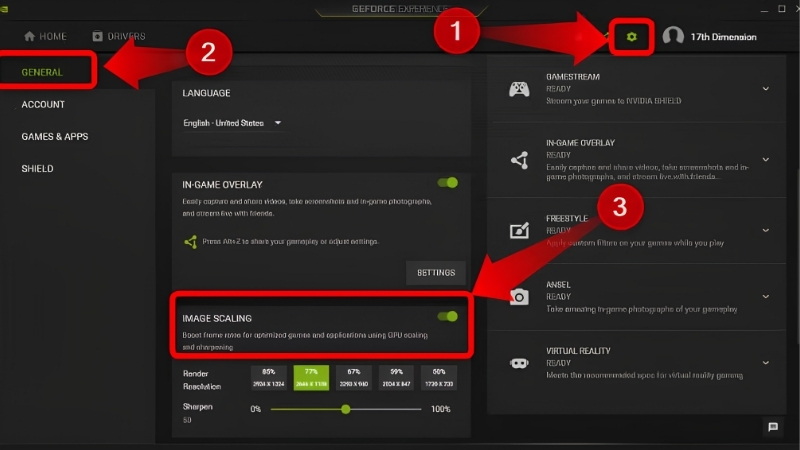
You turn NIS on in the NVIDIA App or Control Panel under the image scaling setting, then enable it globally or per game. Once active, you set your in-game resolution to one of the recommended scaling resolutions, and NIS upscales it to your native display resolution.
The sharpening slider is the key control. Too little and the upscaled image looks soft; too much and it looks harsh with visible over-sharpening halos. A moderate level is the usual sweet spot, and it is worth adjusting while looking at a detailed scene.
An on-screen indicator confirms NIS is active, useful for checking it is actually working before you judge the results.
Recommended Scaling Resolutions and Sharpness
NIS offers preset scaling levels that correspond to how much you are upscaling. Use the table below as a starting point, balancing performance gain against image softness for your native resolution.
| Scaling level | Render vs native | Sharpness start | Best for |
|---|---|---|---|
| Light (Ultra Quality) | ~85% | Around 50% | Small FPS gain, best image |
| Balanced (Quality) | ~77% | Around 50% | Good balance of both |
| Aggressive (Performance) | ~67% or lower | Around 40-50% | Max FPS, softer image |
Start light and only go more aggressive if you need the frames. Higher upscaling means more performance but a softer picture, so use the least aggressive level that hits your target frame rate.
Pros and Cons Users Report
Because NIS is free and works almost everywhere, the honest question is how much image quality you give up for the frames. Weighing the praise against the complaints sets realistic expectations.
What users like: genuine extra performance on hardware that cannot use DLSS, universal compatibility including older and non-RTX cards, driver-level operation that works in almost any game, and adjustable sharpening. For owners of aging systems, it is often a lifesaver.
What users criticize: a softer, less detailed image than DLSS, over-sharpening artifacts if the slider is set too high, and less impressive results than modern AI upscalers. It is a compatibility-first tool, not a quality leader, and users who expect DLSS-level results are disappointed.
Getting the Most FPS Without Losing Too Much Quality
NIS can meaningfully extend the life of an older GPU, but it has limits, and knowing when it is enough versus when the real answer is an upgrade saves you from chasing frames a spatial upscaler cannot deliver. This final section covers where NIS is genuinely sufficient, when hardware is the better fix, and the bottom line on the feature.
When NIS Is Enough and When It Is Not
NIS is enough when you need a modest performance boost to cross into playable frame rates and can accept a slightly softer image, especially in fast games where you are focused on motion rather than fine detail. For pushing an older card a bit further, it does the job.
It is not enough when a game is far below playable even at aggressive scaling, or when image quality matters to you and the softness is too noticeable. In those cases, no amount of upscaling substitutes for more actual GPU power, and NIS is only a stopgap.
The type of game changes the calculation too. In fast, motion-heavy shooters and racing games, your eyes are tracking movement rather than scrutinizing static detail, so the softness NIS introduces is easy to overlook and the extra frames are genuinely useful. In slow, detail-rich single-player games where you stop to take in scenery, that same softness is far more obvious. Matching NIS to the games where its weakness matters least is how you get the most value from it.
When an Upgrade Beats Upscaling
There comes a point where squeezing frames from an old card with heavy upscaling produces an image so soft and a frame rate so marginal that a hardware upgrade is the honest answer. A newer RTX card not only runs games faster natively but also unlocks DLSS, which looks dramatically better than NIS at the same performance.
If you find yourself running NIS at its most aggressive setting just to stay playable, that is the clearest signal your GPU has reached its limit. Upgrading returns both real performance and access to the superior AI upscaling NIS is standing in for.
If NIS is only barely keeping your system afloat, compare current prices and specs on newer RTX graphics cards through the links on this page to see what a real upgrade would deliver.
See More:
- NVIDIA Broadcast vs OBS
- RTX HDR settings
- NVIDIA App download
- NVIDIA RTX Video Super Resolution
- GeForce Experience alternative
Final Verdict
NIS is worth using for anyone on an older or non-RTX GPU who needs extra frames and cannot access DLSS, since it delivers genuine performance almost anywhere at the cost of some sharpness. As a universal fallback, it is one of the most useful free features for aging hardware.
But it is a stopgap, not a rival to DLSS. If your card supports DLSS, use that instead, and if NIS is barely keeping you playable, treat it as a sign to upgrade rather than a permanent solution.
In the end, NVIDIA Image Scaling is the practical way to extract more frames from a GPU that DLSS leaves behind, using driver-level upscaling and sharpening that works on almost any card. Start with a light scaling level and moderate sharpening, and only push harder when you need the frames. And if NIS is only just keeping your games playable, check the recommended RTX cards through the links here to see what upgrading would unlock, including the far superior DLSS.
Top-Rated Picks


| Product | Brand | Rating | Reviews | Price |
|---|---|---|---|---|
| ARCTIC MX-4 (4 g) – Premium Performance Thermal Paste… | ARCTIC | ★ 4.8 | 104k | $4.99 |
| ARCTIC MX-4 (incl. Spatula, 4 g) – Premium Performanc… | ARCTIC | ★ 4.8 | 71.9k | $5.49 |
| Crucial 8GB DDR4 RAM 3200MHz (PC4-25600), Downclockab… | Crucial | ★ 4.8 | 62.8k | $74.99 |
| AMD Ryzen 5 5600X 6-core, 12-thread unlocked desktop … | — | ★ 4.8 | 30.2k | $177.60 |
| NVIDIA Shield Remote; Voice Search, Motion-Activated,… | — | ★ 4.7 | 10.6k | $25.99 |
Frequently Asked Questions
How does NIS differ from DLSS?
NIS is a spatial upscaler with a sharpening pass; it looks only at the current frame and has no motion vectors or neural network reconstruction. DLSS uses temporal data and AI to rebuild detail, so it retains fine textures and thin geometry far better. NIS trades quality for universal compatibility.
Which GPUs can use it?
The driver-level version works on GTX 10-series and newer NVIDIA cards, and the open-source in-game implementation can even run on AMD and Intel hardware. That makes NIS the only NVIDIA upscaling option for owners of pre-RTX cards, who cannot access DLSS at all.
How do I enable it correctly?
Turn on Image Scaling in the NVIDIA Control Panel under Manage 3D Settings, pick a sharpness value around 50%, then set your game to the lower render resolution the overlay indicates while keeping the display at native. Enabling the on-screen indicator confirms it is actually active, which is easy to get wrong.
What sharpness value looks best?
Between 40% and 60% suits most titles. Higher values create halo artefacts around high-contrast edges and amplify aliasing, especially at 1080p where the upscale ratio is already aggressive. If you are upscaling to 4K, lower sharpness usually looks cleaner because the source resolution is inherently more detailed.
Is it worth using if my card supports DLSS or FSR?
Usually not. DLSS Quality mode and modern FSR both preserve far more detail in motion. Keep NIS as a fallback for games with no upscaler support at all, for older hardware, or for lightly downscaling demanding titles where you value frame rate above image fidelity.











Write Your Review
No reviews yet. Be the first to share your experience!