
- Top Pick: Large Heat sink 150x93x15 mm/ 5.9×3.66×0.59 inch + Thermal Conductive Adhesive Tape, High Power Heatsink Module Cooler Fin for PCB Board LED Motherboard Cooling GPU Backplate Radiator Routers RTX 3090
- Best Value: Easycargo 20pcs 9mm Small mini Heatsink Kit 9x9x5mm + 3M 8810 Thermal Conductive Adhesive Tape, mini Cooler Aluminum Heat Sink for Cooling VRM GPU Stepper Driver MOSFET VRam Regulators (9mmx9mmx5mm)
- Premium Choice: High Power Large Aluminum Heat Sink Plate 150mmx93mmx15mm/ 5.9×3.66×0.59 inch Heatsink Module Cooler Fin for PCB Board LED Motherboard Cooling GPU Backplate Radiator Routers RTX 3090 3080, Black
How to clean a GPU heatsink is one of the most overlooked skills in PC ownership, yet it has a direct effect on temperatures, fan noise, and the long-term health of your card. Over months of use, a thin felt of dust builds up between the aluminum fins and slowly chokes airflow. The result is higher temperatures, louder fans, and earlier thermal throttling. The good news: a careful clean takes about 30 minutes, needs only a few cheap tools, and can drop your load temperatures by several degrees. This guide walks you through exactly what to use and how to do it without damaging anything.


Prime
Editor's Pick
GOWENIC GPU Backplate Memory Radiator, Aluminum Alloy Heatsink Cooler with 4Pin Cooling Fan and Thermal Pad for Graphics Card RTX3090 3080 3070


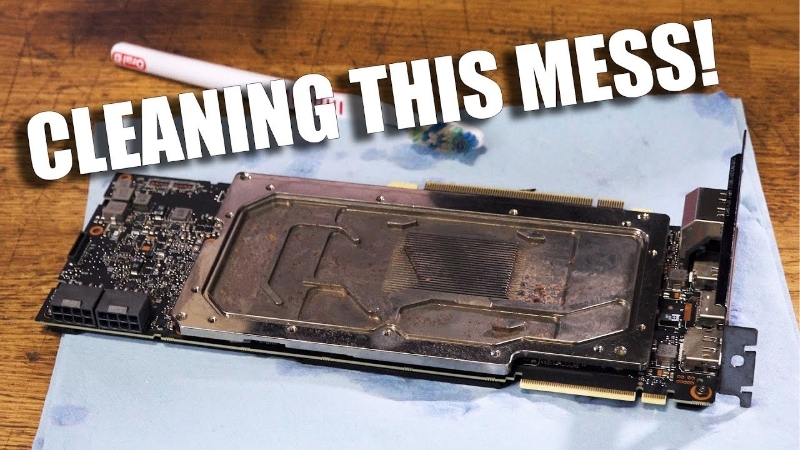
What You Will Need to Clean a GPU Heatsink
Before you touch a single screw, gather your tools. Cleaning a heatsink is mostly about moving dust without forcing it deeper into the fins or scratching delicate parts. The right kit makes the job faster, safer, and far more effective than a quick blast with whatever you have lying around. Below are the three categories of supplies that matter most, and what each one actually does for you.
As an Amazon Associate we earn from qualifying purchases at no extra cost to you.





Compressed Air or an Electric Blower
Your main tool is moving air. Canned compressed air works, but it empties fast and can spit cold liquid if you tilt the can. For anyone cleaning more than once a year, a small electric air blower is the better long-term buy because it never runs out and pushes a stronger, steadier stream.
Keep the nozzle a few inches away and blow through the fins along their natural channel, not across them. Short bursts work better than one long blast. If you are using canned air, hold the can upright and pause between bursts so it does not freeze.
A quick mention here: a reliable rechargeable air blower is the single best upgrade for this whole process, and you can grab a quality one through the link in this guide.
Soft Brushes and Microfiber Cloths
Air alone will not lift dust that has packed into greasy clumps near the fans. A soft anti-static brush loosens that buildup so the air can carry it away. Choose soft bristles only; stiff brushes can bend the thin aluminum fins or scratch the shroud.
Pair the brush with a lint-free microfiber cloth for the outer shroud, backplate, and fan blades. Paper towels shed fibers and can leave scratches, so a dedicated microfiber cloth like the ones linked below is worth the couple of dollars it costs.
Keep two cloths on hand: one slightly dampened with a little isopropyl for stubborn grime on the shroud, and one bone dry for a final wipe. This two-cloth habit removes fingerprints and oily residue without leaving streaks, and it keeps moisture well away from the circuit board, where it does not belong.
Isopropyl Alcohol and Fresh Thermal Paste
If you plan to remove the cooler for a deep clean, you will need 90%+ isopropyl alcohol to wipe off the old, dried thermal paste. It evaporates cleanly and leaves no residue, which is exactly what you want near sensitive silicon.
You will also need fresh thermal paste to reapply once the cooler goes back on. Old paste loses its conductivity over time, so a fresh, high-quality paste is a cheap way to claw back a few more degrees. A trusted paste and a small bottle of isopropyl are both available through the recommendations in this article.
One note on paste: less is more. A single pea-sized dot in the center of the die spreads evenly under mounting pressure, while too much can ooze over the edges and actually trap heat. If you have never repasted before, remember the deep clean is entirely optional, so there is no pressure to attempt a teardown on your first cleaning.
How to Clean a GPU Heatsink Step by Step
With your tools ready, here is the full process in order. Follow the numbered steps below; they are written so search engines (and you) can scan them quickly. The first level is a light surface clean that most people can do without removing the cooler. Steps 5 and 6 are the optional deep clean for cards that are years old or running hot despite a surface clean.
Step 1 and 2: Power Down and Remove the GPU
- Shut down and unplug everything. Turn off the PC at the wall, hold the power button for a few seconds to drain residual charge, then disconnect the power cables. This protects both you and the card.
- Remove the GPU from the case. Unscrew the bracket, release the PCIe slot latch, and gently lift the card out. Place it on a non-static surface with the fans facing up.
Working outside the case is the single biggest tip here. Dust you blow off a card still inside the case just resettles on other components. Outside, it goes to the floor where it belongs.
Step 3 and 4: Blow Out Dust and Brush the Fins
- Blow air through the fin stack. Aim the nozzle so air travels along the fin channels and out the other side. Hold each fan still with a finger while you blow it; spinning fans fast with air can generate voltage and stress the bearings.
- Brush stubborn buildup loose. Where dust is caked, sweep the soft brush gently, then follow with another pass of air. Wipe the shroud and backplate with the microfiber cloth.
For most cards, steps 1 through 4 are enough to restore airflow and drop temperatures noticeably. If your card is clean now and temps look healthy, you can stop here and reinstall.
Step 5 and 6: Deep Clean, Reseat, and Test
- Optional deep clean. If the card is old or still hot, remove the cooler screws, lift it off, wipe the die and cold plate with isopropyl, and apply a fresh pea-sized dot of thermal paste before reattaching.
- Reinstall and test. Seat the card firmly, reconnect power, boot up, and run a short stress test while watching temperatures. A successful clean shows up as lower load temps and quieter fans.
Always reconnect the GPU power cables fully until they click. A partially seated connector is a real safety risk on high-wattage cards, so double-check before you close the case.
Pros, Cons, and Pro Tips for Cleaning a GPU Heatsink
Cleaning is one of the highest-value maintenance tasks you can do, but it is not entirely risk-free, and a few habits separate a smooth job from a damaged card. This section weighs the trade-offs honestly, then gives you the mistakes to avoid and the small tricks that keep your hard work paying off for months.
The Pros and Cons of Regular Heatsink Cleaning
The upside is clear and measurable. Here is how the trade-off looks in practice:
- Pros: lower GPU temperatures, quieter fans, less thermal throttling, longer component lifespan, and a near-zero cost beyond a few reusable tools.
- Cons: a small risk of bending fins or fan blades, the deep-clean version requires patience and a steady hand, and reapplying paste incorrectly can briefly raise temps until you fix it.
For the vast majority of users, the pros outweigh the cons easily, especially if you stick to the light surface clean and only attempt a teardown once you are comfortable.
Common Mistakes That Damage a GPU
The most frequent mistake is letting fans spin freely under high-pressure air. Always pin them in place. The second is using a vacuum cleaner, which generates static that can harm electronics; air out is safer than suction.
Another costly error is blowing canned air upside down, which sprays freezing liquid onto the board. Keep the can upright, and never use household cleaners or water on the fin stack.
A final avoidable error is rushing reassembly. Cross-threading a cooler screw, over-tightening one corner, or pinching a fan cable during reinstall can undo all of your careful work. Take an extra minute to seat every screw evenly and route cables cleanly; a slow, deliberate rebuild always beats a fast one that introduces a brand-new problem.
Pro Tips to Keep Temps Low Longer
Add intake dust filters to your case so less debris reaches the card in the first place. Clean filters are far easier to maintain than a packed heatsink, and they cut how often you need to repeat this whole process.
Set a reminder to do a quick surface clean every three to six months depending on your environment. Pet hair and carpeted rooms mean more frequent cleaning, while a filtered, hard-floor setup can stretch longer.
Where you place the PC matters too. Carpet and floor-level intakes pull in the most dust, so even raising the case onto a desk or a small stand noticeably slows how quickly the heatsink clogs. These tiny environmental tweaks stretch the time between cleanings and keep your temperatures lower for longer with no extra effort.
Keeping your card cool is mostly about having the right gear on hand before dust becomes a problem. If you want to do this job once and do it well, take a look at the recommended air blower, soft brush set, microfiber cloths, and thermal paste linked throughout this guide and pick up the bundle that fits your setup.
See More:
Conclusion
Knowing how to clean GPU heatsink fins turns a hot, noisy card into a cool, quiet one in under half an hour, with nothing more than air, a soft brush, and a little patience. Stick to the surface clean for routine maintenance, save the teardown for older or stubborn cards, and avoid the classic mistakes that do more harm than good. With the right tools ready and a simple schedule, your graphics card will run cooler and last longer. Grab the recommended cleaning kit through the links above and give your GPU the maintenance it deserves.
Frequently Asked Questions
How often should I clean the heatsink?
Every six to twelve months in a typical home, and more often with pets or carpeted rooms. Dust builds up in the fin stack first, insulating the fins and forcing the fans to spin faster for the same temperature. If your idle fan speed has crept up or gaming temperatures rose several degrees, it is overdue.
Can I use compressed air safely?
Yes, with two precautions. Hold the fans still with a finger or a cable tie so they cannot spin freely, because spinning them backwards can generate voltage and damage the fan controller. Keep the can upright and a few inches away so no liquid propellant sprays onto the board, and work outdoors if possible.
Do I have to remove the card from the case?
Removing it makes the job far more effective, because you can blow dust out of the fin stack rather than deeper into the chassis. Power down fully, unplug the supply, discharge static by touching bare metal, unclip the PCIe latch and support the card by its heatsink rather than pulling on the fans.
Should I replace the thermal paste while I am in there?
Only if the card is three or more years old and the hotspot to core delta has grown beyond about twenty degrees. Disassembling the cooler usually voids the warranty, and modern factory paste holds up well. Cleaning the fins and fans resolves the overwhelming majority of dust-related temperature increases on its own.
Is it safe to use a vacuum cleaner?
Avoid standard household vacuums. They generate significant static at the nozzle and can discharge into components. If you prefer suction over compressed air, use an anti-static electronics blower or a low-power rechargeable air duster designed for computers, and still hold the fan blades stationary while you work.











Write Your Review
No reviews yet. Be the first to share your experience!