
How to enable hardware accelerated GPU scheduling is a one-toggle Windows setting that lets your GPU’s scheduling processor handle its own work queue instead of deferring to the CPU. The result can be a small reduction in input latency and smoother frame delivery, especially in GPU-heavy workloads. Microsoft introduced the feature in Windows 10 May 2020 Update, and it works on Nvidia GTX 1000-series and newer with a current driver. Despite being available for years, many owners have never toggled it on because it is buried in Windows Settings rather than the Nvidia Control Panel. This guide shows you the exact path, explains what the feature actually changes, and helps you decide whether it makes a difference on your system.
Despite its long name, the setting is one of the simplest Windows optimizations available. You do not need to understand how GPU scheduling works at a technical level; all you need is to flip a toggle and restart. The sections below handle the detail so you can act on the result.
As an Amazon Associate we earn from qualifying purchases at no extra cost to you.





What You Will Need to Enable Hardware Accelerated GPU Scheduling
This is a Windows setting, so there is nothing to download or buy. What you do need is a compatible GPU, a current driver, and the right version of Windows. Confirming these three items first prevents the frustration of looking for a toggle that does not appear.
Windows Version and GPU Support
Hardware accelerated GPU scheduling requires Windows 10 version 2004 or later, or any release of Windows 11. If your Windows is up to date you qualify. On the GPU side, Nvidia supports the feature from the GTX 1000-series onward, so any Pascal or newer card works.
Check your Windows version by pressing Windows+R, typing winver, and pressing Enter. The dialog shows your build number. If it is below 2004, update Windows before proceeding.
Driver and Compatibility Check
Update your Nvidia driver to the latest release, since early driver versions had limited support for the feature. A current driver ensures the scheduling handoff works as intended and that any edge cases discovered after launch have been patched.
Confirm the feature is exposed on your system by navigating to the settings path described in the steps below. If the toggle does not appear, the driver or Windows version is the likely cause.
What Hardware Accelerated GPU Scheduling Does
Without the feature, the CPU manages the GPU’s work queue through a software layer called the Windows Display Driver Model scheduler. With it enabled, the GPU’s own scheduling processor takes over that role, reducing the overhead the CPU spends managing frames and potentially lowering latency.
The practical effect is subtle. In most games the difference is a few percent or less, but in scenarios where the CPU is already busy, offloading the scheduling work can prevent micro-stutters and keep frame delivery smoother. It is a low-risk, free optimization that costs nothing to try.
The feature also benefits non-gaming workloads that use GPU compute, such as video editing and 3D rendering, where smoother scheduling can reduce minor hitches during GPU-heavy operations. It is not limited to games, though gaming is where most users notice the difference.
The feature also benefits non-gaming workloads that use GPU compute, such as video editing and 3D rendering, where smoother scheduling can reduce minor hitches during GPU-heavy operations. It is not limited to games, though gaming is where most users notice the difference.
Step-by-Step Guide to Enabling the Feature
The toggle lives in Windows Settings, not in any Nvidia tool, which is why many owners miss it. The path below applies to both Windows 10 and 11, with the small variation in menu labels noted.
Step 1 to 3: Navigate to the Setting
Step 1: Open Windows Settings. Press Windows+I to open Settings directly.
Step 2: Go to Graphics settings. On Windows 11, navigate to System, then Display, then Graphics. On Windows 10, go to System, then Display, then Graphics settings near the bottom of the page.
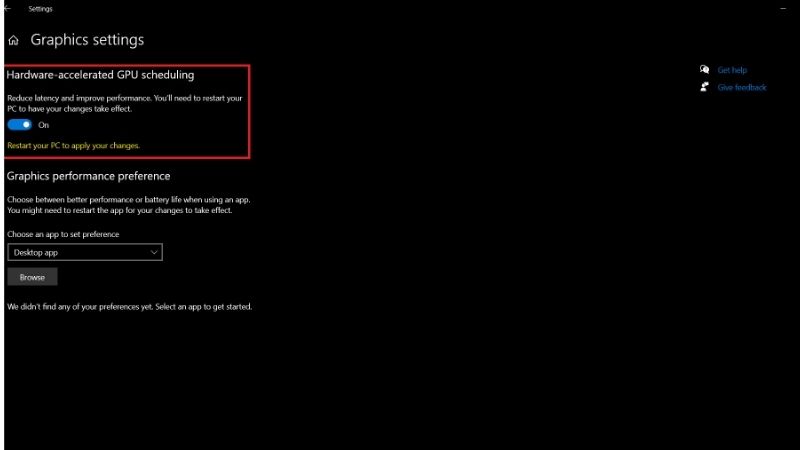
Step 3: Find Hardware-accelerated GPU scheduling. Near the top of the graphics settings page, look for the toggle labeled Hardware-accelerated GPU scheduling. If it is not visible, your Windows version or driver does not support it yet.
The exact label may vary slightly across Windows builds, but it is always on the main graphics settings page and always a simple on-off toggle.
Step 4 to 6: Enable and Restart
Step 4: Toggle it on. Click the switch to move it from Off to On. Windows will note that a restart is required for the change to take effect.
Step 5: Restart your PC. The feature does not activate until after a full restart. A shutdown and cold boot also works.
Step 6: Verify it is active. After restarting, return to the same settings page and confirm the toggle is still on. You can also check in GPU-Z under the Advanced tab or in task manager under the GPU section to confirm the scheduling mode has changed.
Troubleshooting Common Issues
If the toggle is missing, update Windows to the latest version and install the newest Nvidia driver, then check again. On rare occasions a group policy or enterprise setting hides it, so home users should see it once the requirements are met.
If you experience instability after enabling, such as crashes in specific applications, the issue is usually an older application or driver conflict. Disabling the feature and updating the offending software resolves most cases. The toggle is easy to revert.
Some users report no measurable difference, which is expected. The gain depends on workload and CPU headroom, and on a system that is not CPU-bottlenecked the change may be imperceptible. It is safe to leave on regardless.
Pro Tips, Mistakes, and Honest Expectations
This feature is low-drama by design: a small, behind-the-scenes optimization rather than a dramatic performance leap. This section sets honest expectations, covers the mistakes that waste time, and explains how to pair it with other free settings for the best overall result.
Pro Tips for Getting the Most Out of It
Pair hardware accelerated GPU scheduling with Nvidia Reflex and Resizable BAR for a combined reduction in overhead and latency. None of these features is dramatic alone, but together they trim the fat across the rendering pipeline and produce a tangibly smoother experience.
Leave the feature on globally. It applies system-wide rather than per-game, and there is no benefit to toggling it on and off for different titles.
Common Mistakes to Avoid
Do not expect a visible FPS increase in every game. The feature primarily reduces scheduling overhead, which translates to smoother frame pacing rather than higher raw frame counts. Judging it only by an FPS counter misses the point.
Do not confuse this with GPU scheduling in task priority. Hardware accelerated GPU scheduling is a display driver feature, not a Windows process priority setting. The two are unrelated.
Pros and Cons of Hardware Accelerated GPU Scheduling
On the plus side, it is free, low-risk, easy to enable and revert, and can reduce latency and stutter on CPU-loaded systems. It rounds out a suite of free optimizations nicely.
On the downside, the effect is subtle and sometimes unmeasurable, it requires a restart to activate, and rare application conflicts can occur. For the vast majority of systems it is a harmless positive.
If you do encounter an incompatible application, the fix is as simple as toggling the setting off, restarting, and checking again after the next app or driver update. The toggle is fully reversible at any time, which removes essentially all risk from trying it.
If you do encounter an incompatible application, the fix is as simple as toggling the setting off, restarting, and checking again after the next application or driver update. The toggle is fully reversible at any time, which removes essentially all risk from trying it.
If your hardware and Windows version support it, there is no reason not to enable it. The upside is real if small, and the downside is negligible.
Enabling hardware accelerated GPU scheduling takes under a minute and one restart. Follow the path above, pair it with Reflex and Resizable BAR, and enjoy a slightly smoother system.
See More:
- How to lower GPU temperature
- How to lower GPU hotspot temp
- How to increase GPU performance
- How to enable G-Sync
Conclusion
Knowing how to enable hardware accelerated GPU scheduling gives you a free, low-risk optimization that reduces scheduling overhead and can smooth frame delivery. Navigate to Windows Graphics settings, flip the toggle, restart, and verify. Pair it with Resizable BAR and Nvidia Reflex for the best combined result, and leave it on globally. The gain is subtle but real on CPU-loaded systems, and the toggle takes seconds to revert if needed. It is one more free setting every Nvidia owner should have turned on.
As a final check, run a game you play often and note whether frame pacing feels smoother. The difference may be subtle, but on a system where the CPU was marginal, you may notice fewer micro-stutters during intense scenes. If you see no change, leave it on anyway, since the behind-the-scenes scheduling overhead reduction still benefits the system even when it is not perceptible.
For users who run GPU-accelerated applications alongside games, such as a stream encoder or a background video render, the scheduling improvement can be more noticeable. Offloading queue management to the GPU’s own processor frees CPU headroom for the secondary task, which is the scenario where the subtle benefit adds up into something tangible.
For users who run multiple GPU-accelerated applications at once, such as a game alongside a stream encoder or a video render in the background, the scheduling improvement can be more noticeable. Offloading the queue management to the GPU’s own processor frees CPU headroom for the secondary task, which is the scenario where the subtle benefit adds up into something you can actually feel.
Top-Rated Picks


| Product | Brand | Rating | Reviews | Price |
|---|---|---|---|---|
| ARCTIC MX-4 (4 g) – Premium Performance Thermal Paste… | ARCTIC | ★ 4.8 | 104k | $4.99 |
| ARCTIC MX-4 (incl. Spatula, 4 g) – Premium Performanc… | ARCTIC | ★ 4.8 | 71.9k | $5.49 |
| Crucial 8GB DDR4 RAM 3200MHz (PC4-25600), Downclockab… | Crucial | ★ 4.8 | 62.8k | $74.99 |
| AMD Ryzen 5 5600X 6-core, 12-thread unlocked desktop … | — | ★ 4.8 | 30.2k | $177.60 |
| NVIDIA Shield Remote; Voice Search, Motion-Activated,… | — | ★ 4.7 | 10.6k | $25.99 |
Frequently Asked Questions
Where is the hardware accelerated GPU scheduling toggle?
Open Settings, go to System, then Display, then Graphics, and select Change default graphics settings. The toggle sits at the top of that page. It requires a restart to take effect, and it only appears if your card and driver support it, which covers essentially all GeForce cards from the GTX 1000 series onward.
What does it actually change?
It moves frame queue management from a CPU-managed scheduler to a dedicated hardware scheduler on the graphics card. That reduces some CPU overhead and can lower latency slightly. The effect on average frame rate is usually within noise, so treat it as a latency and overhead refinement rather than a performance feature.
Is it required for frame generation or other features?
Yes, NVIDIA frame generation requires hardware scheduling to be enabled, and some latency reduction features behave better with it on. If a driver feature reports as unavailable despite a supported card, this toggle is one of the first things to check along with the Windows version.
Can it cause problems?
Occasionally. A small number of users report stutter, capture software glitches or issues in specific titles after enabling it. Because it is a single toggle with a restart, testing is easy: enable it, play your usual games for a few days, and switch it back if anything behaves worse than before.
Why is the option missing on my system?
Either the driver is too old, the Windows build predates the feature, or the display is connected to integrated graphics rather than the discrete card. Update to the current driver, confirm you are on a recent Windows 10 or 11 build, and check that your monitor cable runs to the graphics card outputs.











Write Your Review
No reviews yet. Be the first to share your experience!