
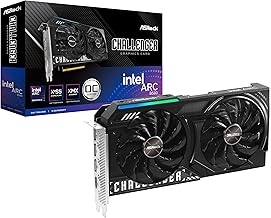
- Top Pick: ASRock Intel Arc B580 Challenger 12GB OC Graphics Card, 2740 MHz GPU Clock, 12GB GDDR6, DisplayPort 2.1, HDMI 2.1a, Dual Fan Cooling, 0dB Silent Operation
- Best Value: ASRock Intel Arc A580 Challenger 8GB OC Graphics Card, Intel Xe HPG Architecture, 8GB GDDR6, PCIe 4.0, Dual Fans, 0dB Silent Cooling, DisplayPort 2.0
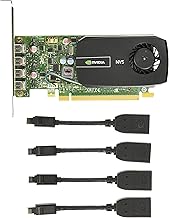
- Premium Choice: NVIDIA NVS 510 Graphics Card 0B47077
Looking for nvidia control panel settings for arc raiders usually means one thing: you are alt-tabbed out of a match right now, the game is stuttering or your aim feels disconnected, and you want the values typed out so you can set them and get back in. So here they are. This review covers the settings that measurably help in Arc Raiders, the ones every guide copies from each other that do nothing, and the one setting most people set backwards. Copy the table, close the tab, keep playing.
The Settings That Actually Matter in Arc Raiders
Before the table, one thing worth knowing so you do not waste an evening: the Nvidia Control Panel is not where most of your performance lives. It is a driver-level override layer sitting above the game’s own settings, and for a modern DX12 title like Arc Raiders, the game controls most of what matters. The Control Panel handles latency, sync behaviour, and a handful of overrides. That is a small but genuinely useful set – and knowing which is which saves you from the placebo settings that fill most guides.
The Copy-Ready Settings Table
Open the Control Panel, go to Manage 3D Settings, click the Program Settings tab, and add Arc Raiders. Setting these globally works too but affects every game, which you probably do not want. Then set these values.
| Setting | Value | Why |
|---|---|---|
| Low Latency Mode | Off (use Reflex in-game) | The one people get wrong – see below |
| Power Management Mode | Prefer maximum performance | Stops clock drops between engagements |
| Texture Filtering – Quality | High performance | Small free gain, no visible cost |
| Vertical Sync | Off (On if using G-Sync) | Depends on your monitor – see below |
| Max Frame Rate | Refresh rate minus 3 | Only if you have G-Sync |
| Monitor Technology | G-Sync Compatible | Only if your monitor supports it |
| Threaded Optimization | Auto | Leave it – forcing this rarely helps |
| Shader Cache Size | 10GB or Unlimited | Reduces traversal stutter |
| Anisotropic Filtering | Application-controlled | Let the game handle it |
| Antialiasing settings | Application-controlled | Overrides do nothing in DX12 |
Two of these are doing most of the work. Power Management Mode set to prefer maximum performance stops your GPU dropping clocks during quiet moments and then scrambling back up when a fight starts – which is exactly when you feel it. Shader Cache Size matters because Arc Raiders compiles shaders as you move through the world, and a small cache means recompiling the same shaders repeatedly, which presents as stutter when you enter a new area.
The Low Latency Mode Mistake Almost Every Guide Makes
This is the one worth reading properly, because most settings guides tell you to set Low Latency Mode to Ultra and that is wrong for this game.
Low Latency Mode is Nvidia’s driver-level frame queue control. Ultra limits the render queue to reduce input lag. It works – on older games that have no better option. Arc Raiders supports Nvidia Reflex natively, and Reflex does the same job better, because it operates inside the engine with knowledge of the frame pipeline rather than guessing at it from the driver layer.
Running both simultaneously does not double the benefit. It creates a conflict where the driver and the engine each try to manage the queue, and the common result is inconsistent frame pacing – which feels worse than either alone. Turn Low Latency Mode off in the Control Panel and turn Reflex on in the game. That single change fixes a surprising number of complaints about aim feeling floaty.
If your game build does not expose Reflex, then and only then set Low Latency Mode to On – not Ultra. Ultra caps your framerate slightly below refresh, which duplicates what your Max Frame Rate setting should already be doing.
The Sync Settings That Depend on Your Monitor
These are the settings people copy from a guide written for someone with different hardware, and then wonder why it feels wrong.
If you have a G-Sync or G-Sync Compatible monitor, the correct configuration is: V-Sync On in the Control Panel, V-Sync off in the game, and Max Frame Rate set to your refresh rate minus 3. That combination sounds contradictory and is not – it lets G-Sync operate in its variable window while the frame cap prevents you ever hitting the ceiling where V-Sync would add latency. On a 144Hz panel, cap at 141.
If you do not have variable refresh, set V-Sync off everywhere and cap your frame rate somewhere you can hold consistently. A steady 90 fps feels better than a rate swinging between 80 and 130, because your eyes and hands track consistency rather than peaks. This is the single most underrated performance setting in any competitive game.
Check which you have before you touch anything: the Control Panel shows a Set up G-Sync page if your monitor supports it. If that page does not exist, you do not have it, and half the guides online do not apply to you.
What to Do When the Control Panel Does Not Fix It
If you have set all of the above and the game still stutters, the Control Panel was never your problem – and continuing to fiddle with it is how people lose an evening. Three causes explain almost every remaining case, and all three are diagnosable in about ten minutes.
Diagnose Before You Change Anything Else
Install MSI Afterburner, enable the on-screen display, and turn on four readouts: GPU usage, GPU temperature, VRAM usage, and CPU usage. Play one match. The numbers tell you exactly where the problem is.
GPU usage at 95-99% with low frames means your GPU is the limit – lower in-game settings, or enable DLSS. That is normal and fixable. GPU usage at 60-80% with low frames means your CPU is the limit, and no Control Panel setting on this page will help you.
VRAM usage near your card’s capacity with stutter is the third case, and the most commonly misdiagnosed. On an 8GB card at 1440p with high textures, you are likely sitting at 7.5GB and hitching. That is not a driver problem and no setting fixes it – drop textures one notch and the stutter disappears.
Temperature above 80C is the fourth. Your card is throttling, which means it is dropping clocks to protect itself and you are losing performance you already paid for.
The Fan Curve Fix Most Players Skip
If your diagnostic shows temperatures in the high seventies or above, this is worth ninety seconds and it is free.
Stock fan profiles on most cards do almost nothing until 55-60C, then ramp hard. The result is a card sitting in the high seventies all session. Nvidia’s GPU Boost drops roughly one clock bin for every few degrees past the mid-fifties, so a card at 78C is often 60-90 MHz slower than the same card at 65C. That is a real 2-3% you are not receiving.
In Afterburner, enable user-defined fan control and set these points: 30C at 0%, 50C at 30%, 60C at 45%, 70C at 60%, 80C at 85%. Set hysteresis to 3-5C so the fan does not hunt. Tick apply at startup. Expect 8-12C off the core on a well-ventilated card – more than any Control Panel setting will ever give you.
If the card still will not drop below 78C after that, software has told you everything it can. The bottleneck is airflow, not settings.
Pros and Cons of Tuning the Nvidia Control Panel
| What it genuinely does | Where it falls short |
|---|---|
| Power Management and Shader Cache produce real, measurable stability gains in Arc Raiders | Most settings are placebo in a modern DX12 title – the game controls what matters |
| Fixes the Reflex conflict that makes aim feel floaty – a genuine input latency improvement | Cannot add performance the hardware does not have; it is a routing layer, not a cooling or memory upgrade |
| Free, reversible, and takes under two minutes to apply | Settings occasionally reset after a driver update, requiring a re-apply |
| Per-program profiles let you tune one game without affecting others | Antialiasing and filtering overrides simply do nothing in DX12 – the guides recommending them are copying 2015 advice |
| Correct sync configuration is the difference between smooth and floaty on a G-Sync panel | Cannot fix a VRAM wall, a CPU bottleneck, or a throttling card – the three causes of most real stutter |
The honest summary: this is a routing layer with a handful of genuinely valuable switches buried in a pile of legacy ones. Set the five that matter, ignore the rest, and go diagnose the actual problem if the stutter survives.
Why Tuning Beats Upgrading Right Now
There is a reason settings guides have become more popular than upgrade guides, and it is not because tuning got more interesting. It is because replacing a graphics card has become genuinely painful, and squeezing the one you own has stopped being a hobby and started being financial sense.
GPU Prices Have Flattened but Have Not Fallen
The memory-driven surge through late 2025 lifted component and laptop pricing broadly, and graphics cards were not exempt. The genuinely positive news is narrow but real: the steep climb seen at the end of 2025 has stopped, and manufacturers including Framework have reported a stretch of relative stability – while still warning openly that further volatility remains possible.
Parse it carefully. Flat is not falling. Nothing suggests the card you would upgrade to will be meaningfully cheaper in three months. The panic to buy is gone; the reward for waiting never arrived.
Which makes the maths on this page fairly stark. A correct Reflex configuration, a proper fan curve, and a shader cache fix cost nothing and recover real performance. The card that would give you 25% more costs several hundred dollars that is not getting cheaper. Tune first is not consolation advice in this market – it is the rational order of operations.
New Memory Supply Does Not Arrive Until 2027 or 2028
Genuine relief is under construction. OEMs can now source DDR5 from Chinese suppliers such as CXMT, and Micron is building two fabrication plants in Idaho – funded, structural additions to global supply rather than speculation.
The obstacle is the calendar. Those Idaho plants do not come online until 2027-2028. Fabrication capacity takes years to stand up, and the entire 2026 cycle passes before any of it reaches a shelf.
The practical conclusion: the card in your machine is an asset whose replacement cost has risen and is not coming back down soon. Extending its life aggressively – clean the heatsink, fix the airflow, run a proper fan curve, stop letting it sit at 80C – is the highest-return use of an afternoon available to you right now.
The One Upgrade Worth Buying for Stutter
If your diagnostic showed temperatures above 78C at a 70% fan duty cycle, software is out of moves and the problem is the air your case supplies. Roughly speaking, every 1C you take out of case air temperature returns about 1C at the GPU core.
Two 120mm or 140mm static-pressure intake fans turn a hot box into a wind tunnel and cost less than the game you are trying to fix. It is the only purchase on this page that improves every component at once rather than just the GPU.
See More:
- A fan curve msi afterburner
- amd radeon rx 9070 vs rtx 5070
- 5060 ti vs 5070 benchmark
- rx 6600 vs rtx 3050
- 2060 vs 3060
Final Verdict
The nvidia control panel settings for arc raiders that actually matter come down to five: Power Management to prefer maximum performance, Shader Cache at 10GB or unlimited, Texture Filtering Quality to high performance, Low Latency Mode off with Reflex on in-game, and sync configured correctly for whether you own a G-Sync panel.
Set those, leave everything else on application-controlled or auto, and stop reading guides that tell you to force antialiasing in a DX12 title. Those settings do nothing and they have been copied between articles since 2015.
If the stutter survives, the Control Panel was never the problem. Run Afterburner for one match and read four numbers – GPU usage, VRAM, temperature, CPU usage – and the answer will be obvious in ten minutes. And with replacement cards priced the way they are in 2026, a fan curve and a pair of intake fans are the most rational money in the entire fix.
Frequently Asked Questions
Which Nvidia Control Panel settings help most in Arc Raiders?
Set Low Latency Mode to Ultra, Power Management to Prefer Maximum Performance, and Texture Filtering Quality to High Performance for the program profile. Leave Vertical Sync off in the panel and cap frames slightly below your refresh ceiling instead. Those four changes usually deliver the biggest reduction in stutter and input lag.
Should I use the Control Panel or the Nvidia App?
The Nvidia App replaced GeForce Experience and now hosts driver updates, overlay and game optimization, while the classic Control Panel still owns the deep 3D settings, display scaling and G-SYNC toggles. Use the App for driver management and the Control Panel for per-game 3D profiles, since both write to the same driver configuration.
Does forcing anisotropic filtering hurt frame rate?
Very little on any modern GPU. Sixteen times anisotropic filtering typically costs one or two percent of frame rate while sharpening ground textures at oblique angles considerably. The larger cost comes from forcing antialiasing modes, which can break deferred rendering in this engine, so set antialiasing in the game menu instead.
What VRAM do I need for high textures?
Eight gigabytes is workable at 1080p with high textures, but 1440p with high or ultra textures plus ray tracing pushes past that and causes texture pop-in and traversal hitching. Twelve gigabytes is the comfortable floor for 1440p in 2026, and sixteen gigabytes gives headroom for future patches and mods.
Will these tweaks trigger anti-cheat?
No. Driver-level settings in the Nvidia Control Panel are supported configuration changes and are not injected into the game process, so anti-cheat systems ignore them. Third-party overlays, injectors and unsigned tools are a different story, which is why disabling extra overlay software is a sensible precaution before ranked play.
As an Amazon Associate we earn from qualifying purchases at no extra cost to you.



Ready to decide? Our #1 pick for 2026 is the Low Latency Mode.
Live price & availability on Amazon.











Write Your Review
No reviews yet. Be the first to share your experience!