
- Top Pick: msi MAG 341CQP QD-OLED, 34 Curved OLED Gaming Monitor, 3440 x 1440 (UWQHD), 0.03ms Response time, 175Hz, Adaptive Sync, True Black HDR 400, HDMI, DP Port, USB Type C, Tilt, Height, Black
- Best Value: msi MPG 271QRX QD-OLED, 27 OLED Gaming Monitor, 2560 x 1440 (QHD), 0.03ms Response time, 360Hz, True Black HDR 400, HDMI, DP Port, USB Type C, Tilt, Height, Black
- Premium Choice: msi MAG 321CQF E18 32-inch 2560 x 1440 (QHD) Gaming Office Monitor, 180Hz, AMD FreeSync, HDR Ready, HDMI, VGA Port, VESA, Tilt, 0.5ms, Black



Msi Afterburner Curve Editor is the ultimate free tool to optimize your graphics card’s thermal performance and power efficiency in 2026. By manually adjusting your GPU’s voltage-frequency curve, you can unlock silent operation and higher sustained boost clocks without sacrificing gaming frame rates.
Understanding the Core Power of the Msi Afterburner Curve Editor
Before diving into advanced configuration steps, we must analyze how this software interface replaces traditional, crude slider overclocking with surgical voltage precision. By managing voltages directly at specific clock frequencies, you gain complete, unmatched control over your graphics processor’s physical behavior.
As an Amazon Associate we earn from qualifying purchases at no extra cost to you.





What Is the Voltage-Frequency Curve and How It Works
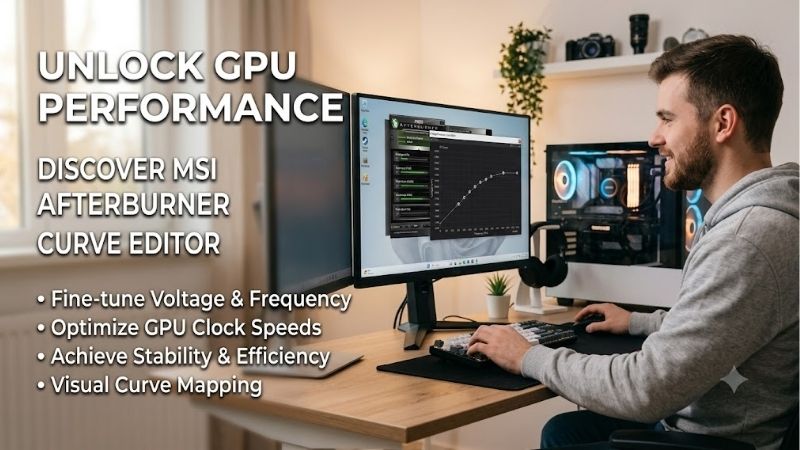
At its core, your graphics card operates on a dynamic scaling system where the operating frequency and the core voltage are mathematically linked. The voltage-frequency curve is a two-dimensional grid where the horizontal axis represents the core voltage measured in millivolts (mV) and the vertical axis represents the clock speed in megahertz (MHz). Under stock conditions, the GPU’s internal boost algorithm continuously samples temperature, power draw, and real-time workload demands to hop dynamically between pre-set points on this curve. This automated system, while highly reliable for plug-and-play consumers, is notoriously inefficient because manufacturers must over-provision voltage to guarantee that even the worst-performing silicon chips remain stable out of the box.
Under heavy 3D loads, the GPU often pushes an unnecessarily high voltage to maintain its boost clocks, causing rapid thermal accumulation and fan noise. This thermal accumulation triggers loud fan speeds and thermal throttling, which actively degrades your hardware’s lifespan. The editor allows you to manually adjust these coordinates, overriding the aggressive default tables. By capping the maximum voltage while keeping frequencies high, you force the GPU to run at peak performance with significantly less heat. This process, known as undervolting, ensures that your graphics card functions at its optimal sweet spot, preventing the hardware from wasting energy as excess heat and saving wear and tear on your cooling fans.
Undervolting vs. Overclocking: Finding Your Balance
Traditional GPU overclocking relies on a simple offset slider that shifts the entire voltage-frequency curve upward across all states. While this increases peak performance, it also forces the graphics card to hit its hard power and thermal limits much faster, resulting in aggressive clock speed drops and micro-stuttering during long gaming sessions. Undervolting, by contrast, focuses on finding the lowest stable voltage at which your GPU can run a specific target boost frequency. It is a highly sophisticated approach that works with the physics of modern semiconductor design rather than fighting against them.
By raising the clock offset and flattening the curve at a lower voltage point (such as 950mV), you prevent the card from ever pulling excessive, unnecessary wattage from your power supply. Furthermore, because power consumption is quadratic with respect to operating voltage, even a minor decrease of 100mV can yield a massive 20% to 30% reduction in total power draw. This balanced approach maintains identical or even superior average frame rates because the GPU no longer experiences thermal throttling, keeping your gameplay incredibly smooth and consistent over hours of play. It also relieves pressure on your PC’s power supply units, allowing for quieter operation across your entire system.
The Pros and Cons of Using the Msi Afterburner Curve Editor
The primary advantages of configuring a custom curve include a drastic reduction in core temperatures (often dropping by 5°C to 12°C), whisper-quiet fan acoustics, lower power bills, and a flatter frametime delivery during intensive workloads. Over the long run, keeping your silicon cooler significantly extends the operational lifespan of your expensive GPU and motherboard. Some modern architectures also feature memory temperature sensors, and keeping the core cool indirectly helps keep fragile GDDR6X or GDDR7 memory modules operating within safe operational margins.
On the flip side, the chief disadvantage is the steep learning curve for beginners, as the busy interface can initially appear highly intimidating and confusing. Additionally, finding the absolute limit of your specific graphics card requires patient, repetitive testing because every chip is subject to variations in the silicon lottery. A setting that works perfectly in one game might cause a sudden system crash in another, demanding ongoing manual refinement. It is not a set-and-forget solution for impatient users, but for those willing to invest a weekend into testing, the benefits are undeniably massive.
Market Dynamics: GPU Supply and Rising Component Costs in 2026
Optimizing your system via software is highly linked to the macroeconomic realities of the PC hardware market today. Understanding global production trends helps explain why optimizing your hardware’s efficiency is more critical in 2026 than ever before.
The Impact of NVIDIA’s H200 AI Chip Shipments to China
Geopolitical shifts and enterprise demands continue to shape the availability of consumer gaming hardware in 2026. Now that the United States government allows NVIDIA to ship high-performance H200 AI accelerators to China, enterprise demand for advanced silicon has reached unprecedented heights. Because enterprise AI hardware generates massive profit margins, semiconductor foundries like TSMC are heavily prioritizing these high-end commercial wafers over consumer GeForce gaming GPUs.
This reallocation of silicon manufacturing packaging from consumer components to high-margin corporate AI computing clusters has created a notable deficit in consumer supply. This shift in manufacturing focus has restricted the overall supply of mainstream graphics cards reaching retail shelves. Consequently, maintaining and extending the life of your current gaming setup through the Msi Afterburner Curve Editor has become an invaluable strategy to bypass tight market supplies and avoid unnecessary upgrades.
Rising Component Prices: Why You Should Secure Your GPU Now
In addition to supply constraints, the PC industry is experiencing a steady rise in manufacturing costs for laptops, power supplies, high-quality VRMs, and cooling systems. Due to escalating raw material expenses and shipping logistics, graphics card prices are projected to rise further throughout the year. If you are planning to build a new gaming rig or upgrade your existing one, waiting for massive price drops is no longer a viable option.
This price volatility is further compounded by memory shortage forecasts, which means that waiting for lower prices could result in paying a premium later. Purchasing a high-quality graphics card today protects your budget against upcoming price hikes. By pairing a new GPU purchase with proper curve tuning, you ensure that your hardware runs as efficiently as possible, protecting your investment for years to come.
Recommended GPUs to Pair with the Curve Editor
Certain modern graphics cards benefit exceptionally well from manual curve optimization due to their thermal characteristics. For instance, the NVIDIA RTX 4070 Super and the RTX 4070 Ti Super are incredibly efficient architectures that turn into silent, ice-cold performers when undervolted. On the AMD side, the Radeon RX 7800 XT offers fantastic value and ample VRAM, but its stock power spikes can benefit immensely from a flattened voltage limit.
Tuning these specific models allows them to run flawlessly even in compact, restricted-airflow Mini-ITX cases. Pairing these GPUs with high-end thermal paste or a liquid-cooling block further increases your headroom, enabling even higher clock speeds at reduced voltages. If you want to purchase one of these highly capable graphics cards, check the latest price on Amazon to find the best current deals before inventory shifts.
product research, User Feedback, and Optimization Guide
Putting the tool into practice requires a systematic approach to ensure safety and stability. Let’s look at how to navigate the application and what real-world users are reporting from their hands-on experiences.
-Check the latest price on Amazon:
- Best Nvidia App Settings
- Pny Nvidia Geforce Rtx 5070 Ti Oc Triple Fan
- Nvidia Experience
- Nvidia Uninstaller
Step-by-Step Guide to Customizing Your Curve
To start your tuning journey, launch MSI Afterburner and press the Ctrl+F shortcut to bring up the separate curve editor window. First, identify your desired stable boost clock—such as 2600MHz—and locate the corresponding target voltage node on the horizontal axis, like 950mV. Click and drag that specific node vertically until it aligns with your target frequency on the Y-axis.
Next, hold down the ‘Alt’ key and drag the rest of the nodes to the right down below your target frequency, or highlight them and hit Shift+Enter to flatten the curve. Finally, return to the main Afterburner control panel and click the checkmark icon to apply your changes, which will lock the rest of the curve into a flat line. Remember to save this optimized curve profile to one of Afterburner’s profile slots and check the startup icon to ensure your settings load automatically whenever your system boots.
Community Verdict: Analyzing 5-Star Praise and 2-Star Frustrations
Analyzing buyer reviews on Amazon for custom graphics cards from brands like ASUS, MSI, and Gigabyte reveal highly consistent feedback regarding manual tuning. Five-star reviews frequently praise how undervolting transformed noisy, hot-running graphics cards into silent systems, with users reporting substantial temperature drops without any loss in frame rates.
On the other hand, critical two-star reviews typically express frustration with sudden game crashes and system instability. These negative experiences are almost always caused by setting the voltage target too low for the GPU’s specific silicon quality. This highlights the absolute necessity of patience and methodical testing rather than rushing to copy universal settings found online.
Final Stability Testing and Error Correction
The final phase of any successful optimization involves subjecting your custom voltage profile to demanding stability tests. Begin by running synthetic benchmarks like 3DMark Time Spy or Speedway loop tests for thirty minutes, watching closely for any flickering textures or driver lockups. Make sure you monitor your hardware during these tests using built-in monitoring tools to observe real-time power draw and peak temperatures.
If your system passes, launch modern, ray-traced gaming titles like Cyberpunk 2077 or Alan Wake 2, which are notoriously sensitive to minor voltage drops. Play for at least an hour to ensure total system stability under realistic, dynamic gaming conditions. If you experience a sudden crash to desktop, simply return to the editor, open the interface, and increase the voltage by 10mV or lower the frequency slightly until your gaming experience is completely stable.
Conclusion
Ultimately, the Msi Afterburner Curve Editor remains an indispensable tool for anyone looking to get the absolute most out of their PC hardware in 2026. By shifting away from crude power limits and embracing precise voltage-frequency control, you can unlock incredible thermal efficiency, quiet performance, and sustained frame rates. In an era marked by rising component costs and volatile graphics card supply chains, taking control of your GPU’s power profile is one of the smartest upgrades you can make—and it costs absolutely nothing. If you are ready to build a new gaming setup or upgrade your existing GPU to a model that responds beautifully to these tuning techniques, head over to Amazon to find high-performance graphics cards and premium cooling solutions today.
Frequently Asked Questions
How do I open the curve editor?
Press Ctrl plus F in MSI Afterburner, or click the small curve icon next to the core clock slider. This opens the voltage-frequency graph showing every voltage point and its corresponding clock. Each point can be dragged individually, and Ctrl plus drag moves everything above a selected point together, which is essential for undervolting.
What is the correct way to undervolt using the curve?
Choose a target voltage, commonly between 0.875 and 0.950 volts. Drag that point up to your intended clock, select it, press Ctrl plus L to flatten everything to its right, then apply. The card now stops raising voltage beyond that point, cutting power draw and temperature while holding a high, stable clock.
How do I know if my undervolt is stable?
Run a mix of tests rather than one. A demanding game for an hour, a raytraced benchmark, and a compute load such as a rendering pass together catch different instability modes. Symptoms are driver timeouts, black screen recovery, visual artifacts or crashes to desktop. If any occur, raise the voltage point by one step.
Why does my GPU not hit the clock I set in the curve?
Because the curve sets a ceiling, not a guarantee. The card still respects power, temperature and reliability limits, so if it hits the power limit or the thermal target it drops below your curve. Raise the power limit slider, improve case airflow, or accept a slightly lower voltage-clock pairing.
Is curve tuning better than simply using the core clock slider?
Yes, for most purposes. The flat slider adds a fixed offset across the entire curve, which usually means unnecessary voltage at high clocks and possible instability at low ones. The curve editor lets you target one specific operating point, giving lower temperatures, less fan noise and more consistent sustained boost in long sessions.











Write Your Review
No reviews yet. Be the first to share your experience!