
- Top Pick: How to Fix and Speed Up Your Computer in 30 Minutes (No Technical Skills Needed): Step-by-Step Guide to Cleaning, Optimizing, and Improving PC Performance for Beginners
- Best Value: How to Diagnose & Fix Common PC Hardware Failures in Under 30 Minutes: A Practical Guide for DIY PC Users, Gamers, and Small Repair Shops
- Premium Choice: 5-in-1 Win Repair & Reinstall Bootable USB Flash Drive – Fix, Recover, or Reinstall Windows 11 (amd64 + arm64) / 10/7 – Includes PE Tools, Driver Pack, Antivirus, Data Recovery & Password Reset | Legacy toolkit for Windows 11/10/7 repair, reinstall, WinPE tools, drivers, antivirus and password reset
Rolling back Nvidia drivers is usually something you need right now, not something you want to read an essay about. A game that worked yesterday crashes today. The screen flickers. Your capture software dropped every frame during a stream. You updated, and something broke. The fix takes three minutes in the common case, and this covers that first, then the cases where the easy path is unavailable — including the one where you have no display at all.
The Three-Minute Fix
Windows keeps your previous driver package. Most of the time you do not need to download anything, and the whole operation is four clicks.
Device Manager: The Standard Path
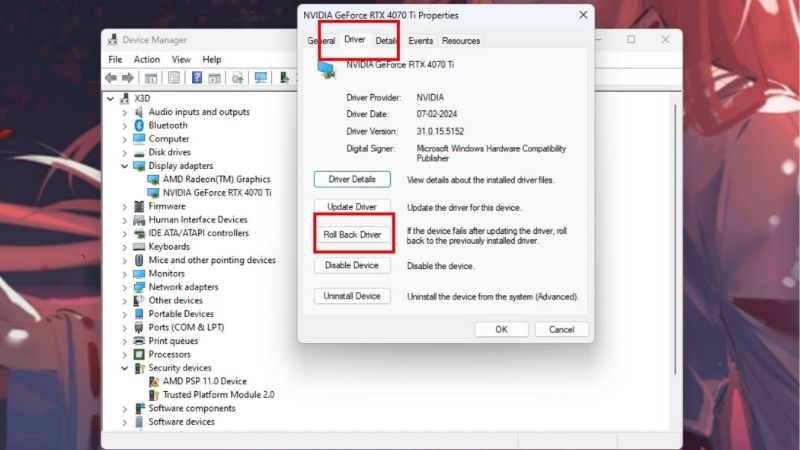
Press Windows+X and choose Device Manager. Expand Display adapters. Right-click your GPU, choose Properties, then the Driver tab, then Roll Back Driver.
Windows asks why you are rolling back. The answer does not matter — pick anything. Confirm, then reboot.
That is it. This resolves the large majority of driver problems, and it works because Windows retained the package you were on before the update.
When Roll Back Is Greyed Out
The button is unavailable in two situations, and both are common enough to expect.
The first: you performed a clean installation. Ticking Perform a clean installation in the Nvidia installer wipes the previous package, which is exactly what makes clean installs useful and exactly what removes your undo button.
The second: Windows has already replaced the package, or the update arrived through Windows Update rather than the Nvidia installer, and there is no retained prior version to return to.
In both cases you download your last known-good version from Nvidia’s driver archive and install it with clean install ticked. Which brings us to the thing you should have done before you updated.
Write Down the Version Before You Update
This is the whole article in one line. Note the version number you are currently on before you install anything new.
Recovering a known-good state without that number means guessing through an archive of dozens of releases, in exactly the mood where you have no patience for it. With the number, it is a two-minute download.
The Nvidia App shows your current version. So does nvidia-smi in a command prompt, in the top-left of the output. Take a screenshot before you update. It costs ten seconds.
When You Have No Display
The frightening case, and the most recoverable one. A driver that fails badly enough to leave you looking at a black screen feels terminal and is not.
Boot Into Safe Mode
Safe Mode loads the Microsoft basic display adapter rather than the Nvidia driver, which means you get a working desktop regardless of how broken the driver is.
If Windows will not start normally, it will usually offer the recovery environment after two failed boots — force a shutdown with the power button twice during boot to trigger it. From there: Troubleshoot → Advanced options → Startup Settings → Restart, then choose Safe Mode.
Once in Safe Mode, open Device Manager and either roll back or remove the display driver entirely. Reboot, and you land on the basic adapter with a working picture at a low resolution. From that desktop you can install whatever driver you like.
The Display Driver Removal Route
For a genuinely tangled install — several drivers layered over years, or a switch between GPU vendors — a dedicated display driver removal utility run in Safe Mode is more thorough than Windows’ own uninstall.
It is overkill for a routine rollback. Reach for it when a clean install has already failed to fix the problem, not before.
Disconnect from the network before you do this. The gap between removing the old driver and installing the one you want is exactly when Windows Update installs something you did not ask for.
Confirming You Actually Rolled Back
Check rather than assume. Open the Nvidia App, or run nvidia-smi and read the driver version in the top-left of the table.
If it shows the version you were trying to escape, Windows Update replaced it while you were rebooting. That is not a rare edge case — it is the single most common reason people believe a rollback failed when it did not.
Diagnosing Whether the Driver Was Even the Problem
Worth thirty seconds before you roll back, because a rollback that fixes nothing costs you the newer driver for no reason.
The question is whether the symptom appeared at the same moment the driver did. If a game started crashing three days after the update, the update is a suspect and not a conviction — a game patch, a Windows update, or a background application could all have landed in between.
The strongest signal is a regression you can measure. Run a fixed benchmark or a repeatable route and compare against how it ran before. If you have no before number, you are relying on memory, and memory is unreliable about frame rates in a way that reliably wastes evenings.
Two symptoms are almost always the driver: a black screen on wake from sleep, and an encoder that suddenly drops frames. Two symptoms almost never are: a single game crashing while everything else works, and stutter that only appears after twenty minutes of play — that second one is thermal, and undervolting fixes it where a rollback will not.
Stopping Windows Undoing Your Work
You have rolled back. Windows now considers your driver out of date and intends to fix that for you. This is the part most guides skip, and it is why people roll back twice.
Defer Driver Updates
On Windows 11 Pro, Group Policy is the clean answer: Computer Configuration → Administrative Templates → Windows Components → Windows Update, and configure the driver exclusion policy there.
On Home editions there is no Group Policy editor. The practical workaround is Microsoft’s “Show or hide updates” troubleshooter, which lets you hide a specific driver update so Windows stops offering it. It is clumsy, it must be re-run when a new version appears, and it works.
A blunter option: in System Properties → Hardware → Device Installation Settings, tell Windows not to automatically download manufacturer applications and icons. This is less reliable than it used to be but costs nothing to set.
Whichever route you take, do it in the same session as the rollback rather than later. The window between rebooting onto your good driver and Windows deciding to help is measured in minutes on a connected machine, and the second rollback is more annoying than the first because by then you assume the problem is something else.
Should You Freeze Permanently?
Worth thinking about rather than defaulting to. There is a real argument for staying on a version that works: Nvidia introduces regressions in specific titles several times a year, and if your current driver runs everything you play, updating trades certainty for possibility.
The counter-argument is that DLSS improvements ship through drivers. DLSS 4.5 arrived at CES 2026, MFG 6x followed, and DLSS 5 lands this autumn — its early plumbing is already visible in the 610.47 release as DLSS-NR profile entries. Freezing means freezing outside all of that.
The sensible middle: update when a release names a fix you need or a game you want to play just launched. Not because a notification appeared.
Which Version to Roll Back To
Your last known-good one, which is why you wrote it down. Failing that, the release immediately before the one that broke things — not several versions back. Rolling back six months to escape a two-week-old bug costs you every fix in between.
If you run creative applications, consider whether the Studio branch is a better home than Game Ready. Studio ships every six to eight weeks against Game Ready’s three to five, prioritises validated stability in Adobe and Blackmagic applications, and is not slower in games — it simply lags on launch-day profiles. If a broken driver costs you a client deadline rather than an evening, that is the branch you want.
Rolling Back on a Legacy Card
One case where the usual advice inverts. If you run a Maxwell or Pascal card — a GTX 970, a GTX 1080 Ti — Nvidia ended Game Ready support for those architectures after October 2025, moving them to quarterly security updates through October 2028.
The 580/581 family was the last full-feature branch for them. On Linux it went further: the 590 driver arrived in December 2025 and community testing found several Pascal and Maxwell cards no longer enumerating with it.
So on those cards, rolling back is not damage control — it is the correct steady state. Find the last 580-series build, install it, defer Windows Update, and stop looking for newer ones. There are none coming that will help you.
See More:
- Nvidia beta
- Nvidia CUDA 11.8
- Check CUDA version
- Nvidia GPU for gaming
- PNY GeForce RTX 5080 16GB OC review
Conclusion: Rolling Back Nvidia Drivers Without the Drama
Rolling back Nvidia drivers is a three-minute job in the common case, and the path is always the same: Device Manager, Display adapters, Properties, then the Driver tab, then Roll Back Driver, then reboot. If the button is greyed out, a clean install wiped your previous package and you need the archive instead. If you have no display at all, Safe Mode gives you the Microsoft basic adapter and a working desktop from which anything is fixable.
Three habits prevent most of this from ever being urgent. Screenshot your driver version before you update — ten seconds now against an hour of archive-guessing later, in exactly the mood where you have none. Take a restore point before installing. And defer Windows Update afterwards, because a rollback that Windows quietly reverses while you reboot is the most common reason people conclude the fix did not work. Do those three and the worst driver update of the year costs you three minutes rather than an evening of increasingly desperate searching.
Frequently Asked Questions
What is the fastest way to roll back a bad driver?
Open Device Manager, expand Display adapters, right click the Nvidia GPU, choose Properties, then the Driver tab, and click Roll Back Driver. Windows restores the previously installed version in under a minute if the backup still exists. If the button is greyed out, no rollback copy is stored and you need to install the older version manually.
Where do I find an older driver version?
Nvidia maintains a public driver archive with every released version for each product family. Select your GPU series and operating system, then choose the specific version you want. Note the branch numbering, because the last known good version for your card may be several releases back, not simply the one before the current release.
Should I use the clean install option when downgrading?
Yes. Downgrading is exactly the case where leftover components from the newer driver cause problems, because newer files may not be replaced by older ones with different names. Run the installer with the clean installation checkbox ticked. If the downgrade still misbehaves, use Display Driver Uninstaller in Safe Mode before installing the older package.
How do I stop Windows reinstalling the newer driver?
Windows Update can push a newer WHQL package over your rollback within hours. Disable automatic device driver installation in advanced system properties, or apply the group policy that excludes drivers from Windows Update. Without that step, a rollback often silently reverts and you spend an evening chasing a problem you already fixed.
How do I know if the driver is actually the cause?
Note whether the problem started immediately after an update and whether it affects every game or only one. Driver faults typically produce consistent symptoms across titles, such as black screens on wake, display flicker, or a TDR timeout error in Event Viewer. A single misbehaving game is far more likely a game patch than a driver issue.
As an Amazon Associate we earn from qualifying purchases at no extra cost to you.













Write Your Review
No reviews yet. Be the first to share your experience!