
Nvidia drivers list is a search with an obvious intent and a frustrating answer: Nvidia does not publish a single scannable list. There is a download form with dropdowns, a beta archive buried three clicks deep, and no page that simply shows you every version with a date beside it. So people end up on aggregator sites of dubious provenance. This page gives you the structure instead — what the branches mean, how to read a version number, where the real archive lives, and the specific minimum versions that actually matter. Scan it, take what you need.
How Nvidia Driver Versions Are Structured
Once you understand the shape of it, you stop needing a list. There are a handful of branches, a predictable numbering scheme, and one archive that most people never find.
The Branches Explained
| Branch | Cadence | For | Notes |
|---|---|---|---|
| Game Ready | ~Monthly | Gaming | Day-one game optimisation |
| Studio | Slower | Creative apps | Same driver, extra validation |
| New Feature Branch (NFB) | Frequent | Linux, early features | Newer features, less settled |
| Production Branch (PB) | Quarterly | Linux, workstations | Long-lived, stability-first |
| Data Center | Quarterly | Tesla, A/H-series | Supports forward compatibility |
| Legacy | Frozen | Retired architectures | Security fixes only |
For a GeForce card, only the first two matter, and the difference between them is smaller than the naming implies. Studio is not more stable in any way you will measure — it is the same driver on a slower cadence with creative-application validation attached.
The Data Center row carries the one genuinely unique capability: forward compatibility packages let newer CUDA run on older drivers. That is a data-centre-only feature and it does not apply to GeForce.
Reading a Version Number
Take 610.74. The 610 is the branch; the .74 is the release within it. Higher branch means newer architecture support and new features. Higher point release within a branch means bug fixes.
Two things people get wrong. First, a .74 is not less polished than a .97 — the point number is a counter, not a maturity indicator. Second, branch numbers are not a version in the semantic sense. Jumping from 595 to 610 is not necessarily a bigger change than 610.74 to 610.88; it depends entirely on what shipped.
On Linux the numbering carries a suffix — 570.86.16 style — where the extra segment tracks the Linux-specific build. Same branch logic underneath.
Where the Archive Actually Is
The thing you came for. Nvidia does host every historical driver, but the path is not obvious.
Go to nvidia.com’s driver download page and use the Advanced Driver Search — not the default dropdown form. It lets you select your product family, then filter by Recommended/Beta, and set a date range. That returns the historical list, including versions no longer offered by the default search.
The default form only offers the current recommended driver, which is why people conclude old drivers are unavailable. They are not; the form is just hiding them.
Avoid third-party driver aggregators entirely. They are frequently weeks behind, several wrap the installer in their own downloader, and a graphics driver is kernel-level code — this is the last file on your machine you should source from an unknown host.
The Versions That Actually Matter
A complete list is less useful than the handful of thresholds that change what your machine can do. These are the numbers worth knowing.
Minimum Versions by Requirement
| You want | Minimum driver | Notes |
|---|---|---|
| DLSS 4.5 features | 595.97 WHQL | Below this, overrides silently fail |
| Blackwell (RTX 50) | 570.x+ | Also needs CUDA 12.8+ for compute |
| CUDA 12.8 | 570.26 (Linux) / 570.x (Win) | Hard requirement |
| CUDA 12.4-12.6 | 550.54.14 / 551.61 | |
| CUDA 12.0-12.3 | 525.60.13 / 527.41 | |
| CUDA 11.8 | 450.80.02 / 452.39 | Any newer driver also runs it |
| Omniverse Kit | 550.54.15 / 551.78 | Fails at launch below this |
| Current Game Ready | 610.74 | As of writing |
The DLSS row is the one that catches people. Installing the newest Nvidia app on an old driver produces greyed-out overrides that never explain why. Driver first, app second.
And note the CUDA rows list minimums. Drivers are backward compatible — a 610 driver runs CUDA 11.8 without complaint. Newer driver with older CUDA is always fine; the reverse is not.
Legacy Cards and Where Support Stopped
The part of the list that decides whether your card gets anything new at all.
Kepler (GTX 600 and 700 series) has been legacy for years — security fixes only, no game optimisation. Fermi is frozen far further back.
The more consequential change: Maxwell, Pascal and Volta have moved to legacy support. If you own a GTX 900 or GTX 10-series card, you are receiving security and critical fixes rather than day-one game optimisation. Your card still works. It has stopped improving.
Turing (RTX 20) and newer remain on current Game Ready drivers. That is a meaningful dividing line if you are shopping used — a GTX 1080 and an RTX 2060 are separated by more than benchmarks suggest, because one is still receiving new DLSS models through the Nvidia app and the other is not.
Keeping a Known-Good Copy
The most useful habit on this page, and almost nobody does it.
When a driver has been reliable on your machine for a month, save the installer. It is roughly 800MB and it is the difference between a five-minute rollback and a three-hour troubleshooting session at 1am.
Keep one, maybe two. Delete the rest when you replace them. The Device Manager rollback button only caches the immediately previous driver, which is not much of a safety net when the problem appears three releases later.
Pros and Cons of Running an Older Driver
Staying behind deliberately is a legitimate strategy with real costs. Both sides deserve stating.
Why You Might Want an Old Driver
Three legitimate reasons. A specific release broke a specific game for you, and rolling back is the fix while you wait for the next one. You are on a validated workstation or a shared cluster where the driver is pinned for reproducibility. Or you are running an old title that a modern driver handles worse — genuinely a thing with some early-2000s games.
A fourth, more common: your card is legacy anyway. If you are on Maxwell or Pascal, the newest driver offers you very little, and the risk-reward of updating shifts.
Why Staying Old Costs You
The costs compound quietly. You miss security fixes, which for kernel-level code is not trivial. You miss day-one game optimisation, occasionally worth double-digit percentages. And on RTX cards you miss new DLSS models, which now arrive through the Nvidia app’s override and improve games that stopped being updated years ago.
That last point is the one that has changed the calculation. Historically a driver was a driver — install it, forget it. Now it is a delivery mechanism for image quality improvements across 400+ titles, which makes staying current worth more than it used to be.
One caveat worth knowing before you chase the newest features: RTX 20 and 30 series cards lack native FP8, so DLSS 4.5’s newer Model M and Model L carry a heavier performance impact on them. Nvidia’s own guidance is that those users may prefer to stay on Model K. Update the driver; do not necessarily change the model.
Pros and Cons Summary
| Pros of staying current | Pros of holding back |
|---|---|
| New DLSS models reach 400+ titles via the app | A known-good driver is a known quantity |
| Day-one optimisation, sometimes double digits | No risk of a release breaking your game |
| Security fixes for kernel-level code | Required on validated or shared machines |
| G-SYNC validation for new displays | Legacy cards gain little from new releases |
| Accumulated bug fixes | Mid-project stability has real value |
The honest default: stay current unless you have a specific reason not to, and keep one known-good installer for when you are wrong.
Installing From the List
Downloading the right version is half the job. The other half is getting it on cleanly.
Clean Install and Rollback
A normal install works most of the time. When it does not — persistent crashes, black screens, an installer that keeps failing — do it properly.
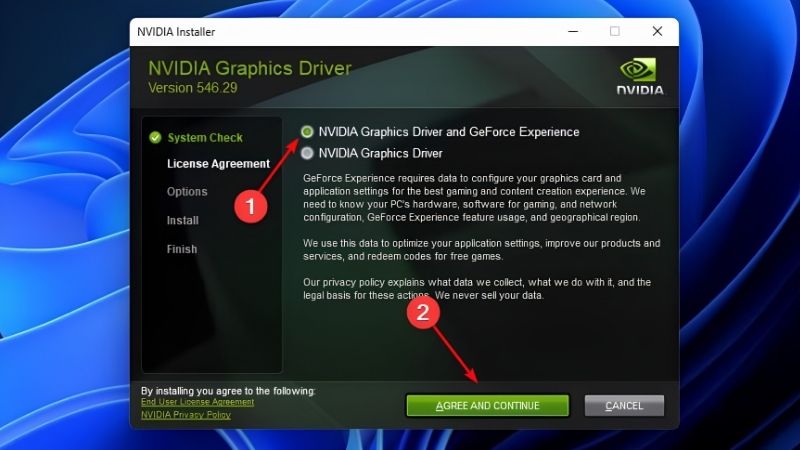
Uninstall the driver from Windows Settings. Reboot into Safe Mode and run Display Driver Uninstaller to strip leftover registry entries. Reboot, install fresh. The DDU step is what resolves stubborn cases, because a normal uninstall leaves conflicting entries that a reinstall then layers on top of.
To roll back one release: Device Manager, Display adapters, right-click your GPU, Properties, Driver tab, Roll Back Driver. Greyed out means the cache is gone — download from the Advanced Driver Search and clean install instead.
Picking the Right Version From the Archive
Three rules that cover nearly every case. If you have a Blackwell card, nothing below 570 will work — do not waste time on older releases. If you use DLSS 4.5 features, 595.97 is your floor. And if you are troubleshooting, go back one release at a time rather than jumping to something from two years ago; older is not safer, it is just different.
On Linux, prefer the Production Branch for anything you rely on and the New Feature Branch only if you need something specific from it.
When the Driver Is Not the Answer
Worth saying, because driver-hunting has become a reflex response to any performance complaint. If your frame rate is low but stable, no driver on this list fixes it. If your game stutters while the average looks fine, that is VRAM exhaustion rather than software — the card is running out of memory and spilling across PCIe.
Add a memory usage readout to your overlay and watch it during the stutters. If allocation is pinned at your card’s ceiling, you have diagnosed something a driver cannot address. If an 8GB card sitting at 7.9GB is what is actually wrong, compare what a 12GB or 16GB card costs before working through the archive one release at a time.
See More:
- GTX 1650 vs RTX 3050
- Nvidia DIGITS
- Nvidia cuDNN
- Radeon RX 9070 XT vs RTX 5090
- PNY GeForce RTX 5080 review
Conclusion: Using the Nvidia Drivers List Properly
There is no single Nvidia drivers list because Nvidia does not publish one — but you do not need it once you know the structure. Use the Advanced Driver Search on nvidia.com rather than the default form, and the whole historical archive is there with date filters. Never use a third-party aggregator; a graphics driver is kernel-level code and the source matters.
Three numbers are worth remembering rather than the whole list: 595.97 is the floor for DLSS 4.5 features, 570.x is the floor for Blackwell, and drivers are backward compatible so a newer one running older CUDA is always fine. And if you own a GTX 900 or 10-series card, know that Maxwell and Pascal have moved to legacy support — your card works, it just no longer improves. Save one known-good installer while you are here; it costs 800MB and buys back an evening.
Frequently Asked Questions
Where do I find every previous driver version?
Nvidia maintains a public driver archive listing every released version by product family and operating system. Select your GPU series, choose the branch, and download the exact build you need. This is the correct source for rollbacks, and it avoids the third party mirrors that repackage installers with unwanted extras.
How do I read the version numbering?
Windows drivers use a three part number such as the familiar 500 series builds, where the leading digits identify the release branch. Linux uses a corresponding branch number. Higher is newer within a branch, but a legacy branch number can be lower than a current one while still being the newest release for that hardware.
Which branches still cover my card?
Turing, Ampere, Ada, and Blackwell are covered by current releases. Maxwell, Pascal, and Volta have moved to a legacy branch that receives security fixes only, with no new game optimisations. Anything older sits on frozen legacy packages listed separately in the archive and should be treated as end of life.
Is there a difference between the full package and the DCH driver?
Modern Windows systems use DCH packages, which separate the core driver from the control panel components delivered through the Microsoft Store or the Nvidia app. Older standard packages are no longer used on current Windows builds. Mixing the two types is a common cause of a missing control panel after an install.
How far back should I go when hunting a stable version?
Start with the release immediately before the one that broke for you, then step back one branch at a time if needed. Going back many months rarely helps and often loses support for games and features you use. Always install older versions with the clean installation option to remove leftover newer components.
As an Amazon Associate we earn from qualifying purchases at no extra cost to you.


Ready to decide? Our #1 pick for 2026 is the Game Ready.
Live price & availability on Amazon.











Write Your Review
No reviews yet. Be the first to share your experience!