
RTX VSR is the quiet upgrade hiding inside every recent GeForce driver, and most people never switch it on. RTX Video Super Resolution uses the Tensor cores on your card to rebuild blurry, low-bitrate streaming video into something noticeably sharper in real time. If you have wondered whether it actually makes a difference, which RTX GPUs support it, and whether it is worth upgrading a card just to get it, this review pulls together the measurable gains, the honest trade-offs, and the user feedback that a two-minute demo never shows you.


Prime
Editor's Pick
ASUS SFF-Ready Prime NVIDIA GeForce RTX 5070 Graphics Card (PCIe 5.0, 12GB GDDR7, HDMI/DP 2.1, 2.5-Slot, Axial-tech Fans, Dual BIOS), 3 Year Warranty

Quick answer: Our top pick in 2026 is the GPU tier — our #1 rated choice. See the full ranked comparison, alternatives and buying advice below.
What RTX VSR Actually Does and Which GPUs Support It
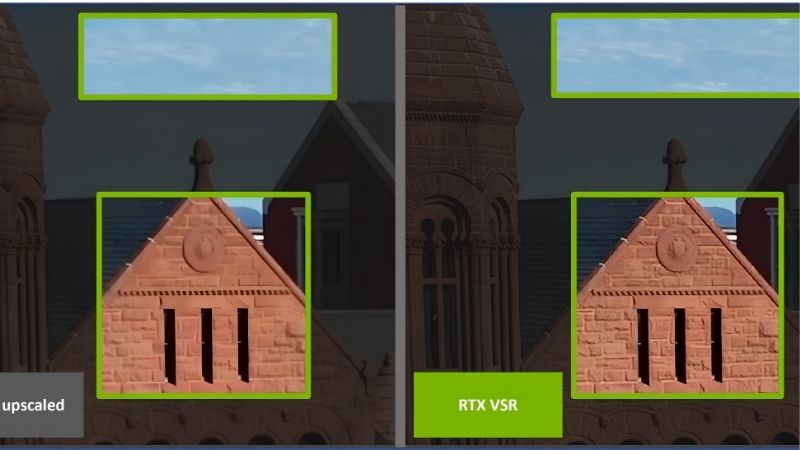
At a technical level this feature is an AI inference workload running on your GPU while video plays in a supported browser. Instead of the simple bilinear stretch a browser normally uses to fit 1080p content onto a 1440p or 4K panel, the card runs each frame through a trained model that reconstructs edges and textures and suppresses the blocky compression artifacts that streaming services bake in. Understanding the mechanism matters, because it explains both why the results can be striking and why the power draw is not free.
How RTX Video Super Resolution Upscales Streaming Video
The model does two jobs at once: it upscales the resolution and it de-blocks the source. Netflix, YouTube and Twitch all ship video at aggressive bitrates, so a “1080p” stream is often visibly soft. The Tensor cores estimate what the missing detail should look like and paint it back in frame by frame.
There are four quality levels, from 1 to 4. Level 1 is the lightest touch and the cheapest to run; level 4 is the most aggressive reconstruction and the most demanding. On a mid-range card, level 4 on a 4K panel can push GPU utilization up sharply, which is the trade-off buyers rarely hear about before they enable it. The interesting part for anyone who follows Nvidia closely is that the model is not static: each driver generation refines it, so the same card can produce cleaner output a year later than it did at launch, with no hardware change on your side.
Because the work happens per frame in real time, RTX VSR only touches video that is actively decoding in the browser. It is not a system-wide filter, and it will not sharpen a locally stored file opened in a media player unless that player specifically supports the feature.
Supported RTX GPUs and Driver Requirements
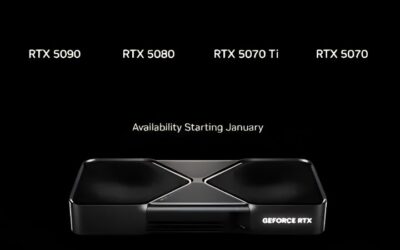
The feature is limited to the RTX 20, 30, 40 and 50 series. GTX cards are excluded because they lack the Tensor cores the model runs on. You also need a current Game Ready or Studio driver and a Chromium-based browser such as Chrome or Edge, or Firefox in recent builds.
| GPU tier | RTX VSR support | Practical note |
|---|---|---|
| RTX 50 series | Yes, all levels | Highest headroom for level 4 at 4K |
| RTX 40 series | Yes, all levels | Comfortable at level 3-4 |
| RTX 30 series | Yes, all levels | Level 4 at 4K raises power and heat |
| RTX 20 series | Yes | Best kept to lower levels |
| GTX 10/16 series | No | No Tensor cores; upgrade required |
If you are still on a GTX card and this feature is the reason you want to move up, the cheapest way into the ecosystem is a modern entry RTX card rather than a used flagship, and we cover that budget angle further down.
RTX VSR Versus Standard Browser Upscaling
Default browser scaling is essentially free but does nothing to hide compression. It stretches the pixels and moves on. RTX VSR replaces that step entirely with the AI pass, so the comparison is not “a little sharper” but “reconstructed versus not reconstructed.”
In side-by-side testing the biggest wins appear on text, faces and hard edges: subtitles get cleaner, skin stops looking waxy, and the mosquito noise around high-contrast lines shrinks. Flat, already-clean 4K source shows almost no change, which is exactly what you would expect from a tool built to fix low-quality input.
Real-World Quality: Where RTX VSR Shines and Struggles
Reading through user reviews, a clear pattern emerges. People who watch a lot of older or heavily compressed content rate the feature highly, while those who mostly stream native 4K often say they cannot tell it is on. The value of RTX VSR is entirely a function of how bad your source material is, and that is the honest framing missing from most marketing.
Watching 1080p on a 4K Monitor
This is the flagship use case and where the feature earns its keep. A 1080p YouTube video on a 4K panel normally looks soft because it is being stretched to four times the pixel count. With reconstruction on, edges tighten and the picture stops looking like a low-resolution stretch.
Multiple long-term users describe the effect as “one step down from native,” meaning a good 1080p source can approach the look of a genuine 1440p stream. It will not invent detail that was never captured, but it does a convincing job of hiding the scaling. In practical terms this is the difference between a picture that reads as “a stretched small video” and one that reads as “a native mid-resolution stream,” and for people who watch a lot of standard 1080p uploads on a large panel, that gap is the whole reason to leave the feature on permanently.
Low-Bitrate and Older Video Sources
Older uploads, live streams and archival footage benefit the most because they carry the heaviest compression. The de-blocking side of the model is arguably more valuable here than the upscaling, since it cleans up the smeary, blocky look that no amount of stretching can fix.
The flip side, and a recurring complaint in two- and three-star feedback, is that very grainy or intentionally stylized footage can look over-processed. The model sometimes smooths film grain or fine texture it reads as noise, which purists dislike. Dropping to level 1 or 2 usually restores a natural look, and the sensible habit is to keep a lower level as your default and only push higher when a particular clip clearly needs the extra reconstruction.
RTX VSR Pros and Cons at a Glance
Pulling the threads together, here is the balanced view for anyone deciding whether to rely on the feature day to day.
| Pros | Cons |
|---|---|
| Clear gains on low-bitrate and 1080p-to-4K content | Little to no visible benefit on clean native 4K |
| Effective de-blocking of streaming artifacts | Higher GPU power draw, especially at level 4 |
| Free feature already in the driver you own | Can over-smooth film grain and fine texture |
| Works across major streaming sites | Requires an RTX 20-series card or newer |
For most buyers the verdict is that it is a genuine free bonus if you already own a supported card, and a nice-to-have rather than a must-have reason to upgrade on its own.
Setup, Power Draw, and Is an RTX Upgrade Worth It
Turning the feature on takes under a minute, but getting it right means balancing quality level against the extra load it puts on your card. This section covers the practical setup, the power and heat reality on real hardware, and where the sensible money goes if this is the tipping point that finally moves you off a GTX card.
Enabling RTX VSR in the Nvidia App
Open the Nvidia app, go to the Video settings under system, and toggle RTX Video Super Resolution on, then choose a quality level. Make sure your browser has hardware acceleration enabled, otherwise the feature has nothing to hook into.
A common setup mistake is leaving the level at 4 by default. Start at 2, watch a familiar low-quality clip, and step up only if your card has the headroom. This avoids the fan spin-up and temperature jump that surprises people who max it out blindly.
Power Consumption and Heat Trade-Offs
Running an AI model per frame is real work. On a mid-range RTX card, level 4 at 4K can add a substantial slice of power draw and push temperatures and fan noise up during long viewing sessions. This is the practical cost that never appears in a quick demo.
If you watch on a laptop or a small-form-factor build with limited cooling, this matters more than raw quality. Many users settle on level 2 as the sweet spot: most of the visible benefit, a fraction of the thermal cost. Desktops with strong cooling can comfortably run higher.
See More:
Which RTX Card to Buy for VSR on a Budget
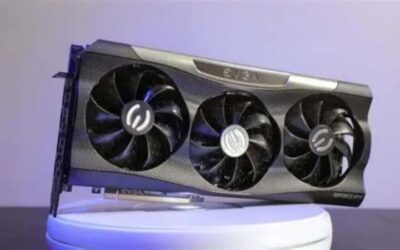
If you are upgrading mainly to unlock this feature and modern AI capabilities, you do not need a flagship. A current-generation entry or mid-tier RTX card gives you full support, better efficiency than older silicon, and years of future driver optimizations that Nvidia keeps rolling out to the Tensor pipeline. That forward-looking angle is worth weighing: buying into the RTX line today is less about this one feature and more about the whole stack of AI capabilities that arrive over a card’s life, from video reconstruction to frame generation to on-device inference, all of which lean on the same Tensor hardware.
Before you buy, check the exact model, the amount of video memory and the power connector your case and supply can handle, because these determine whether a card drops straight into your system. When you have confirmed the fit, you can check current pricing and availability on the models we recommend through the links on this page and grab one while stock is good.
In the end, RTX VSR is one of the most quietly useful features Nvidia has shipped in years, but only for the right viewer. If your library leans toward 1080p, older uploads and heavily compressed streams, it delivers a real, visible upgrade for free on hardware you may already own. If you already stream clean 4K, treat it as a minor bonus rather than a buying reason. Either way, if this pushed you to finally move up from a GTX card, a modern RTX GPU unlocks RTX VSR today and a growing list of AI features tomorrow, and now is a sensible moment to lock in a supported card.
Frequently Asked Questions
What hardware do I need to use RTX Video Super Resolution?
You need an RTX 20 series card or newer, since the feature runs on tensor cores, along with a reasonably current driver and the setting enabled in the NVIDIA control panel or NVIDIA App. It works in Chromium based browsers such as Chrome and Edge, plus Firefox and some media players that have added support.
How much does it actually improve video quality?
The effect is most visible on 360p to 1080p sources played on a larger 4K display, where it reduces blockiness, cleans up compression artefacts and sharpens edges convincingly. On already high quality 4K streams there is little to gain. Poorly encoded low bitrate video sees the largest improvement but can also show over-sharpening.
What is the performance and power cost?
It is not free. Running the highest quality level pushes GPU utilisation and power draw up noticeably, which on a laptop shortens battery life and increases fan noise. Lower quality levels cost far less while still improving on plain scaling, so level two or three is often the pragmatic setting for everyday viewing.
Does it work with HDR content?
NVIDIA added HDR support after the initial release, so RTX VSR now handles HDR sources rather than only SDR. There is also a separate RTX Video HDR feature that converts SDR content into HDR for display on a capable panel, and the two can be used together depending on your source and monitor.
Why is it not working on my system?
The usual causes are hardware acceleration disabled in the browser, an outdated driver, the feature switched off in the NVIDIA control panel, or a video already playing at or above your display resolution so there is nothing to upscale. On laptops, ensure the browser is actually running on the discrete GPU rather than integrated graphics.
Ready to decide? Our #1 pick for 2026 is the GPU tier.
Live price & availability on Amazon.


Write Your Review
No reviews yet. Be the first to share your experience!