
AMD drivers are the software that lets your AMD graphics card or processor talk to your games and applications, and keeping them current is one of the simplest ways to get the best from your hardware. Whether you are chasing better frame rates, fixing a glitch, or setting up a new build, knowing how to download, install, and troubleshoot AMD drivers pays off. This guide covers what they do, how to install them the right way, and how to solve the most common problems that come up.
Understanding AMD Drivers
Before installing anything, a little background makes the process smoother, because AMD’s driver software does more than most people realize and comes in more than one form. Understanding what the drivers control and which type you need helps you install the right thing and avoid the confusion that leads to missed updates or the wrong download.
As an Amazon Associate we earn from qualifying purchases at no extra cost to you.






What AMD Drivers Do
AMD drivers act as the translator between your AMD hardware and your software, ensuring games and applications can use the graphics card or processor correctly. Without current drivers, performance and compatibility suffer.
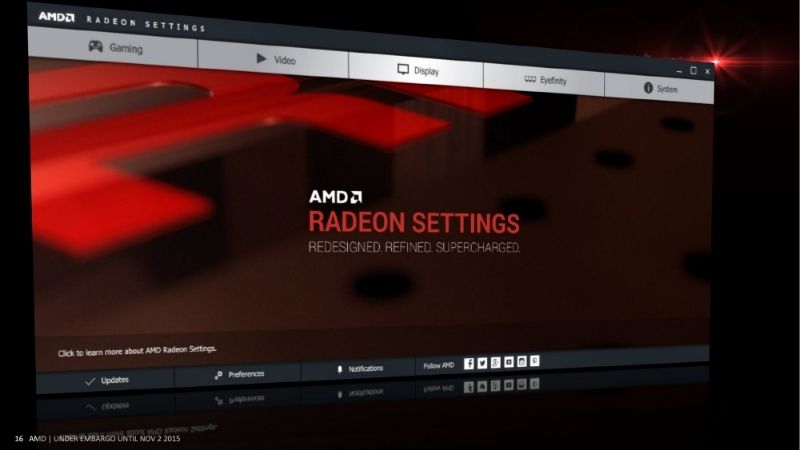
For graphics cards, AMD packages its drivers with the Adrenalin software, a control suite that also offers performance tuning, recording, and game optimization features. It is AMD’s equivalent of a full GPU management app.
Keeping these drivers updated unlocks day-one support for new games, bug fixes, and performance improvements, making driver maintenance one of the easiest ways to protect the value of your hardware.
The Adrenalin software is worth exploring beyond just updates, as it bundles genuinely useful extras like performance monitoring, one-click tuning profiles, and gameplay recording into a single interface. For many AMD owners it becomes the main place they interact with their graphics card, much as the Nvidia app does on the other side, so getting comfortable with it pays off.
Graphics vs Chipset Drivers
It is important to know that AMD offers two main driver types, and confusing them is a common mistake. Graphics drivers run your Radeon graphics card and are what most gamers mean when they talk about updating AMD drivers.
Chipset drivers, on the other hand, support the motherboard platform on AMD-based systems, handling things like power management and connectivity for Ryzen processors. They are separate from the graphics drivers.
For gaming performance you generally want the latest graphics drivers, while chipset drivers matter for overall system stability, so a healthy AMD build keeps both reasonably current rather than only one.
The common mistake here is updating one and forgetting the other entirely. Gamers often diligently update their graphics drivers while never touching chipset drivers for years, which can leave subtle stability or power-management issues on the table. On an AMD system, a quick periodic check of both keeps everything running as the platform intends, not just the graphics side.
When You Should Update
The best time to update your graphics drivers is when a new game you play receives an optimized driver, or when an update fixes a bug or adds a feature you want. In those cases the benefit is immediate.
It is also reasonable to update periodically for accumulated fixes and improvements, though if your system is perfectly stable you can wait a little after a brand-new release in case it needs a quick follow-up. Stability you have is worth keeping.
A sensible rhythm is to update every few weeks or whenever a game you are about to play benefits, rather than chasing every single release the moment it appears. This balances new gains against unnecessary churn.
How to Install AMD Drivers
Installing AMD drivers is quick once you know the reliable methods, and there are a few depending on whether you want automatic detection or a manual download. The steps below cover the easiest official routes and the clean-install approach for troubleshooting, so you can get set up correctly whether this is a fresh build or a fix.
Using AMD Auto-Detect
The simplest method for most users is AMD’s auto-detect tool, a small official utility that identifies your hardware and recommends the correct latest driver automatically. It removes the guesswork of choosing the right file.
First, download the auto-detect tool from AMD’s official website. Second, run it and let it scan your system, then follow its recommendation to download and install the appropriate driver package.
This approach is ideal for anyone unsure exactly which card or driver they have, since it prevents the common error of installing a mismatched driver. It is the safest default route.
The auto-detect tool is particularly valuable when you are unsure of your exact hardware or are helping someone else with their machine. Instead of navigating menus and risking the wrong download, you let the utility read the system directly and hand you the correct package, which eliminates the single most common cause of botched driver installs: choosing a file meant for a different card.
Manual Download from the Official Site
If you prefer to choose the driver yourself, you can download it manually from AMD’s official support pages by selecting your exact product. This gives you full control over the version you install.
Navigate to AMD’s official drivers and support section, pick your specific graphics card or processor from the menus, and download the matching driver for your operating system. Always confirm you have selected the right model.
Crucially, only download AMD drivers from AMD’s official site, since driver files from third-party sources are a common route for malware. Sticking to the official source keeps your system safe.
Clean Install for Troubleshooting
When you are troubleshooting problems or switching between very different driver versions, a clean install is the better choice because it removes old driver files that can cause conflicts. It gives a fresh foundation.
AMD’s installer offers a factory reset or clean install option that wipes previous driver settings before installing the new version. Choosing it resolves many persistent issues that a standard update leaves behind.
For especially stubborn problems, some users fully remove the old driver with a dedicated uninstaller tool before installing fresh, though AMD’s built-in clean install is enough for most situations.
A good habit is to reach for the clean-install option specifically after odd behavior appears following a normal update, since that pattern usually points to leftover files clashing with the new ones. Starting fresh clears that conflict in a single step, and it is far quicker than chasing individual symptoms one by one when the underlying cause is simply a messy driver stack.
Troubleshooting and Optimization
Most driver installs go smoothly, but knowing how to handle the occasional problem, and recognizing when drivers are not the real issue, saves frustration. This section covers the common AMD driver problems and their fixes, weighs the habit of frequent updating, and addresses the point where new hardware is the honest answer.
Common AMD Driver Problems and Fixes
A frequent issue is a failed or unstable installation, and the first fix is usually a clean install, which clears conflicting leftover files and resolves the majority of problems. It is the go-to solution.
Black screens or crashes after an update can often be solved by rolling back to the previous driver version while you wait for a fix, or by performing a clean install of a known-stable release. Both restore stability.
It also helps to note which driver version you were on before problems began, so you know exactly which release to roll back to. Keeping a mental or written record of your last stable version turns troubleshooting from guesswork into a quick, deliberate step, letting you return to a known-good state in minutes if a new driver misbehaves on your particular hardware. That small habit alone prevents a great deal of frustration over the life of a card.
Restarting your PC after a major driver update also clears many transient glitches, so a simple reboot is always worth trying before deeper troubleshooting.
Pros and Cons of Frequent Updates
Pros of staying current: day-one game optimizations, bug and security fixes, new Adrenalin features, and generally smoother, more reliable performance in your favorite titles.
Cons of updating instantly every time: a small chance a brand-new driver introduces a fresh issue, and the minor effort of the process when your system already runs perfectly.
The balanced approach is to update for clear benefits, new games or needed fixes, without feeling obligated to install every release the instant it drops. That keeps you current without unnecessary risk.
See More:
When Drivers Can’t Fix Performance
Sometimes no driver update will deliver the performance you want, because the limit is your hardware rather than your software. If your card struggles at your target resolution even on the latest driver, you have reached its ceiling.
Driver updates optimize and stabilize, but they cannot add the raw power, memory, or modern features a newer card provides. When you have updated, done a clean install, and still fall short, an upgrade is the real fix.
If you reach that point, it is worth comparing what a modern graphics card would do for your games, since the jump in performance and features can be dramatic. Use the links on this page to explore current GPU options for your setup.
Keeping your AMD drivers current is one of the cheapest, easiest ways to protect performance, delivering smoother games, fewer bugs, and day-one support with just a few minutes of effort now and then.
Use AMD’s auto-detect tool or official site to install AMD drivers safely, reach for a clean install when troubleshooting, and remember that when updated drivers still cannot keep up with your games, a hardware upgrade is the logical next step.
Frequently Asked Questions
Which AMD drivers do I actually need?
On a Ryzen desktop with an AMD graphics card you need two: the AMD Software Adrenalin Edition package for the GPU, and the AMD chipset driver for the motherboard. On an Intel platform with a Radeon card you only need the graphics package. Both are free downloads from AMD’s official support site.
How often should I update?
Update the graphics driver when a game you play receives support, when a fix addresses a bug you are experiencing, or after a security advisory. Chipset drivers need updating far less often, typically after a major AGESA or Windows feature update. There is no benefit to installing every release on a stable system.
What is the difference between recommended and optional releases?
Recommended builds are WHQL-certified and have been through Microsoft’s validation, making them the safer default. Optional or preview builds ship earlier with day-one game support and new features but carry a higher chance of regressions. Use optional only when it specifically addresses something you need right now.
How do I uninstall AMD drivers completely?
Use the AMD Cleanup Utility, which is designed to remove all AMD graphics and audio components including registry entries. For the most thorough result, or when switching to an Nvidia card, run Display Driver Uninstaller in Windows Safe Mode instead, then install the new vendor’s driver before reconnecting to the internet.
Will updating drivers improve my frame rate?
Sometimes meaningfully, particularly around new game launches or when a driver introduces optimisations for a specific engine. Gains on older titles are usually small. Do not expect a driver to rescue a genuine hardware bottleneck; if you are CPU limited or short on VRAM, no software update will change that.











Write Your Review
No reviews yet. Be the first to share your experience!