
⚡ Key Takeaways
- Before You Start: Tools and Compatibility Checks
- Step 1: Power Down and Open the Case
- Step 2: Remove the Old Card (Upgrades Only)
- Step 3: Install the New Graphics Card
- Step 4: Close Up and First Boot
- Step 5: Install Drivers
- Verifying Temperatures and Stability
- Related Guides
- Frequently Asked Questions
- Conclusion
- Related Articles
- Related Guides

Dropped $115.00

Editor's Pick
EVGA GeForce GTX 1060 3GB GAMING, ACX 2.0 (Single Fan), 3GB GDDR5, DX12 OSD Support (PXOC) Graphics Cards 03G-P4-6160-KR
Dropped $103.75

Dropped $9.12

Dropped $16.87

As an Amazon Associate we earn from qualifying purchases at no extra cost to you. Product prices and availability are accurate as of the date shown and are subject to change.


- Before you ever open the case, confirm three compatibility points: physical clearance, power delivery, and slot type.
- Shut down the computer fully, then flip the master switch on the back of the PSU to off.
- If you are replacing an existing GPU, first uninstall the old drivers from within Windows, or use a tool like DDU (Display Driver Uninstaller) for a truly clean slate.
- Remove the metal expansion slot covers on the rear of the case that line up with the slot you will use, typically the top x16 slot closest to the CPU.
Learning how to install a graphics card is one of the most satisfying upgrades you can do to a desktop PC, and it is far simpler than most first-timers expect. Whether you just bought a brand-new NVIDIA RTX 50-series card like the RTX 5080 or RTX 5070, or you snagged an AMD Radeon RX 9070 XT on sale, the physical process boils down to seating the card in a slot, plugging in power, and installing drivers. The trickier parts are the details around it: matching your power supply to the card, dealing with the 12V-2×6 power connector, and making sure the card physically fits in your case. This step-by-step guide walks you through the entire job so you can swap or add a GPU with confidence.
Before You Start: Tools and Compatibility Checks
A GPU install requires almost no tools. You will need a single Phillips #2 screwdriver, a clean and static-free workspace, and ideally an anti-static wrist strap (or the habit of touching a bare metal part of the case to discharge yourself). Before you ever open the case, confirm three compatibility points: physical clearance, power delivery, and slot type.
Physical Clearance and Slot Type
Modern flagship cards are enormous. The RTX 5090 ships in three-slot-plus designs from most board partners and can exceed 350mm in length, while triple-fan RTX 5080 and RX 9070 XT models routinely run 300-340mm long. Measure the clearance from the rear of your case to the front-mounted fans or drive cage. Your motherboard needs a PCI Express x16 slot, which has been standard for nearly two decades. Today’s cards use the PCIe 5.0 electrical standard, but they remain backward compatible with PCIe 4.0 and even 3.0 slots, so an older board will still work, just with marginally less bandwidth.
Power Supply Requirements
This is where most upgrades go wrong. High-end GPUs draw serious wattage, and your power supply unit (PSU) must have both the total capacity and the correct connectors. NVIDIA’s RTX 50-series adopted the 12V-2×6 connector (the refined successor to the original 12VHPWR), a compact plug that can deliver up to 600W over a single cable. Many RTX 50 cards include an adapter that splits into multiple 8-pin PCIe connectors if your PSU lacks a native 12V-2×6 cable. AMD’s RX 9000 series largely sticks with traditional 8-pin PCIe connectors. Use the table below as a planning reference.
| GPU | VRAM | Typical Board Power (TGP) | Recommended PSU | Power Connector |
|---|---|---|---|---|
| NVIDIA RTX 5090 | 32GB GDDR7 | 575W | 1000W | 1x 12V-2×6 |
| NVIDIA RTX 5080 | 16GB GDDR7 | 360W | 850W | 1x 12V-2×6 |
| NVIDIA RTX 5070 Ti | 16GB GDDR7 | 300W | 750W | 1x 12V-2×6 |
| NVIDIA RTX 5070 | 12GB GDDR7 | 250W | 650W | 1x 12V-2×6 |
| NVIDIA RTX 5060 | 8GB GDDR7 | 145W | 550W | 1x 8-pin |
| AMD RX 9070 XT | 16GB GDDR6 | 304W | 750W | 2x 8-pin |
| AMD RX 9070 | 16GB GDDR6 | 220W | 650W | 2x 8-pin |
| AMD RX 9060 XT | 16GB / 8GB GDDR6 | 160W | 550W | 1x 8-pin |
If your PSU is several years old or below the recommended wattage, budget for an upgrade at the same time. A quality unit with the right cabling pays for itself in stability. For native 12V-2×6 cabling and adapters, see our roundup of the best GPU power supply cables of 2026.
Step 1: Power Down and Open the Case
Shut down the computer fully, then flip the master switch on the back of the PSU to off. Unplug the power cord from the wall. Press and hold the case power button for about five seconds to drain residual charge from the capacitors. Remove the side panel, which is usually held by two thumbscrews at the rear. Lay the case flat on its side so the motherboard faces up; gravity makes seating the card much easier and prevents PCIe slot sag during the install.
Step 2: Remove the Old Card (Upgrades Only)
If you are replacing an existing GPU, first uninstall the old drivers from within Windows, or use a tool like DDU (Display Driver Uninstaller) for a truly clean slate. Then unplug the power cables from the old card. Locate the small plastic retention latch at the end of the PCIe slot, which clips over a tab on the card. Press or pull this latch to release it, remove the screws securing the bracket to the case, and gently lift the card straight out. Wiggling it side to side rather than rocking it front to back avoids stressing the slot.
Step 3: Install the New Graphics Card
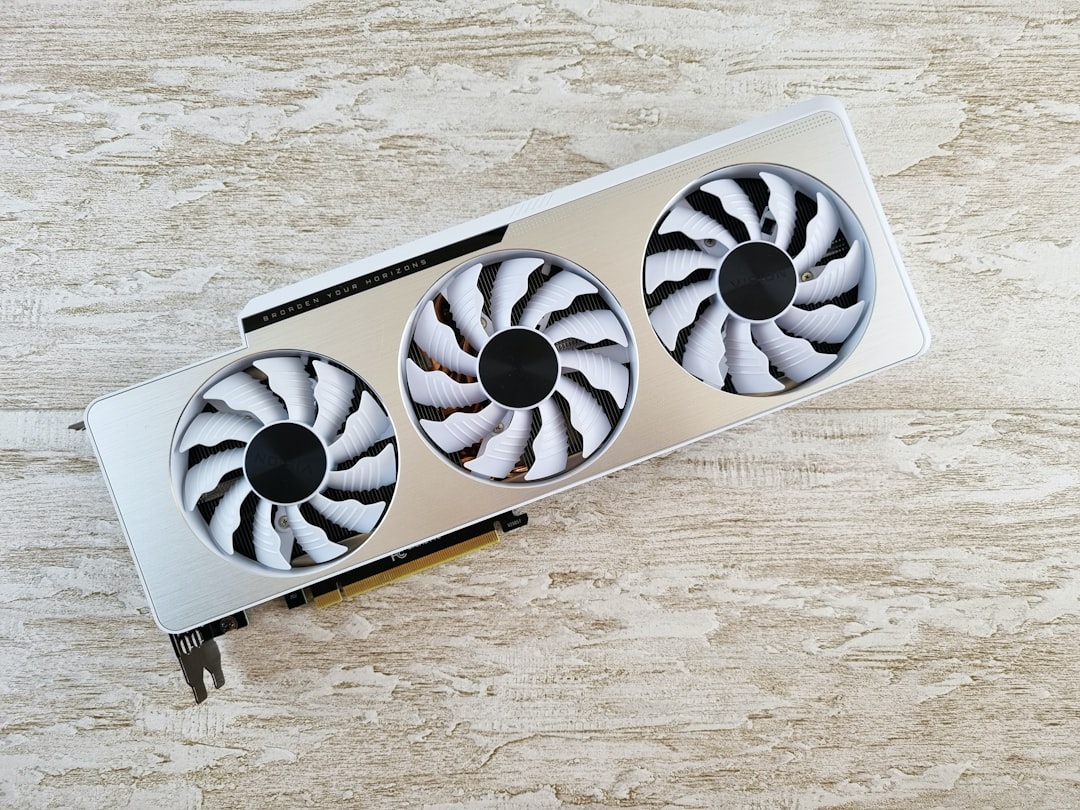
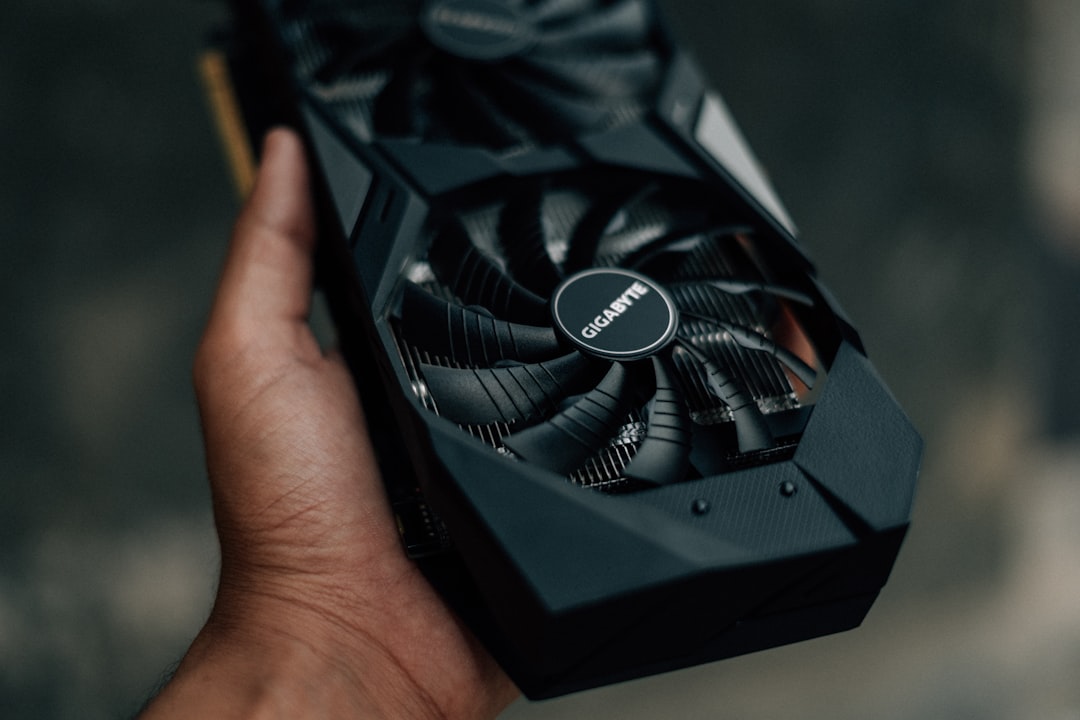
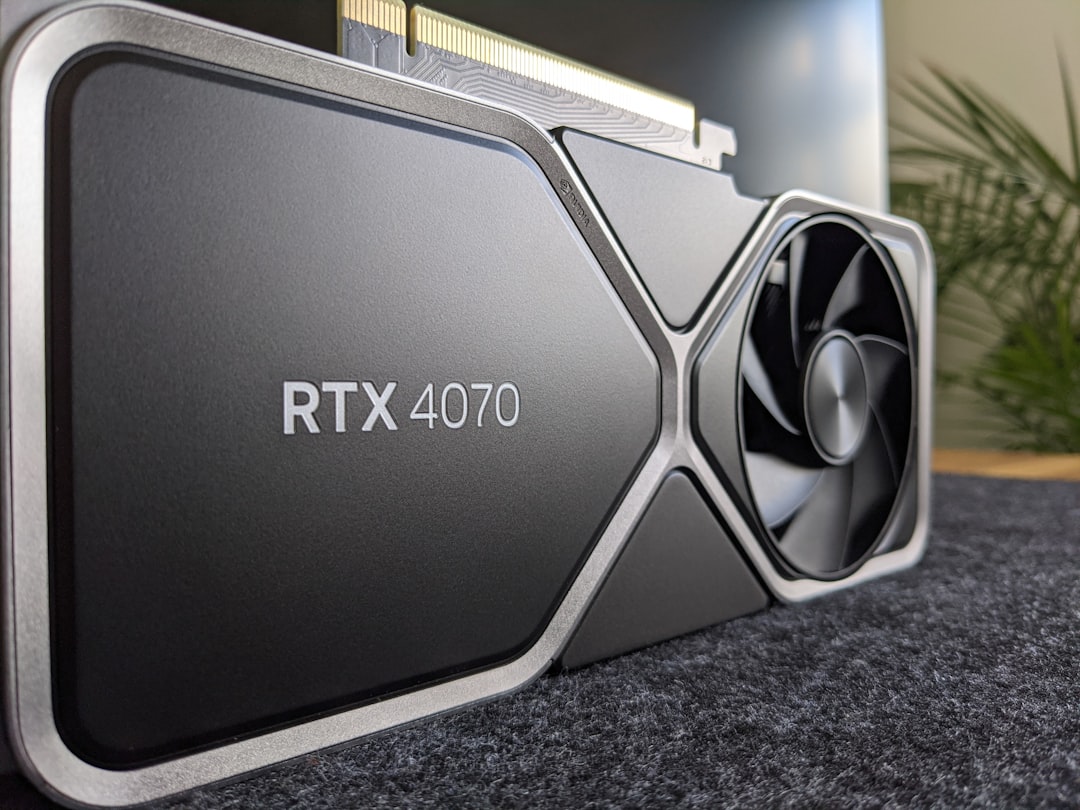
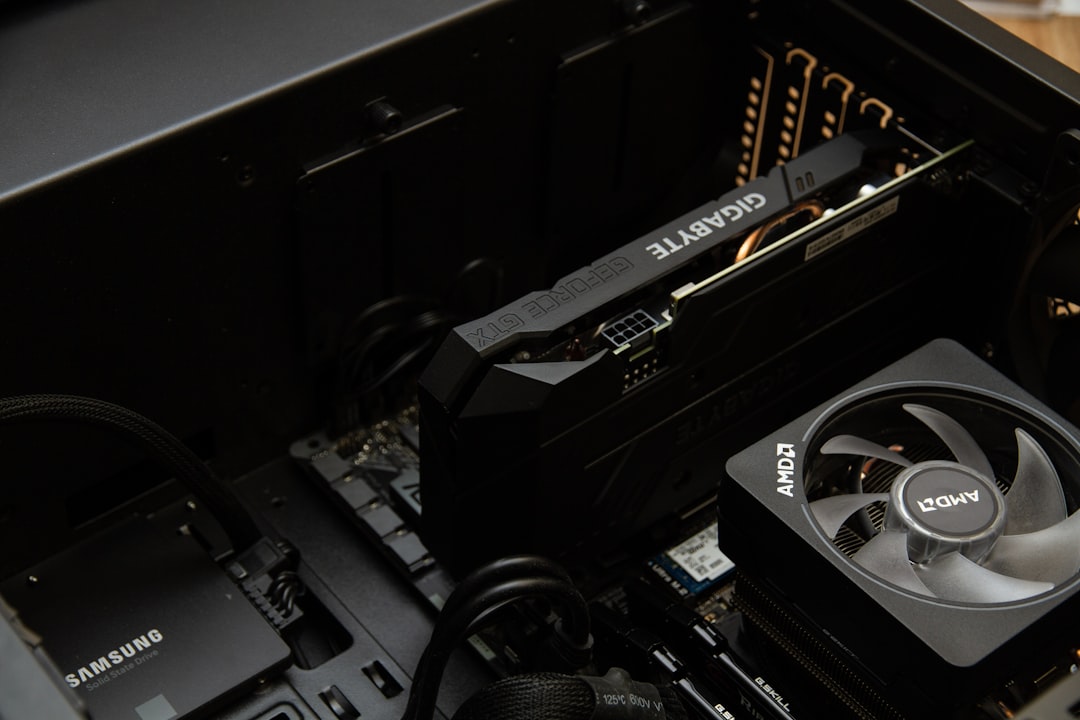
Now for the main event. Remove the metal expansion slot covers on the rear of the case that line up with the slot you will use, typically the top x16 slot closest to the CPU. Hold the new card by its edges, line up the gold contacts with the PCIe slot and the rear bracket with the case opening, and press down firmly and evenly until you hear the retention latch click into place. Do not force it at an angle. Once seated, secure the bracket to the case with the screws you removed earlier. The card should sit flush and level.
Connecting the Power Cable Correctly
This step deserves extra care because of past concerns with high-wattage connectors melting. When attaching a 12V-2×6 or 12VHPWR cable, push it in until it is fully seated and you hear or feel a positive click; a gap of even a millimeter concentrates current and generates heat. Avoid sharp bends right at the connector, give yourself at least 35mm of straight cable before any turn. If you must use the bundled 8-pin adapter, make sure every required 8-pin head is plugged into the PSU, not just the minimum. A poorly seated cable is the single most common cause of GPU power problems, so verify it twice.
Step 4: Close Up and First Boot
Double-check that no cables are touching fan blades, reconnect the power cord, and flip the PSU switch back on. Leave the side panel off for the first boot so you can confirm the fans spin and nothing looks wrong. Power on the system and connect your monitor cable directly to the graphics card’s outputs (HDMI or DisplayPort), not the motherboard’s video ports. If you see the BIOS or a Windows login screen, the card is working. Power back down and reattach the side panel.
Step 5: Install Drivers
Software is the final piece. For NVIDIA cards, download the NVIDIA App, which now bundles the latest Game Ready drivers and replaces the old GeForce Experience. For AMD, install the Adrenalin software suite. Always grab drivers from the official manufacturer site rather than relying on whatever Windows Update provides, since those are frequently outdated. Choose a clean install option if offered, then reboot. After that, you can enable features like DLSS 4 with Multi Frame Generation on RTX 50 cards or FSR on Radeon cards.
Verifying Temperatures and Stability
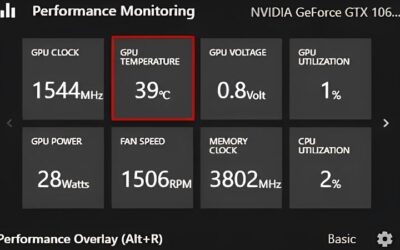
Once drivers are in, run a quick stress test such as FurMark or a demanding game and monitor temperatures with the manufacturer software or a utility like HWiNFO. A healthy card under full gaming load should settle in the 60-75C range, with the GPU hotspot and memory junction running somewhat warmer. If you see temperatures climbing toward the mid-80s and beyond, double-check your case airflow. Upgrading your intake and exhaust fans can shave several degrees; our guide to the best GPU cooler fans of 2026 is a good starting point, and for serious overclockers an AIO GPU cooler can transform thermals.
Frequently Asked Questions
Do I need to uninstall old drivers before installing a new graphics card?
If you are switching brands, for example moving from AMD to NVIDIA, you should fully remove the old drivers first, ideally with DDU in Safe Mode. If you are upgrading to a newer card from the same brand, modern driver packages usually handle the transition cleanly, but a clean install never hurts.
Can I install a new GPU without upgrading my power supply?
Only if your existing PSU meets both the wattage recommendation and connector requirements in the table above. Plugging a 575W RTX 5090 into a marginal 650W unit invites crashes and shutdowns under load. When in doubt, size up. Reliable cabling matters as much as raw wattage.
Why is my monitor not getting a signal after installing the card?
The most common cause is plugging the monitor into the motherboard’s video output instead of the graphics card. Move the cable to a port on the card itself. Also confirm the PCIe power cables are fully seated and that the card clicked into its slot completely.
How do I know which graphics card to buy for my system?
Match the card to your monitor resolution and your PSU headroom. A 1440p gamer is well served by an RTX 5070 Ti or RX 9070 XT, while 4K players should look higher up the stack. Our best graphics card comparison and dedicated best GPU for 4K gaming guide break down the options.
Is it safe to use the 8-pin adapter that came with my RTX 50 card?
Yes, the bundled adapters are safe when used correctly. Plug in every 8-pin head the adapter calls for and ensure the 12V-2×6 end is fully seated in the card. A native PSU cable is tidier and reduces bulk, but the adapter is a perfectly valid stopgap.
Conclusion
Installing a graphics card is a 20-minute job once you understand the steps: verify clearance and power, seat the card firmly, connect the power cable until it clicks, then install official drivers and check your temperatures. Take your time with the power connector and double-check compatibility before you buy, and your new RTX 50-series or RX 9000 card will be pushing frames in no time. With the hardest decisions made before you ever pick up a screwdriver, the actual upgrade is the easy and rewarding part.

Write Your Review
No reviews yet. Be the first to share your experience!