
⚡ Key Takeaways
- Before diagnosing a problem, it helps to know what normal sounds like.
- Let us go through the usual suspects, roughly in order of how frequently they cause complaints.
- Not every annoying noise from a graphics card comes from the fans.
- If your card has become too loud, work through these steps in order.
There are few things more distracting during an intense gaming session than a graphics card that suddenly sounds like a jet preparing for takeoff. If you have found yourself wondering why your GPU fan is so loud, you are not alone, and the good news is that the cause is almost always identifiable and fixable. A loud GPU fan can stem from anything as simple as dust buildup to a poorly tuned fan curve, high temperatures, or even noises that are not actually the fan at all. In this guide we will walk through every common reason a graphics card gets noisy and exactly what you can do to quiet it down.
As an Amazon Associate we earn from qualifying purchases at no extra cost to you. Product prices and availability are accurate as of the date shown and are subject to change.





How GPU Fans Are Supposed to Behave
Before diagnosing a problem, it helps to know what normal sounds like. Modern graphics cards from the NVIDIA RTX 50-series and AMD RX 9000 series use temperature-controlled fan curves. When the GPU is cool, the fans spin slowly or stop entirely; when it heats up under load, they ramp up to dissipate the extra heat. This is by design, and some fan noise under heavy gaming is completely expected.
Zero-RPM Idle Mode
Most current cards feature a zero-RPM mode, meaning the fans do not spin at all until the GPU reaches a threshold temperature, typically somewhere around 50 to 60 degrees Celsius. This keeps your system silent during web browsing, video playback, and light desktop work. If your fans are spinning constantly even at idle, that itself can be a clue that something is off, whether a too-aggressive custom fan curve or elevated idle temperatures.
Ramping Under Load
When you launch a demanding game, the GPU temperature climbs and the fans accelerate to compensate. A card pushing toward its thermal limit, often in the low-to-mid 80s Celsius for many designs, will run its fans hard, and that is normal behavior for a high-power card like an RTX 5090 dissipating around 575W. The question is whether the noise is proportionate to the load or excessive for what the card is doing.
The Most Common Reasons Your GPU Fan Is Loud
Let us go through the usual suspects, roughly in order of how frequently they cause complaints.
1. Dust Buildup
Dust is the number one cause of a loud GPU. Over months of operation, fans and heatsink fins collect a layer of dust that insulates the heatsink and chokes airflow. The card then runs hotter, which forces the fans to spin faster and louder to keep up. Clogged fan bearings can also start to whine. A thorough cleaning with compressed air, with the fans held still so they do not spin freely, often restores quiet operation instantly.
2. High Temperatures and Poor Airflow
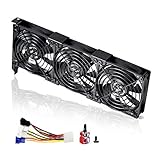
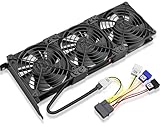
If your card is running hot, the fans will run loud, full stop. Poor case airflow is a frequent culprit: too few intake fans, blocked vents, or a cramped case that traps heat all raise GPU temperatures. Improving your case ventilation, adding intake or exhaust fans, and ensuring cables are not obstructing airflow can lower temperatures by several degrees and let the GPU fans relax. Upgrading to higher-quality cooling can make a dramatic difference, and our review of the best GPU cooler fans covers the best options.
3. An Aggressive Fan Curve
Sometimes the card is not even hot, but the fans are loud because of an overly aggressive fan curve set by the manufacturer or a tuning utility. Software like MSI Afterburner lets you create a custom fan curve, allowing the fans to stay quieter at moderate temperatures and only ramp up when genuinely necessary. A gentler curve can transform a noisy card into a barely audible one, as long as you keep an eye on temperatures to ensure they stay safe.
4. Heavy or Unoptimized Workloads
A game running uncapped at hundreds of frames per second works the GPU far harder than necessary, generating extra heat and fan noise. Enabling V-Sync or a frame rate cap reduces the load, lowers temperatures, and quiets the fans without any meaningful loss in visual quality. Background processes, crypto mining malware, or runaway applications can also peg the GPU and should be ruled out.
5. Failing or Loud Fan Bearings
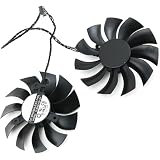
Fans are mechanical parts and wear out over time. A bearing that is starting to fail produces a grinding, rattling, or buzzing sound distinct from normal airflow noise. If cleaning does not help and the noise is mechanical rather than the whoosh of moving air, the fan itself may need replacement. Many modern cards use modular fans that can be swapped individually.
Is It Really the Fan? Coil Whine Explained
Not every annoying noise from a graphics card comes from the fans. Coil whine is a high-pitched electrical buzzing or squealing produced by the card’s power delivery components, specifically the inductors, as electrical current passes through them. It is most noticeable at very high frame rates, such as in menus or loading screens where the GPU renders thousands of frames per second.
Coil whine is electrical, not mechanical, so cleaning and fan adjustments will not affect it. While it can be irritating, it is generally harmless and does not indicate a defect that will damage the card. Capping your frame rate often reduces it noticeably because it lowers the current spikes that cause the inductors to vibrate. The table below helps you tell the different noises apart.
| Noise Type | Sound | Likely Cause | Fix |
|---|---|---|---|
| Loud airflow | Whooshing, rushing air | High temps, dust, fan curve | Clean, improve airflow, tune curve |
| Grinding or rattling | Mechanical scraping | Failing fan bearing | Replace the fan |
| Coil whine | High-pitched buzz or squeal | Electrical, power components | Cap frame rate (usually harmless) |
| Clicking | Tapping or ticking | Cable or object hitting fan | Reroute cables clear of fans |
A Step-by-Step Plan to Quiet a Loud GPU
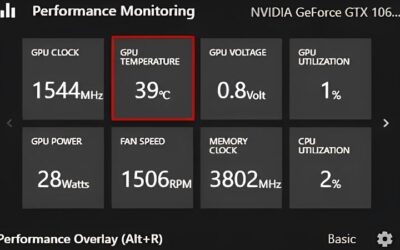
If your card has become too loud, work through these steps in order. Start by cleaning the dust from the fans and heatsink with compressed air. Next, improve your case airflow by checking that intake and exhaust fans are present and unobstructed. Then use monitoring software to confirm your actual GPU temperatures so you know whether heat is the issue. If temperatures are reasonable but the fans are still loud, build a gentler custom fan curve. Cap your in-game frame rate to reduce unnecessary load. Finally, if a mechanical grinding noise persists after all of this, replace the worn fan. For builders seeking the quietest possible operation, a liquid cooling solution can help, and our look at the best AIO GPU coolers is a useful resource, as is our roundup of the best graphics cards if you are considering an upgrade to a cooler, quieter model.
Top-Rated Picks


Lowest in 30 days

| Product | Brand | Rating | Reviews | Price |
|---|---|---|---|---|
| EZDIY-FAB RTX 3000 Series 12 Pin to Dual 8 Pin PCIe S… | EZDIY-FAB | ★ 4.6 | 428 | $15.59 |
| 87MM PLD09220S12H RTX3080 RTX3070 Graphics Card Fan R… | LTANDBR | ★ 4.6 | 61 | $29.98 |
| Compatible with GIGABYTE GeForce RTX 5060/5050 OC Low… | NIVXE | ★ 3.9 | 12 | $29.92 |
| Hilitand GPU Backplate Radiator, Aluminum Alloy Graph… | Hilitand | ★ 3.9 | 8 | $26.81 |
| NVIDIA GX Spark – Founders Edition, W129251900 | — | ★ 1.0 | 1 | $10,309.00 |
Frequently Asked Questions
Why is my GPU fan loud even when idle?
Idle fan noise usually points to one of two things: an aggressive fan curve that keeps the fans spinning when they do not need to, or elevated idle temperatures from dust and poor airflow. Many cards have a zero-RPM mode that stops the fans entirely below roughly 50 to 60 degrees Celsius, so constant idle spinning suggests your curve or temperatures need attention.
Is it bad if my GPU fan is always at 100 percent?
Fans running at full speed constantly indicate the card is either very hot or has a misconfigured fan curve, and it accelerates wear on the fans. Investigate your temperatures first. If the card is genuinely overheating, address cooling and airflow; if temperatures are fine, the fan curve is likely the problem and can be softened in software.
How do I tell coil whine apart from fan noise?
Coil whine is a high-pitched electrical buzz or squeal that gets worse at very high frame rates, such as in game menus, and it is unaffected by cleaning or fan settings. Fan noise is a lower whooshing or, when a bearing fails, a mechanical grinding. If capping your frame rate changes the sound, it is coil whine.
Can I replace just the fans on my graphics card?
Often yes. Many modern cards use modular fans that clip or screw out individually, and replacements are widely available. This is the right fix when a single fan develops a grinding bearing. Just confirm your specific model and fan dimensions before ordering, and take care not to damage the heatsink during removal.
Will lowering my fan curve damage my GPU?
Not as long as you monitor temperatures. A gentler fan curve trades a little extra heat for much less noise, which is fine provided the GPU stays within safe limits, generally well below its thermal throttling point. Set the curve so the fans ramp up before temperatures climb too high, and the card remains protected while running quietly.
Conclusion
A loud GPU fan is rarely a sign of impending doom and almost always something you can diagnose and resolve in an afternoon. Most of the time the culprit is dust, poor airflow, an aggressive fan curve, or simply a heavy workload pushing the card hard. Learn to distinguish genuine fan noise from coil whine, work methodically through cleaning, airflow improvements, and fan tuning, and you will usually restore your system to a comfortable hum. With a little maintenance and the right cooling setup, even a powerful card can stay cool, quiet, and ready for your next gaming session.

Write Your Review
No reviews yet. Be the first to share your experience!