
⚡ Key Takeaways
- What Is a Bottleneck?
- CPU Bottleneck vs GPU Bottleneck
- How to Spot a Bottleneck
- Why Resolution Changes the Equation
- Common Bottleneck Scenarios and Fixes
- Other Bottleneck Sources to Check
- How to Build a Balanced System
- The Role of Cooling and Power in Apparent Bottlenecks
- Is a Small Bottleneck a Problem?
- Top-Rated Picks
- Related Guides
- Frequently Asked Questions
- Conclusion
- Related Articles
- In a PC, components work together, and the slowest relevant part limits the rest.
- The two are opposites, and knowing which you have determines the fix.
- Diagnosing a bottleneck takes just a few minutes with a monitoring overlay that displays CPU usage, GPU usage, and frame rate simultaneously.
- Resolution dramatically affects which component bottlenecks.
You upgraded to a powerful new graphics card, but your frame rates barely improved, and the culprit is almost certainly a gpu bottleneck, or rather, a bottleneck elsewhere in your system holding the GPU back. A bottleneck happens when one component can’t keep up with another, capping your overall performance below what your hardware should deliver. Understanding how to spot and fix bottlenecks is essential to getting the performance you paid for. This guide explains exactly what bottlenecks are, how to diagnose them, and how to fix the most common ones.
As an Amazon Associate we earn from qualifying purchases at no extra cost to you. Product prices and availability are accurate as of the date shown and are subject to change.



Related: best GPUs for 1440p gaming.
What Is a Bottleneck?
In a PC, components work together, and the slowest relevant part limits the rest. When your CPU can’t feed your GPU data fast enough, the GPU sits partly idle, waiting, and frame rates suffer; this is a CPU bottleneck. When the GPU is maxed out and the CPU has headroom to spare, that’s a GPU bottleneck, which is actually the ideal state for gaming. The goal isn’t to eliminate all bottlenecks (impossible) but to ensure your GPU is the limiting factor, meaning you’re getting full value from your graphics card.
CPU Bottleneck vs GPU Bottleneck
The two are opposites, and knowing which you have determines the fix.
| Symptom | CPU Bottleneck | GPU Bottleneck (ideal) |
|---|---|---|
| GPU usage | Low (below 90%) | High (95-99%) |
| CPU usage | High (one or all cores maxed) | Moderate |
| Common at | 1080p, high refresh, esports | 1440p, 4K, high settings |
| Fix direction | Faster CPU or higher settings | Faster GPU if you want more FPS |
A GPU bottleneck means your graphics card is working at full capacity, which is exactly what you want. A CPU bottleneck means you’re leaving GPU performance on the table.
How to Spot a Bottleneck
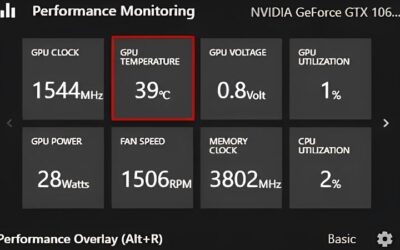
Diagnosing a bottleneck takes just a few minutes with a monitoring overlay that displays CPU usage, GPU usage, and frame rate simultaneously.
- Launch a demanding game and play normally for a few minutes.
- Watch GPU usage. If it sits at 95-99%, your GPU is the bottleneck, which is healthy.
- If GPU usage is well below 90% while frame rates are lower than expected, check CPU usage.
- If one CPU core or overall CPU usage is near 100% while the GPU idles, you have a CPU bottleneck.
- Repeat at different resolutions; bottlenecks often shift, as explained below.
Why Resolution Changes the Equation
Resolution dramatically affects which component bottlenecks. At lower resolutions like 1080p, the GPU renders frames quickly, so the CPU has to work harder to keep up, making CPU bottlenecks common, especially with high-refresh monitors. At higher resolutions like 1440p and 4K, the GPU does far more work per frame, so it becomes the limiting factor and CPU demands ease. This is why the same PC can be CPU-limited at 1080p but GPU-limited at 4K. If you’re CPU-bottlenecked, raising resolution or settings shifts the load back to the GPU.
Common Bottleneck Scenarios and Fixes
Scenario 1: New GPU, Same Old CPU
You dropped a flagship GPU into a system with an aging CPU. At 1080p the CPU can’t feed the new card, so frame rates barely improve. Fix: upgrade the CPU, or play at higher resolution and settings to lean on the GPU’s strengths.
Scenario 2: High-Refresh Esports Gaming
You want 240+ FPS in competitive titles, but the CPU caps you. Fix: a faster CPU with strong single-core performance, since esports titles are CPU-sensitive.
Scenario 3: GPU Maxed but Frame Rate Too Low
GPU usage is 99% but FPS is still below your target. This is a true GPU bottleneck. Fix: lower settings, enable upscaling like DLSS 4 or FSR 4, or upgrade to a faster GPU from our roundup of the best graphics cards compared.
Other Bottleneck Sources to Check
CPU and GPU aren’t the only possible culprits. Slow system RAM (or running a single stick instead of dual-channel) can limit frame rates. A slow storage drive causes texture streaming stutter in modern games. And a power or thermal limit can throttle the GPU, mimicking a bottleneck; verify your card has adequate cooling and a proper GPU power supply cable. If the GPU runs hot and throttles, better GPU cooler fans can restore lost performance.
How to Build a Balanced System
The best way to deal with bottlenecks is to avoid serious ones from the start by pairing components sensibly. When planning a build, choose your CPU and GPU together with your target resolution in mind. A high-refresh 1080p competitive build leans more on the CPU, so a strong processor is essential. A 4K cinematic build leans almost entirely on the GPU, so you can pair a flagship card with a more modest CPU and still be fully utilized. The mistake is mismatching, like a budget CPU with a flagship GPU for 1080p, which wastes the GPU, or a top CPU with an entry GPU, which wastes the processor.
Upgrading One Component at a Time
Many bottlenecks appear because people upgrade piecemeal. If you drop a new flagship GPU into a years-old system, the older CPU, RAM, or even storage may now be the weak link. Before a GPU upgrade, honestly assess whether the rest of your system can keep up at your resolution. Sometimes the most cost-effective performance gain isn’t a new GPU at all but a CPU or RAM upgrade that unleashes the card you already own.
The Role of Cooling and Power in Apparent Bottlenecks
A frequently misdiagnosed bottleneck is actually a thermal or power problem. If a GPU overheats it throttles its clocks, and if it’s starved of clean power it can’t reach full boost, both of which look like the card underperforming. Before concluding you have a hardware mismatch, confirm your GPU stays within safe temperatures and has solid power delivery. Good case airflow, quality GPU cooler fans, and a properly seated power connector often restore performance that seemed lost to a bottleneck. For high-wattage cards, an AIO GPU cooler can keep clocks high and consistent under sustained load.
Is a Small Bottleneck a Problem?
No. Every system has some bottleneck, and minor ones are completely normal and not worth worrying about. The goal is balance: pairing components so that, at your target resolution, your GPU is the limiting factor. A perfectly balanced build doesn’t exist, and chasing zero bottleneck wastes money. Focus on whether you’re hitting your desired frame rates at your resolution; if you are, any theoretical bottleneck is irrelevant.
Top-Rated Picks


Dropped $0.02


| Product | Brand | Rating | Reviews | Price |
|---|---|---|---|---|
| ARCTIC MX-4 (4 g) – Premium Performance Thermal Paste… | ARCTIC | ★ 4.8 | 104k | $4.99 |
| ARCTIC MX-4 (incl. Spatula, 4 g) – Premium Performanc… | ARCTIC | ★ 4.8 | 71.9k | $5.49 |
| Crucial 8GB DDR4 RAM 3200MHz (PC4-25600), Downclockab… | Crucial | ★ 4.8 | 62.8k | $74.99 |
| AMD Ryzen 5 5600X 6-core, 12-thread unlocked desktop … | — | ★ 4.8 | 30.2k | $177.60 |
| NVIDIA Shield Remote; Voice Search, Motion-Activated,… | — | ★ 4.7 | 10.6k | $25.99 |
Frequently Asked Questions
How do I know if my CPU or GPU is bottlenecking?
Use a monitoring overlay during gaming. If GPU usage is below 90% while CPU usage is high, you have a CPU bottleneck. If GPU usage is 95-99%, the GPU is the limit, which is ideal.
Is a GPU bottleneck bad?
No, it’s actually the desired state. It means your graphics card is fully utilized and you’re getting full value from it. A CPU bottleneck is the one to avoid.
Does playing at higher resolution reduce CPU bottlenecks?
Yes. Higher resolutions shift more work to the GPU, easing CPU demands. A system that’s CPU-limited at 1080p is often GPU-limited at 4K.
Can RAM cause a bottleneck?
Yes. Slow RAM or running single-channel instead of dual-channel can limit frame rates, especially in CPU-sensitive games. Ensure you’re running dual-channel memory.
Should I worry about a small bottleneck?
No. Every system has some bottleneck. As long as you’re hitting your target frame rates at your resolution, minor bottlenecks don’t matter.
Conclusion
A bottleneck is simply the slowest relevant component capping your performance, and the goal is to make your GPU the limiting factor at your target resolution. Diagnose with a monitoring overlay, watch CPU and GPU usage, and remember that resolution shifts the balance. Fix CPU bottlenecks with a faster processor or higher settings, and GPU bottlenecks with upscaling, lower settings, or an upgrade. Aim for balance, not perfection, and you’ll get the most from every component.

Write Your Review
No reviews yet. Be the first to share your experience!