
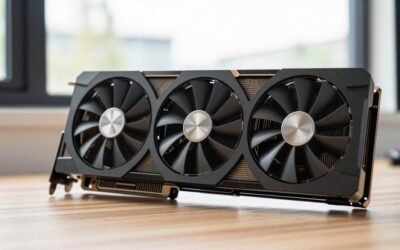
- Top Pick: GIGABYTE Radeon RX 9070 XT Gaming OC 16G Graphics Card, PCIe 5.0, 16GB GDDR6, GV-R9070XTGAMING OC-16GD Video Card
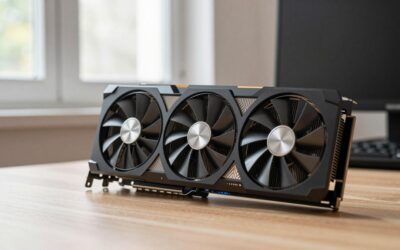
- Best Value: ASRock Radeon RX 9060 XT Challenger 16GB OC, RDNA 4, 3290MHz Boost, 16GB GDDR6 128-bit, PCIe 5.0, Dual Fans, 0dB Silent, LED Indicator, DisplayPort 2.1a, HDMI 2.1b
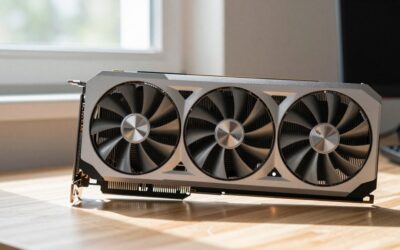
- Premium Choice: GIGABYTE GeForce RTX 5060 WINDFORCE OC 8G Graphics Card, Cooling System, 8GB 128-bit GDDR7, PCIe 5.0, Manufactured by NVIDIA, DisplayPort & HDMI – Video Output Interface, GV-N5060WF2OC-8GD Video Card
GPU benchmark results are the closest thing to an honest answer when you want to know how fast a graphics card really is, or whether your own card is performing as it should. But a single number can mislead as easily as it can inform, and knowing which tests matter and how to read them is what turns raw scores into useful decisions. This guide explains what benchmarks actually measure, how to run a clean and repeatable test, how to interpret the results, and how to use them to choose the right card for your money.
What a GPU Benchmark Actually Measures
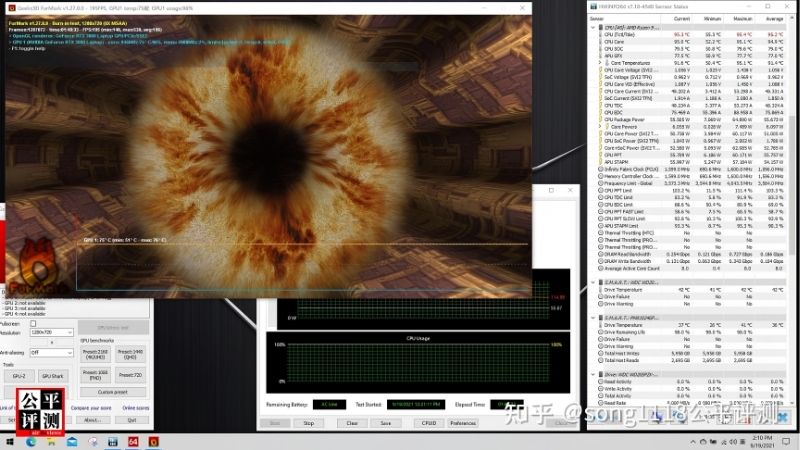
Before trusting any score, it helps to understand what a benchmark is really testing, because different tools measure different things and none tells the whole story alone. A benchmark puts a graphics card under a controlled, repeatable load and records how it copes, but the type of load and the numbers it reports change what the result means for you. Getting this foundation right prevents the common mistake of chasing a high figure that does not reflect real gameplay.
Synthetic Versus Real-Game Benchmarks
Synthetic benchmarks run a purpose-built test scene designed to stress the card consistently, producing a clean score that is easy to compare across systems. They are excellent for like-for-like comparisons because the workload never changes, which removes the variability of real games.
Real-game benchmarks measure performance in actual titles, either through a built-in benchmark mode or by recording frame rates during play. These are more representative of the experience you will actually get, since they reflect how a specific game behaves rather than an artificial scene.
The two serve different purposes: synthetic tests are best for ranking cards fairly, while in-game tests tell you how a card handles the specific games you care about, so serious comparisons use both together.
Key Metrics: Average FPS, 1% Lows and Frame Time
Average frames per second is the headline number, but on its own it hides the stutter that ruins a smooth experience. A high average can still feel choppy if performance dips sharply at times.
This is why 1% lows and frame-time consistency matter just as much. The 1% low figure captures the worst moments, and a card with a slightly lower average but much better 1% lows often feels smoother in practice than one with a flashy average and ugly dips.
Reading these numbers together, rather than fixating on the average alone, is the single most useful habit when interpreting any benchmark, because smoothness comes from consistency, not just peak speed.
Why Resolution and Settings Matter
A benchmark result only means something in the context of the resolution and settings it was run at. The same card produces wildly different scores at 1080p, 1440p and 4K, so comparing numbers taken at different resolutions is meaningless.
Settings matter just as much, since ray tracing, texture quality and upscaling all shift the result dramatically. When comparing cards or checking your own, always match the resolution and settings, and note whether upscaling such as DLSS or FSR was enabled, because that alone can transform the figures.
This is also why you should be cautious with benchmark numbers quoted online without context. A dramatic figure means little unless you know the resolution, the settings and whether upscaling was on, so treat any score without those details as a rough hint rather than a reliable comparison you can act on.
How to Benchmark Your GPU and Read the Results
Running your own benchmark is straightforward once you know the tools and the discipline that makes results trustworthy. A sloppy test produces numbers you cannot rely on, while a clean, repeatable one tells you exactly how your card performs and whether something is holding it back. This section walks through doing it properly and making sense of what you see.
Tools to Run a GPU Benchmark
For synthetic testing, well-established benchmark suites give you a standard score you can compare against thousands of other systems online, which is ideal for checking whether your card performs as expected for its model.
For real-world testing, many games include a built-in benchmark, and free overlay tools can record frame rates and 1% lows during normal play. Combining a synthetic score with in-game measurements of the titles you actually play gives the fullest picture of your card’s performance.
For most people the ideal approach is one synthetic run to confirm the card scores as expected for its model, plus in-game measurements of two or three titles they actually play. That combination catches both a broadly underperforming card and a specific game that runs worse than it should, which a single test would miss.
Running a Clean, Repeatable Test
A trustworthy benchmark needs a controlled setup. Close background applications, make sure your drivers are current, and let the system settle so temperatures are stable before you start, because heat and background load both skew results.
Run each test more than once and take a consistent approach every time, using the same resolution, settings and scene. Repeatability is what makes the numbers meaningful, since a single run affected by a random background task can send you chasing a problem that is not really there.
Consistency in how you record matters as much as the setup. Use the same benchmark scene or the same route through a game each time, since wandering through a different area loads the card differently and makes two runs impossible to compare fairly. Treating the test like a controlled experiment is what makes the numbers trustworthy.
Interpreting Scores and Spotting Bottlenecks
Compare your result against the typical score for your exact card at the same settings. If yours falls well short, the usual suspects are thermal throttling, an outdated driver, or a processor bottleneck limiting the graphics card.
A processor bottleneck often shows up as lower-than-expected frame rates at 1080p that improve relative to other cards at higher resolutions, where the graphics card does more of the work. Recognizing that pattern tells you whether the fix is cooling, drivers, or a different component entirely, rather than the graphics card itself.
Temperature is the other thing to watch while testing. If clock speeds fall as the card heats up over a longer run, you are seeing thermal throttling, which points to cooling or airflow rather than the card being slow. Catching that distinction early saves you from wrongly blaming the graphics card for a problem the case is causing.
Using Benchmarks to Choose a GPU
Beyond checking your own card, benchmarks are the most reliable way to decide what to buy, provided you use them wisely rather than chasing the biggest number. Matching benchmark data to your resolution and budget is what turns a wall of scores into a confident purchase, so the final step is learning to read them as a buyer rather than a spectator.
GPU Benchmark Pros and Cons for Buying Decisions
Benchmarks are powerful buying tools, but they have limits worth knowing before you lean on them.
| Pros | Cons |
|---|---|
| Objective, comparable performance data | Synthetic scores can differ from real games |
| Reveal 1% lows and smoothness, not just averages | Results depend heavily on the test system |
| Show performance per dollar clearly | A single number can oversimplify |
| Expose bottlenecks in your own build | Can encourage chasing numbers over experience |
Used together with your own priorities, benchmarks are the best buying guide available, as long as you read them in context rather than treating one figure as the final word.
Performance Per Dollar and Your Resolution
The most useful way to read benchmarks as a buyer is performance per dollar at your target resolution. A card that tops the charts at 4K is wasted money if you game at 1080p, where a cheaper card scores nearly as well for far less.
Focus on the benchmark results at the resolution you actually play, then compare the cost of the cards that perform well there. That approach consistently points to the smartest spend, rather than the most expensive card or the highest raw number.
It helps to set a target frame rate as well as a resolution before you shop. Someone happy with a smooth sixty frames needs a very different card from someone chasing high-refresh play, and benchmarks let you buy precisely to that goal rather than overspending on headroom you will never use or underspending and falling short.
See More:
When Benchmarks Say It Is Time to Upgrade
If your card benchmarks well below what current games demand at your resolution, and no amount of tuning closes the gap, the numbers are telling you the hardware is the limit. That is a clear, evidence-based signal rather than a vague feeling.
At that point, comparing benchmark results across current cards shows exactly how much of a jump an upgrade delivers. Once you have identified the card that fits your resolution and budget, you can compare current options and pricing through the links on this page and choose the one whose benchmarks match what you actually need.
Before you commit, cross-check the upgrade against your processor and resolution, because a very fast card paired with a weaker processor at low resolution may not show its full benchmark advantage. Matching the card to the whole system, not just the highest score, is what ensures the upgrade delivers the improvement the numbers promise.
In summary, a GPU benchmark is only as useful as your ability to read it, so look past the headline average to 1% lows and frame-time consistency, always match resolution and settings, and run clean, repeatable tests. Whether you are checking your own card or choosing a new one, focus on performance per dollar at the resolution you play. Do that, and benchmarks stop being a wall of confusing numbers and become the most reliable guide you have to real-world performance and smart spending.
Frequently Asked Questions
Which benchmarks should I actually run?
Use a synthetic run such as 3DMark Steel Nomad or Time Spy for a repeatable score you can compare online, then add two or three built-in game benchmarks from titles you actually play. Synthetics confirm the card performs as expected, while game benchmarks tell you whether your specific settings and resolution target are realistic.
Why do average frame rates hide problems?
An average can look healthy while the experience feels terrible, because a handful of long frames create visible stutter without moving the mean much. Always record one percent and 0.1 percent lows, or better still look at a frame time graph. Consistent frame pacing matters more to perceived smoothness than a few extra average frames.
What tools should I use to capture the data?
CapFrameX and the frame time logging built into MSI Afterburner with RivaTuner are the common choices, and PresentMon underpins most of them. For monitoring clocks, temperature, power draw and utilisation during a run, HWiNFO64 is the most complete. Log to file rather than reading an on-screen overlay, since overlays smooth out the interesting spikes.
How do I tell if I am CPU limited rather than GPU limited?
Watch GPU utilisation during the run. Sustained readings near 97 to 99 percent indicate the graphics card is the bottleneck. If utilisation sits noticeably lower while frame rate stays flat, the CPU, memory or an engine limit is holding you back. Testing the same scene at a higher resolution confirms it, since GPU load should rise.
How do I make results repeatable?
Warm the card up for several minutes first so clocks settle to their sustained state rather than boosting from cold, close background applications, disable overlays other than your logger, and use the identical scene and settings each time. Run three passes and take the median. Ambient room temperature also matters more than most people expect.
As an Amazon Associate we earn from qualifying purchases at no extra cost to you.



Write Your Review
No reviews yet. Be the first to share your experience!