

Prime
Editor's Pick
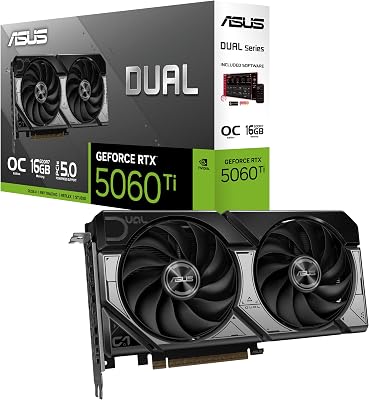
ASUS SFF-Ready Prime NVIDIA GeForce RTX 5070 Graphics Card (PCIe 5.0, 12GB GDDR7, HDMI/DP 2.1, 2.5-Slot, Axial-tech Fans, Dual BIOS), 3 Year Warranty

3DMark benchmark is the standard tool for measuring graphics performance, and understanding it helps you judge your PC and compare hardware before you buy. You want to know what it tests, how to run it, and how to read your score, without a long video. This guide explains the benchmark clearly and gives you practical takeaways so you can measure and understand your system with confidence.
What Is the 3DMark Benchmark
Before running anything, it helps to understand what this tool does and how it is structured. This section explains how the 3dmark benchmark works, the key tests it includes, and the difference between the free and paid versions, so you approach it with a clear picture. A little understanding upfront makes your results far more useful. It also helps you avoid the common mistakes that skew scores.
How 3DMark Works
3DMark runs a series of demanding graphics scenes and measures how well your hardware handles them, producing a numerical score you can compare against other systems. Higher scores indicate stronger graphics performance under a consistent, repeatable workload. That repeatability is what lets you trust a comparison between two systems.
Because everyone runs the same standardized test, the scores provide a fair way to compare different GPUs and systems. That consistency is what makes the benchmark so widely trusted. Reviewers and buyers alike rely on it precisely because everyone runs the same test.
How-it-works read: 3DMark measures graphics performance with standardized tests, giving a comparable score for your system. A single number makes it easy to place your hardware against the wider market.
Key Tests Explained
3DMark includes several tests aimed at different hardware and resolutions, such as tests for modern high-end GPUs, mainstream gaming, and ray tracing performance. Each targets a specific use case, so you choose the one that matches your hardware and interest. Running the wrong test gives a score that tells you little about your real setup.
For most gamers, the mainstream and high-end tests are the most relevant, while ray tracing tests measure that specific capability. Picking the right test ensures your score is meaningful for your setup. The right test turns an abstract number into a useful, relevant result.
Tests read: choose the 3DMark test that matches your hardware and resolution, from mainstream gaming to ray tracing. Choosing the test that matches your goals is the first step to a useful benchmark.
Free vs Paid Versions
3DMark offers a free version with core benchmark tests, which is enough for most users who simply want to measure and compare performance. The paid version adds extra tests, stress testing, and features aimed at enthusiasts and overclockers. For casual users, those extra tools are rarely necessary.
For a one-time performance check, the free version is usually sufficient, while the paid version suits those who benchmark regularly or push their hardware. Choosing based on how often you will use it avoids paying for features you do not need. Buying only what you will use is the sensible approach here.
Version read: the free version covers most needs, while the paid version adds tools for enthusiasts and frequent testers. Deciding how often you will actually benchmark makes the choice between them simple. Most people find the free version covers their needs.
How to Use the 3DMark Benchmark
With the basics covered, here is how to actually run and interpret the benchmark. This section walks through running your first test, understanding your score, and comparing or stress testing, so you can use the 3dmark benchmark effectively. Following these steps turns a raw number into genuinely useful information. Preparation is what separates a meaningful test from a misleading one.
Running Your First Test
To run the benchmark, install 3DMark, choose the test that matches your hardware, and let it run without other demanding programs open for accurate results. The test takes a few minutes and produces your score at the end. The whole process is quick enough to run whenever you want a quick health check.
Closing background applications and ensuring your drivers are current helps produce a clean, representative result. A little preparation makes your score more reliable and comparable. A clean run is the difference between a meaningful score and a misleading one.
Running read: pick the right test, close background apps, and run it on current drivers for an accurate first result. Skipping this preparation is the most common cause of a disappointing score.
Interpreting Your Score
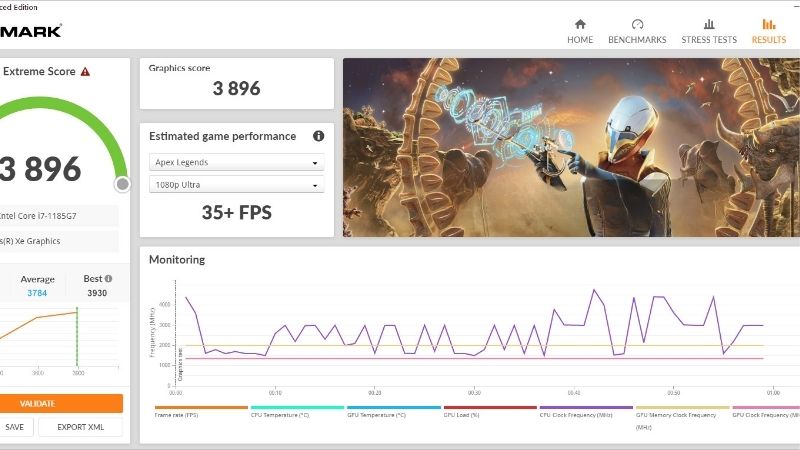
Your 3DMark score is most useful when compared against similar systems or against expected scores for your specific GPU. If your score is close to the typical result for your hardware, your system is performing as expected. That reassurance is often the main reason people run the benchmark at all.
A score noticeably below expectations can indicate a problem, such as outdated drivers, thermal throttling, or background software stealing resources. Comparing to reference results tells you whether your system is healthy. A big shortfall is a clear prompt to investigate before assuming the worst.
Score read: compare your result to typical scores for your hardware to judge whether your system is performing normally. That comparison is the single most useful thing the benchmark offers. It turns an abstract score into a clear verdict on your setup.
Comparing and Stress Testing
Beyond a single score, 3DMark lets you compare your result against a huge database of other systems, which is useful for judging hardware before an upgrade. Seeing how your GPU ranks helps set realistic expectations. Seeing where you rank keeps upgrade decisions grounded in real data.
Stress testing, available in the paid version, runs the benchmark repeatedly to check stability and cooling under sustained load. This is valuable for verifying a new build or an overclock holds up over time. For a new build, that stability check is well worth the extra minutes.
Comparison read: use the database to compare hardware and stress testing to verify stability under sustained load. It is the closest the benchmark comes to simulating a long gaming session.
Getting the Most From the 3DMark Benchmark
Understanding the tool is only useful if you apply it well. This section covers its honest pros and cons, common mistakes to avoid, and when a low score signals it is time to upgrade, so the benchmark genuinely helps your decisions. Used well, it becomes a practical tool rather than just a number to brag about. The goal is insight, not just a score.
Pros and Cons
Here is the honest pros and cons view of the 3dmark benchmark, so you know what it does and does not tell you. Keeping those limits in mind prevents you from over-reading a single result. The benchmark is a guide, not the whole story.
Pros: standardized, repeatable results, a large comparison database, tests for different hardware, and useful stress testing. Cons: a synthetic benchmark that does not perfectly reflect every real game, and full features require the paid version.
For comparing hardware and checking system health, the benchmark is genuinely useful, though real-game testing remains the final word on actual performance. Using both gives the most complete picture. Synthetic scores and real gameplay together tell you everything you need to know. Neither alone is the full answer.
Common Mistakes to Avoid
A common mistake is running the benchmark with background programs open or outdated drivers, which produces misleadingly low scores. Another is comparing scores from different tests, since each test uses a different scale. Comparing scores across different tests is a common and misleading error.
Always compare like with like, run on current drivers, and close other software for accurate, meaningful results. Avoiding these mistakes ensures your score reflects your hardware fairly. A little care in setup makes the difference between a fair result and a false one.
Mistakes read: run clean tests on current drivers and compare only matching tests to get accurate, fair results. These simple habits are the difference between a trustworthy score and a misleading one. They cost nothing but a little attention.
When Your Score Signals an Upgrade
If your 3DMark score is much lower than modern cards and your games struggle to match your expectations, it may be a sign your GPU is aging. The benchmark gives a clear, objective measure of where your hardware stands. That objectivity is exactly what makes the benchmark useful for upgrade decisions.
Comparing your score against current cards in the database shows exactly how much performance an upgrade would bring. That objective comparison makes it easier to decide whether a new GPU is worthwhile. Seeing the potential gain in numbers takes the guesswork out of upgrading.
Upgrade read: a low score against modern cards is an objective signal that a GPU upgrade would deliver real gains. When the data is that clear, the decision to upgrade becomes an easy one.
See More:
- RX 9060 XT vs RTX 4060
- NVIDIA Jetson price
- NVIDIA GeForce GTX 1650 driver
- Intel Iris Xe graphics driver
- 9060 XT 16GB vs 5060 8GB
Final Thoughts on the 3DMark Benchmark
The 3DMark benchmark is the standard way to measure and compare graphics performance, offering standardized tests, a large comparison database, and useful stress testing for verifying stability. Run it cleanly on current drivers, compare only matching tests, and treat the score as one objective measure alongside real-game testing for the full picture. When your score falls well behind modern cards, it becomes a clear signal that a GPU upgrade would deliver real gains. Use the button below to check current prices on modern graphics cards if your benchmark results suggest it is time to upgrade. Let the data, not guesswork, decide when your hardware has fallen behind. An objective score makes that call much easier. Let the numbers guide the timing, and your next upgrade will be well justified.
Frequently Asked Questions
Which 3DMark test should I run for my GPU?
Steel Nomad is the current heavy non ray traced test aimed at modern high end cards, while Time Spy remains the widely quoted DirectX 12 benchmark at 1440p. Fire Strike targets DirectX 11 at 1080p and suits older hardware. Port Royal and Speed Way cover ray tracing, and Night Raid is for integrated graphics.
What counts as a good score?
Compare against the median for your exact GPU model rather than an absolute number. 3DMark shows where your result sits relative to similar systems, and being within a few percent of the median means your card is performing normally. Falling ten percent or more below usually points to thermal throttling or a power limit.
Do I need the paid version?
The free demo covers the main tests well enough for a quick health check. The paid version unlocks custom runs with adjustable resolution and loops, stress tests for stability validation, and the full result history. If you overclock or troubleshoot regularly, the stress test alone justifies it.
Why does my score drop on repeated runs?
Sustained load raises temperatures until the card reduces clocks to stay inside its thermal or power limit, so the second and third runs come in lower. Improve case airflow, check that intake filters are clean, and monitor GPU hotspot and memory junction temperatures during the run to identify which limit you are hitting.
Does a high 3DMark score guarantee good gaming performance?
No. Synthetic tests deliberately avoid the CPU load, asset streaming and shader compilation that cause stutter in real games. Use 3DMark to verify your hardware is working as expected and to compare like for like, then rely on in-game benchmarks and frame time graphs to judge how a title will actually feel.

Write Your Review
No reviews yet. Be the first to share your experience!