
- Top Pick: Y&H 4K Game Capture Card Live Streaming and Record in 4K30P or 1080P 120HZ,HDMI Zero-Lag Pass-Through USB3.0 Video Ultra-Low Latency for PS3, PS4, Xbox Series X/S, Xbox One, Nintendo Switch
- Best Value: BitPC Jetkvm and M1S N150 Mini PC NAS Bundle – Out-of-Band KVM Over IP + 5G Soft Router for Data Center, Home Office & Lab
- Premium Choice: msi Gaming GeForce GT 710, Graphics Card, Desktop, HDMI/VGA/DVI – 2GB GDRR3 64-bit HDCP Support DirectX 12 OpenGL 4.5 Single Fan Low Profile, Nvidia
NVIDIA Low Latency Mode Ultra sits in your Control Panel with three choices, Off, On, and Ultra, and competitive players constantly ask which one actually makes their aim feel snappier. The short answer is that it depends on your game and whether it already supports Reflex, and picking wrong can either help or do nothing at all. If you want a straight explanation of what each setting does, when Ultra is the right call, and how it relates to the newer Reflex technology, this review breaks it all down based on how competitive players describe the difference in real play.
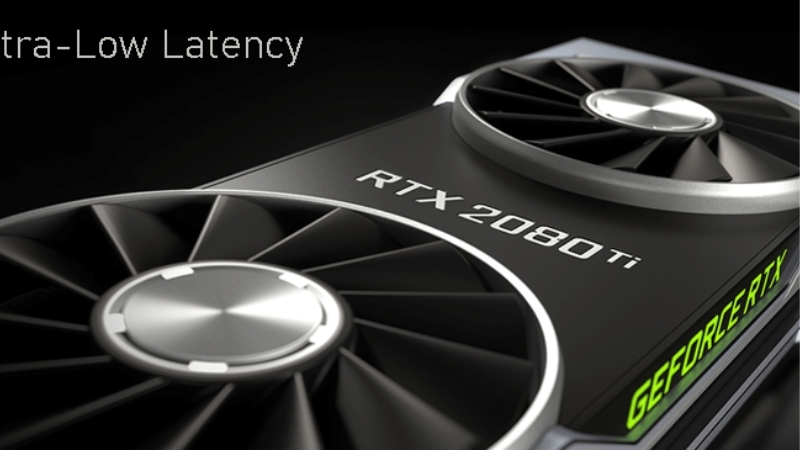
What NVIDIA Low Latency Mode Does
Low Latency Mode reduces the delay between your input and the on-screen result by controlling how many frames the GPU prepares in advance. That render queue is a hidden source of lag: when frames pile up waiting to be displayed, your inputs effectively wait behind them. The setting manages that queue to keep your actions responsive. Understanding the render queue is the key to knowing which of the three modes to choose, so here is what the feature actually does before we get to when to use each.
As an Amazon Associate we earn from qualifying purchases at no extra cost to you.





How the Render Queue Creates Lag
To keep frame delivery smooth, your system normally queues up several frames for the GPU to render ahead of time. This helps consistency, but it means your latest input, a mouse flick or a click, may sit in line behind already-queued frames before it is processed and shown.
The result is added latency you feel as a slight disconnect between your hand and the screen. In slow games this is irrelevant, but in fast competitive play, that delay is exactly what separates a landed shot from a missed one.
Low Latency Mode attacks this by limiting how many frames can be queued, so your input reaches the GPU sooner. That is the entire mechanism behind the setting.
Off vs On vs Ultra Explained
The three modes differ in how aggressively they trim the queue. Off uses the default queuing for maximum smoothness and throughput. On limits the queue to reduce latency while keeping good performance, a balanced middle. Ultra limits it most aggressively and can submit frames just in time, for the lowest latency the setting offers.
Ultra delivers the biggest latency reduction but can slightly reduce maximum frame rate in GPU-bound situations, since it holds back queuing. On is the gentler option with a smaller latency cut and less impact. Off prioritizes raw throughput over responsiveness.
The practical hierarchy: Ultra for the lowest latency, On for a balanced reduction, Off when you want maximum frames and do not care about the last few milliseconds of lag.
Low Latency Mode vs NVIDIA Reflex
This is the crucial modern point: NVIDIA Reflex, built into many competitive games, does the same job more effectively than Low Latency Mode, because it is integrated at the game level and manages the CPU and GPU together. Where Reflex is available, it is the better tool.
Low Latency Mode is the driver-level fallback for games that do not support Reflex. In a game with Reflex, you should enable Reflex in the game settings and leave Low Latency Mode off or on, since the two overlap and Reflex takes priority.
So the real decision tree is: if the game has Reflex, use it; if it does not, use Low Latency Mode Ultra as the next best latency reducer. That distinction shapes everything about when to reach for this setting.
It is worth understanding why Reflex outperforms the driver setting, because it explains the whole recommendation. Low Latency Mode works only from the driver’s side, managing the render queue after the game has already handed frames over. Reflex is integrated into the game engine itself, so it can synchronize the CPU and GPU and submit work at the ideal moment, trimming latency the driver never gets a chance to touch. That deeper integration is why testing consistently shows Reflex achieving lower latency than Ultra in the same game, and why Ultra is best thought of as the capable stand-in for the many titles Reflex has not reached.
When to Use Each Setting
Now that the modes are clear, the practical question is which one to run and when, and the answer hinges on your game, whether it supports Reflex, and whether you are chasing latency or frames. This section gives concrete scenarios for Ultra, for On or Off, and the honest trade-offs, so you set it correctly for how you actually play rather than guessing.
When Ultra Is the Right Choice
Ultra makes sense in competitive games that do not support Reflex, where you want the lowest possible latency and can accept a small potential frame-rate trade. Fast shooters and reaction-heavy games without Reflex are the prime candidates.
It is also worth using when you are GPU-bound and feeling input lag, since that is exactly the situation the render queue causes and Ultra addresses. For a player whose priority is responsiveness over raw frame count, Ultra is the aggressive choice that delivers.
The key condition is the absence of Reflex; if Reflex is available, that is the better route, and Ultra becomes redundant.
When On or Off Is Better
On is the sensible middle for games without Reflex where you want lower latency but do not want to risk any frame-rate reduction, a safe general-purpose setting. It gives most of the benefit with less potential downside than Ultra.
Off is better when you are chasing maximum frame rate and playing games where latency does not matter much, single-player, slower-paced, or non-competitive titles. There is no reason to trim the queue if responsiveness is not your concern, and Off preserves the smoothest throughput.
Off is also fine whenever Reflex is handling latency in-game, since the driver setting is then redundant and Reflex is doing the work more effectively.
One caveat many players miss: Low Latency Mode only helps when you are GPU-bound, meaning the graphics card is the bottleneck. If your CPU is the limiting factor, the render queue is not the source of your lag, and changing this setting will do little. Checking whether a game is GPU or CPU limited before blaming the setting saves a lot of confusion.
Pros and Cons Users Report
Since the setting is free and easy to change, the honest question is how much difference players actually feel from Ultra. Weighing the praise against the caveats sets the right expectation.
What users like: a genuinely more responsive feel in Reflex-less competitive games, a simple driver-level toggle that works without game support, and a noticeable latency cut when GPU-bound. For older or unsupported titles, it is a useful tool.
What users criticize: a possible small frame-rate reduction on Ultra, a benefit that is subtle to some players, redundancy where Reflex exists, and no effect when you are CPU-bound rather than GPU-bound. It helps in specific situations rather than universally.
Getting the Lowest Latency Overall
Low Latency Mode is one lever among several, and the lowest latency comes from combining it correctly with other settings and hardware rather than relying on it alone. This final section covers how it fits with your broader setup, the hardware that lowers latency further, and the bottom line on which mode to run.
Combining Low Latency Mode with Other Settings
For the best result, pair Low Latency Mode with a frame rate cap slightly below your monitor’s refresh rate, which keeps you out of the high-latency zone that occurs when the GPU is fully saturated. This combination is more effective than either setting alone.
Also disable traditional V-Sync in favor of G-Sync or a similar variable refresh setup, since V-Sync adds latency that undermines the whole effort. The goal is a consistent, low-latency pipeline, not just one toggle.
Where Reflex exists, enable it and let it manage latency, treating Low Latency Mode as the fallback for everything else. Configured together, these settings deliver far more than any single one.
Hardware That Lowers Latency Further
Software can only trim so much; the display and input devices set the rest. A high-refresh-rate monitor delivers frames sooner and is often the single biggest latency improvement after the render queue, while a responsive gaming mouse with a high polling rate cuts delay at the input end.
Low Latency Mode Ultra saves milliseconds, but a slow monitor or laggy mouse can give them right back. The full latency chain, from mouse to GPU to display, has to keep pace for the setting to pay off.
If you want the lowest latency your setup can reach, compare current prices on high-refresh gaming monitors and low-latency gaming mice through the links on this page.
See More:
- NVIDIA Broadcast vs OBS
- RTX HDR settings
- NVIDIA App download
- NVIDIA RTX Video Super Resolution
- GeForce Experience alternative
Final Verdict
Low Latency Mode Ultra is worth using in competitive games that lack Reflex, where it delivers the lowest latency the setting offers for a small potential frame trade. On is the safer middle ground, and Off is fine for non-competitive play or when Reflex is handling the job.
The single most important rule is to prefer Reflex where it exists and treat Low Latency Mode as the fallback everywhere else. Combine it with a frame cap and variable refresh, and back it with fast hardware, to feel the full benefit.
In short, NVIDIA Low Latency Mode Ultra is the driver-level way to cut input lag in games without Reflex, with Ultra giving the biggest reduction, On a balanced middle, and Off for maximum frames or when Reflex is active. Match the mode to your game and pair it with a frame cap and variable refresh for the best result. And since your monitor and mouse decide how much of that saving you actually feel, check the recommended high-refresh displays and gaming mice through the links here to complete the low-latency chain.
Top-Rated Picks


| Product | Brand | Rating | Reviews | Price |
|---|---|---|---|---|
| ARCTIC MX-4 (4 g) – Premium Performance Thermal Paste… | ARCTIC | ★ 4.8 | 104k | $4.99 |
| ARCTIC MX-4 (incl. Spatula, 4 g) – Premium Performanc… | ARCTIC | ★ 4.8 | 71.9k | $5.49 |
| Crucial 8GB DDR4 RAM 3200MHz (PC4-25600), Downclockab… | Crucial | ★ 4.8 | 62.8k | $74.99 |
| AMD Ryzen 5 5600X 6-core, 12-thread unlocked desktop … | — | ★ 4.8 | 30.2k | $177.60 |
| NVIDIA Shield Remote; Voice Search, Motion-Activated,… | — | ★ 4.7 | 10.6k | $25.99 |
Frequently Asked Questions
What is the difference between On and Ultra?
On limits the number of frames the CPU may queue ahead to one, equivalent to the old Maximum Pre-Rendered Frames setting. Ultra goes further with just-in-time frame submission, delaying the CPU’s work so a frame begins rendering as late as safely possible, which shaves additional milliseconds from the input-to-photon chain.
When should I leave it Off?
Leave it Off in DirectX 12 and Vulkan titles, where it does nothing, and in any game that already implements NVIDIA Reflex, which supersedes it. Also leave it Off if you are chasing maximum average frame rate in a benchmark rather than the lowest possible latency in a match.
Does Ultra cause stutter?
It can in CPU-heavy or poorly threaded games, because the tighter submission window leaves less slack to absorb a slow frame. If you notice frame time spikes after enabling Ultra, step down to On, which keeps most of the latency benefit with more headroom for irregular workloads.
How does it interact with G-Sync and V-Sync?
The classic low-latency recipe is G-Sync enabled, V-Sync enabled in the control panel, in-game V-Sync off, and a frame rate cap three to five frames below your refresh rate. That cap keeps you inside the variable refresh window; low latency mode then trims the remaining queue on supported DirectX 11 titles.
Is a frame rate cap better than Ultra?
A well-chosen cap usually delivers the larger and more consistent latency reduction, because it prevents the GPU from running at 100% utilisation where queues build up. Use the cap first, then add Ultra in older DirectX 9 or 11 games for a small extra improvement.











Write Your Review
No reviews yet. Be the first to share your experience!