
- Top Pick: ASUS ROG Strix SCAR 16 (2025) Gaming Laptop, 16” ROG Nebula HDR 16:10 2.5K 240Hz/3ms, NVIDIA GeForce RTX 5090, Intel Core Ultra 9 275HX, 32GB DDR5, 2TB PCIe Gen 4 SSD, Wi-Fi 7, Win 11 Pro, G635LX-XS97
- Best Value: Cable Matters [Ultra High Speed HDMI Certified] Long 8K HDMI Cable, 20ft
- Premium Choice: Cable Matters [Ultra High Speed HDMI Certified] 8K HDMI Cable, 3.3ft
RTX HDR settings are the difference between a new HDR monitor that finally looks the way it did in the store and one that just looks washed out and slightly wrong. If you just plugged in an HDR display and turned the feature on expecting instant magic, you are not alone in being underwhelmed. The good news is that the fix is a handful of specific values, not a mystery. This review breaks down what RTX HDR actually does, the exact numbers that matter, and where it wins or falls short based on how real users describe living with it day to day.
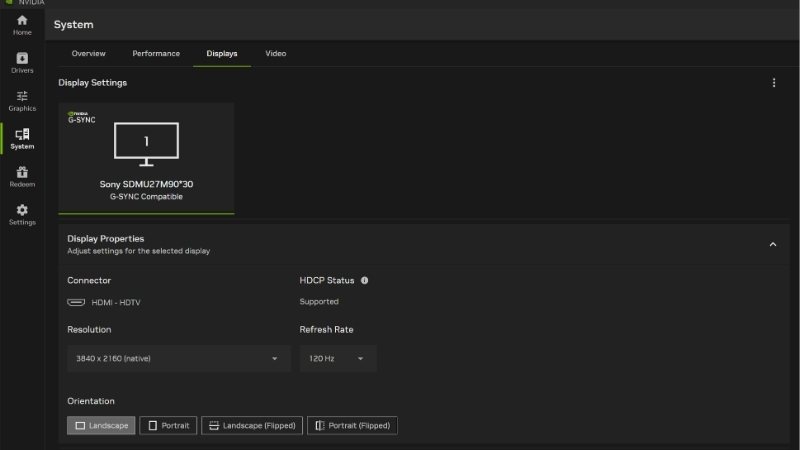
What RTX HDR Is and Why the Settings Matter
RTX HDR is an AI-driven feature in the NVIDIA app that adds high dynamic range to games that never shipped with native HDR support. It uses a tone-mapping model running on your GPU to expand contrast and color on the fly. That sounds automatic, but the default output rarely matches your specific panel, which is why the settings exist and why leaving them untouched is the number one reason people think HDR looks bad. Understanding the feature first makes the numbers later make sense.
As an Amazon Associate we earn from qualifying purchases at no extra cost to you.

![Cable Matters [Ultra High Speed HDMI Certified] Long 8K HDMI Cable, 20ft](https://m.media-amazon.com/images/I/41QBq24m9lL._SL160_.jpg)
![Cable Matters [Ultra High Speed HDMI Certified] 8K HDMI Cable, 3.3ft](https://m.media-amazon.com/images/I/41ovbxrTm5L._SL160_.jpg)

![jojobnj 16K DisplayPort Cable 2.1, 20 FT DP Cable [16K@60Hz, 8K@120Hz, 4K@240Hz, 40Gbps] | Gold-Plated DP to DP for Gaming Monitor, PC | Supports HDR, HDCP, FreeSync, G-Sync, RTX 4090, 7900XTX](https://m.media-amazon.com/images/I/41gCiY2ysAL._SL160_.jpg)
RTX HDR vs Windows Auto HDR
Both RTX HDR and Windows Auto HDR retrofit HDR onto SDR games, but they are not the same. RTX HDR uses an AI tone-mapping model and gives you granular control over peak brightness, contrast, and saturation. Windows Auto HDR is simpler and applies a lighter, more conservative curve with no user-facing sliders.
In side-by-side user reports, RTX HDR is consistently described as the more vivid and flexible option, while Auto HDR is called the safer, lower-effort one. The catch is that RTX HDR runs on your GPU and carries a small performance cost, whereas Auto HDR is nearly free.
Running both at once causes double tone-mapping and a crushed, oversaturated image. Pick one. For anyone who owns a capable HDR panel and wants control, RTX HDR is the one worth configuring.
The Settings That Actually Change the Image
RTX HDR exposes three sliders that do the heavy lifting: peak brightness, contrast (mid-tones), and saturation. Peak brightness should be set to match your monitor’s actual measured peak nits, not an arbitrary maximum. Setting it above what your panel can hit just clips highlights.
Contrast controls how mid-tones roll off; too high and shadows crush, too low and the image looks flat. Saturation adds color intensity, and this is the slider most users push too far, producing the neon look that gives HDR a bad reputation.
There is also a toggle for the newer per-title behavior and a choice of tone-mapping model version in recent builds. These are the levers; the next section gives concrete starting values.
Which GPUs and Displays Support RTX HDR
RTX HDR requires an RTX 20, 30, 40, or 50 series GPU and the NVIDIA app, since the feature moved out of the older GeForce Experience overlay. Just as important, you need a display that actually reports HDR to Windows and can hit a meaningful brightness, ideally a panel with a real HDR certification rather than an entry badge.
A monitor advertised as HDR400 will technically enable the feature, but with limited peak brightness and often no local dimming, the effect is muted. Panels rated for higher brightness with local dimming or OLED self-emissive pixels are where RTX HDR visibly pays off.
This hardware gap is the single biggest predictor of whether you will love or dismiss RTX HDR, which is worth keeping in mind before you blame the software.
Dialing In the Best RTX HDR Settings
The reason RTX HDR frustrates people is that the correct values are panel-specific, and no single preset fits every monitor. What you can do is start from sensible baselines tied to your display’s HDR tier, then fine-tune by eye. The goal is a natural image with bright, controlled highlights and colors that look rich rather than radioactive. Here are the numbers and the logic behind them.
Peak Brightness, Contrast, and Saturation Values
Start peak brightness at your monitor’s rated or measured nits. For a 400-nit panel, set roughly 400; for a 600-nit panel, around 600; for a bright OLED or mini-LED, 800 to 1000 and up. Getting this to match the hardware is the most important single step.
For contrast and saturation, moderation wins. Below is a practical starting table you can copy, then adjust one notch at a time while looking at a bright scene and a dark scene.
| Monitor tier | Peak brightness | Contrast (mid-tone) | Saturation |
|---|---|---|---|
| Entry HDR (~400 nits) | 400 | 25 | 25 |
| Mid HDR (~600 nits) | 600 | 25 | 25 |
| OLED / mini-LED (800+ nits) | 800-1000 | 25 | 20 |
These are baselines, not gospel. If highlights clip, lower peak brightness; if the image looks flat, nudge contrast up; if colors look artificial, pull saturation down first.
A reliable test scene helps you tune faster than menus do. Load a game area with a bright light source next to deep shadow, a night street with signage works well, and adjust until the sign glows without smearing and the shadows keep visible detail. Change one slider at a time; moving all three together makes it impossible to tell which one caused a shift. Once it looks right there, it will hold across most of your library.
Matching Settings to Your Monitor’s HDR Tier
The practical failure mode is applying OLED-tier numbers to an HDR400 panel, which produces blown highlights and clipped detail. Higher settings are not universally better; they are correct only if your panel has the brightness and dimming to back them up.
OLED owners can afford lower saturation because the perfect black levels already make colors pop, so pushing saturation looks cartoonish. Bright LCD owners sometimes need slightly more saturation to compensate for raised black levels from backlight bleed.
The takeaway: your monitor’s tier should drive your settings, not a screenshot of someone else’s config for a different panel.
Pros and Cons Users Report
Pulling together the enthusiastic and the critical feedback gives a realistic picture of what RTX HDR delivers once configured. Both sides are worth hearing before you commit to the feature.
What users praise: a genuinely more vivid and dimensional image in older SDR games, meaningful control over the look, and impressive results on bright OLED and mini-LED panels. Many describe it as the feature that finally justified their HDR display purchase.
What users criticize: a small but real frame-rate cost, defaults that look oversaturated until tuned, occasional inconsistency between titles, and disappointing results on cheap HDR400 monitors. The recurring theme is that RTX HDR rewards good hardware and punishes weak panels.
Getting the Most Out of RTX HDR on Real Hardware
Once the sliders are dialed in, the remaining variables are which games to use it on and, above all, the display itself. Software tone-mapping can only work with the brightness and contrast the panel physically produces. This final section covers when to keep RTX HDR on, and the hardware that turns it from a gimmick into the reason you bought an HDR screen in the first place.
When RTX HDR Shines and When to Leave It Off
RTX HDR shines in atmospheric, color-rich SDR games, think neon cityscapes, sunsets, and fire effects, where the expanded range adds real depth. On a capable panel these scenes gain a punch that SDR simply cannot show.
Leave it off for competitive shooters where every frame counts and the visual gain is marginal, and for games that already ship with strong native HDR, since native implementations usually look better than any retrofit. Turning it off in those cases is not a compromise, it is the smarter choice.
One more practical note on the performance cost: because RTX HDR runs a tone-mapping model on the GPU, the hit scales with resolution. At 1080p it is usually a few frames; at 4K on a demanding title it can be larger, so if you are already close to a frame-rate target, benchmark with the feature on and off before deciding. On high-refresh esports setups this is exactly why many players leave it disabled.
The Hardware That Unlocks True HDR
No setting can invent brightness a panel cannot produce. If RTX HDR looks flat no matter what you enter, the honest answer is usually the monitor. A display with high sustained brightness, local dimming zones or OLED pixels, and a legitimate HDR certification is what transforms the feature from subtle to stunning.
For anyone shopping, prioritize measured peak nits and contrast handling over resolution alone, and a hardware colorimeter can help you calibrate SDR and HDR modes so your RTX HDR values are anchored to real measurements rather than guesswork.
If your current screen is holding RTX HDR back, compare the current prices and specs on true HDR monitors and calibration tools through the links on this page before your next upgrade.
See More:
- NVIDIA Broadcast vs OBS
- NVIDIA App download
- NVIDIA RTX Video Super Resolution
- GeForce Experience alternative
Final Take: Is RTX HDR Worth Turning On
For owners of a genuinely capable HDR display, RTX HDR is worth turning on and tuning; the vivid, controlled result is one of the more visible free upgrades NVIDIA has shipped, and it improves a huge library of older games at once.
For owners of a basic HDR400 panel, temper expectations. The feature works, but the ceiling is the hardware, and the better long-term move is a stronger display rather than more aggressive settings.
Getting your RTX HDR settings right comes down to three moves: match peak brightness to your panel, keep contrast and saturation restrained, and never stack RTX HDR with Windows Auto HDR. Do that on a display with the brightness to back it up and older games gain real depth and color. If your monitor is the bottleneck, browse the recommended true HDR displays and calibration gear through the links here so your settings finally have the hardware to shine.
Top-Rated Picks

![Cable Matters [Ultra High Speed HDMI Certified] Long 8K HDMI Cable, 20ft](https://m.media-amazon.com/images/I/41n0neK14VL._SL400_.jpg)


| Product | Brand | Rating | Reviews | Price |
|---|---|---|---|---|
| ARCTIC MX-4 (4 g) – Premium Performance Thermal Paste… | ARCTIC | ★ 4.8 | 104k | $4.99 |
| ARCTIC MX-4 (incl. Spatula, 4 g) – Premium Performanc… | ARCTIC | ★ 4.8 | 71.9k | $5.49 |
| Crucial 8GB DDR4 RAM 3200MHz (PC4-25600), Downclockab… | Crucial | ★ 4.8 | 62.8k | $74.99 |
| AMD Ryzen 5 5600X 6-core, 12-thread unlocked desktop … | — | ★ 4.8 | 30.2k | $177.60 |
| NVIDIA Shield Remote; Voice Search, Motion-Activated,… | — | ★ 4.7 | 10.6k | $25.99 |
Frequently Asked Questions
What is RTX HDR and what does it need?
It is a game filter in the NVIDIA app that converts SDR games into HDR using an AI tone-mapping model on tensor cores. You need an RTX GPU, an HDR-capable display with HDR enabled in Windows, and the game running in full screen or borderless with the overlay able to hook it.
What values should I start with?
Set Peak Brightness to match your display’s real measured peak, commonly 400 to 1000 nits for mid-range panels and 1000 or more for high-end OLED and mini-LED. Mid Grey near 40-45, Contrast around plus 25 and Saturation between zero and plus 10 provide a natural starting point to refine per game.
Does it cost performance?
Yes, typically around 5-10% frame rate depending on resolution and GPU, since the filter processes every frame. On very high refresh setups the cost is more noticeable. Disabling other overlay filters while using RTX HDR helps, as stacking filters multiplies the overhead.
How does it compare to a game’s native HDR?
Good native HDR implementations usually win because the engine has access to true high-dynamic-range lighting data before tone mapping. RTX HDR is often better than a poor or broken native implementation, and it is invaluable for older titles that never supported HDR at all.
Why does my image look washed out or crushed?
Usually the peak brightness value does not match the display, or Windows HDR calibration has not been run. Use the Windows HDR Calibration app first, disable any monitor-side dynamic contrast that fights the tone mapper, and never enable RTX HDR simultaneously with a game’s own HDR output.











Write Your Review
No reviews yet. Be the first to share your experience!