
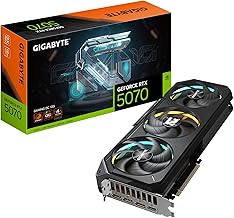
- Top Pick: ASUS Dual NVIDIA GeForce RTX 5060 Ti 16GB GDDR7 OC Edition Graphics Card, (PCIe 5.0, DLSS 4, HDMI 2.1b, DisplayPort 2.1b, 2.5-Slot, Axial-tech Fan, 0dB Technology), 3 Year Warranty
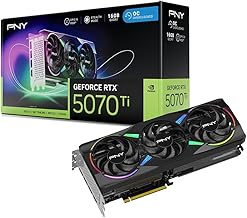
- Best Value: PNY NVIDIA GeForce RTX™ 5070 Ti Epic-X RGB™ OC Triple-Fan Graphics Card | 16GB GDDR7, 256-bit, Boost Speed: 2640 MHz, PCIe® 5.0, HDMI®/DP 2.1, NVIDIA Blackwell Architecture, DLSS 4.5
- Premium Choice: GIGABYTE GeForce RTX 4070 WINDFORCE OC 12G Graphics Card, 3X WINDFORCE Fans, 12GB 192-bit GDDR6X, GV-N4070WF3OC-12GD Video Card
Nvidia DLSS 3 changed the frame-rate conversation by adding Frame Generation on top of the AI upscaling introduced in earlier versions. Instead of only rendering fewer pixels and reconstructing the image, DLSS 3 uses the Optical Flow Accelerator on RTX 40-series and newer cards to generate entire interpolated frames, often doubling on-screen smoothness in demanding titles. Used well, it turns a struggling 40fps into a fluid 80fps-plus experience.
- Watch: How to Use Nvidia DLSS 3 for Smoother Gameplay and Higher Frame Rates — Video Review
- What DLSS 3 Actually Does
- How to Enable DLSS 3 in Your Games
- Choosing the Right Quality Mode
- Getting the Best Base Frame Rate
- Avoiding Common DLSS 3 Mistakes
- Tips
- Frequently Asked Questions
- Conclusion
- Related Articles
- Related Guides
This guide explains how DLSS 3 works, how to enable and tune it correctly, and how to avoid the pitfalls that make frame generation feel worse instead of better. It also covers which RTX cards support it and the settings that give you the cleanest, most responsive result. If you own a 40-series or 50-series GPU, you are leaving performance on the table without it.
As an Amazon Associate we earn from qualifying purchases at no extra cost to you.



⚡ Save on Your Next PC — Amazon Prime
Prime members get fast free shipping on the systems above, plus early access to Prime Day & Black Friday PC deals. New members get a 30-day free trial.
Watch: How to Use Nvidia DLSS 3 for Smoother Gameplay and Higher Frame Rates — Video Review
What DLSS 3 Actually Does
DLSS 3 combines three technologies: Super Resolution upscales a lower internal resolution to your display resolution, Frame Generation inserts AI-created frames between rendered ones, and Reflex reduces input latency to offset the delay frame generation adds. The result is dramatically higher perceived smoothness, especially when your base frame rate is GPU-limited. It requires an RTX 40-series or 50-series card because only their Optical Flow Accelerators are fast enough.
How to Enable DLSS 3 in Your Games
- Update to the latest Nvidia Game Ready driver so the DLSS runtime and Reflex support are current.
- Open the game’s graphics menu and find the DLSS or Nvidia section, usually under upscaling or advanced display settings.
- Set Super Resolution to Quality or Balanced for the best image, then enable Frame Generation as a separate toggle.
- Turn on Nvidia Reflex if the game offers it; this is essential for keeping input latency low with Frame Generation active.
Choosing the Right Quality Mode
Super Resolution offers Quality, Balanced, Performance, and Ultra Performance modes, trading image sharpness for frames. At 1440p, Quality mode looks nearly native while still boosting performance; at 4K, Balanced or Performance is often invisible in motion. Frame Generation is a simple on/off, and it scales best when your base rate is already above roughly 40fps, since generating frames from a very low base can feel laggy.
Getting the Best Base Frame Rate
Frame Generation multiplies your existing frames, so a healthy starting point matters. A card like the RTX 5070 Ti or 5080 gives you a high native base that Frame Generation then smooths into triple-digit territory. Even a mid-range 5060 Ti benefits enormously, using DLSS to lift a 1440p base rate into comfortable high-refresh territory in heavy ray-traced titles.
Avoiding Common DLSS 3 Mistakes
The biggest mistake is enabling Frame Generation from a very low base frame rate, which exaggerates latency and can introduce visual artifacts around fast-moving UI elements. Always pair Frame Generation with Reflex, avoid it in competitive shooters where input lag is critical, and lower other settings first if your base rate is below 40fps. Treat it as a smoothness enhancer, not a rescue for an overwhelmed GPU.
Tips
- Keep drivers updated monthly; Nvidia frequently improves DLSS quality through driver-side model updates.
- Use the Nvidia App’s per-game overlay to confirm Frame Generation is active and monitor your real versus generated frame rate.
- Pair DLSS 3 with a high-refresh monitor; the smoothness gains are wasted on a 60Hz panel.
- In games without official support, check whether DLSS Frame Generation can be added via the latest DLSS override in the Nvidia App.
Frequently Asked Questions
Which GPUs support DLSS 3 Frame Generation?
Only RTX 40-series and RTX 50-series cards, because Frame Generation relies on their upgraded Optical Flow Accelerators. Older RTX 20 and 30-series cards support DLSS Super Resolution but not Frame Generation.
Does DLSS 3 increase input lag?
Frame Generation adds a small amount of latency, but Nvidia Reflex counteracts most of it. With Reflex enabled and a decent base frame rate, the added lag is negligible for single-player games.
Will DLSS 3 make my game look worse?
At Quality or Balanced modes the image is very close to native, and often cleaner than TAA. Artifacts are rare and mostly appear on fast UI elements or when generating from an extremely low base frame rate.
Should I use DLSS 3 in competitive multiplayer?
Generally no. In fast shooters, prioritize the lowest possible input latency, so use DLSS Super Resolution for the frame boost but leave Frame Generation off unless the title is casual.
Conclusion
DLSS 3 is one of the most impactful features on modern Nvidia cards, turning demanding single-player games into buttery-smooth experiences on RTX 40-series and 50-series hardware. Enable it correctly, keep Reflex on, start from a solid base frame rate, and choose the quality mode that matches your resolution. Do that, and cards from the 5060 Ti up to the 5080 will deliver frame rates that raw rendering alone simply cannot match.

Write Your Review
No reviews yet. Be the first to share your experience!