
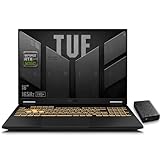
- Top Pick: ASUS TUF F16 (2025) Gaming Laptop, 16" 165Hz FHD+ Display, 115W Max TGP RTX 5060, Intel Core i7-14650HX, 32GB DDR5, 1TB SSD, Intelligent Cooling, Win11 Home – with 1TB External HDD
- Best Value: ASUS TUF F16 (2025) Gaming Laptop, 16" 165Hz FHD+ Display, 115W Max TGP RTX 5060, Intel Core i7-14650HX, 64GB DDR5, 1TB SSD, Intelligent Cooling, Win11 Home – with 1TB External HDD
- Premium Choice: ASUS ROG Strix G16 Gaming Laptop,Core i7-14650HX,16GB DDR5 RAM 1TB SSD
what is tgp laptop gpu is the single most important number that almost no shopper checks, and skipping it is the top reason buyers feel cheated when two identical-sounding laptops perform very differently. If you have ever wondered why one RTX laptop crushes a game while another of the same name stutters, the answer is usually TGP. This simple guide explains what TGP is, why it changes everything, and exactly how to find and use it before you buy.
As an Amazon Associate we earn from qualifying purchases at no extra cost to you.


Understanding TGP and Why It Matters
TGP, short for Total Graphics Power, is the wattage a laptop feeds its GPU. It is not marketing fluff; it is the lever that decides how many frames the same chip produces, so understanding it is the fastest way to stop overpaying for underperformance.
What TGP Actually Is
TGP is the maximum power, measured in watts, that a laptop allows its graphics chip to draw. More watts let the chip run at higher clocks; fewer watts force it to slow down.
Think of it as the size of the fuel line to an engine. The engine can be identical, but a wider line lets it run harder for longer.
That is why TGP, not the GPU name, is the real performance label on a gaming laptop.
It also helps to know that TGP is sometimes quoted as a base figure plus a dynamic boost, where the laptop can briefly push extra watts when the chassis is cool enough. The headline number you should care about is the sustained power the cooling can support, because that is what holds during the long sessions where performance actually counts, not the short burst a marketing sheet likes to advertise.
Why TGP Changes Performance
Two laptops with the exact same GPU can differ by 20 percent or more in frames purely because of TGP. A high-TGP model sustains higher clocks; a low-TGP one throttles sooner.
The gap widens in long sessions, when heat builds and the low-power machine pulls back hardest to stay cool.
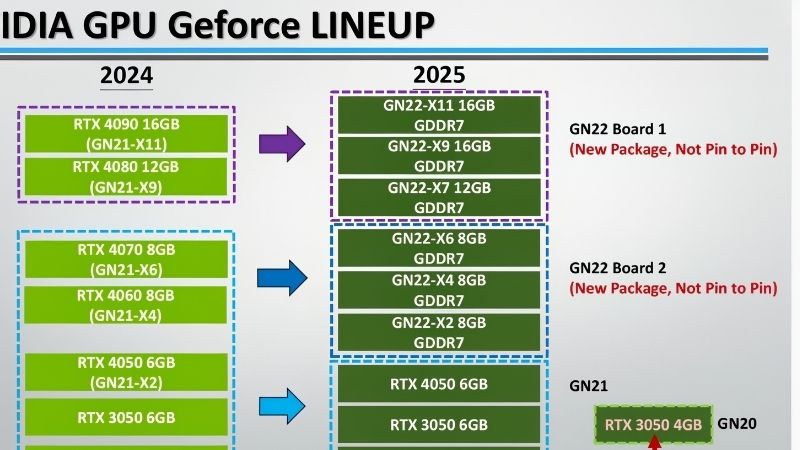
In practical terms, a higher TGP usually beats stepping up a GPU tier inside a thin, low-power shell.
A concrete example makes this clear: the same chip set to a low wattage in a slim ultraportable can trail a higher-wattage version in a thicker chassis by a wide margin, even though the listing names look identical. If you only remember one thing from this guide, let it be that the wattage, not the badge, is what you are really paying for when you buy a gaming laptop.
TGP vs the GPU Name
The GPU name tells you the chip family; the TGP tells you how hard the laptop will actually run it. Buying on the name alone is the classic mistake.
Manufacturers are not always loud about TGP, which is precisely why checking it gives you an edge most shoppers never use.
This is also why review scores for laptops sharing a GPU vary so much. A reviewer testing a high-TGP unit reports very different frames from one testing a low-TGP unit, so always confirm that any benchmark you rely on was measured at the same wattage as the exact laptop you intend to buy, or the comparison can mislead you badly.
What You Need to Check and Compare TGP
You do not need special skills to read TGP, just a couple of free tools and a few inexpensive accessories that help a laptop hold its rated power. Each item below explains why it helps so you can decide what is worth picking up.
Tools to Read Live Power
A free GPU monitoring utility shows the live board power and clock speed during a game, which is the clearest way to confirm a laptop’s real TGP behavior.
A simple benchmarking app helps too, letting you compare your score against published numbers for the same chip. A noticeably low score usually points to a low-TGP configuration.
For best results, run these tools during an actual demanding game rather than a quick desktop test, since TGP behavior only reveals itself under sustained load. Watch how the wattage settles after several minutes of play; a flat figure near the rated TGP means the cooling is keeping up, while a number that climbs and then sags signals throttling you would want to know about before purchase.
Accessories That Help a Laptop Hold Its TGP
A good laptop cooling pad helps a thin machine sustain its rated power for longer instead of throttling, so it is a smart, low-cost companion for long sessions. You can find well-reviewed cooling pads through the links in this guide.
A compact USB-C hub is the other practical add-on, since high-TGP gaming laptops run warm and you will want peripherals plugged in off to the side. A reliable multiport adapter keeps your desk tidy and your ports free.
A compact external SSD is a third worthwhile companion, because high-performance laptops fill their storage quickly with large modern games. Offloading your library to fast external storage keeps the system drive free and load times short, and it spares you from a frustrating storage crunch a few months in. You can compare dependable cooling pads, hubs, and drives through the links here.
Pros and Cons of High vs Low TGP
Higher TGP is not automatically the right choice, so weigh the trade-offs against how you actually use a laptop.
High-TGP pros: more frames, better sustained performance, longer relevance. High-TGP cons: more heat, louder fans, shorter battery, heavier chassis. Low-TGP pros: quiet, cool, portable, longer battery. Low-TGP cons: fewer frames and earlier throttling.
For desk gaming, lean high; for travel and quiet, a well-cooled lower-TGP machine is often the better life choice.
There is no universally correct answer, only the right fit for your habits. A desk-bound player chasing maximum frames should accept the heat and noise of high TGP, while a student carrying a laptop between classes will be far happier with a cooler, quieter, longer-lasting lower-TGP machine. Decide based on where and how you use the laptop, and the trade-off resolves itself cleanly.
Step-by-Step: How to Use TGP When Buying
Here is the simple process to turn TGP from a hidden spec into a buying advantage. Follow the numbered steps in order; each takes only a few minutes and saves you from the most common source of buyer regret.
The Step-by-Step Checklist
Work through these checks before you buy, or right after you unbox, to know exactly what you are getting.
- Find the rated TGP. Look on the spec sheet or a trusted database. A figure near the top of the chip’s range is what you want.
- Confirm live power. Run a monitoring tool during a game and watch the sustained wattage settle after a few minutes.
- Compare a benchmark. Match your score against published results for the same chip to catch a low-power build.
- Check cooling and screen. A high TGP behind weak cooling or a slow panel is wasted, so confirm both before paying.
Run through all four and you will never be surprised by a quietly throttled laptop again.
Keep a short written shortlist of two or three candidate laptops with their confirmed TGP figures side by side, so you can compare like for like at a glance. This single habit turns a confusing wall of identical-looking model names into a clear ranking, and it is the fastest way to avoid the regret of discovering a quietly underpowered configuration only after the box is open.
Pro Tips and Mistakes to Avoid
The biggest mistake is buying on the GPU name and ignoring TGP, which is exactly how shoppers end up disappointed by a thin laptop that loses to a thicker one with the same chip.
Keep the vents clear, set a balanced or performance fan profile during games, and update your drivers regularly, since power-sharing and efficiency rely on current software to work properly.
Another frequent error is judging a laptop on a single short benchmark, since a low-TGP machine can post a respectable peak score before heat forces it to slow down. Test or read about sustained performance over a longer run instead, and you will get a far more honest picture of how the laptop will feel during a real gaming session rather than a thirty-second sprint.
Matching TGP to Your Needs
For 1080p gaming, a mid-TGP build is plenty and keeps the machine cool and quiet. For 1440p or creative work, prioritize a high-TGP model with strong cooling.
Match the wattage to your resolution rather than chasing the biggest number, and you get the best performance per dollar without paying for heat you do not need.
If you are buying for the long term, lean slightly higher on TGP than your current resolution strictly requires, because upcoming games grow more demanding each year and a little headroom extends the machine’s useful life. Just make sure the cooling can support that extra wattage, since a high TGP behind weak cooling delivers none of the headroom you are paying for.
See More:
- best gpu for stable diffusion
- best gpu for deep learning
- best gpu for ai training
- best gpu for ai
- best gpu for machine learning
Conclusion
Now that you understand what is tgp laptop gpu wattage and why it matters, the mystery of identical names with different speeds disappears: it is the wattage that decides how hard your chip can run. Check the rated figure, confirm it with live power, and match the TGP to your resolution, and you will buy the right laptop with confidence instead of guessing. More than the badge printed on the box, that single wattage number is what separates a laptop you genuinely love from one you quietly regret a few months later. To help a high-TGP machine hold its performance, it is worth pairing it with quality cooling and connectivity accessories, which you can compare through the links in this guide.
Top-Rated Picks



| Product | Brand | Rating | Reviews | Price |
|---|---|---|---|---|
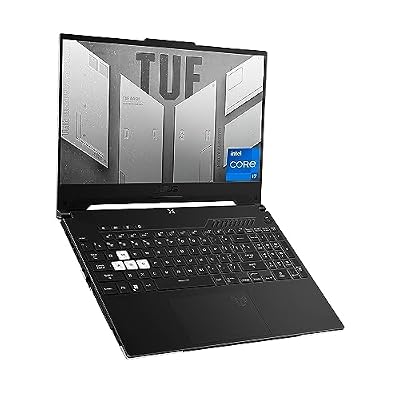
| ASUS TUF Dash 15 (2022) Gaming Laptop, 15.6" 144Hz FH… | — | ★ 4.5 | 1.5k | $995.00 |
| ASUS ROG Strix G16 Gaming Laptop, 165Hz Display, NVID… | — | ★ 4.5 | 1.1k | $1,600.00 |
| msi Raider 18" QHD+ 240Hz Gaming Laptop, Intel Core U… | — | ★ 4.5 | 1.1k | $4,789.00 |
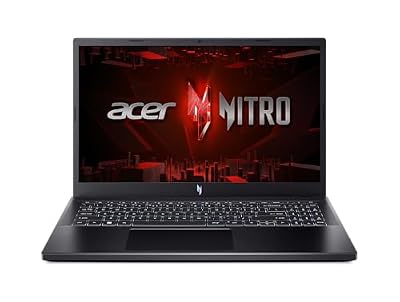
| Acer Nitro V Gaming Laptop | Intel Core i5-13420H Pro… | — | ★ 4.5 | 1.1k | $799.99 |
| ASUS ROG Strix G16 (2025) Gaming Laptop, 16” FHD+ 16:… | — | ★ 4.5 | 477 | $1,539.00 |
Frequently Asked Questions
What is TGP in plain language?
Total graphics power is the number of watts a laptop maker allows the graphics chip to draw. More watts let the chip sustain higher clock speeds, which produces more frames. It is set by the manufacturer for each specific model based on the cooling system, chassis size and power delivery available.
How is TGP different from TDP?
TDP historically described the heat a cooler must dissipate and is used loosely across the industry. TGP describes the actual power budget for the whole graphics board including its memory. For laptop buying purposes, TGP is the more useful figure because it correlates directly with achievable performance.
Why do two laptops with the same GPU perform differently?
Because they are configured at different wattages. A single mobile chip can be specified across a range of roughly 35W to 140W depending on the design, and the spread between the extremes is often twenty five percent of frame rate. Cooling quality and CPU power sharing widen the gap further.
What is dynamic boost?
Dynamic boost lets the system shift a portion of the shared power budget from the processor to the graphics chip when a game is GPU limited, adding up to twenty five extra watts. It is automatic, requires no configuration, and is one reason listed maximum figures sometimes exceed the base rating.
Where do I find the TGP before buying?
Check the manufacturer’s detailed specification page, which now commonly lists maximum graphics power, and cross reference independent reviews that measure sustained draw. Retail listings often omit it, so treat a missing figure as a warning sign that the configuration may be on the lower end of the range.




Write Your Review
No reviews yet. Be the first to share your experience!