
- Top Pick: The Scaling Era: An Oral History of AI, 2019–2025
- Best Value: Running the GPU Fleet: Operating GPU Clusters for AI with Container Orchestration, Scheduling, Observability, and Failure Management (Scaling AI Systems Series)
- Premium Choice: CUDA and GPU Parallel Computing Engineering: Accelerating Scientific and High-Performance Workloads Through CUDA Kernels, Memory Optimization, and Multi-GPU Scaling
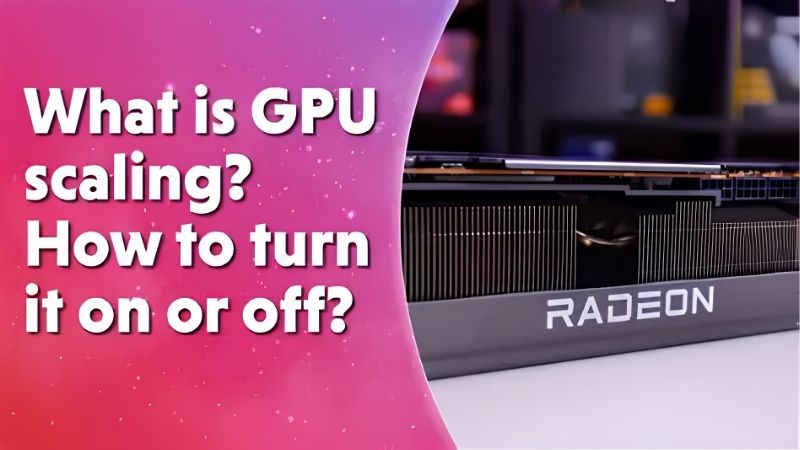
What is GPU scaling is a question that comes up whenever a game runs at a resolution that does not match your monitor. In simple terms, GPU scaling is a feature that lets your graphics card adjust an image to fit your screen, stretching, fitting, or centering it so the picture fills the display correctly. It is especially useful for older games and non-native resolutions that would otherwise look stretched or sit awkwardly on a modern monitor. This guide explains how GPU scaling works, the different scaling modes, how it affects input lag and image quality, and how to set it up for the best results on your system.
Understanding What GPU Scaling Is
Before changing any settings, it helps to understand the problem GPU scaling solves. When a game’s resolution does not match your monitor’s native resolution, something has to adjust the image, and GPU scaling lets the graphics card handle that job rather than the display, giving you a consistent set of options no matter which monitor you happen to be using.
As an Amazon Associate we earn from qualifying purchases at no extra cost to you.







How GPU Scaling Works
Every monitor has a native resolution it displays best. When content runs at a different resolution, it must be scaled to fit, and GPU scaling lets your graphics card perform that adjustment before sending the image to the screen.
The card takes the rendered frame and reshapes it to match your display, either stretching it to fill the screen, keeping the original proportions, or centering it. This control happens in the graphics driver settings.
By handling scaling on the GPU, you gain consistent control over how non-native resolutions appear, instead of relying on whatever method your monitor uses by default. This is especially handy if you switch between several displays or play a mix of modern and older games, since the graphics card applies your chosen behavior the same way every time regardless of which screen is connected.
The Different Scaling Modes
GPU scaling usually offers a few modes. A full-screen or stretched mode fills the entire display, even if it distorts the aspect ratio of the original image.
An aspect-ratio mode preserves the original proportions, adding black bars where needed so the picture is not stretched. A centered mode displays the image at its native size in the middle of the screen, surrounded by black space.
Each mode suits different situations, and the right choice depends on whether you prioritize filling the screen or keeping the image’s correct shape.
GPU Scaling vs Display Scaling
Scaling can be done either by the GPU or by the monitor itself. With display scaling, the monitor handles the adjustment, while GPU scaling moves that work to the graphics card.
The practical difference is control and sometimes latency. GPU scaling gives you consistent options across any monitor, while display scaling depends on the panel’s own capabilities and settings.
Neither is universally better, but GPU scaling is handy when you want uniform behavior or when a monitor’s built-in scaling does not offer the modes you need.
Why GPU Scaling Matters
A feature is only useful if it solves a real problem, so let us look at where GPU scaling helps. It matters most for older games, non-native resolutions, and anyone who wants control over how their screen handles mismatched images, which is more common than many gamers realize once they start playing across different eras of titles.
GPU Scaling for Older Games and Resolutions
Many older games run at fixed or unusual resolutions that do not match modern widescreen monitors. Without scaling, these can appear stretched, squashed, or oddly positioned on the display.
GPU scaling lets you correct this, choosing whether to fill the screen or preserve the original aspect ratio. For retro gaming fans, this control is essential to keep classic titles looking right.
It also helps when you deliberately run a game at a lower resolution for performance, ensuring the smaller image still displays cleanly and fills your screen across the whole panel.
The Pros and Cons of GPU Scaling
GPU scaling is a useful tool, but it has trade-offs worth understanding before you rely on it.
Pros:
- Consistent control over how non-native resolutions appear on screen.
- Fixes stretched or misaligned images in older and lower-resolution games.
- Offers multiple modes to balance screen fill against correct proportions.
Cons:
- Can add a small amount of input lag in some configurations.
- Scaling a low resolution to a high-resolution screen can soften image quality.
- Settings can be confusing, and the wrong mode produces distorted images.
Input Lag and Image Quality
One consideration with GPU scaling is latency. Because the graphics card does extra work to reshape the image, some setups can introduce a slight delay, which competitive players may want to minimize.
Image quality is the other factor. Stretching a low resolution to fill a high-resolution screen inevitably softens detail, so the result is a trade-off between filling the display and keeping a crisp picture.
For most players these effects are minor, but if you notice softness or lag, experimenting with modes or letting the monitor scale instead can help you find the best balance. Competitive players in particular may prefer to test both GPU and display scaling to see which feels more responsive, since even a small latency difference can matter in fast-paced games where reaction time counts.
How to Set Up GPU Scaling
Configuring GPU scaling is simple once you know where the settings live. A few choices in your graphics driver control how non-native resolutions appear, and picking the right mode makes all the difference. Here is the practical approach, with steps that take only a minute or two to apply and adjust.
Enabling GPU Scaling Step by Step
Follow these steps to set it up correctly.
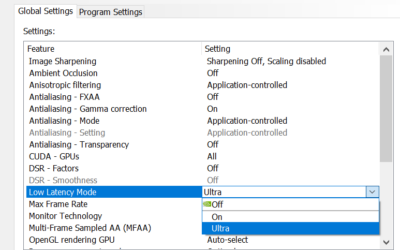
- Open your graphics control panel. Launch your GPU’s driver software where display settings live.
- Find the scaling or display section. Look for options labeled scaling, display, or flat-panel settings.
- Enable GPU scaling. Turn on the option to perform scaling on the GPU rather than the display.
- Choose your scaling mode. Select full-screen, aspect ratio, or centered based on your preference.
- Apply and test. Save the settings and check a game or video to confirm the image looks right.
If the picture does not look correct, simply return to the panel and try a different scaling mode until it does.
One thing to keep in mind is that some scaling options only take effect at non-native resolutions, so you may not see any change while running at your monitor’s native setting. To test your configuration properly, switch a game or the desktop to a lower resolution and observe how the image fills the screen. That confirms your chosen mode behaves as expected before you rely on it for older titles or performance-focused lower-resolution gaming.
Choosing the Right Scaling Mode
For most modern content that matches your monitor, scaling is not even needed. The settings matter most when running non-native resolutions, where the mode you choose shapes the result.
Use aspect-ratio mode when keeping the correct proportions matters, such as for older games, and full-screen mode when you simply want the image to fill the display. Centered mode suits anyone who prefers a sharp, native-size image with surrounding black space.
A practical way to choose is to think about what bothers you more: black bars or a distorted picture. If you cannot stand wasted screen space and do not mind slight stretching, full-screen mode works. If a correctly shaped image matters most, aspect-ratio mode is the safer pick. Because switching modes takes only a moment, it is worth trying each one with your specific content and settling on whichever looks right to your own eyes rather than following a single rule.
When to Use It and Hardware Tips
GPU scaling is most valuable for retro gaming, running lower resolutions for performance, or fixing display issues with non-native content. For everyday gaming at your native resolution, you may never need to touch it.
If you are putting together a system and want flexible display handling, a modern graphics card gives you the most scaling options and the best image processing. To find one that fits your needs, compare current graphics cards and their verified prices through the links on this page and choose a card that pairs well with your monitor.
It also helps to think about your monitor alongside the card. A higher-resolution display gives the GPU more pixels to work with when scaling up lower resolutions, which softens the quality loss. Pairing a capable graphics card with a good monitor means that on the rare occasions you do rely on scaling, the results look as clean as possible, while your native-resolution gaming stays sharp and free of any scaling overhead at all.
See More:
Final Thoughts on GPU Scaling
To wrap up, GPU scaling is the feature that lets your graphics card adjust an image to fit your screen, correcting stretched or misaligned pictures from older games and non-native resolutions. Understanding what is GPU scaling helps you see why it matters most for retro titles and lower resolutions, how the different modes balance screen fill against correct proportions, and why it can subtly affect input lag and image quality. Enable it when you need it, pick the mode that suits your content, and you will keep every game looking right on your display. It is a small, free tool that quietly solves a frustrating problem, and once you know how it works you will reach for it whenever a game and your monitor do not quite see eye to eye. With a little practice, choosing the right mode becomes second nature and takes only seconds.
Top-Rated Picks


| Product | Brand | Rating | Reviews | Price |
|---|---|---|---|---|
| ARCTIC MX-4 (4 g) – Premium Performance Thermal Paste… | ARCTIC | ★ 4.8 | 104k | $4.99 |
| ARCTIC MX-4 (incl. Spatula, 4 g) – Premium Performanc… | ARCTIC | ★ 4.8 | 71.9k | under $10 |
| Crucial 8GB DDR4 RAM 3200MHz (PC4-25600), Downclockab… | Crucial | ★ 4.8 | 62.8k | under $80 |
| AMD Ryzen 5 5600X 6-core, 12-thread unlocked desktop … | — | ★ 4.8 | 30.2k | under $200 |
| NVIDIA Shield Remote; Voice Search, Motion-Activated,… | — | ★ 4.7 | 10.6k | under $30 |
Frequently Asked Questions
What does GPU scaling do?
When a game runs at a resolution that does not match your monitor, something must stretch the image to fill the panel. GPU scaling makes the graphics card do that work before sending the signal out, instead of leaving it to the monitor internal scaler. The driver then controls the aspect ratio behaviour.
What are the scaling modes and which should I use?
Preserve aspect ratio adds black bars and keeps the image geometrically correct. Full panel stretches to fill, distorting shapes. Centred displays the image pixel for pixel with a black border, which is the sharpest option. Integer scaling multiplies each pixel by a whole number for crisp retro and pixel art rendering.
Does GPU scaling add input lag?
It adds a small amount, usually well under a millisecond on modern cards, since the scaling happens in the render pipeline. Monitor-side scaling can actually be worse on cheap panels with slow scalers. Competitive players running stretched resolutions should test both and use whichever their measurement tools show as faster.
Is GPU scaling better than monitor scaling for image quality?
Usually yes, because graphics drivers use better filtering algorithms than the basic scalers inside most monitors and give you explicit control over aspect ratio and sharpening. Some high-end displays have excellent scalers, but for the majority of gaming panels the graphics card produces a cleaner and more consistent result.
How do I enable it?
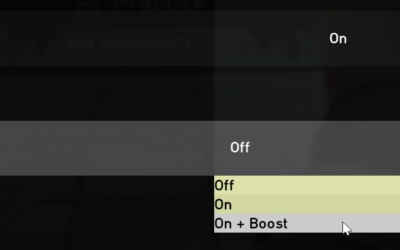
On Nvidia cards open the Nvidia Control Panel, go to Adjust desktop size and position, choose your scaling mode and tick Perform scaling on GPU. On Radeon cards open AMD Software, go to Display and toggle GPU Scaling, then pick the scaling mode. Both settings apply per connected display.
Ready to decide? Our #1 pick for 2026 is the ARCTIC MX-4 (4 g) – Premium Performance Thermal Paste….
Live price & availability on Amazon.


Write Your Review
No reviews yet. Be the first to share your experience!