
- Top Pick: NVIDIA Shield Android TV Pro | 4K HDR Streaming Media Player High Performance, Dolby Vision, 3GB RAM, 2X USB, Works with Alexa, Model:945-12897-2500-101
- Best Value: NVIDIA Shield Remote; Voice Search, Motion-Activated, Backlit Buttons, Customizable Menu Buttons, and IR Blaster to Control Your TV (930-13700-2500-100)
- Premium Choice: NVIDIA GeForce RTX 3090 Founders Edition Graphics Card (Renewed)
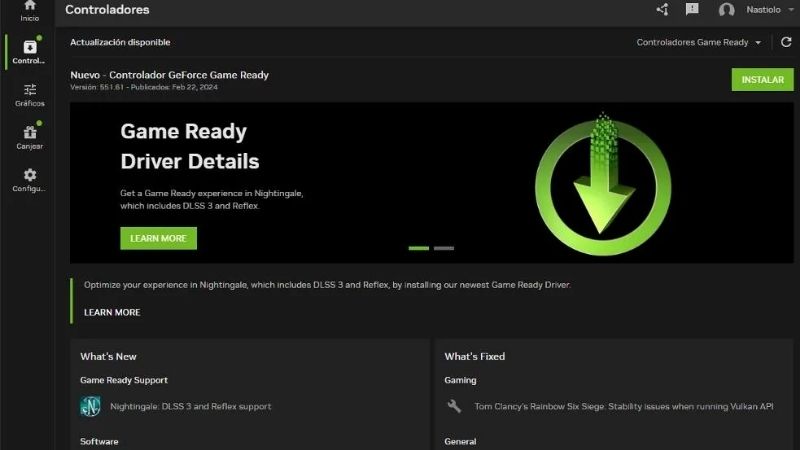
NVIDIA driver app is now the main way to manage a GeForce card, replacing the older GeForce Experience with a cleaner, faster tool, but is it actually the best way to keep your GPU updated? If you are wondering whether to install it or stick with what you know, this review breaks it down. We will cover what the app does, how it compares to the software it replaced, the standout features worth using, and whether it truly earns a place on your gaming PC.
What the NVIDIA App Does
At its core, the app is a single hub for everything related to your GeForce card, from drivers to in-game settings. Understanding its main jobs makes it easy to see where it saves you time and where you might still reach for other tools, so here is what it actually handles day to day.
The short version is that it bundles four jobs, driver updates, an in-game overlay, game optimization, and settings, into one place. Once you know those four roles, the rest of the app makes immediate sense and nothing about it feels mysterious.
Driver Updates Made Simple
The app’s most important job is managing driver updates. It automatically detects your GPU, notifies you when a new driver is available, and installs it from an official source with a couple of clicks.
This removes the guesswork of finding the correct file on the website, which is where many users used to go wrong. For most people, letting the app handle driver detection and installation is the safest, simplest route.
It also lets you choose between the Game Ready and Studio branches and see what each update changes, so you always know what you are installing and why.
The In-Game Overlay
The app includes an overlay you can summon with a hotkey while gaming. It provides a performance monitor showing frame rate, temperatures, and usage, which is genuinely useful for keeping an eye on your system.
The overlay also handles recording and instant replay, letting you capture highlights without separate software. This built-in capture uses your GPU’s hardware encoder, so it barely affects performance.
For gamers who want stats and clipping in one place, the overlay is one of the app’s most practical features and a reason to keep it installed.
Because it draws on the GPU’s dedicated encoder, running the overlay and even recording has a negligible effect on frame rates. That efficiency is what makes it practical to leave enabled all the time rather than only for special moments.
Game Optimization and Settings
The app can scan your installed games and suggest optimized settings tailored to your specific hardware. This is a helpful shortcut for players who do not want to tune every setting manually.
The suggestions aim to balance visual quality and performance for your exact GPU. You are free to accept them, adjust them, or ignore them entirely, so it is a convenience rather than a constraint.
For newer players especially, this feature lowers the barrier to a good-looking, smooth game. Instead of researching dozens of graphics options, you can apply a sensible baseline in one click and fine-tune only the settings you care about.
NVIDIA App vs GeForce Experience
The app is a ground-up replacement for GeForce Experience, and the differences are significant enough to matter to longtime users. Knowing what changed, and why it is generally an improvement, helps you understand whether the switch is worth making.
For anyone who found the old software sluggish or annoying, the short answer is that the new app is a clear step forward. It keeps the useful parts, drops the friction, and generally feels like the tool GeForce Experience should have been.
What Changed and Why
GeForce Experience served for years but grew heavy and, for some, frustrating. The new app is designed to be lighter, faster, and more responsive, consolidating features into a cleaner interface.
It combines driver management, the overlay, game optimization, and control-panel-style settings into one place. Features that once lived in separate tools now sit together, which streamlines the whole experience.
The result is fewer separate windows and less clutter. Where you once bounced between GeForce Experience and the old control panel, most of what you need now lives under one roof, which saves time and reduces confusion.
No Login Required
One of the most welcomed changes is that the app does not require an account or login to use. GeForce Experience’s mandatory login was a common complaint, and removing it is a genuine quality-of-life improvement.
You can now update drivers and use the core features without signing in, which many users appreciate. It is a small change that removes a real friction point from simply keeping a card updated.
For privacy-minded users, dropping the mandatory account is more than convenience; it removes a data and sign-in requirement that many felt should never have been there for basic driver updates in the first place.
Pros and Cons of the NVIDIA App
The pros are clear: no login requirement, a lighter and faster interface, consolidated features, easy driver updates from an official source, a useful overlay with capture, and per-game optimization. For most GeForce owners, it is the most convenient way to manage a card.
The cons are modest. It runs in the background and adds some features not everyone wants, a few users prefer a truly minimal setup with manual downloads, and as with any software, occasional bugs appear and get patched. None of these outweigh the convenience for the typical user, but they are worth noting.
On balance, the pros clearly dominate for the average GeForce owner. The app does the essential job of keeping your card updated more easily than ever, and its extra features are optional rather than forced, so you take only what you want.
Getting the Most From the App
Installing the app is easy, but a few choices during setup determine how useful and unobtrusive it is. A little configuration ensures you get the benefits you want without the parts you do not, turning it into a tool that quietly improves your experience.
Setting It Up Right
On first launch, take a moment to choose your driver branch and set your update preferences. Selecting Game Ready or Studio to match your use ensures you receive the right kind of updates.
You can also configure whether the app notifies you of new drivers automatically, which most users will want on. A quick pass through the settings tailors the app to how you actually use your PC.
It is worth spending these two minutes rather than accepting every default. A quick setup means the app works the way you want from day one, notifying you when it should and staying out of the way when it should not.
If you share a PC or set one up for family, these preferences matter even more. A one-time configuration means the app quietly handles updates in the background, keeping the machine current without anyone needing to think about it.
Features Worth Enabling
The performance overlay is worth enabling for its at-a-glance stats, and instant replay is worth turning on if you ever want to save highlights. Both are lightweight thanks to hardware encoding.
If you value clean visuals, explore the app’s filters and image-sharpening options, which can enhance games without a big performance cost. These extras are optional but add real value for those who want them.
None of these features are mandatory, which is part of the app’s appeal. You can run it purely as a driver updater if that is all you want, or lean into the overlay, capture, and filters for a richer experience, entirely on your terms.
This flexibility is exactly why the app suits both casual and enthusiast users. A newcomer can ignore the extras and just stay updated, while a power user can build a full monitoring and capture setup, all from the same lightweight tool.
When You Need More Than the App
The app manages software beautifully, but it cannot add performance your hardware does not have. If your card struggles in modern games even with the latest driver and optimized settings, the limit is the GPU itself.
Running out of VRAM is another sign that no app can fix. When you reach that point, an upgrade is the real answer, and the recommended GeForce GPUs linked in this review are a smart starting point for a card the app can keep at its best for years.
The app makes an excellent partner to a capable card, but it cannot substitute for one. Pairing it with hardware that matches your resolution and games is what delivers the smooth experience you are after, with the app simply keeping that hardware tuned.
Used together, the right card and the app give you both raw power and effortless upkeep, which is the combination most gamers are really after.
See More:
Final Verdict: Is the NVIDIA Driver App Worth It?
The NVIDIA driver app is the best way for most people to manage a GeForce card, offering easy driver updates, a useful overlay, per-game optimization, and a lighter, login-free experience that genuinely improves on GeForce Experience. Set it up to match your use, enable the features you want, and it quietly keeps your card current and performing well.
Just remember that the app optimizes the hardware you own rather than replacing it. If your card can no longer keep up in the games you love, an upgrade is the real fix. When you reach that point, compare the recommended GeForce cards linked throughout this review to pair the app with hardware that can fully deliver on it.
Frequently Asked Questions
What does the NVIDIA App replace?
It consolidates GeForce Experience and the old Control Panel into a single program covering driver updates, per-game graphics settings, the ShadowPlay overlay, display and video settings, and driver-level filters. That means one install instead of two programs with overlapping features and separate update paths.
Do I need to sign in to use it?
No. Unlike GeForce Experience, driver downloads, recording and game optimization all work without an account. Signing in only unlocks rewards, GeForce NOW integration and beta programs, which is a welcome change for anyone who resented the mandatory login on the older software.
Does it hurt gaming performance?
Independent testing showed an early build cost a few percent in some games due to overlay overhead, and NVIDIA addressed it in subsequent releases. If you still see a dip, disabling the in-game overlay and statistics collection restores full performance while leaving driver management intact.
What are the RTX features worth trying?
RTX HDR converts SDR games to HDR on a compatible display, RTX Dynamic Vibrance adds per-game colour tuning, and the DLSS override lets you force newer DLSS model versions into older titles. The DLSS override in particular can visibly improve image quality in games that shipped with old presets.
Can I still use the classic Control Panel?
Most of its functions have migrated into the NVIDIA App, and NVIDIA is phasing the legacy panel out. A few advanced items such as specific 3D compatibility toggles may still route to older interfaces on some driver versions, but new configuration work should be done in the App.
As an Amazon Associate we earn from qualifying purchases at no extra cost to you.















Write Your Review
No reviews yet. Be the first to share your experience!