
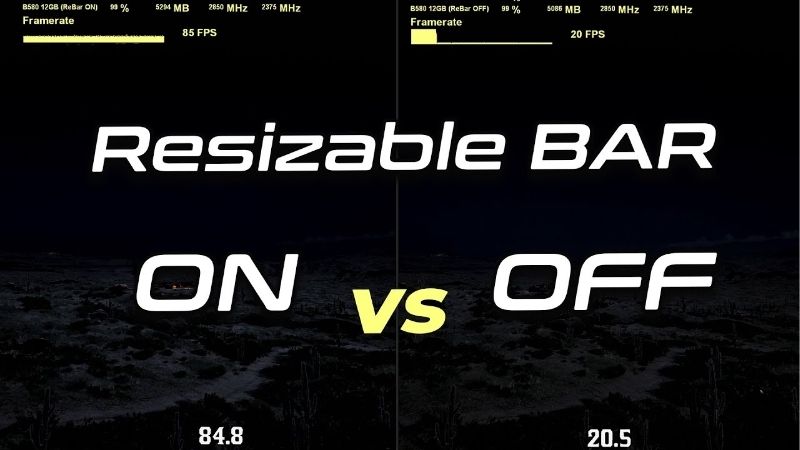
What is Resizable BAR is a question worth answering, because this feature can hand you free gaming performance with a single setting. In simple terms, Resizable BAR is a PCI Express capability that lets your processor access the entire graphics card memory at once, instead of in small chunks. When enabled, it can speed up how quickly data reaches the GPU, lifting frame rates in many games at no extra cost. This guide explains how Resizable BAR works, how to turn it on, which systems support it, and whether it lives up to the hype for the way you actually play.
Understanding What Resizable BAR Is
Before enabling anything, it helps to understand the bottleneck this feature removes. Resizable BAR changes how your CPU talks to your GPU’s memory, and that small change can have a real effect on performance in the right conditions.
How Resizable BAR Works
Without Resizable BAR, the CPU can only access the graphics card’s memory in small windows, traditionally 256 MB at a time. That means it must repeatedly request access to different chunks to reach all the data it needs.
Resizable BAR removes that limit, letting the CPU see and address the entire VRAM at once. This streamlines data transfers, reducing the back-and-forth that can slow things down in certain workloads.
The result is more efficient communication between the processor and the graphics card, which in supported games can translate into smoother, faster performance with no hardware changes at all. Because the improvement comes purely from how data is addressed rather than from any physical upgrade, it is one of the rare settings that can lift frame rates without costing you anything.
The Technology Behind the Feature
Resizable BAR is built on a standard PCI Express capability, and both AMD and Nvidia support it under their own names, with AMD branding its version Smart Access Memory. The underlying idea is the same across both.
Because it relies on the PCIe specification, the feature needs cooperation from your motherboard, CPU, and GPU, along with the right firmware. When all three align, the larger memory access window becomes available.
This is why Resizable BAR is described as a platform feature rather than a property of the graphics card alone. It only works when your whole system supports and enables it.
Which Systems Support Resizable BAR
Modern systems generally support Resizable BAR, but older ones may not. You typically need a reasonably recent CPU, a compatible motherboard with updated firmware, and a graphics card that supports the feature.
Most graphics cards from the last few generations support it, as do current mainstream platforms. If your system is a few years old, a firmware update may be required to unlock the option.
The easiest way to check is to look at all three pieces in turn: your CPU generation, your motherboard’s latest firmware notes, and your graphics card model. Manufacturers usually list Resizable BAR support clearly, and many boards added it through a firmware update even on slightly older chipsets. A few minutes confirming compatibility now saves the frustration of hunting for an option that your hardware never exposed in the first place.
Why Resizable BAR Matters for Gaming
A feature is only useful if it improves your experience, so let us look at what Resizable BAR actually delivers. The gains are real but vary from game to game, which is important to understand before expecting miracles, since the feature helps some titles noticeably while leaving others almost unchanged.
The Performance Gains You Can Expect
In supported titles, Resizable BAR can raise frame rates by a noticeable margin, sometimes several percent or more. The benefit tends to be larger at higher resolutions, where more data moves between the CPU and GPU each frame.
However, the gains are inconsistent. Some games respond strongly, others barely change, and a few can even lose a little performance, which is why the feature is sometimes applied selectively per game.
For everyday play, the realistic expectation is a modest but welcome boost in many games for free, rather than a transformative leap across your entire library. Think of it as reclaiming a little performance you already paid for in your hardware, with the size of the gain depending heavily on the specific game and the resolution you play at.
The Pros and Cons of Resizable BAR
Enabling Resizable BAR is usually beneficial, but it helps to weigh both sides before flipping the switch.
Pros:
- Free performance gains in many supported games with no hardware cost.
- Larger benefits at higher resolutions where data movement is heaviest.
- Simple to enable on modern, compatible systems.
Cons:
- Gains are inconsistent and a few games may see no change or a slight dip.
- Requires compatible CPU, motherboard firmware, and GPU all together.
- Older systems may need updates or may not support it at all.
The balanced takeaway is that Resizable BAR is almost always worth enabling on a compatible system, since the downside is minimal and the upside is free performance. The inconsistency simply means you should treat any gains as a welcome bonus rather than a guaranteed boost in every title. For the small effort of a firmware and driver update, most gamers come out ahead, which is why the feature has become a standard recommendation for modern builds.
Resizable BAR and Game Optimization
Graphics drivers often include game-specific profiles that decide when Resizable BAR is most beneficial. This lets the driver enable the feature where it helps and leave it off where it does not.
Keeping your drivers updated therefore matters, since newer profiles can extend the benefit to more games over time. This ongoing optimization is part of why the feature keeps improving after launch.
It is worth understanding why this per-game approach exists. Because a handful of titles can lose a little performance with the larger memory window, both GPU makers chose to enable the feature selectively rather than forcing it everywhere. That means the value you get from Resizable BAR quietly grows as drivers mature, without you having to do anything beyond staying current. For most users, simply trusting the driver’s defaults gives the best balance across a varied game library.
How to Enable and Use Resizable BAR
Turning the feature on is straightforward once you know where to look. A few checks in your firmware settings unlock it, and verifying it afterward confirms everything is working. Here is the practical process, broken into simple steps you can follow even if you have never opened your firmware settings before.
Enabling Resizable BAR Step by Step
Follow these steps in order to switch the feature on safely.
- Update your motherboard firmware. Install the latest BIOS so the Resizable BAR option is available.
- Update your graphics drivers. Get the newest driver so the feature and its game profiles are current.
- Enter your firmware settings. Restart and open the BIOS or UEFI setup screen.
- Enable the relevant options. Turn on Resizable BAR and, if present, Above 4G Decoding.
- Save and reboot. Apply the changes and let the system restart.
After rebooting, the feature should be active in supported games without any further action on your part.
If you are nervous about changing firmware settings, take it slow and change only the two relevant options rather than anything else in the menu. The settings are easy to reverse, so if something does not behave as expected you can simply turn them off again. For most modern boards, however, the process is quick and uneventful, and the feature stays enabled from then on without needing to revisit it.
Verifying It Is Working
You can confirm Resizable BAR is active using your GPU’s control software, which usually displays the feature’s status directly. A quick check there tells you whether the setting took effect.
If it shows as inactive despite enabling it, revisit your firmware settings and confirm both Resizable BAR and Above 4G Decoding are turned on. A missing firmware update is the most common reason it fails to activate.
For a hands-on confirmation, you can also run a quick before-and-after test in a game you know responds well to the feature. Note your average frame rate with it off, enable it, and compare. Even a small, consistent uplift confirms everything is working as intended, and it gives you a clear sense of how much the feature actually helps on your particular system and game library.
Pro Tips and Common Mistakes
The most common mistake is enabling the feature in the BIOS but forgetting the firmware update that exposes it properly, which can leave it stuck inactive. Always update first, then enable.
Another tip is to keep your graphics drivers current, since game profiles improve over time and decide where the feature helps most. Leaving drivers outdated can quietly limit the benefit.
Finally, do not expect uniform gains. If a particular game feels worse with it on, it is fine to rely on the driver’s per-game handling rather than forcing it everywhere.
See More:
Final Thoughts on Resizable BAR
To wrap up, Resizable BAR is a PCI Express feature that lets your CPU access the full graphics card memory at once, often delivering free frame-rate gains in supported games. Understanding what is Resizable BAR shows why the benefit is real but varies by title, why it needs a compatible CPU, motherboard, and GPU working together, and how simple it is to enable once your firmware and drivers are current. Turn it on, keep your drivers updated, and let the per-game profiles do the rest, and you will squeeze a little extra performance from the hardware you already own, at no additional cost.
Top-Rated Picks


| Product | Brand | Rating | Reviews | Price |
|---|---|---|---|---|
| ARCTIC MX-4 (4 g) – Premium Performance Thermal Paste… | ARCTIC | ★ 4.8 | 104k | $4.99 |
| ARCTIC MX-4 (incl. Spatula, 4 g) – Premium Performanc… | ARCTIC | ★ 4.8 | 71.9k | $5.49 |
| Crucial 8GB DDR4 RAM 3200MHz (PC4-25600), Downclockab… | Crucial | ★ 4.8 | 62.8k | $74.99 |
| AMD Ryzen 5 5600X 6-core, 12-thread unlocked desktop … | — | ★ 4.8 | 30.2k | $177.60 |
| NVIDIA Shield Remote; Voice Search, Motion-Activated,… | — | ★ 4.7 | 10.6k | $25.99 |
Frequently Asked Questions
What does Resizable BAR actually change?
Without it the CPU can only address video memory through a small 256MB aperture, forcing many small transfers. Resizable BAR lets the CPU map the entire frame buffer at once, so large assets move in fewer, larger operations. AMD markets the same PCIe feature as Smart Access Memory.
What performance gain should I expect?
Typically zero to ten percent, varying heavily by title and occasionally negative. Nvidia therefore enables it per game through driver profiles rather than globally. Intel Arc is the notable exception, where disabling it can cost a large share of performance across the board.
What hardware and BIOS settings are required?
An RTX 30 series, RX 6000 series or Intel Arc GPU or newer, a motherboard BIOS exposing the option, UEFI boot with Compatibility Support Module disabled, and a GPT-formatted system drive. Above 4G Decoding must also be enabled, since Resizable BAR depends on it.
How do I confirm it is active?
Check GPU-Z, which reports a Resizable BAR field, or the Nvidia Control Panel system information page. AMD users can see Smart Access Memory status in Adrenalin. If it reports disabled despite the BIOS setting, CSM is usually still enabled somewhere in the firmware.
Is it worth enabling if I have to reinstall Windows?
Rarely. If your drive is MBR you can convert it in place with the mbr2gpt tool rather than reinstalling, which takes minutes. A full reinstall for a feature averaging a few percent only makes sense if you were planning a clean install anyway or you own an Arc card.











Write Your Review
No reviews yet. Be the first to share your experience!