
⚡ Key Takeaways
- How Undervolting Actually Works
- Why Undervolt Instead of Overclock?
- What You’ll Need
- Step-by-Step: Undervolting an NVIDIA GPU
- Step-by-Step: Undervolting an AMD GPU
- Recommended Starting Points
- Testing for Stability
- Combining Undervolting With Better Cooling
- Power Limit vs Voltage-Frequency Curve
- Real-World Benefits Beyond Your GPU
- Is Undervolting Safe?
- Common Mistakes to Avoid
- Top-Rated Picks
- Related Guides
- Frequently Asked Questions
- Conclusion
- Related Articles
- Related Guides
- To understand why undervolting works, picture how a GPU operates.
- Overclocking pushes higher clocks and voltage for more performance at the cost of heat and power.
- Undervolting requires only free software and a little patience.
- The classic method uses MSI Afterburner's voltage-frequency curve editor.
Learning how to undervolt gpu hardware is one of the most rewarding tweaks an enthusiast can make, and it’s far less risky than overclocking. Undervolting reduces the voltage your graphics card draws while maintaining the same or nearly the same clock speeds, which lowers temperatures, cuts power consumption, and reduces fan noise, often with little or no performance loss. With power-hungry RTX 50-series and RX 9000 cards running hot, undervolting has become a go-to optimization. This step-by-step guide shows you exactly how to do it safely.
As an Amazon Associate we earn from qualifying purchases at no extra cost to you. Product prices and availability are accurate as of the date shown and are subject to change.


Related: best low-profile graphics cards.
Related: RTX 5090 vs RTX 5080.
How Undervolting Actually Works
To understand why undervolting works, picture how a GPU operates. The card constantly adjusts its clock speed and voltage based on load, temperature, and power limits, targeting the highest clock it can sustain. Manufacturers program a voltage-frequency relationship that guarantees stability on every chip they ship, even the weakest examples from the silicon lottery. Because most chips are better than that worst-case baseline, they can hit the same clocks at lower voltage than the factory allows. Undervolting simply tells the card to use that lower voltage. Since power scales roughly with the square of voltage, even a modest voltage reduction yields a meaningful drop in power and heat, which is why the technique is so effective.
Why Undervolt Instead of Overclock?
Overclocking pushes higher clocks and voltage for more performance at the cost of heat and power. Undervolting does the opposite: it finds the lowest stable voltage for a given clock speed. Because manufacturers set voltage conservatively to guarantee stability across millions of cards, most GPUs run with more voltage than they actually need. Trimming that excess yields real benefits.
- Lower temperatures: Often 5-15C cooler under load.
- Less power draw: Reductions of 30-80W are common on high-end cards.
- Quieter operation: Cooler cards spin fans slower.
- Same performance: Frequently within 1-3% of stock, sometimes faster due to reduced throttling.
What You’ll Need
Undervolting requires only free software and a little patience. Gather these first:
- A GPU tuning utility such as MSI Afterburner (works with both NVIDIA and AMD), or the brand’s built-in tuning in AMD’s software.
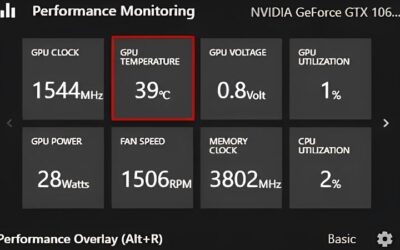
- A monitoring overlay to watch temperature, clocks, voltage, and power.
- A GPU stress test or a demanding game to verify stability.
- A benchmark to confirm performance hasn’t dropped.
Step-by-Step: Undervolting an NVIDIA GPU
The classic method uses MSI Afterburner’s voltage-frequency curve editor. Follow these steps carefully.
- Open Afterburner and note your card’s stock boost clock and voltage under load.
- Open the curve editor (Ctrl+F). You’ll see a graph of voltage (mV) against frequency (MHz).
- Pick a target voltage, for example 875mV, and find the point on the curve at that voltage.
- Drag that point up to your desired stable clock (start conservative, near your stock boost), then flatten the curve to the right of that point so the card holds that clock at lower voltage.
- Apply the changes. The clocks beyond your target voltage should now be capped.
- Test stability with a stress test and several games for at least 30 minutes.
- If stable, you can try lowering voltage further or raising the clock slightly. If you see crashes or artifacts, raise the voltage a notch.
Step-by-Step: Undervolting an AMD GPU
AMD makes this simpler through its built-in tuning. In the performance tuning section, switch to manual GPU tuning, enable voltage control, and lower the maximum voltage in small increments (for example, 20-30mV at a time). Apply, then test stability. AMD’s interface lets you reduce voltage while keeping the frequency target, achieving the same cooler, quieter result. Test thoroughly after each adjustment.
Recommended Starting Points
Every card is different due to silicon variation, but these conservative starting voltages give a safe baseline to refine from.
| GPU Tier | Starting Voltage | Typical Temp Drop | Typical Power Saving |
|---|---|---|---|
| Mid-range (RTX 5060/5070) | 900-925mV | 5-10C | 20-40W |
| Upper-mid (RX 9070/9070 XT) | 1000-1050mV | 8-12C | 30-60W |
| Flagship (RTX 5080/5090) | 875-950mV | 10-15C | 50-90W |
These are illustrative; always tune to your specific card and verify stability.
Testing for Stability
An unstable undervolt shows up as game crashes, driver resets (black screen then recovery), or visual artifacts. After each change, run a stress test and play your most demanding games for an extended period. Stability issues sometimes appear only after the card warms up fully, so don’t rush. If you encounter any instability, raise the voltage slightly until it disappears, then you’ve found your stable point.
Combining Undervolting With Better Cooling
Undervolting and improved cooling complement each other. A cooler card holds higher boost clocks, so the gains compound. If your card still runs warm after undervolting, upgrading GPU cooler fans or fitting an AIO GPU cooler pushes temperatures even lower. Reduced power draw from undervolting also eases the load on your PSU and GPU power supply cable, which is welcome on high-wattage flagships.
Power Limit vs Voltage-Frequency Curve
There are two common ways to reduce power and heat, and it helps to know the difference. The simplest is lowering the power limit slider, which caps how much wattage the card can draw; the GPU then automatically reduces clocks to stay under the cap. This is quick and effective but blunt, since you lose some performance proportionally. The more refined method is editing the voltage-frequency curve as described above, which holds your target clock at a lower voltage for the best efficiency with minimal performance loss. Beginners often start with a modest power limit reduction (say, 80-90%) for an easy win, then graduate to curve editing for fine-tuned results.
Real-World Benefits Beyond Your GPU
The advantages of undervolting ripple through your whole system. Lower GPU power draw means less heat dumped into your case, which keeps your CPU and other components cooler too. Reduced wattage eases the load on your power supply, leaving more headroom and often letting the PSU run quieter and more efficiently. In summer or in small cases where heat builds up fast, these secondary benefits can be just as valuable as the GPU temperature drop itself. For laptop users with external enclosures, undervolting can also help a constrained cooling setup keep clocks stable.
Is Undervolting Safe?
Yes. Undervolting cannot damage your GPU because you’re reducing voltage, not increasing it. The worst case is instability, which is fixed by raising voltage back up or resetting to defaults. Settings revert on reboot unless you save a profile, so there’s no permanent risk. This safety is exactly why undervolting is so popular among enthusiasts.
Common Mistakes to Avoid
A few pitfalls trip up first-time undervolters. The biggest is rushing the stability testing: a profile that seems fine for ten minutes can crash an hour into a demanding game once the card is fully warmed and a tough scene loads. Test long and across multiple titles. Another mistake is being too aggressive too fast; drop voltage in small steps rather than slashing it and wondering why the card crashes. Forgetting to save the profile and set it to apply at startup is a common annoyance, since settings revert on reboot. Finally, don’t confuse instability from a bad undervolt with a failing card; if raising voltage back up fixes the crashes, the hardware is fine and you simply went a step too far.
Top-Rated Picks


Prime
Top Rated
YEZriler 8 Pin PCIe Cable for EVGA Power Supply, PCIe 8 Pin Male to (6+2) Male PCI Express Power Adapter Sleeved 25-inch (63cm)

| Product | Brand | Rating | Reviews | Price |
|---|---|---|---|---|
| Cable Matters 8 Pin GPU Power Cable – 2ft, 8Pin PSU(E… | CableMatters | ★ 4.5 | 592 | $9.99 |
| Fasgear 16pin GPU Cable to 4X 8 Pin Pcie Extension – … | Fasgear | ★ 4.5 | 240 | $29.99 |
| PCIE 5.0 16Pin GPU Power 12VHPWR Extension Cable, 16P… | Bangfun | ★ 4.5 | 86 | $19.99 |
| YEZriler 8 Pin PCIe Cable for EVGA Power Supply, PCIe… | MoreOptionsForYou! | ★ 4.2 | 99 | $9.99 |
| (2-Pack) COMeap 12 Pin GPU Cable, Dual PCIe 8 Pin Fem… | COMeap | ★ 4.6 | 39 | $13.99 |
Frequently Asked Questions
Will undervolting reduce my gaming performance?
Usually only marginally, within 1-3%, and sometimes performance actually improves because the cooler card avoids thermal throttling and holds higher sustained clocks.
Can undervolting damage my graphics card?
No. Lowering voltage is inherently safe. The only consequence of going too far is instability, which is reversible by raising voltage or resetting to stock.
How long does it take to find a stable undervolt?
Expect to spend a couple of hours testing and refining. Patience pays off because stability issues can appear only under specific games or after the card warms up.
Do undervolt settings stick after restarting?
Only if you save them as a profile and set the software to apply at startup. Otherwise the card reverts to default voltage on reboot.
Is undervolting worth it on a mid-range card?
Yes. Even mid-range cards run cooler and quieter after undervolting, and the reduced heat benefits your whole system, so it’s worthwhile across tiers.
Conclusion
Undervolting is the rare tweak that delivers cooler temperatures, lower power draw, and quieter fans with essentially no downside. Use a tuning utility, lower voltage in small steps, test thoroughly for stability, and pair the result with good cooling for the best gains. Once you’ve dialed in a stable profile, you’ll enjoy a calmer, more efficient graphics card that performs just as well as stock.

Write Your Review
No reviews yet. Be the first to share your experience!