
⚡ Key Takeaways
- First, Confirm There’s Actually a Problem
- Common Cause 1: GPU Not Running at Full Utilization
- Common Cause 2: Thermal Throttling
- Common Cause 3: Outdated or Corrupt Drivers
- Common Cause 4: Insufficient or Faulty Power Delivery
- Common Cause 5: Wrong PCIe Slot or Settings
- Common Cause 6: Power Management and In-Game Settings
- Common Cause 7: Background Software and Overlays
- Common Cause 8: Game-Specific Issues
- A Systematic Troubleshooting Order
- Preventing Future Performance Loss
- Top-Rated Picks
- Related Guides
- Frequently Asked Questions
- Conclusion
- Related Articles
- Look up benchmark results for your exact GPU at your resolution in the games you play, then compare your own frame rates using an overlay tool that shows FPS, GPU usage, temperature, and clock speeds.
- If your monitoring overlay shows GPU usage well below 95-99% during gaming while frame rates are low, something is holding the card back.
- When a GPU gets too hot, it automatically reduces clock speeds to protect itself, a process called thermal throttling.
- Graphics drivers have an outsized impact on performance, and an outdated or corrupted driver can cost you significant frames or cause stutter.
You spent good money on a powerful graphics card, but the frame rates just aren’t where they should be. If your gpu underperforming issue has you stumped, the good news is that the cause is almost always identifiable and fixable. Underperformance rarely means a defective card; far more often it’s a software setting, a thermal problem, a power limitation, or a bottleneck elsewhere in your system. This troubleshooting guide walks through every common cause in order of likelihood, with concrete fixes for each, so you can restore your GPU to full performance.
Related: best low-profile graphics cards.
Related: best GPUs for 4K gaming.
First, Confirm There’s Actually a Problem
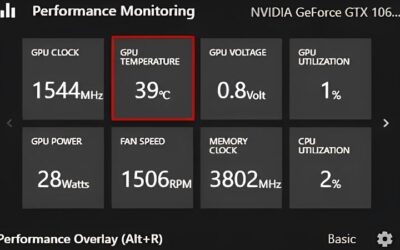
Before diving in, establish a baseline. Look up benchmark results for your exact GPU at your resolution in the games you play, then compare your own frame rates using an overlay tool that shows FPS, GPU usage, temperature, and clock speeds. If your numbers are within 5-10% of published benchmarks, your card is performing normally and the issue may be expectations rather than hardware. If you’re significantly below, work through the causes below.
It’s also worth distinguishing between two different complaints. Low average frame rates point to one set of causes (bottlenecks, throttling, drivers), while stutter and frame-time spikes, where the average looks fine but the experience feels choppy, point to another (VRAM exhaustion, storage streaming, background software, shader compilation). Identifying which problem you actually have narrows your search dramatically. A monitoring overlay that shows frame times, not just average FPS, is invaluable for telling these apart.
Common Cause 1: GPU Not Running at Full Utilization
If your monitoring overlay shows GPU usage well below 95-99% during gaming while frame rates are low, something is holding the card back. This is the classic symptom of a CPU bottleneck or a frame rate cap.
Fixes
- Check for an in-game or driver frame rate limit and remove it.
- Disable V-Sync if it’s capping you to your refresh rate unintentionally.
- If your CPU usage is pegged at 100% while GPU sits low, you have a CPU bottleneck; raising resolution or settings shifts work back to the GPU.
- Ensure background apps aren’t stealing CPU cycles.
Common Cause 2: Thermal Throttling
When a GPU gets too hot, it automatically reduces clock speeds to protect itself, a process called thermal throttling. This is one of the most common causes of performance that starts strong then degrades after a few minutes of play.
| GPU Temp Under Load | Status | Action |
|---|---|---|
| Below 75C | Excellent | No action needed |
| 75-83C | Normal | Acceptable for most cards |
| 84-89C | Hot | Improve airflow, clean dust |
| 90C+ | Throttling likely | Urgent: address cooling |
Fixes
Clean dust from the card and case filters, improve case airflow with additional fans, and ensure the card has breathing room. For persistent heat issues, upgrading to better GPU cooler fans or fitting an AIO GPU cooler can dramatically lower temperatures and restore lost clock speeds.
Common Cause 3: Outdated or Corrupt Drivers
Graphics drivers have an outsized impact on performance, and an outdated or corrupted driver can cost you significant frames or cause stutter. New game releases often ship with optimized driver profiles.
Fixes
- Download the latest driver directly from NVIDIA or AMD.
- For stubborn issues, perform a clean install using a driver removal utility in safe mode, then reinstall fresh.
- Avoid beta drivers unless you’re chasing a specific fix.
Common Cause 4: Insufficient or Faulty Power Delivery
A GPU starved of clean power will throttle, crash, or fail to reach boost clocks. This is increasingly common as flagship cards draw 300-575W. An undersized PSU, a daisy-chained power cable, or a poorly seated connector all cause problems.
Fixes
- Confirm your PSU meets the card’s recommended wattage with headroom.
- Use the native cable, not adapters, and ensure each PCIe connector has its own dedicated lead. A quality GPU power supply cable matters here.
- Reseat the 12V-2×6 connector fully until it clicks; partial seating causes power limits and heat.
Common Cause 5: Wrong PCIe Slot or Settings
If your card is installed in a secondary PCIe slot wired for fewer lanes, or if PCIe link speed is set incorrectly in BIOS, bandwidth is reduced. Make sure the GPU is in the top x16 slot. In BIOS, confirm PCIe is running at the correct generation, and enable Resizable BAR (Smart Access Memory on AMD), which can boost performance in many modern games.
Common Cause 6: Power Management and In-Game Settings
Windows or driver power settings sometimes cap performance to save energy. Set Windows to the High Performance or Ultimate power plan, and in the GPU control panel set the power management mode to prefer maximum performance. Also verify the game is using your dedicated GPU rather than integrated graphics on systems that have both.
Common Cause 7: Background Software and Overlays
Software running in the background can quietly steal performance. Recording and streaming tools, browser tabs playing video, RGB control suites, and even some game launchers consume GPU or CPU resources. Overlays from multiple apps stacking on top of each other are a frequent and overlooked cause of stutter. Close unnecessary background applications before gaming, disable redundant overlays, and check that no recording software is running unintentionally. Malware and crypto miners can also silently consume GPU cycles, so a security scan is worthwhile if performance dropped suddenly with no other explanation.
Common Cause 8: Game-Specific Issues
Sometimes the problem isn’t your hardware at all. A specific game may have a bad patch, a broken setting, or shader compilation stutter that affects everyone. Before blaming your GPU, check whether the issue happens across multiple games or just one. If it’s isolated to a single title, look for known issues, verify the game’s files, clear the shader cache, and confirm you’re not running an unstable beta build. Cross-checking against benchmarks for that exact game tells you whether your numbers are abnormal or simply the game’s reality on your hardware.
A Systematic Troubleshooting Order
- Benchmark and compare to expected results.
- Check GPU utilization and temperatures with an overlay.
- Update or clean-install drivers.
- Address cooling if temps exceed 84C.
- Verify PSU, cables, and connector seating.
- Confirm PCIe slot, BIOS settings, and Resizable BAR.
- Set power plans and in-game settings to maximum performance.
If you’ve worked through all of these and performance is still far below benchmarks, the card or another component may be faulty. Comparing your card against the best graphics cards benchmarks helps confirm whether your numbers are truly abnormal.
Preventing Future Performance Loss
Once you’ve restored performance, a few habits keep it from slipping again. Clean your card and case filters every few months so dust doesn’t slowly raise temperatures. Keep drivers reasonably current, but don’t chase every release; update when a new game you play ships or when you hit a problem. Maintain good case airflow and avoid blocking the card’s intake. And periodically glance at your monitoring overlay during gaming so you catch rising temperatures or falling clocks early, before they become a noticeable problem. A little maintenance prevents most of the gradual performance decline people blame on aging hardware.
Top-Rated Picks


Dropped $0.02


| Product | Brand | Rating | Reviews | Price |
|---|---|---|---|---|
| ARCTIC MX-4 (4 g) – Premium Performance Thermal Paste… | ARCTIC | ★ 4.8 | 104k | $4.99 |
| ARCTIC MX-4 (incl. Spatula, 4 g) – Premium Performanc… | ARCTIC | ★ 4.8 | 71.9k | $5.49 |
| Crucial 8GB DDR4 RAM 3200MHz (PC4-25600), Downclockab… | Crucial | ★ 4.8 | 62.8k | $74.99 |
| AMD Ryzen 5 5600X 6-core, 12-thread unlocked desktop … | — | ★ 4.8 | 30.2k | $177.60 |
| NVIDIA Shield Remote; Voice Search, Motion-Activated,… | — | ★ 4.7 | 10.6k | $25.99 |
Frequently Asked Questions
Why is my GPU usage low but FPS also low?
This usually indicates a CPU bottleneck or a frame rate cap. The GPU is waiting on the CPU or being limited by a setting, so it never runs at full load.
What temperature is too hot for a GPU?
Most cards are fine up to the low 80s Celsius. Sustained temperatures of 90C or higher often trigger thermal throttling and warrant improved cooling.
Can old drivers really cause low performance?
Yes. Drivers include game-specific optimizations, and outdated or corrupt drivers can cost meaningful frames or cause stutter. Keeping them current is one of the easiest fixes.
Does Resizable BAR actually help?
In many modern games it provides a measurable frame rate boost at little cost. Enable it in BIOS if your platform and GPU support it.
How do I know if my power supply is the problem?
Symptoms include crashes under load, sudden shutdowns, or the card failing to reach its rated boost clocks. Confirm your PSU wattage and cable setup meet the card’s requirements.
Conclusion
An underperforming GPU is almost always a solvable problem, not a dead card. Work methodically through utilization, temperatures, drivers, power, PCIe configuration, and power-management settings. In most cases a driver update, better cooling, or a corrected setting restores full performance, letting your graphics card deliver the frame rates you paid for.

Write Your Review
No reviews yet. Be the first to share your experience!