
- Top Pick: Skytech King 95 Gaming PC Desktop, Ryzen 7 9700X 3.8 GHz (5.5GHz Turbo Boost), NVIDIA RTX 5070 12GB GDDR7, 1TB Gen4 SSD, 32GB DDR5 RAM 6000 RGB, 850W Gold PSU, 360mm ARGB AIO, Wi-Fi, Win 11 Home
- Best Value: Skytech Gaming Storm Gaming PC, AMD Ryzen 5 5500 3.6GHz, NVIDIA RTX 3050 6GB VRAM, 1TB NVMe SSD, 16GB DDR4 RAM 3200, 650W Gold PSU, Wi-Fi 5, Windows 11, Desktop
- Premium Choice: Skytech Gaming King 95 Gaming PC, Ryzen 7 9850X3D, RTX 5080
NVIDIA settings are one of the easiest ways to squeeze more performance or better visuals out of the graphics card you already own, yet most people never touch them beyond the defaults. Whether you want higher frame rates in competitive games or a sharper, smoother image in single-player titles, the right configuration makes a real difference at no extra cost. This guide walks through where to find NVIDIA settings, which ones actually matter, how to tune them for performance or quality, and the common mistakes to avoid, so you can get the most from your hardware.
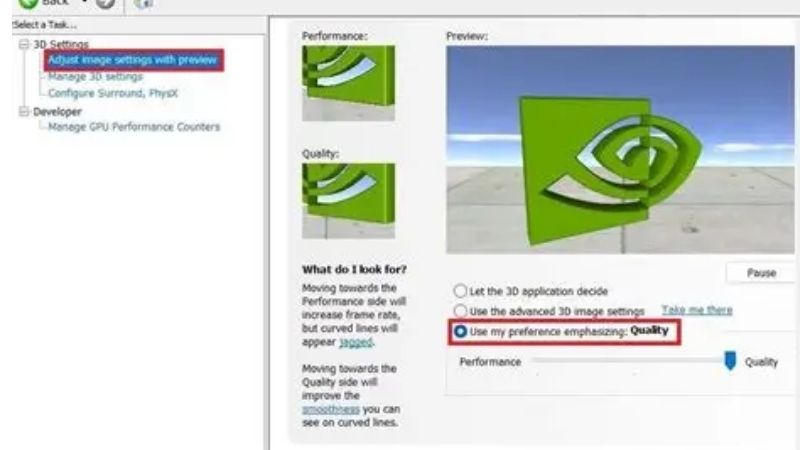
Understanding NVIDIA Settings and Where to Find Them
Before changing anything, it helps to know what you are looking at and where each control lives. NVIDIA splits its settings across two main tools, and only a handful of the many options meaningfully affect your experience. Knowing which is which saves you from guesswork and from tweaking things that make no real difference.
NVIDIA Control Panel vs the NVIDIA App
The classic NVIDIA Control Panel is where the detailed graphics options live, grouped under sections like Manage 3D Settings and Display. It is the tool for fine-grained control over how games render, and it is where most performance and quality tweaks actually happen.
The newer NVIDIA app sits alongside it, handling driver updates, per-game optimization presets, and features like overlays and recording. Think of the app as the friendly front end for updates and quick optimization, and the Control Panel as the deeper toolbox. Most enthusiasts use both, letting the app keep drivers current while the Control Panel handles precise tuning.
For everyday users, the app’s automatic game optimization is a reasonable starting point, while anyone chasing specific results will want to dive into the Control Panel. Understanding this split is the first step to configuring NVIDIA settings with confidence rather than randomly toggling options.
The Settings That Actually Affect Performance
Only a few settings move the needle on frame rates. Power management mode set to prefer maximum performance keeps clocks high, low latency mode reduces input lag in GPU-bound games, and a sensible max frame rate cap can improve consistency and reduce heat and coil whine.
Vertical sync and the choice between it and a variable refresh technology like G-SYNC also matter for smoothness and tearing. These handful of options deliver most of the practical performance impact, which is why focusing on them beats endlessly adjusting minor toggles that barely register in real gameplay.
It also helps to set your display basics correctly first. Making sure your monitor runs at its full resolution and highest refresh rate in the NVIDIA Control Panel is a common oversight, and a screen stuck at a lower refresh rate quietly wastes the performance your card is producing. Confirming these display settings is often the single biggest improvement a new owner can make, before touching anything more advanced.
The Settings That Affect Image Quality
On the visual side, texture filtering quality, anisotropic filtering, and antialiasing settings shape how crisp and clean a game looks, while image scaling and sharpening can improve clarity when upscaling. These control the trade-off between a sharper picture and the frame-rate cost of rendering it.
Most modern games handle these in their own graphics menus, so the Control Panel is best reserved for global defaults or for older titles without robust options. Knowing which quality settings to leave to the game and which to force globally keeps your configuration clean and your results predictable.
A few global options are still worth knowing about, such as ambient occlusion and texture filtering overrides for older titles that lack in-game controls. For modern games, though, the safest habit is to leave quality settings to the game’s own menu and reserve the Control Panel for cases where a title offers no equivalent option of its own, which avoids conflicts that can quietly hurt both quality and performance.
Optimizing NVIDIA Settings for Gaming
With the key options identified, the next step is tuning them toward your goal, whether that is maximum frame rates for competitive play or the best possible image for immersive single-player games. The right balance depends on your monitor, your card, and the kind of games you play most.
Best NVIDIA Settings for Performance
For the highest frame rates, set power management to prefer maximum performance, enable low latency mode, and cap your frame rate slightly below your monitor’s refresh rate to keep pacing smooth. Turn off or minimize heavy quality features you do not need, and let competitive games run at settings that prioritize responsiveness over eye candy.
These changes are most valuable in fast, competitive titles where every frame and millisecond counts. The goal is a stable, high frame rate with low input lag, which feels noticeably more responsive than a higher but inconsistent frame rate weighed down by unnecessary visual effects.
A practical example makes this concrete. In a competitive shooter, capping frames just below your refresh rate, enabling low latency mode, and dialing back heavy post-processing can produce a noticeably crisper, more responsive feel than simply maxing everything out. The improvement is less about the raw number and more about consistency and input response, which is what actually helps you aim and react better.
Best NVIDIA Settings for Visual Quality
For immersive single-player games, the balance shifts toward image quality. Higher texture filtering, anisotropic filtering, and antialiasing sharpen and clean the picture, while enabling a variable refresh technology like G-SYNC keeps everything smooth and tear-free even as frame rates fluctuate.
If your card supports it, upscaling technologies can let you push higher quality settings while maintaining playable frame rates, effectively giving you a better-looking game without a hardware upgrade. The aim here is a rich, smooth image, accepting a modest frame-rate cost in exchange for a more beautiful experience.
The key is matching this to your monitor and card. If your display and GPU can comfortably sustain high frame rates, you have room to push quality further, whereas a more modest system benefits from a lighter touch so frame rates stay smooth. Tuning to your specific hardware, rather than copying someone else’s settings blindly, is what produces the best results for your particular setup.
Common Mistakes and the Pros and Cons of Tweaking
The most common mistake is changing too many settings at once, which makes it impossible to tell what helped or hurt. Another is forcing global quality settings that conflict with in-game options, leading to worse results than leaving them alone. Change one thing at a time and test.
The pros and cons of tuning NVIDIA settings are worth weighing directly. On the plus side, thoughtful configuration can meaningfully improve frame rates, responsiveness, or image quality at no cost, tailoring your experience to your hardware. On the downside, over-tweaking can cause instability, worse visuals, or confusion, and some changes offer negligible benefit. For most people, adjusting the handful of high-impact settings and leaving the rest at sensible defaults is the smart, low-risk approach.
Troubleshooting and Managing NVIDIA Settings
Even a good configuration needs occasional maintenance, since driver updates and game changes can reset or override your choices. A little upkeep keeps your settings working as intended over the long run rather than quietly reverting to defaults.
When Settings Reset or Do Not Apply
If your settings seem to reset, a driver update is often the cause, since major updates can restore defaults. Reapplying your key changes after each significant update is a simple habit that keeps things consistent, and the NVIDIA app can help by remembering per-game optimizations.
When a change does not seem to apply, the culprit is frequently an in-game setting overriding the global one, or the wrong profile being edited. Confirming you are adjusting the correct game profile, and that the game’s own menu is not overriding your choice, resolves most of these frustrations quickly.
It also pays to remember the reset-to-defaults option as a clean starting point. If your configuration becomes tangled and you are unsure what changed, resetting everything and reapplying only the handful of high-impact settings is faster and more reliable than hunting through every menu for a single misbehaving toggle.
Keeping Settings Optimal After Driver Updates
The best long-term habit is keeping drivers reasonably current, then re-checking your key settings afterward. Updating every month or two, rather than with every release, balances stability with staying up to date, and it gives you a natural moment to confirm your configuration survived the update.
Periodically reviewing which settings you actually benefit from also helps, letting you trim options that add complexity without value. Combined with the NVIDIA app’s optimization presets as a baseline, this light maintenance keeps your NVIDIA settings delivering the results you want without constant fiddling.
Frequently Asked Questions About NVIDIA Settings
These quick answers resolve the questions that most often come up when configuring NVIDIA settings.
Will changing NVIDIA settings damage my GPU? No. Standard settings adjustments are safe and reversible, and you can always reset to defaults if something looks wrong.
Should I use the app’s automatic optimization? It is a solid starting point for most users, though enthusiasts chasing specific results will still prefer manual Control Panel tuning.
See More:
- NVIDIA
- NVIDIA DeepStream
- NVIDIA GPU driver update
- NVIDIA GeForce NOW download
- NVIDIA RTX A2000 12GB driver
Final Thoughts on NVIDIA Settings
Tuning your NVIDIA settings is one of the simplest, cheapest ways to get more from the graphics card you already have, whether your goal is higher frame rates, lower input lag, or a sharper, smoother image. Focus on the handful of high-impact options, change one thing at a time, and re-check after driver updates, and you will keep your configuration delivering the experience you want. Start with your display basics, adjust the few options that truly matter, and test one change at a time so you always know what helped. Pair well-chosen NVIDIA settings with a monitor that matches your goals, and your existing hardware will feel noticeably better and more responsive without spending a cent on an upgrade.
As an Amazon Associate we earn from qualifying purchases at no extra cost to you.













Write Your Review
No reviews yet. Be the first to share your experience!