
- Top Pick: ASUS Dual NVIDIA GeForce RTX 5060 Ti 16GB GDDR7 OC Edition Graphics Card, (PCIe 5.0, DLSS 4, HDMI 2.1b, DisplayPort 2.1b, 2.5-Slot, Axial-tech Fan, 0dB Technology), 3 Year Warranty
- Best Value: PNY NVIDIA GeForce RTX™ 5070 Ti Epic-X RGB™ Triple-Fan Graphics Card | 16GB GDDR7, 256-bit, Boost Speed: 2452 MHz, PCIe® 5.0, HDMI®/DP 2.1, 2.98-Slot, NVIDIA Blackwell Architecture, DLSS 4.5
- Premium Choice: msi Gaming RTX 3050 Ventus 2X 6G OC Graphics Card (NVIDIA RTX 3050, 96-Bit, Boost Clock: 1492 MHz, 6GB GDDR6 14 Gbps, HDMI/DP, Ampere Architecture)
Resizable BAR NVIDIA is one of those features people hear about but rarely understand: a setting that can quietly improve gaming performance on modern NVIDIA cards, for free, if your system supports it. The catch is that the benefit varies by game, and enabling it takes a couple of steps in your BIOS and drivers. This guide explains what Resizable BAR actually does, which NVIDIA GPUs support it, how much of a difference it really makes, and exactly how to turn it on, so you can decide whether it is worth enabling on your build.
What Is Resizable BAR on NVIDIA GPUs?
Before enabling anything, it helps to understand what Resizable BAR does and why it exists. It is a feature that changes how your CPU accesses your graphics card’s memory, and while the concept is technical, the practical takeaway is simple: in supported games, it can lift frame rates a little at no cost. Understanding the basics helps you set realistic expectations.
How Resizable BAR Works
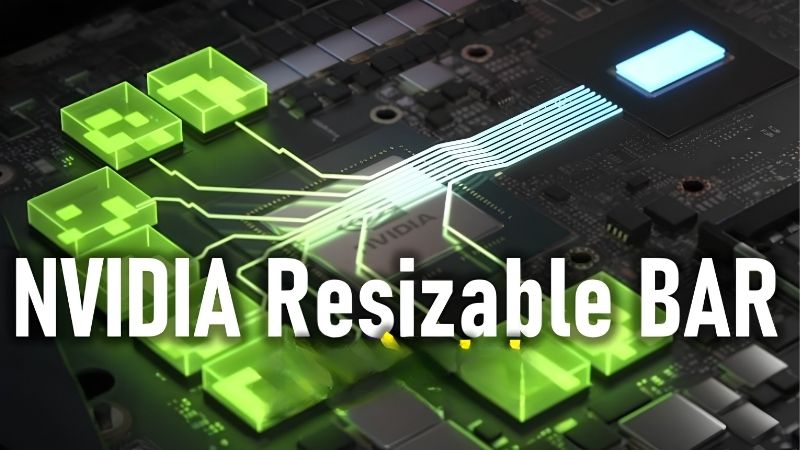
Normally, a CPU can only access your GPU’s memory in small chunks at a time, which adds overhead when large amounts of data need to move. Resizable BAR removes that limitation, letting the CPU access the entire graphics memory at once, which streamlines data transfer and can reduce bottlenecks in certain scenarios.
The result, in games that benefit, is smoother data flow and slightly higher frame rates. It is not a dramatic transformation, but it is a genuine, free improvement when the conditions are right, which is why enthusiasts bother to enable it. Think of it as removing a small traffic bottleneck rather than adding a whole new lane.
Importantly, the benefit is game-dependent, since only titles designed to take advantage of full memory access see gains. This is the single most important thing to understand before you enable it, because it sets sensible expectations for what you will actually notice.
It is also worth knowing that Resizable BAR is NVIDIA’s implementation of a broader industry feature, with AMD offering an equivalent under the Smart Access Memory name. The underlying idea is the same across brands, so if you have read about SAM on an AMD system, Resizable BAR is simply the NVIDIA equivalent, which helps make sense of the sometimes confusing terminology you will see online.
Which NVIDIA GPUs Support It
Resizable BAR support on NVIDIA cards arrived with the RTX 30 series and continues across the RTX 40 and RTX 50 families, so most modern NVIDIA GPUs can use it. Older cards, including the GTX line, generally do not support the feature, which is another reason it is associated with newer builds.
Beyond the GPU, your motherboard and CPU platform also need to support Resizable BAR, and it usually requires an up-to-date BIOS. Because it depends on the whole system rather than the card alone, checking compatibility across your components is a necessary first step before trying to enable it.
The practical way to confirm support is to check three things: that your GPU is an RTX 30 series or newer, that your motherboard has a recent BIOS with the relevant options, and that your CPU platform is reasonably modern. If all three line up, you are almost certainly good to go, and if any one is missing, that component is the piece to address before you expect the feature to work.
The Real Performance Impact
Honest expectations matter here. In supported games, Resizable BAR typically delivers a modest frame-rate uplift, often in the low single-digit to low double-digit percentage range depending on the title and resolution. Some games gain noticeably, others barely move, and a few can even see tiny regressions.
Because the gains are free when they occur and the downsides are minimal, most owners of compatible systems enable it and leave it on. Just do not expect a night-and-day difference; treat it as a small, welcome bonus rather than a transformative upgrade, and you will be satisfied with what it delivers.
It is worth setting this against the marketing you may have seen. Some coverage frames Resizable BAR as a major free upgrade, which oversells it for most titles. The honest picture is that it is a nice, no-cost tweak that helps in some games and does nothing in others, and going in with that realistic expectation is the best way to avoid disappointment when a particular game shows little change.
How to Enable Resizable BAR
Turning Resizable BAR on is a straightforward process once you know the steps, though it does involve your motherboard BIOS. Working through the checks and settings in order ensures you enable it correctly and can confirm it is actually active afterward.
Checking If Resizable BAR Is Active
Before changing anything, check whether the feature is already on. The NVIDIA Control Panel displays Resizable BAR status under its system information, showing whether it is currently enabled, which tells you immediately if you need to do anything at all.
Many recent prebuilt systems and motherboards ship with it enabled by default, so you may find it is already active. If so, you can simply enjoy the benefit with no further action, which is the easiest possible outcome and worth checking before diving into BIOS settings.
If the status shows it is off, that simply means a quick trip to the BIOS is needed, which the next step covers. Either way, this check takes only seconds and saves you from unnecessary changes, so it is always the right place to begin before assuming you need to enable anything at all.
Enabling It in BIOS and Drivers
If it is off, enabling Resizable BAR usually means entering your motherboard BIOS and turning on two related options, commonly labeled Above 4G Decoding and Resizable BAR or Smart Access Memory, then saving and rebooting. An up-to-date BIOS makes these options available, so a BIOS update may be a prerequisite on older boards.
On the software side, keeping your NVIDIA drivers current ensures the feature is properly recognized and applied. Once the BIOS settings are enabled and drivers are up to date, the feature activates automatically in supported games, with no per-game toggling required on your part.
Pros and Cons of Turning It On
The trade-off is easy to summarize. On the plus side, Resizable BAR can deliver a free frame-rate boost in supported games, it stays active automatically once enabled, and it carries essentially no cost to try on a compatible system. For most owners of modern NVIDIA cards, that makes it an easy win worth enabling.
On the downside, the benefit is inconsistent and modest, a few games may see negligible or even slightly negative results, and enabling it requires a BIOS visit that can intimidate newcomers. None of these are serious drawbacks, but they explain why the feature is a nice bonus rather than a must-have, and why it is fine to leave it off if your system does not support it cleanly.
For the vast majority of modern NVIDIA builds, though, the calculus is simple: enable it, confirm it is active, and forget about it. The occasional game that does not benefit costs you nothing, and the many that do give you a little extra performance for free, which is exactly the kind of low-effort win worth taking when it is available to you.
Getting the Most from Resizable BAR
Enabling the feature is only part of the story; knowing when it helps and how to handle the occasional hiccup ensures you get the benefit without frustration. A little context keeps your expectations realistic and your system running smoothly.
When It Helps and When It Does Not
Resizable BAR tends to help most in modern, well-optimized titles designed to use full memory access, and its impact can be larger at higher resolutions where more data moves. In older games or those not built for it, you may see little or no change, which is completely normal.
Because you cannot force a game to benefit, the sensible approach is to enable the feature system-wide and let each title gain whatever it can. There is rarely a reason to disable it, so leaving it on and forgetting about it is the practical strategy for most players.
Troubleshooting Common Issues
If Resizable BAR will not enable, the usual culprits are an outdated BIOS, a missing Above 4G Decoding option, or an unsupported older component. Updating the BIOS and confirming both required settings are present and enabled resolves most cases.
In the rare event a specific game performs worse with it on, you generally do not need to disable the feature entirely, since such cases are uncommon and minor. Keeping drivers and BIOS current is the best insurance against odd behavior and ensures the feature works as intended across your library.
Frequently Asked Questions About Resizable BAR
These quick answers resolve the questions that most often come up about Resizable BAR on NVIDIA cards.
Is Resizable BAR safe to enable? Yes. It is an official, supported feature, and enabling it carries no risk to your hardware on a compatible system.
Do I need to enable it per game? No. Once active in BIOS and drivers, it applies automatically to supported games with no further action.
See More:
- NVIDIA
- NVIDIA DeepStream
- NVIDIA GPU driver update
- NVIDIA GeForce NOW download
- NVIDIA RTX A2000 12GB driver
Final Thoughts on Resizable BAR NVIDIA
Resizable BAR on NVIDIA GPUs is a genuine, free performance feature worth enabling if your modern RTX card and platform support it. The gains are modest and vary by game, but since the feature costs nothing to turn on and stays active automatically, there is little reason not to use it. Check whether it is already enabled, update your BIOS and drivers if needed, and switch on the required settings, and you will let supported games claim whatever extra frames they can. Set realistic expectations, confirm compatibility, and enable it once, and supported games will simply run a touch better from then on. It is a small but genuinely worthwhile way to get a little more from the modern hardware you already own, at no cost and with minimal effort.
As an Amazon Associate we earn from qualifying purchases at no extra cost to you.












Write Your Review
No reviews yet. Be the first to share your experience!