
- Top Pick: 5-in-1 Win Repair & Reinstall Bootable USB Flash Drive – Fix, Recover, or Reinstall Windows 11 (amd64 + arm64) / 10/7 – Includes PE Tools, Driver Pack, Antivirus, Data Recovery & Password Reset | Legacy toolkit for Windows 11/10/7 repair, reinstall, WinPE tools, drivers, antivirus and password reset
- Best Value: ASUS Dual NVIDIA GeForce RTX 3050 6GB GDDR6 OC Edition Gaming Graphics Card – PCIe 4.0, HDMI 2.1, DisplayPort 1.4a, 2-Slot Design, Axial-tech Fan Design, Steel Bracket, 3 Year Warranty
- Premium Choice: ASUS Dual NVIDIA GeForce RTX 5060 8GB GDDR7 OC Edition (PCIe 5.0, 8GB GDDR7, DLSS 4, HDMI 2.1b, DisplayPort 2.1b, 2.5-Slot Design, Axial-tech Fan Design, 0dB Technology), 3 Year Warranty
Nvidia driver rollback is the phrase people type at the worst possible moment: right after a fresh driver turned a stable machine into one that stutters, black-screens, or crashes to desktop mid-game. If that is you, you do not want a ten-minute video — you want a clear, ordered explanation you can follow on the very computer that is misbehaving. This review breaks down how rolling back actually works, when it is the right fix and when it hides a deeper problem, and what real users report after they do it. The goal is to get you stable again, and to help you decide whether the instability is software you can undo or hardware you should plan around.
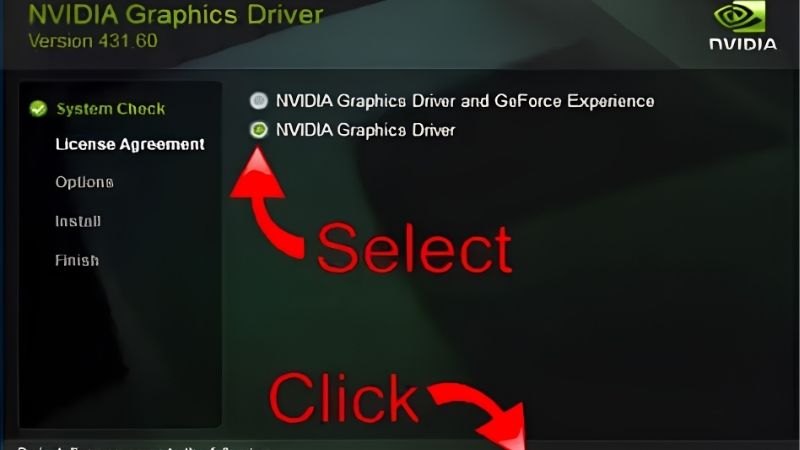
What a driver rollback really does under the hood
A rollback replaces your current display driver with the version you were running before the update. It sounds trivial, but understanding the mechanism tells you why it works for some problems and not others. Windows keeps the previous driver package, and the rollback simply re-registers it as the active one. Knowing that boundary — software swap, nothing more — is what separates a five-minute fix from an hour of chasing the wrong cause.
The difference between a rollback and a clean reinstall
A rollback reuses a package Windows already stored, so it is fast but shallow: leftover files and registry entries from the bad update can remain. A clean reinstall wipes everything first, then installs from scratch. Analytically, that means a rollback is the right first move for a regression introduced by a specific new version, while a clean reinstall is the tool for corrupted or half-installed drivers.
The practical rule most experienced users follow is to try the rollback first because it is quick and reversible. If the crash or stutter survives the rollback, escalate to a full clean install rather than repeating the same step.
There is a small experimental angle here too. Nvidia’s newer driver branches bundle features like updated frame-generation and app-level optimization profiles, so a “bad” update is sometimes a new feature interacting badly with one game. Rolling back tells you quickly whether the regression is broad or tied to a single title.
When Windows Device Manager is enough
For a large share of cases, the built-in rollback is all you need. In Device Manager you open the display adapter, view its properties, and use the driver tab’s rollback option to restore the previous version. It requires no downloads and works even when the machine is unstable, which matters when the very problem is that your system will not stay up long enough to fetch a large installer.
The honest limitation is that the button is greyed out if Windows no longer has a stored previous version — for example, after a clean install or a disk cleanup. In that situation the built-in path is closed and you move to a manual method instead.
When you need the manual, version-specific route
If the one-click rollback is unavailable or does not stick, the reliable approach is to remove the current driver completely and install a specific older version you download yourself. Users who keep a known-good installer on hand can get back to a stable state in minutes, which is exactly why so many enthusiasts save the last driver that worked well for their favorite games.
This route is more work but more precise. You choose the exact version, so you are not at the mercy of whatever Windows happened to cache. For anyone who games seriously, keeping one trusted installer archived is a small habit that pays off the next time an update goes wrong.
One detail worth understanding: for the cleanest possible manual rollback, many users remove the existing driver fully before installing the older one, so no fragments of the bad version linger. That extra step turns a rough revert into a genuinely fresh state, which is why it is the method most often recommended when a simple one-click rollback did not hold. It takes a few more minutes, but it removes the ambiguity of wondering whether leftover files are still causing trouble.
Deciding whether a rollback is the fix you actually need
Not every post-update problem is a driver problem, and this is where a calm diagnostic beats panic. The value of a rollback is that it is a fast, low-risk test: if reverting the driver fixes the issue, you have your answer; if it does not, you have just ruled out the most common cause and can look elsewhere with confidence.
Symptoms that a rollback usually solves
Rollbacks are most effective for problems that appeared immediately after an update and did not exist before it. Classic examples include new stuttering in a game that ran smoothly last week, black screens on wake, or a specific title crashing on launch. The tight timing — stable before, broken after — is the strongest signal that the driver is the culprit.
In these cases users report near-immediate relief, because the regression lived entirely in the new package. If your timeline matches this pattern, a rollback is the correct, efficient first step.
Symptoms a rollback will not fix
Rolling back does nothing for problems rooted in hardware or system health. Random crashes across every application, artifacts on screen at idle, sudden shutdowns under load, or errors that persist across several driver versions all point away from software. Reverting a driver in those situations wastes time and can mask the real issue.
Two frequent underlying causes are an aging or undersized power supply that sags under load, and thermal throttling from clogged coolers. Neither is a driver bug, and no rollback will touch them. Recognizing this early is what stops a quick test from turning into a weekend of frustration.
Pros and cons of an Nvidia driver rollback
Because this is a review, here is a straight look at where a rollback earns its place and where it falls short.
| Pros | Cons |
|---|---|
| Fast and reversible — a low-risk first test | Only helps with update-caused regressions |
| Works even on an unstable system, no big download | Built-in option disappears if no prior version is stored |
| Isolates the cause quickly (software vs hardware) | Can leave leftover files from the bad update |
| Lets you keep a known-good version for gaming | Not a fix for PSU, thermal, or failing-GPU issues |
The takeaway is that a rollback is one of the best diagnostic tools you have, precisely because a clean result — fixed or not fixed — is informative either way. Just do not ask it to solve a problem it was never designed to touch.
After the rollback: staying stable for the long run
Getting stable is step one; staying stable is the part most guides skip. Once a rollback restores order, a few durable habits keep you from repeating the whole exercise next month, and they also help you tell the difference between a driver you can undo and hardware that is quietly reaching its limit.
Locking in the version that works
The simplest safeguard is to pause automatic driver updates for a short window after you find a stable version, so a background update does not silently reintroduce the problem. Many users only update deliberately, after checking that a new branch is well received for the games they actually play.
Keeping the installer for your last known-good version archived is the companion habit. If a future update misbehaves, you are not scrambling to find the right file — you already have it, and the rollback becomes a two-minute task.
Ruling hardware in or out
If instability keeps returning no matter which driver you run, treat that as evidence, not bad luck. Persistent crashes across versions usually mean the power delivery or the card itself is the weak link. A quick check of temperatures under load and a review of whether your power supply comfortably exceeds your system’s draw will often reveal the real bottleneck.
This is the point where a purchase can genuinely fix what software cannot. A power supply with real headroom, better case cooling, or — if the card is simply old and struggling — a modern GPU will do what no rollback ever could. A useful test is to watch your card’s temperature and clock behavior during a demanding game: if clocks drop sharply as temperatures climb, you are looking at cooling or power, not a driver you can revert.
Knowing when to upgrade instead of undo
There is a threshold where rolling back becomes a treadmill. If you are reverting drivers every few weeks just to keep older hardware limping along, the math starts favoring an upgrade over endless maintenance. A newer card not only ends the instability but also brings current features and driver support that older silicon no longer receives well.
If your rollbacks have become a recurring ritual rather than a rare fix, it is worth pricing out a more capable, better-supported GPU or a properly sized power supply. You can compare current models, reviews, and prices on Amazon and decide whether one purchase would retire the problem for good.
See More:
Conclusion
An Nvidia driver rollback is the fastest, lowest-risk way to recover from an update that broke a stable system, and it is just as valuable as a diagnostic: fixed means it was the driver, still broken means look at hardware. Use the built-in Device Manager path first, keep a known-good installer archived, and pause automatic updates once you are stable. But if you find yourself rolling back again and again to nurse aging parts, that pattern is telling you something — the cure is no longer software. When that day comes, compare well-reviewed GPUs and power supplies on Amazon, and turn a recurring headache into a one-time, permanent fix.
Frequently Asked Questions
How do I know a driver is really causing my crashes?
Check Event Viewer for Display driver nvlddmkm stopped responding entries, which indicate a timeout detection and recovery event. If those started immediately after an update and the same games were stable before, the driver is the prime suspect. If they predate the update, look at power delivery, thermals or an unstable overclock instead.
Which version should I roll back to?
Go to the last branch you know was stable on your system rather than simply one release back, since regressions often persist across several hotfixes. Keep the installer for a known good version archived locally. For RTX 50 series cards, remember you cannot go earlier than the R570 branch, since Blackwell is not supported before it.
Do driver hotfixes help instead of rolling back?
Often yes. Nvidia publishes hotfix drivers between WHQL releases specifically to address crash and stutter reports, and they are worth trying before a full rollback. They are less validated than a full release, so treat them as a targeted fix and move to the next stable branch once it ships.
Can I keep the new driver but revert just DLSS behavior?
To a degree. The Nvidia app exposes DLSS model overrides so you can force the older CNN model if the transformer model causes ghosting or a performance drop on your card. Some users also swap the DLSS DLL in a game folder, though that is unsupported and can trip anti-cheat systems.
What if stutter continues on every driver version?
Then look elsewhere. Common causes are shader compilation stutter on first run, a full or fragmented shader cache, background overlay software, PCIe link instability from a poorly seated card or riser, or a power supply that cannot handle transient spikes. Test with a clean Windows profile and stock clocks to isolate the variable.
As an Amazon Associate we earn from qualifying purchases at no extra cost to you.














Write Your Review
No reviews yet. Be the first to share your experience!