
- Top Pick: maxsun Geforce GTX 1650 4GB Video Graphics Card GPU for Computer Gaming PC GDDR6 128-Bit Dual Fan HDMI/DP/DVI 4K HDCP DirectX 12
- Best Value: msi Gaming GeForce GTX 1650 128-Bit HDMI/DP/DVI 4GB GDRR6 HDCP Support DirectX 12 VR Ready ITX Graphics Card (GTX 1650 D6 AERO ITX OCV1) (G165D6AIC1)
- Premium Choice: ASUS Phoenix NVIDIA GeForce GTX 1650 OC Edition Gaming Graphics Card (PCIe 3.0, 4GB GDDR6 Memory, HDMI 2.0, DisplayPort 1.4a, DVI-D, Dual Ball Fan Bearings, Auto-Extreme) (Renewed)


NVIDIA GeForce GTX 1650 driver updates are the simplest way to keep this popular budget card running smoothly, yet many owners are unsure how to install them correctly. You want to know why drivers matter, how to update them the right way, and how to fix common problems, without a long video. This guide walks through the whole process clearly so you can keep your GTX 1650 performing at its best. A few minutes of maintenance now can save hours of troubleshooting later.
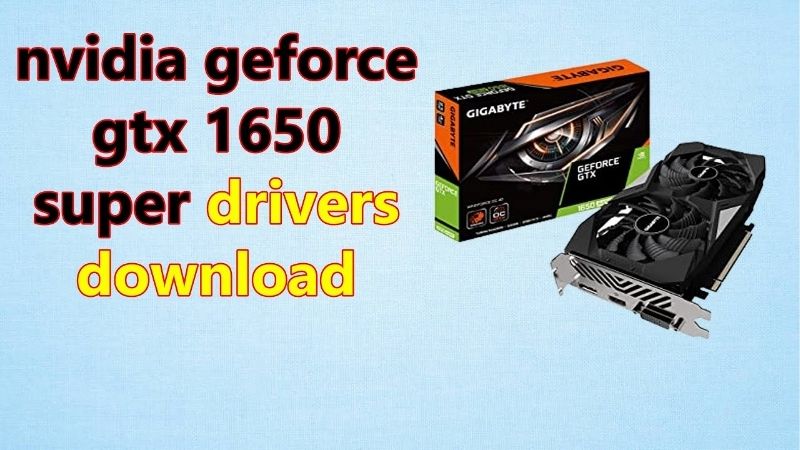
Why the NVIDIA GeForce GTX 1650 Driver Matters
Before updating anything, it helps to understand what drivers actually do and when you need them. This section explains the role of the nvidia geforce gtx 1650 driver, the signs you are overdue for an update, and the difference between the two main driver types, so you approach the process with confidence.
As an Amazon Associate we earn from qualifying purchases at no extra cost to you.





What Drivers Do for the GTX 1650
A graphics driver is the software that lets your operating system and games communicate with the GTX 1650, and it directly affects stability, performance, and compatibility. Keeping it current ensures new games run correctly and that you get any optimizations NVIDIA has released. Those optimizations can noticeably improve stability and performance in the games you actually play.
Out-of-date drivers can cause crashes, visual glitches, and lower frame rates, especially in newly released titles. Regular updates are the easiest maintenance step to keep an older card like the 1650 reliable. For a budget card that many people keep for years, that reliability is worth the few minutes it takes.
Driver read: the driver is the bridge between your hardware and your games, and keeping it current is essential for smooth performance. Neglecting it is one of the most common reasons an otherwise healthy card starts to feel unstable.
Signs You Need a Driver Update
The clearest sign you need a driver update is trouble in a specific game, such as crashes, stutter, or graphical artifacts that appear after a new release. These issues are often resolved by the optimizations in a fresh driver. Updating before you troubleshoot anything else often saves a great deal of frustration.
Other signs include the system prompting you about an available update, or general instability after a major operating system update. When any of these appear, updating the driver is the sensible first troubleshooting step. It is quick, free, and resolves a surprising share of the issues people blame on the hardware.
Signs read: new-game issues, update prompts, and post-update instability all point to a driver refresh as the fix. Recognizing these signs early lets you fix problems before they disrupt your gaming.
Game Ready vs Studio Drivers
NVIDIA offers two driver branches for the GTX 1650: Game Ready drivers, tuned for the latest game releases, and Studio drivers, optimized for creative applications. Most gamers should choose the Game Ready branch for the best day-one game support. For anyone who plays new releases, that timely support is the main reason to stay current.
Studio drivers suit users who prioritize stability in creative software over the newest game optimizations, and they update less frequently. Picking the right branch for how you use the card ensures you get the most relevant improvements. Choosing the wrong branch is not harmful, but it may mean you miss updates tuned for your use.
Branch read: choose Game Ready for gaming and Studio for creative work, and stick with the branch that matches your main use. Switching branches later is possible, but picking correctly from the start keeps things simple.
How to Get and Update the NVIDIA GeForce GTX 1650 Driver
With the basics covered, here is how to actually install the driver the right way. This section walks through the official app, the manual download route, and how to perform a clean install, so you can update your nvidia geforce gtx 1650 driver without trouble. Following these steps in order is the surest way to avoid the pitfalls that trip up first-timers.
Using the Official App
The easiest method is NVIDIA’s official app, which detects your GTX 1650 automatically and offers the latest compatible driver with a single click. It also keeps you notified when new drivers are released, so you never fall too far behind. Those reminders make it easy to stay current without having to check manually.
Simply open the app, check the drivers section, and follow the prompts to download and install. For most users this is the simplest and safest way to stay current without any manual work. For most owners, this hands-off approach is all the driver management they will ever need.
App read: the official app is the recommended route for most owners, handling detection and installation automatically.
Manual Download from the Official Site
If you prefer to install manually, you can download the correct driver directly from NVIDIA’s official website by selecting the GTX 1650 and your operating system. This gives you full control over exactly which version you install. That control is useful if you ever need to match a specific version for a particular game or fix.
Always download from the official source rather than third-party sites, to avoid outdated or unsafe files. Once downloaded, run the installer and follow the on-screen steps to complete the update. A quick restart afterward ensures the new driver is fully applied before you launch a game.
Manual read: the official website is the safe place for manual downloads, and it lets you pick the exact driver version.
Clean Install and Rollback
When updating, the installer offers a clean install option that removes old driver files first, which can resolve lingering issues from previous versions. Choosing this option is wise if you have been experiencing driver-related problems. Clearing out old files this way often resolves issues that a simple update alone would not.
If a new driver ever causes trouble, you can roll back to the previous version through your system’s device settings or by reinstalling an earlier driver. Knowing both options gives you a safety net when experimenting with updates. Knowing you can undo a change removes the risk from trying a newer driver.
Clean install read: use a clean install to clear old problems, and remember rollback is available if a new driver misbehaves.
Troubleshooting and Getting the Most From the GTX 1650
Even with the right driver, occasional issues can appear, and there comes a point where software alone cannot keep up. This section covers common fixes, the trade-offs of frequent updates, and when it makes sense to consider a new card entirely. Knowing where software ends and hardware limits begin saves you from chasing fixes that cannot help.
Common Driver Problems and Fixes
If a driver update causes crashes or black screens, a clean reinstall of the latest driver usually resolves it, clearing any corrupted files. Restarting after installation and ensuring your operating system is current also prevents many common conflicts. Keeping the whole system current, not just the driver, is the surest path to stability.
For persistent game-specific issues, check that both the driver and the game are fully updated, since fixes often require both. Most driver problems on the GTX 1650 are solved with these straightforward steps. Only rarely does a GTX 1650 issue need anything more involved than this basic sequence.
Fixes read: a clean reinstall, a restart, and up-to-date software resolve the large majority of GTX 1650 driver issues.
Pros and Cons of Frequent Updates
Here is the honest pros and cons view of updating your nvidia geforce gtx 1650 driver frequently versus updating only when needed. Finding the right cadence for your habits keeps the card stable without becoming a chore.
Frequent update pros: the best support for new games, security fixes, and performance optimizations as soon as they release. Cons: a small chance a new driver introduces a fresh issue, and the time spent installing.
For most gamers, keeping reasonably current is the right balance, updating for new games you play while not chasing every single release. If a stable driver is working well for your games, there is little harm in waiting a little before updating.
When It’s Time to Upgrade the Card
No driver can add performance the hardware does not have, so if newer games struggle even on the latest driver, the GTX 1650 may simply be showing its age. Driver updates keep it stable but cannot turn it into a modern card. Understanding that limit helps you know when to stop tweaking and consider an upgrade instead.
If you find yourself dropping settings in most new titles despite a current driver, it may be time to consider a modern budget card with more performance and features like DLSS 4. That step delivers gains no driver update ever could. At that point, new hardware is the only real path to better performance.
Upgrade read: when a current driver no longer keeps new games smooth, a newer card is the real fix rather than more updates.
See More:
Final Thoughts on the NVIDIA GeForce GTX 1650 Driver
Keeping your nvidia geforce gtx 1650 driver current is the simplest and most effective way to maintain stable performance, fix game-specific issues, and get the most from this popular budget card. Use the official app or website for safe updates, choose the Game Ready branch for gaming, and lean on clean installs and rollback when troubleshooting. When even the latest driver can no longer keep new games smooth, though, that is the signal the hardware itself has reached its limit. Use the button below to check current prices on modern budget cards if you decide it is time to upgrade beyond the GTX 1650.
Frequently Asked Questions
Is the GTX 1650 still receiving driver updates in 2026?
Yes. The GTX 1650 uses the Turing TU117 chip, and NVIDIA continues to ship Game Ready and Studio drivers for Turing even after ending new feature drivers for Maxwell, Pascal, and Volta. You still receive security fixes and compatibility updates, though new titles rarely get performance tuning for this tier.
Should I install the Game Ready or Studio driver?
Choose Game Ready if you mainly play games, since it ships more often and carries day one profiles for new releases. Choose Studio if you use Blender, DaVinci Resolve, Premiere, or CAD software, because those builds are validated over longer periods for application stability rather than launch day gaming performance.
What is the cleanest way to update the driver?
Download the package from the NVIDIA driver page or the NVIDIA app, then run it and pick Custom install with the clean installation box ticked. This removes stale profiles and control panel settings. If you have driver crashes or are switching from an AMD card, boot into safe mode and run Display Driver Uninstaller first.
Does the GTX 1650 support DLSS or frame generation?
No. DLSS requires tensor cores, which the 1650 lacks even though it is a Turing part. It has no ray tracing cores and cannot use NVIDIA Smooth Motion either. Your upscaling options are the driver level Image Scaling feature, plus vendor neutral options such as AMD FSR and Intel XeSS in supported games.
Why does my GTX 1650 keep crashing after a driver update?
Most cases come down to leftover files from the previous driver, an unstable factory overclock, or an ageing power supply that sags under load. Do a DDU clean install, remove any MSI Afterburner offsets, and test with the card at stock clocks. The 4GB frame buffer can also cause hard stutters mistaken for crashes.











Write Your Review
No reviews yet. Be the first to share your experience!