
G-Sync Pulsar is an NVIDIA monitor technology that combines backlight strobing, which sharpens moving images, with variable refresh rate, which keeps motion smooth when frame rates fluctuate. Historically you had to pick one or the other, because strobing wanted a fixed refresh rate and variable refresh depends on a changing one.
- The motion blur problem Pulsar targets
- Why strobing and variable refresh conflicted
- What Pulsar changes
- At a glance: three ways to handle motion
- Who benefits most
- Hardware and setup needs
- Trade-offs to expect
- Practical buying checklist
- Getting the best motion clarity in practice
- Related guides
- Frequently Asked Questions
If you play fast competitive games on a high-refresh display and care about motion clarity, Pulsar is the feature to understand. If you mostly play slower games, watch video, or do office work, the benefit is smaller and the trade-offs may not be worth it. This guide covers how the technology works, what it changes, who gains from it, and what hardware it needs.
The motion blur problem Pulsar targets
Modern LCD and OLED monitors use a “sample and hold” method: each frame stays on screen until the next arrives. When your eyes track a moving object, the held image smears across your retina, which you perceive as blur even if the panel’s pixels switch instantly. This is called persistence blur, and higher refresh rates reduce it only gradually.
Backlight strobing attacks the problem differently. The backlight flashes briefly once per frame, so each image is visible for only a short instant, and the eye sees a crisper object. Older implementations went by names such as ULMB, and monitor makers used their own labels. They delivered noticeably sharper motion, but with limitations.
Why strobing and variable refresh conflicted
Variable refresh rate technologies, including G-Sync and G-Sync Compatible, let the monitor refresh when each frame is ready, removing tearing and stutter from uneven frame times. Strobing, however, works best with a fixed rhythm. If the monitor changes its refresh interval every frame, a fixed pulse can look brighter or dimmer from frame to frame, producing visible flicker and brightness shifts.
As a result, traditional strobing modes were usually unavailable while variable refresh was active. Players who wanted the sharpest motion had to cap frame rates at the monitor’s refresh rate and accept tearing or latency trade-offs, or they accepted blur and used variable refresh.
What Pulsar changes
Pulsar is NVIDIA’s approach to running a strobed backlight together with variable refresh. The monitor adjusts the strobe pulse as the refresh rate varies, aiming to keep perceived brightness consistent and to place the flash at a good moment in each refresh. NVIDIA has described the resulting motion clarity as comparable to a much higher refresh rate, and monitor makers repeat similar claims. Treat those as manufacturer statements and look for reviews of the specific monitor you are considering.
Pulsar is a feature of the monitor itself, built into the display’s scaler and backlight control, together with a supported GeForce GPU and driver. It is not something you can enable on an ordinary monitor.
At a glance: three ways to handle motion
| Mode | Motion clarity | Tearing control | Main drawback |
|---|---|---|---|
| Plain variable refresh | Standard sample-and-hold blur | Yes, through variable refresh | Persistence blur remains |
| Fixed-rate backlight strobing | Sharper moving images | Limited, usually needs fixed frame rate | Reduced brightness, flicker, and conflict with variable refresh |
| G-Sync Pulsar | Strobed clarity with variable refresh | Yes | Needs a supported monitor; strobing trade-offs still apply |
Who benefits most
Competitive and fast-paced players
Fast shooters and racing games involve rapid camera movement, where being able to read an enemy’s outline or a distant road sign during motion is valuable. These players already chase high frame rates, so they are the natural audience.
Players with uneven frame rates
If your frame rate bounces between, say, a moderate and a high number depending on the scene, variable refresh keeps things smooth. Pulsar lets you keep strobing on in that situation instead of switching it off.
Players who may not benefit
Anyone sensitive to flicker or eye strain should be careful, since strobing introduces rapid light pulses even if they are too fast to notice consciously. People who mostly play slow, cinematic, or turn-based games gain little, and strobing lowers peak brightness, which matters for HDR content and bright rooms.
Hardware and setup needs
- A Pulsar-capable monitor. Check the monitor’s specification sheet for the G-Sync Pulsar label. Availability is limited to a small number of models, and the list changes over time.
- A supported GeForce graphics card and recent driver. NVIDIA publishes which GPU generations are supported. Look at the current documentation for your card, and connect with the cable and port the monitor specifies, typically DisplayPort for full refresh rate.
- Enough frame rate to benefit. Strobing is more effective when the game runs at a steady, high frame rate. Pushing very high refresh rates in a demanding game may require a powerful GPU or lower settings.
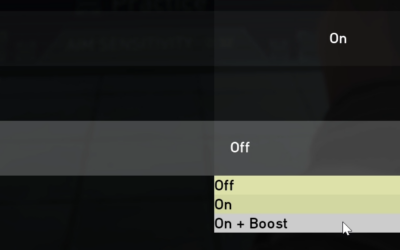
- Settings in the monitor menu and the NVIDIA app. Pulsar is normally switched on through the monitor’s on-screen display or a driver control panel option, so look at the manufacturer’s manual for the exact steps.
Trade-offs to expect
Even with variable refresh working, strobing has costs. Overall brightness drops because the backlight is only on for a fraction of each frame, so manufacturers usually boost backlight power during pulses to compensate, and the net result still depends on the model. Crosstalk, a faint double image caused by pixel response not finishing before the flash, can appear in some parts of the screen. Flicker visibility depends on pulse rate and your own sensitivity.
Because Pulsar uses variable pulse behavior, results may differ between frame rate ranges. Monitor reviews that test the response curve at several frame rates are more informative than a headline claim. HDR support with strobing is also model specific, so confirm what the monitor allows before buying with HDR in mind.
Practical buying checklist
- Confirm the exact monitor model carries the Pulsar certification, not just a generic strobing mode.
- Look at the supported refresh range for Pulsar, which may be narrower than the monitor’s full range.
- Read independent reviews for crosstalk, brightness, and flicker behavior.
- Make sure your graphics card and drivers are on the supported list.
- Plan for the frame rates you can actually reach in the games you play.
Getting the best motion clarity in practice
Strobing performs best when the game delivers a steady frame rate that sits comfortably within the monitor’s supported range. Dropping frames below that range can bring back stutter, and rendering far above it wastes effort. Using an in-game frame cap a few frames under the maximum refresh rate is a common way to keep variable refresh active and the frame delivery consistent.
Brightness settings deserve attention too. Strobing darkens the picture, so raise the backlight level inside the monitor menu if the image looks dim, and compare against the non-strobed mode in a game you know well. If you switch between desktop work and gaming, create separate monitor profiles or use the quick-access presets that many displays include, so you can turn strobing off for text-heavy tasks.
Finally, keep the monitor firmware and the graphics driver current, since the manufacturer may refine pulse timing and compatibility through updates. Look at the current documentation for your model to see how updates are delivered.
Related guides
- What Does Manage Gpu Performance Counters Mean On Nvidia Hardware
- Low Profile Nvidia Graphics Cards For Small Form Factor Pcs
- Nvidia App Error Your System Configuration Is Not Supported
Frequently Asked Questions
Is G-Sync Pulsar the same as ULMB?
No. ULMB and similar modes are fixed-rate strobing that usually disables variable refresh, while Pulsar is designed to strobe the backlight while variable refresh stays active. Both aim to reduce motion blur.
Do I need an NVIDIA graphics card for G-Sync Pulsar?
Yes, Pulsar is an NVIDIA technology that works with supported GeForce cards and drivers. The monitor itself must also be a Pulsar model. Check NVIDIA’s current compatibility information for your GPU.
Does Pulsar make my games run faster?
No. It does not change frame rate. It changes how motion looks on the display, so objects appear clearer while moving.
Will strobing hurt my eyes?
Most people do not notice the pulses at high rates, but some are sensitive and may feel strain or headaches. If you notice discomfort, turn strobing off or lower the setting, and speak with a health professional if symptoms persist.



Write Your Review
No reviews yet. Be the first to share your experience!