
- Top Pick: GIGABYTE GeForce RTX 5060 WINDFORCE OC 8G Graphics Card, Cooling System, 8GB 128-bit GDDR7, PCIe 5.0, Manufactured by NVIDIA, DisplayPort & HDMI – Video Output Interface, GV-N5060WF2OC-8GD Video Card
- Best Value: ASUS Prime GeForce RTX 5070 12GB GDDR7 OC Edition Gaming Graphics Card
- Premium Choice: GIGABYTE GeForce RTX 5070 Ti Eagle OC ICE SFF 16G Graphics Card, 16GB 256-bit GDDR7, PCIe 5.0, WINDFORCE Cooling System, GV-N507TEAGLEOC ICE-16GD Video Card
The NVIDIA overlay is the panel that slides over your game to let you record a clip, take a screenshot, check performance statistics or apply a filter without alt-tabbing. It has existed in some form since the ShadowPlay days, and it survived the move from GeForce Experience to the NVIDIA app, which has replaced the older client for most users. What has not stayed perfectly constant is the keyboard shortcut used to summon it.
That inconsistency is the reason this question keeps getting asked. A guide written three driver versions ago confidently states a keystroke, the reader presses it, nothing happens, and they conclude the overlay is broken when it is simply bound elsewhere or switched off. The reliable approach is to know where the binding is stored, verify it for your own installation, and then set it to something you will remember.
Quick Verdict
Alt plus Z has been the long-standing default for opening the overlay across both GeForce Experience and the NVIDIA app, and on most installations it still is. Treat it as a strong first guess rather than a permanent fact: open your NVIDIA software’s settings, find the overlay or keyboard shortcuts section, and read the currently assigned key. That takes fifteen seconds and removes all the guesswork, including for the secondary shortcuts that control recording and screenshots.
| Action | Commonly shipped default | Where to verify or change it | Notes |
|---|---|---|---|
| Open or close the overlay | Alt + Z | NVIDIA app settings, overlay section | The main entry point to everything else |
| Save instant replay clip | Alt + F10 | Overlay settings, keyboard shortcuts | Instant replay must be enabled first |
| Start or stop manual recording | Alt + F9 | Overlay settings, keyboard shortcuts | Writes to your configured capture folder |
| Screenshot | Alt + F1 | Overlay settings, keyboard shortcuts | Separate from Windows print screen |
| Performance and statistics overlay | Alt + R | Overlay settings, performance panel | Metrics shown vary by hardware and game |
| Game filters / photo mode | Alt + F3 / Alt + F2 | Overlay, filters panel | Support depends on GPU generation and title |
Every value in that table is the combination NVIDIA has most often shipped, not a guarantee. Defaults have changed between releases and can also be altered by a previous installation carrying settings forward, so the middle column matters more than the second.
How to Do It
1. Confirm the overlay is switched on at all
The overlay has a master toggle, and it is off on some installations, particularly after a clean driver install or a custom setup where the user deselected components. Open the NVIDIA app, go into its settings, and look for the in-game overlay switch. If that is off, no shortcut in the world will bring the panel up. Turning it on usually takes effect immediately, though a game already running may need to be restarted.
2. Read the assigned shortcut rather than guessing
In the same settings area you will find the keyboard shortcut list. This is the authoritative source for your specific version. Do not rely on a screenshot from a review or a video, because the layout has been reorganised more than once during the transition away from GeForce Experience. If your installation still uses the older client, the equivalent list lives in its overlay settings under a keyboard shortcuts heading.
3. Rebind it to something you will not lose
You can assign a different combination, and there is a good argument for doing so. Alt-based shortcuts collide with in-game bindings in a surprising number of titles, particularly strategy games and simulators that use Alt liberally for modifier actions. Picking a combination with a key you never use in-game, or moving the overlay to a spare mouse button through your mouse software, eliminates a whole class of “it stopped working” problems.
4. Check for competing overlays
Discord, Steam, Xbox Game Bar, and various hardware vendor utilities all inject their own overlays and all claim hotkeys. Two overlays fighting over the same combination produces unpredictable results, where sometimes one appears and sometimes neither does. If your chosen combination is also bound in Discord or Steam, change one of them. Xbox Game Bar in particular is worth reviewing in Windows settings, since it is enabled by default and shares a similar feature set.
5. Make sure the game is in a compatible display mode
Overlays generally behave best in borderless windowed or standard full-screen modes. Some older titles running in exclusive full screen, and some launchers or emulators, do not accept overlay injection at all. If your shortcut works on the desktop but not inside one particular game, the display mode or the game’s anti-tamper layer is the likely culprit rather than your keybind.
6. Test on the desktop first
The overlay can be opened outside a game. Press the combination on the Windows desktop and see whether the panel appears. This single test splits your problem neatly in two. If it opens on the desktop but not in a game, the issue is game-specific or a hotkey conflict. If it never opens anywhere, the overlay is disabled, the software is not running, or the binding is not what you think it is.
What the Overlay Actually Gives You
Once it is open, the overlay is a launcher for several distinct features, and knowing which ones you care about determines whether the shortcut is worth memorising. Instant replay is the standout: it keeps a rolling buffer of the last few minutes of gameplay in the background, so pressing the save shortcut writes out the thing that just happened rather than requiring you to have predicted it. For anyone who plays multiplayer games, that is the feature that justifies the whole application.
Manual recording and screenshots are self-explanatory but worth configuring rather than accepting blind. Bitrate, resolution and frame rate for capture all live in the overlay’s recording settings, and the defaults favour file size over quality in some configurations. The capture folder location is set here too, which matters if your system drive is small.
The performance overlay shows frame rate, GPU and CPU utilisation, temperatures and, on supported combinations of game and hardware, latency metrics. It is genuinely useful when diagnosing whether you are GPU-bound or CPU-bound, which is the question that determines whether lowering graphics settings will help you at all. Exactly which metrics are available depends on your driver version and whether the game exposes the necessary data, so do not be alarmed if your readout has fewer rows than one you saw in an article.
Filters sit on top of the rendered image and adjust colour, contrast, sharpening and similar properties, with newer AI-assisted options restricted to specific RTX hardware. They are applied live and are visible in recordings, which is worth remembering before you capture a clip through a heavily stylised filter.
Related guides: best nvidia control panel settings for gaming, digital vibrance nvidia how to adjust, how to fix nvidia overlay not working, nvidia app vs geforce experience, nvidia reflex settings explained
Thinking About a GPU Upgrade?
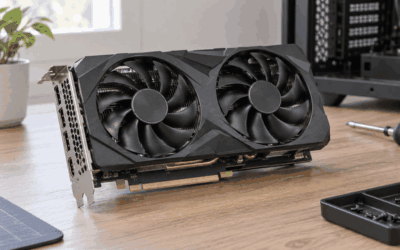
If driver and app tweaks are not enough, these in-stock RTX 50-series cards cover the main budget tiers.
As an Amazon Associate we earn from qualifying purchases at no extra cost to you. Prices as of Oct 5, 2026 and subject to change.


FAQ
What is the NVIDIA overlay shortcut?
Alt plus Z is the combination NVIDIA has shipped as the default for years and it works on most installations. Because defaults have shifted between versions and can be reassigned, the definitive answer for your PC is in the overlay’s keyboard shortcut settings.
Can I change the overlay hotkey?
Yes. The keyboard shortcut list in the overlay settings lets you rebind the main toggle along with recording, replay and screenshot keys. Choosing a combination that no game uses avoids conflicts.
Does the overlay work without an NVIDIA account?
With the NVIDIA app, yes. Unlike GeForce Experience, which required a login for most functionality, the newer client does not force you to sign in to use the overlay and its capture features.
Why does the overlay open on my desktop but not in my game?
Usually a hotkey conflict with an in-game binding or another overlay, or a display mode the overlay cannot inject into. Try a different keybind first, then switch the game to borderless windowed mode to test.
Does having the overlay open hurt performance?
Having the panel open pauses nothing and costs very little, but active recording does consume GPU encoder capacity and disk bandwidth. On most modern GeForce cards the hardware encoder handles this with minimal impact on frame rate.










Write Your Review
No reviews yet. Be the first to share your experience!