
The best computer for Blender in 2026 is a desktop with a high-core-count CPU, an NVIDIA GPU with at least 12GB of VRAM, 32–64GB of RAM, a fast NVMe SSD, and a cooling system designed for sustained workloads—not simply the computer with the highest advertised boost clock.
As an Amazon Associate we earn from qualifying purchases at no extra cost to you.


Quick picks by Blender workload
| Blender user | Recommended specification | Why it fits |
|---|---|---|
| Modeling and general learning | 8–12 core CPU, RTX GPU with 8–12GB VRAM, 32GB RAM, 1TB NVMe SSD | Responsive viewport performance without overspending on rendering hardware |
| Animation and character work | 12–16 core CPU, RTX GPU with 12–16GB VRAM, 64GB RAM, 2TB NVMe SSD | Handles heavier scenes, texture libraries, rig evaluation, and previews |
| Cycles GPU rendering | 16-core CPU, RTX 5080- or RTX 5090-class GPU, 64GB RAM, 2TB SSD | CUDA and OptiX acceleration make GPU rendering the priority |
| Large simulations and CPU rendering | 16–32 core CPU, 64–128GB RAM, strong air or liquid cooling, 2TB-plus SSD | Fluid, smoke, cloth, geometry nodes, and CPU rendering can scale with cores and memory |
| Portable professional workstation | Apple silicon Mac with 36GB or more unified memory, or a Windows laptop with RTX GPU and 32GB RAM | Mobility is useful, but GPU memory and sustained cooling matter more than thinness |
How to choose the best computer for Blender
1. Match the CPU to your actual work
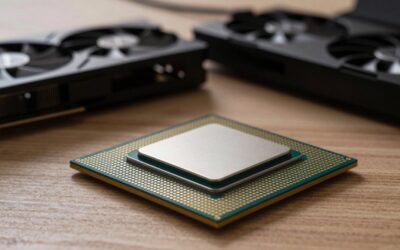
CPU performance affects modeling, modifier evaluation, animation playback, simulation preparation, shader compilation, file loading, and CPU-based rendering. A modern 8- or 12-core processor is enough for most hobbyists and many freelance artists. A 16-core processor is a better long-term choice if Blender is part of your job.
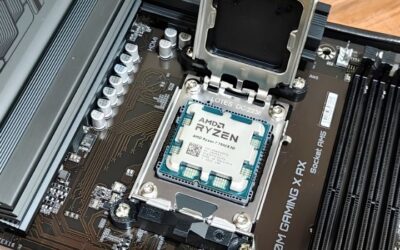
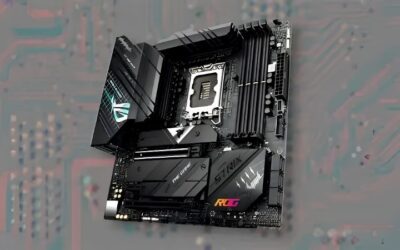
For a strong all-round desktop, look for processors such as the AMD Ryzen 9 9950X or an equivalent current 16-core desktop CPU. For substantially heavier CPU rendering or simulation work, AMD Ryzen Threadripper systems provide more cores and memory bandwidth, although the platform, motherboard, and cooling cost considerably more.
Do not choose only by core count. Blender also benefits from fast single-core performance, particularly when manipulating objects, scrubbing animation, and working with complex modifier stacks. The best balance is a recent high-clocked CPU with enough cores for your render engine.
- 8–12 cores: modeling, sculpting, moderate animation, and occasional rendering.
- 16 cores: the most versatile choice for professional Blender work.
- 24–32 or more cores: worthwhile for CPU rendering, large simulations, and batch production.
2. Prioritize GPU VRAM before raw GPU speed
For Cycles, an NVIDIA RTX graphics card is usually the safest performance choice because Blender supports CUDA and OptiX acceleration. OptiX can use the card’s ray-tracing hardware to accelerate supported rendering workloads. The RTX 5080 and RTX 5090 are suitable high-end choices when their memory capacity fits the scene; lower-cost RTX models are sensible for learning and smaller projects.
VRAM is a hard limit. A scene that exceeds available VRAM may fail to render, lose acceleration, or require features such as out-of-core memory that are much slower. A faster 8GB card is not automatically better than a slower 16GB card for a large textured scene.
- 8GB VRAM: modeling, low-complexity animation, and modest Cycles scenes.
- 12–16GB: a practical target for professional 3D work, 4K textures, and complex materials.
- 24GB or more: large environments, dense geometry, heavy displacement, volumetrics, and demanding production scenes.
As a rough planning example, a 4K texture stored as RGBA at 8 bits per channel uses about 64MB before mipmaps and application overhead. A material using four such maps can consume roughly 256MB per texture set. Fifty uniquely textured assets could therefore need more than 12GB just for base texture data, before geometry, acceleration structures, render buffers, and Blender itself are counted. Compression and shared textures reduce this figure, but the calculation explains why VRAM disappears quickly.
3. Choose RAM for scene size, not just system requirements
Blender can start with 16GB of RAM, but 32GB is the sensible minimum for a new desktop. Choose 64GB if you use 4K textures, geometry nodes, particle systems, simulations, compositing software, or a browser full of reference material. Professional artists working with large environments should consider 128GB.
System RAM still matters when rendering on the GPU. The complete scene must be prepared by Blender, and CPU-side data, caches, textures, and other applications occupy memory even when final ray tracing happens on the graphics card. If Blender begins swapping to an SSD, viewport interaction and simulation times can become dramatically worse.
4. Use separate storage for projects and cache
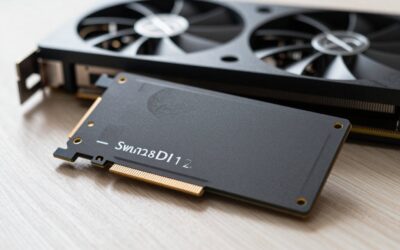
A PCIe NVMe SSD makes Blender launch, asset browsing, saving, and cache access much faster than a hard drive. A 1TB drive is adequate for the application and active projects; 2TB is more comfortable because Blender projects, texture libraries, simulation caches, and rendered frames grow quickly.
A useful arrangement is a fast 1TB system SSD plus a separate 2TB or larger project and cache SSD. Keeping cache traffic away from the operating-system drive can improve consistency during long simulations. Use a hard drive or network storage for completed projects and backups rather than active cache files.
Storage capacity can be estimated from frame output. A 4K PNG frame might occupy 10–30MB depending on the image, while an EXR can be substantially larger. At 24 frames per second, even a modest 20MB average is about 480MB per second of finished animation, or roughly 28GB per minute before alternate passes and backups. Plan for working files, not only the final export.
Desktop, workstation, or laptop?
Desktop: best performance per dollar
A desktop is usually the best computer for Blender when performance, cooling, and upgrades matter. It can accommodate a larger GPU, more storage, full-size memory modules, and a CPU cooler that maintains performance during hours of rendering. A well-balanced midrange-to-high-end desktop generally offers better sustained performance than a similarly priced laptop.
Workstation: best for memory-heavy production
Threadripper-class workstations make sense when simulations, CPU rendering, or huge scenes are central to your work. Their advantages include many cores, high memory capacity, and extensive PCIe connectivity. They are excessive for basic modeling, and the cost should be justified by shorter production times or the need for large memory capacity.
Laptop: best when mobility is non-negotiable
Choose a laptop with a discrete RTX GPU, not merely a powerful CPU. Check the GPU’s actual VRAM, its maximum power limit, and whether memory can be upgraded. Two laptops with the same GPU name can perform differently because of cooling and power settings.
Apple silicon MacBook Pro and Mac Studio systems can be excellent for modeling, animation, and many rendering workflows, especially when quiet operation and unified memory are valuable. However, unified memory is shared by the CPU and GPU, so select a larger memory configuration if working with large scenes. For CUDA-dependent add-ons or a primarily OptiX-based pipeline, Windows with an NVIDIA GPU is the safer compatibility choice.
Cooling and power: the overlooked performance specifications
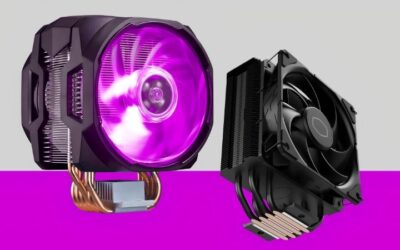
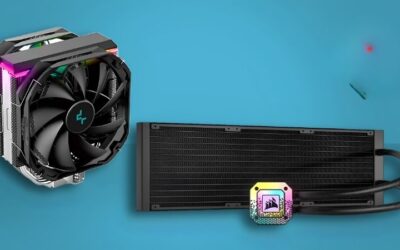
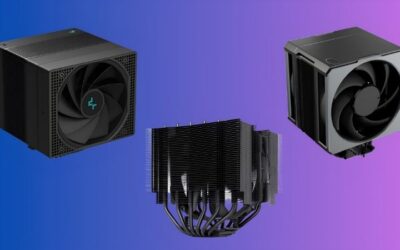
Blender rendering can load every CPU core for hours. A 16-core processor paired with a small cooler may initially look fast but reduce clock speeds once heat builds up. Select a high-quality tower air cooler or a reliable 240mm-or-larger liquid cooler, a case with front-to-back airflow, and at least two intake fans plus one exhaust fan.
Power-supply capacity should include headroom for transient GPU demands. For example, a system with a 450W GPU, a 170W CPU, 100W for the motherboard, drives, fans, and USB devices, and a 20% reserve needs approximately:
(450 + 170 + 100) × 1.2 = 864W.
That points to a quality 1,000W power supply rather than an inadequately sized 750W unit. A high-end RTX 5090-class build may require a larger supply depending on the card manufacturer’s recommendation and the rest of the system. Use a recent, reputable power supply with the correct native GPU connector rather than relying on questionable adapters.
Decision matrix: which build should you buy?
| If you mainly… | Spend more on… | Do not overspend on… | Ideal target |
|---|---|---|---|
| Model hard-surface objects | CPU responsiveness and a good monitor | Extreme GPU rendering power | 12-core CPU, 32GB RAM, 12GB GPU |
| Render Cycles animations | GPU speed and VRAM | Very high CPU core counts | 16-core CPU, 16GB-plus GPU, 64GB RAM |
| Run smoke or fluid simulations | CPU cores, RAM, and cooling | Small-form-factor cases | 16–32 core CPU, 64–128GB RAM |
| Build large environments | VRAM, RAM, and SSD capacity | Thin laptops with soldered memory | 16GB-plus GPU, 64GB RAM, 2TB SSD |
Recommended specification tiers
- Entry level: modern 6–8 core CPU, RTX GPU with 8GB VRAM, 32GB RAM, and a 1TB NVMe SSD. Suitable for learning, modeling, and modest scenes.
- Best overall: 12–16 core CPU, RTX GPU with 12–16GB VRAM, 64GB RAM, 2TB NVMe storage, and robust cooling. This is the sweet spot for most serious Blender users.
- Professional rendering: 16-core CPU, RTX 5080- or RTX 5090-class GPU, 64–128GB RAM, multiple NVMe drives, and a 1,000W-class power supply where required.
- Simulation workstation: Threadripper-class CPU, 128GB RAM or more, fast scratch storage, and a GPU selected according to the scene’s VRAM needs.
Final buying advice
For most people, the best computers for Blender are balanced 16-core desktop systems with 64GB of RAM, a 12–16GB NVIDIA RTX GPU, a 2TB NVMe SSD, and serious cooling. Move toward a larger GPU when Cycles rendering dominates your day; move toward more CPU cores and RAM when simulations or CPU rendering dominate. Before buying, confirm GPU VRAM, memory upgrade options, power-supply capacity, cooler clearance, and motherboard expansion—not just the processor model printed on the specification sheet.
Ready to decide? Our #1 pick for 2026 is the Modeling and general learning.
Live price & availability on Amazon.

Write Your Review
No reviews yet. Be the first to share your experience!