
- Top Pick: CPU GPU Performance. Benchmark
- Best Value: NextGen Tech Breakdown – AI Tools, GPU Benchmarks & Web Performance Experiments
- Premium Choice: Building Next-Generation GPU Software with CUDA 13.3 and C++26: A Comprehensive Guide to Parallel Algorithms, GPU Performance Engineering, Memory … … (MasterWorks Technology Series Book 5)

Save under $90
Prime
Editor's Pick
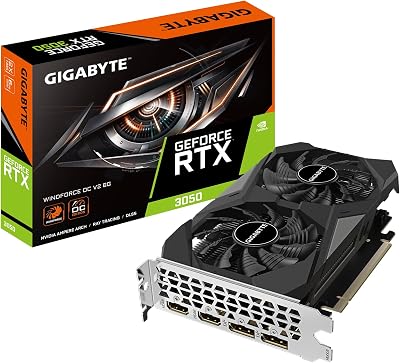
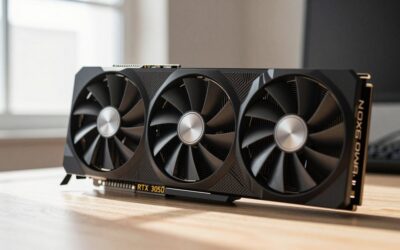
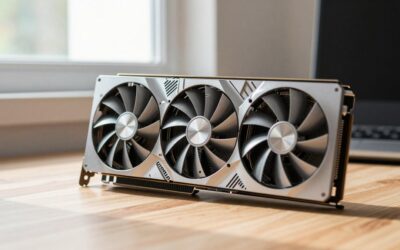
GIGABYTE GeForce RTX 3050 WINDFORCE OC V2 6G Graphics Card, 2X WINDFORCE Fans, 6GB GDDR6 96-bit GDDR6, GV-N3050WF2OCV2-6GD Graphics Card
Running a 3dmark gpu benchmark is the industry-standard way to measure exactly how fast your graphics card is and compare it against millions of other systems. For 25 years 3DMark has been the number reviewers, overclockers, and builders trust, turning a vague sense of performance into a hard, repeatable score. This guide breaks down which tests to run, how to read your results, whether the free version is enough, and how to use your score to decide if a GPU upgrade is actually worth it in 2026.
What the 3DMark GPU Benchmark Offers
3DMark, made by UL Solutions, is a suite of GPU and CPU benchmarks that render demanding scenes and score your hardware on how well it handles them. Because everyone runs the same standardized test, the resulting number is directly comparable across different PCs and years. Owners value it as the quickest objective way to prove a card’s real performance rather than guessing from spec sheets alone.
As an Amazon Associate we earn from qualifying purchases at no extra cost to you.


The Main 3DMark Tests Explained
The suite offers several tests aimed at different hardware. Steel Nomad is the current flagship, a heavy 4K rasterized benchmark that succeeded Time Spy and brings modern GPUs to their knees, while Steel Nomad Light targets lighter laptops and handhelds at 1440p.
Time Spy remains a popular DirectX 12 standard at 1440p, and Fire Strike is the long-running DirectX 11 test for older or budget cards. Together they cover most rasterized gaming scenarios across a wide range of hardware.
For ray tracing, Speed Way is the DirectX 12 Ultimate test and Port Royal is the dedicated ray-tracing benchmark, both measuring the effects modern games increasingly rely on. Choosing the right test for your card’s class is the first step to a meaningful score. Running a high-end benchmark on a budget card produces a crushingly low number that tells you little, which is why matching the test to the hardware matters as much as running it at all.
Live Monitoring and Game FPS Prediction
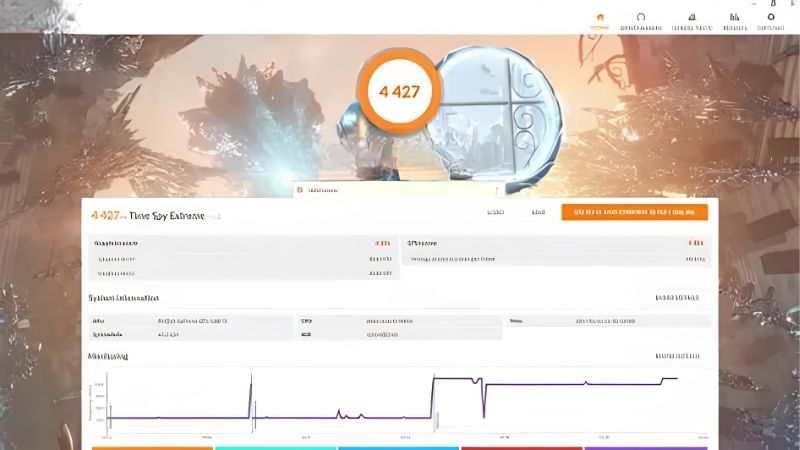
3DMark does more than spit out a number. During each run it charts GPU and CPU temperatures, clock speeds, and frame rates over time, so you can see exactly how your hardware behaves under sustained load rather than just the final result.
One of its most practical features is game frame-rate prediction, which estimates the FPS you can expect in popular real games based on your score. This translates an abstract number into the answer buyers actually want, such as whether a card will hit a smooth target in a specific title.
The result screens also place your score within 3DMark’s database of over 50 million results, showing how your system compares to identical hardware worldwide. That context instantly tells you whether your card is performing normally or underdelivering. If your score sits well below others with the same hardware, that gap is a clue to investigate cooling, drivers, or background software before assuming the card itself is at fault.
Free Demo vs Paid Edition
3DMark offers a free demo on Steam that includes the core benchmarks, letting you run tests like Steel Nomad, Time Spy, and Speed Way and get a comparable score at no cost. For most people checking their card, the free version is genuinely enough.
The paid Basic Edition, around $35 and frequently discounted, unlocks custom settings, HDR testing, the stress test, Explorer and VS modes, and the ability to change resolution and quality for deeper analysis. It is aimed at enthusiasts who want more control.
For a one-off performance check the free demo suffices, while overclockers, reviewers, and system builders who benchmark regularly get real value from the paid edition’s extra tools. Match the version to how often you plan to test. For the vast majority of buyers who simply want to check a card once or compare an upgrade, the free demo delivers everything needed, and the paid edition only earns its keep with repeated, detailed use.
Using the 3DMark GPU Benchmark in Practice
A score only matters when you know what to do with it, so here is how owners put 3DMark to work. From picking the right test to validating an overclock to justifying an upgrade, the tool fits the key moments of GPU ownership.
Which Test to Run for Your GPU
Matching the test to your hardware gives the most useful result. For a modern mid-range or high-end card, Steel Nomad or Time Spy is the right choice, stressing the GPU meaningfully without being irrelevant to its class.
For a budget or older card, Fire Strike or Steel Nomad Light produces a score that reflects how the card actually performs rather than crushing it into a meaningless low number. The app helpfully recommends a suitable test automatically.
If ray tracing matters to you, run Speed Way or Port Royal to see how your card handles those effects specifically. Choosing the appropriate test is what makes your score both accurate and comparable to the right group of GPUs. Comparing a Steel Nomad score against other Steel Nomad results, rather than mixing test types, is what keeps the comparison honest and the conclusions trustworthy.
Comparing Your Score and Deciding on an Upgrade
The real power of 3DMark is comparison. After running a test, you can line up your score against other GPUs in the database to see exactly where your card sits and how much faster a potential upgrade would be.
This turns an upgrade decision into objective data rather than speculation. If a new card scores only a few percent higher than yours, the upgrade may not be worth the money, whereas a large gap signals a genuinely worthwhile jump in performance.
Owners use this to time purchases sensibly, upgrading when the measured gain justifies the cost rather than on impulse. When the numbers show a meaningful leap, a modern GPU delivers a performance boost you can actually quantify beforehand. That foresight is genuinely valuable in a pricey market, since it lets you avoid paying for a marginal upgrade and hold out for one where the measured gain clearly justifies the cost.
Stress Testing for Stability and Overclocks
3DMark’s stress test loops a benchmark repeatedly to check stability, which is invaluable after building a PC, upgrading a card, or applying an overclock. If the card crashes, hangs, or shows artifacts during the loop, it points to a reliability or cooling problem.
For overclockers, the workflow is straightforward: record a baseline score and temperature, apply the overclock, then re-run to measure the performance gain and confirm temperatures stay safe. A higher score with stable thermals proves the overclock is worthwhile.
System builders use the same approach to certify a new PC before handing it over, catching a faulty component or inadequate cooling early. It turns stability from a hope into a documented result. For anyone who has chased an intermittent crash, that documented evidence is invaluable, pointing to whether the problem is thermal, power-related, or a genuinely faulty component.
Is the 3DMark GPU Benchmark Worth It? Pros, Cons and Advice
With its tests and uses laid out, the verdict comes down to how you plan to use it. This section gives the honest pros and cons, notes solid alternatives, and explains how to get 3DMark.
3DMark Pros and Cons at a Glance
The pros are strong: a genuinely industry-standard, repeatable score, a huge comparison database, tests for every class of hardware, live monitoring, game FPS prediction, and a free demo that covers most needs. It is the reference point the whole PC world understands.
The cons are minor. Synthetic scores do not always perfectly match every real game, the full toolset sits behind a paid edition, and the sheer number of tests can confuse newcomers unsure which one to run.
Net assessment: for measuring and comparing GPU performance objectively, 3DMark is the standard for good reason, and the free demo makes it accessible to everyone. Pair it with real game testing for the complete picture.
Who Should Use It and Handy Alternatives
3DMark suits anyone who wants an objective performance number, from buyers comparing upgrades to overclockers chasing stability to builders certifying a system. If you care about measuring your GPU accurately, it belongs in your toolkit.
For alternatives, Unigine Superposition and Heaven offer free stress and benchmark options, and many modern games include built-in benchmarks that reflect real-world performance in that specific title. Using these alongside 3DMark gives a fuller view.
Most enthusiasts combine 3DMark’s standardized score with an in-game benchmark or two, getting both a comparable number and a real-game reality check. Each fills a gap the other leaves.
How to Get 3DMark and Final Recommendation
Get 3DMark from Steam or the official UL Solutions site, starting with the free demo to see whether its tests meet your needs before considering the paid edition. Watch for the frequent sales if you decide the extra tools are worth it.
Once you have a score, use the comparison database to judge honestly whether an upgrade is worth the spend, rather than buying on impulse. Let the measured gap guide the decision.
For a trustworthy, comparable way to measure your graphics card, the 3DMark GPU benchmark is an easy recommendation. Use the link to compare current graphics cards if your score shows an upgrade is worthwhile, and pick the one that delivers the boost you need.
See more:
- amd driver auto-detect tool
- nvidia geforce rtx 5080 best buy
- TechPowerUp GPU-Z
- nvidia china
- nvidia etf price
Conclusion
The 3dmark gpu benchmark remains the industry standard for measuring and comparing graphics performance, offering the right test for every card, live monitoring, game FPS prediction, and a database of millions to benchmark against. Its free demo covers most needs, while the paid edition adds stress testing and deeper tools for enthusiasts. Whether you are validating an overclock or weighing an upgrade, it turns performance into hard numbers. If your score shows a worthwhile jump is available, use the link above to compare modern graphics cards and choose the upgrade that fits your build.
Frequently Asked Questions
Which 3DMark test should I run for a modern GPU?
Steel Nomad is the current heavy rasterised test and replaced Time Spy Extreme as the 4K-class benchmark, with Steel Nomad Light for lower-end hardware. Use Port Royal or Speed Way for ray tracing, and Time Spy if you need a score comparable with older reviews. Running one relevant test consistently is more useful than running all of them once.
Do I need the paid version of 3DMark?
The free Basic Edition on Steam covers the main tests in default settings and is enough to compare against online results. The Advanced Edition unlocks custom runs, stress tests, unlimited loops, and detailed frame charts. If you only want a one-off score to verify a new card is performing normally, Basic is sufficient.
Why is my 3DMark score lower than others with the same GPU?
Usual causes are CPU differences affecting the combined and CPU sub-scores, thermal or power limits on a partner card, resizable BAR being disabled in BIOS, an old driver, running the GPU in a PCIe x8 or x4 slot, or background software. Check the GPU clock and temperature graphs in the result detail before assuming a fault.
Can 3DMark tell me if my GPU is faulty or unstable?
The stress test in the Advanced Edition loops a scene twenty times and reports a frame rate stability percentage. Below about ninety-seven percent suggests thermal throttling or an unstable overclock. Visual artifacts, driver resets or crashes during the run are strong signals of a memory or power delivery problem worth investigating before an RMA.
Does 3DMark performance translate to real game frame rates?
Roughly, but not exactly. Synthetic benchmarks are consistent and repeatable, which makes them good for comparing hardware or validating an overclock. Real games vary in engine, API, VRAM demand and CPU dependency. Use 3DMark for relative comparison and to confirm your card performs as expected, then test the games you actually play.

Write Your Review
No reviews yet. Be the first to share your experience!